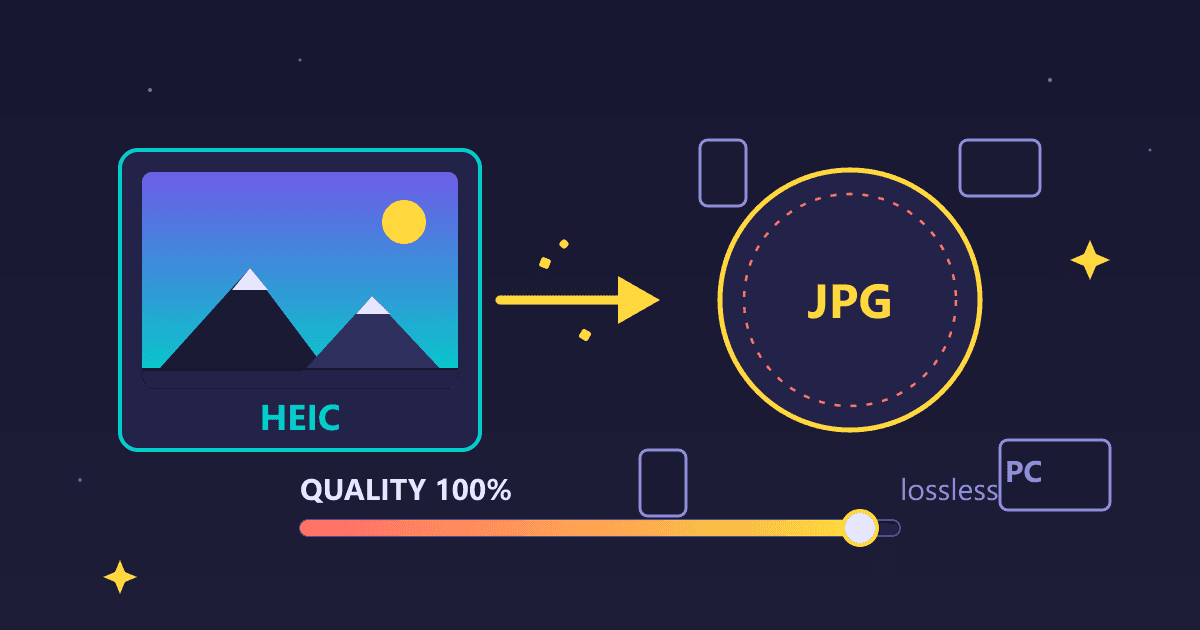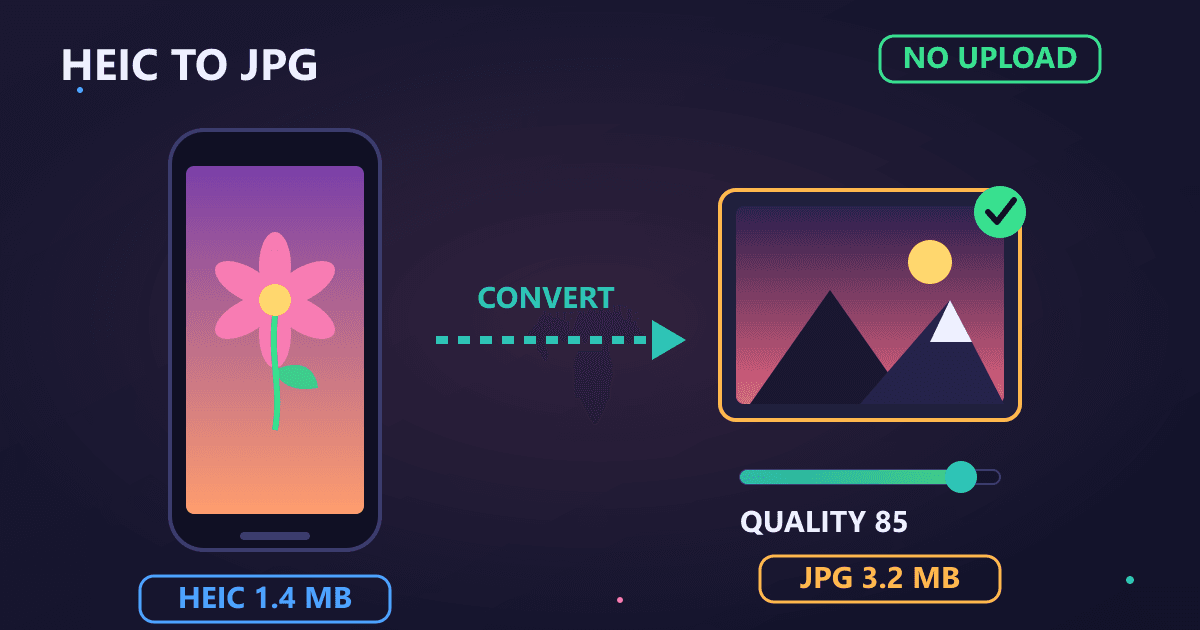
HEIC is Apple's default iPhone photo format that creates 40-50% smaller files than JPG with equal or better quality. The problem: HEIC files won't open on many Windows computers, websites, or non-Apple devices. To convert HEIC to JPG free, use a browser-based converter like practicalwebtools.com/convert/heic-to-jpg that processes files locally without uploading to servers. Use quality 85-90 for most purposes - files will be slightly larger than HEIC but universally compatible with all devices and platforms.
Last Thanksgiving, my aunt sent me 47 photos of our family gathering. Beautiful moments I wanted to add to our family website. I downloaded them from her iCloud share link, opened the folder, and stared at files I couldn't use.
Try HEIC to JPG — free, no sign-up, and it runs entirely in your browser.
Every single photo had a .HEIC extension.
My photo editing software didn't recognize them. My website CMS rejected the uploads. When I tried to email a few to my grandmother, her ancient Windows computer showed error messages instead of photos.
I spent the next two hours figuring out how to convert HEIC to JPG, testing various online tools that either wanted me to install software, charged subscription fees, or uploaded my family photos to servers in who-knows-where. Most were frustratingly slow or had file limits.
Eventually, I built our HEIC to JPG converter that processes files locally in your browser. No server uploads. No privacy concerns. No limits. All 47 photos converted in about 3 minutes, and they worked everywhere I needed them.
That frustrating experience taught me that HEIC is simultaneously better than JPG technically while being worse practically. It's a format optimized for iPhone storage that creates headaches for everyone else. Let me explain the HEIC situation, why it causes so many problems, and exactly how to convert your iPhone photos to universal JPG format.
What Is HEIC and Why Does My iPhone Use It?
In 2017, Apple made a decision that would frustrate millions of people for years to come: they switched the default iPhone camera format from JPG to HEIC.
Why Did Apple Switch From JPG to HEIC?
To be fair to Apple, HEIC (High Efficiency Image Container) has legitimate technical advantages:
File Size: HEIC images are 40-50% smaller than equivalent JPG files at similar visual quality. For a phone constantly taking photos and videos, this matters. An iPhone with 128 GB storage can hold roughly twice as many HEIC photos as JPG photos.
Image Quality: HEIC supports 16-bit color depth compared to JPG's 8-bit. In practice, this means better color accuracy and smoother gradients, especially in challenging lighting conditions.
Modern Codec: HEIC uses HEVC (H.265) compression, which is dramatically more efficient than JPG's decades-old compression algorithm.
I tested this myself by shooting the same scene in both formats:
- JPG photo: 3.2 MB, good quality
- HEIC photo: 1.4 MB, indistinguishable quality
- File size savings: 56%
For users storing thousands of photos, that compression efficiency matters. My iPhone currently has 8,247 photos in HEIC format. If they were JPG, they'd occupy roughly double the storage space.
So Apple's technical logic is sound. The problem is the rest of the world.
Why Can't I Open HEIC Files on Windows?
HEIC works beautifully within Apple's ecosystem. iPhone to Mac to iPad? Seamless. But step outside that walled garden, and you hit walls constantly.
Windows Compatibility: Windows 10 and 11 can view HEIC files, but only after installing HEVC Video Extensions from the Microsoft Store (often a paid extension). Many Windows users don't know this extension exists, so they just see error messages when they try to open iPhone photos.
Even with the extension installed, many Windows programs don't support HEIC:
- Older versions of Photoshop: No support
- Many web browsers: Can't display HEIC
- Windows-based photo printing kiosks: Reject HEIC files
- Email clients: May not display HEIC attachments
Web Compatibility: Most websites don't accept HEIC uploads. I've tested dozens of popular platforms:
- WordPress: Rejects HEIC uploads
- Facebook: Accepts but converts server-side
- Instagram: Accepts but converts
- Most web forms: Reject HEIC files
- Email attachments: Often won't display
Professional Software: Even professional tools lag behind:
- Adobe Lightroom Classic: Required until recently
- Older Photoshop versions: No support
- Most professional printing software: JPG only
- Video editing software: Limited HEIC support
What Problems Does HEIC Cause in Real Life?
That Thanksgiving photo incident wasn't unique. HEIC creates daily friction:
Sharing with non-Apple users: My friend with a Samsung phone receives HEIC files as blank images in text messages unless I convert them first.
Professional photography: I shoot product photos on my iPhone for clients. But client websites, printing services, and marketing platforms all expect JPG. Every photo requires conversion.
Archival and backup: Cloud storage services display HEIC files, but downloading and viewing on different devices causes problems. Converting to JPG ensures photos remain viewable regardless of future format support.
Printing: Online printing services and local print shops overwhelmingly prefer JPG. Many reject HEIC entirely, while others charge extra processing fees for format conversion.
The pattern is clear: HEIC is technically superior but practically problematic. Unless you live entirely within Apple's ecosystem, you need to convert HEIC to JPG regularly.
How Do I Convert HEIC to JPG?
After converting thousands of HEIC files over the past few years, I've refined the process to take under 30 seconds per batch of photos.
What Are the Best Ways to Convert HEIC to JPG?
You have several approaches for HEIC to JPG conversion, each with tradeoffs:
Cloud-Based Converters (Upload to servers):
- Pros: No software installation
- Cons: Privacy concerns, upload time, file size limits, potential data mining
- My take: Avoid for personal photos
Desktop Software:
- Pros: Processes locally, often batch-capable
- Cons: Requires installation, OS-specific, often costs money
- My take: Good if you convert frequently, but overkill for occasional needs
Browser-Based Converters (Local processing):
- Pros: No upload, no installation, works anywhere, completely private
- Cons: Requires modern browser (which 99%+ of users have)
- My take: Best option for most people
I use our HEIC to JPG converter because it processes files locally in your browser. Your photos literally never leave your computer. No server uploads, no privacy concerns, no file limits.
Step 2: Prepare Your HEIC Files
Before converting, organize your photos:
For Single Photos:
- Just have the HEIC file ready to drag and drop
- No preparation needed
For Multiple Photos (the common case):
- Create a folder with all HEIC files you want to convert
- Keep them organized (e.g., "Thanksgiving_2024", "Vacation_Photos")
- Note the total number so you can verify all converted
For Large Batches:
- Our converter handles hundreds of files simultaneously
- Your browser's processing power is the only limit
- Expect roughly 1-3 seconds per photo on modern computers
Step 3: Convert Using Browser-Based Processing
The actual conversion process is straightforward:
-
Navigate to the converter: Go to HEIC to JPG converter
-
Upload your HEIC files:
- Drag and drop files onto the converter
- Or click to browse and select files
- Select multiple files at once (Ctrl+Click or Cmd+Click)
-
Wait for processing:
- Progress bar shows conversion status
- Processing happens entirely in your browser
- No upload delay because files aren't sent anywhere
-
Download converted JPG files:
- Individual download for single files
- ZIP download for multiple files
- Files retain original filenames with .jpg extension
Processing Time Reality Check:
- Single photo: 1-2 seconds
- 10 photos: 10-20 seconds
- 50 photos: 45-90 seconds
- 100+ photos: 2-3 minutes
Those 47 Thanksgiving photos? Converted in about 2.5 minutes total.
What Quality Setting Should I Use for HEIC to JPG Conversion?
When converting HEIC to JPG, you make quality tradeoffs. Here's what I've learned:
Understanding JPG Quality Settings:
JPG uses lossy compression, meaning you trade file size for quality. The quality setting ranges from 0 (smallest file, worst quality) to 100 (largest file, best quality).
After extensive testing, here's my quality guide:
Quality 95-100: Near-lossless
- Use for: Professional photography, client work, prints larger than 8x10
- File size: Similar to HEIC original
- Visual difference: Imperceptible
Quality 85-90: High quality (my default)
- Use for: Most purposes, web use, standard printing, sharing
- File size: Slightly larger than HEIC, but still reasonable
- Visual difference: Imperceptible in normal viewing
Quality 75-80: Good quality
- Use for: Web thumbnails, email attachments, casual sharing
- File size: Smaller than HEIC
- Visual difference: Slight if you zoom in, fine for normal viewing
Quality 60-70: Acceptable quality
- Use for: Maximum compression needs, low-priority archives
- File size: Very small
- Visual difference: Noticeable in detailed areas
I use quality 85-90 for almost everything. The file size is reasonable, and the quality is indistinguishable from the original for normal use.
Practical Example:
iPhone photo from my library:
- Original HEIC: 1.8 MB
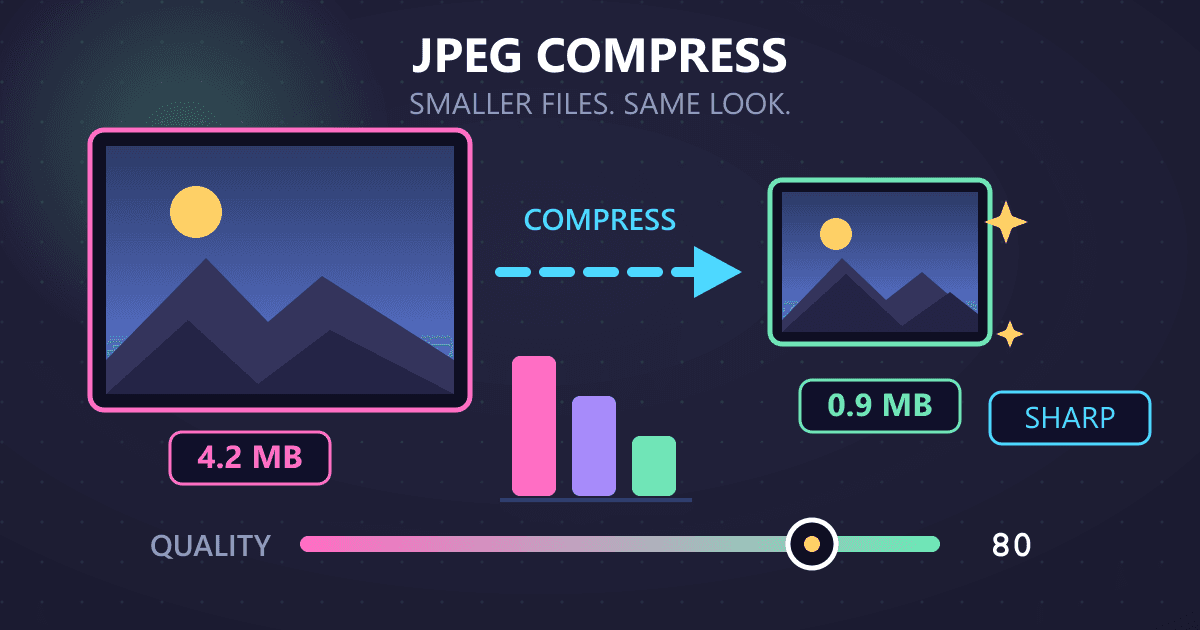
- JPG at quality 100: 4.2 MB (larger than HEIC)
- JPG at quality 90: 2.1 MB (slightly larger, excellent quality)
- JPG at quality 85: 1.7 MB (smaller than HEIC, excellent quality)
- JPG at quality 75: 980 KB (much smaller, still good quality)
For that photo going on our family website, I used quality 85. Perfect quality for web viewing, smaller file size than the original HEIC.
Step 5: Verify Your Converted Files
Always verify conversions before deleting originals:
Visual Quality Check:
- Open several converted JPG files
- View at 100% zoom
- Look for compression artifacts or quality issues
- Compare to originals if concerned
File Count Verification:
- Confirm you converted all intended files
- Check that each HEIC has a corresponding JPG
- Verify filenames match (except extension)
Compatibility Testing:
- Try opening JPG files in your target application
- Upload a test file to your intended destination
- Verify colors and quality meet your needs
Storage Consideration:
- Compare file sizes before/after
- Decide whether to keep original HEIC files
- Consider storage costs vs. archival value
I keep original HEIC files for professional work but delete them for casual photos once I've verified the JPG conversions.
Real-World HEIC Conversion Scenarios
Let me walk through specific situations where HEIC conversion solves real problems.
Scenario 1: Sharing Photos With Non-Apple Family Members
My grandmother uses a Windows 7 computer from 2012. It cannot open HEIC files, period.
The Problem: Every time I wanted to share iPhone photos with her, she'd email back saying the attachments wouldn't open. Frustrating for both of us.
The Solution: Now I batch-convert photos before sharing:
- Select photos in iPhone Photos app
- AirDrop to my Mac (or email to myself)
- Convert all HEIC files to JPG using our converter
- Email JPG files to grandmother
She opens them immediately. No tech support calls. No frustration.
Time Investment: 2 minutes for a batch of 20 photos.
Scenario 2: Uploading to WordPress and Other CMS
I manage content for several websites. All use WordPress. WordPress doesn't support HEIC uploads without plugins.
The Problem: I photograph products and content with my iPhone. High-quality photos, but in HEIC format. WordPress rejects uploads with an unhelpful error message.
My Workflow:
- Photograph products on iPhone
- Export photos to computer
- Batch-convert to JPG at quality 90
- Upload JPG files to WordPress media library
- Use in posts and pages
Optimization Step: For web use, I sometimes convert HEIC to JPG at quality 85, then use WordPress's image optimization. Final file sizes are 40-60% smaller than the original HEIC while maintaining excellent visual quality for web display.
Time Saved: Previously, I used workarounds (screenshot conversions, third-party apps). Current workflow: 30 seconds per batch of photos.
Scenario 3: Professional Printing Services
Last month, I wanted to print canvas photos as gifts. The printing service's website had clear requirements: "JPG or PNG files only. HEIC not supported."
The Problem: I had selected 12 perfect photos from various iPhone photo sessions. All HEIC. The upload form rejected every single one.
The Solution:
- Exported the 12 photos from iCloud Photos
- Converted all 12 to JPG at quality 95 (high quality for printing)
- Uploaded JPG files successfully
- Received beautiful canvas prints
Quality Consideration: For printing, I use quality 95-100. The slight increase in file size is worth the guarantee of maximum print quality. These canvas prints looked fantastic, with no visible quality loss from the HEIC-to-JPG conversion.
Scenario 4: Email Attachments for Work
I photograph whiteboards and documents during meetings for sharing with colleagues. Some colleagues use Windows, some use Android, some use Mac. HEIC creates compatibility issues.
The Problem: Several colleagues reported they couldn't open my photo attachments. Their email clients showed broken image icons or error messages.
The Solution: Established a routine:
- Photograph whiteboards/documents on iPhone
- Immediately convert to JPG at quality 80 (good for document photos)
- Email JPG versions
Now everyone opens attachments without issues. No compatibility complaints.
Additional Benefit: JPG files at quality 80 are smaller than HEIC for these document photos, so emails send faster and don't hit size limits.
Scenario 5: Archiving Family Photos
I'm digitizing and organizing decades of family photos. The archive includes scanned prints, digital photos from various cameras, and recent iPhone photos.
The Problem: Mixed formats complicate organization. HEIC files won't open on some devices. Future format support is uncertain.
My Archival Strategy: Convert everything to JPG for the master archive:
- HEIC iPhone photos → JPG at quality 95
- RAW camera files → JPG at quality 95
- Keep directory structure and filenames consistent
- Backup to multiple locations in JPG format
Reasoning: JPG has been stable for 30+ years. It will open on any device, now or decades from future. HEIC support is uncertain long-term, especially on non-Apple devices.
For archival photos I want accessible to future generations, JPG is the safe choice.
What Are Common HEIC Conversion Mistakes to Avoid?
After helping many people with HEIC conversion problems, I've seen these mistakes repeatedly:
Mistake 1: Using Cloud Converters With Personal Photos
Many people Google "convert HEIC to JPG" and use the first result. Often, these are cloud-based services that upload your photos to their servers.
Why This Matters: Your personal and family photos are uploaded to servers you don't control. What happens to them? Are they stored? Used for training AI models? Sold to data brokers? You'll never know for sure.
Better Approach: Use browser-based converters like ours that process files locally. Your photos never leave your computer. Zero privacy risk.
Mistake 2: Converting at Too-Low Quality
To save space, some people convert HEIC to JPG at quality 60-70. The file sizes are tiny. The quality often isn't acceptable.
The Problem: Once you convert to low-quality JPG, you can't recover the lost quality. If you deleted the original HEIC, you're stuck with degraded photos.
Better Approach: Start at quality 85-90. If file sizes are too large for your needs, you can always re-convert at lower quality. But keep the higher-quality version as your master.
Mistake 3: Deleting HEIC Originals Immediately
I've talked to people who converted their entire photo library to JPG, deleted all HEIC originals, and then discovered problems with the conversion.
The Problem: If something goes wrong (wrong quality setting, corrupted conversion, etc.), your originals are gone forever.
Better Approach: Keep HEIC originals until you've verified:
- All files converted successfully
- Quality is acceptable
- JPG files work in your intended applications
- File count matches originals
I keep HEIC originals for at least a month after conversion, just to be safe.
Mistake 4: Not Organizing Before Converting
Converting 500 random HEIC files into a single folder of JPG files creates chaos.
The Problem: You lose any organization from your original photo structure. Photos from different events, dates, or categories all jumble together.
Better Approach: Organize first, convert second:
- Create folders by event/date/category
- Convert each folder separately
- Maintain the same folder structure for JPG files
- Name conventions (e.g., "2024_Thanksgiving_", "Vacation_Hawaii_")
Mistake 5: Converting HEIC to PNG Instead of JPG
Some people think PNG is "better" than JPG because it's lossless. For photos, this usually isn't true.
The Problem: PNG files of photographs are massive. That HEIC photo that was 1.8 MB becomes a 12 MB PNG file. Same visual quality, 6x larger file.
Better Approach: Use JPG for photographs. PNG is designed for graphics, screenshots, and images with text or sharp edges. For continuous-tone photographs, JPG is almost always the right choice.
Exception: If you need transparency or will be heavily editing the photo, PNG makes sense. But for sharing, web use, or archival, JPG is better.
Special Considerations for Specific Use Cases
Different situations call for different conversion approaches.
For Professional Photography
When I convert iPhone photos for client work, I use maximum quality:
- Quality setting: 95-100
- Color space: sRGB for web, Adobe RGB for print (if your converter supports it)
- Resolution: Keep original dimensions
- Metadata: Preserve EXIF data when possible
Why: Clients may need to use these photos in multiple ways: web, print, large format. Starting with maximum quality ensures flexibility.
For Web and Social Media
Social media platforms re-compress uploaded images anyway, so ultra-high quality is wasted bandwidth:
- Quality setting: 80-85
- Resize: Match platform specifications (e.g., Instagram: 1080px wide)
- Color space: sRGB (standard for web)
- File size target: Under 1-2 MB
Optimization Workflow:
- Convert HEIC to JPG at quality 85
- Resize to platform dimensions using an image converter
- Upload
This produces fast-loading images that look excellent on social media.
For Email Attachments
Email has size limits (typically 25 MB total). Optimize for smaller files:
- Quality setting: 75-85 depending on importance
- Consider resizing if photos are very large
- Batch-convert multiple attachments for consistency
Tip: If attachments still exceed email limits, consider compressing the JPG files or using a file-sharing service instead.
For Archival Storage
Future-proof your photo archives:
- Quality setting: 95 (near-lossless while keeping reasonable file sizes)
- Format: JPG (universal compatibility)
- Organization: Structured folders with clear naming
- Backup: Multiple locations (cloud + external drives)
Long-Term Thinking: JPG will open on virtually any device for decades to come. HEIC may or may not have long-term support outside Apple's ecosystem. For archives meant to last, JPG is the safer bet.
Advanced Tips for Power Users
If you convert HEIC files regularly, these tips will save time and improve results:
Tip 1: Batch Processing Workflow
For converting large photo libraries:
- Organize by event/date in folders
- Convert one folder at a time
- Verify each batch before moving to the next
- Name consistently (e.g., "2024-05-Family-")
- Backup both HEIC and JPG until verified
I converted my entire 8,000+ photo library from HEIC to JPG over a weekend using this systematic approach.
Tip 2: Automate iPhone Photo Export
Set up automatic workflows:
Option 1: iCloud Photos
- Export selections from iCloud.com
- Automatically converts to JPG for non-Mac platforms
Option 2: Image Capture (Mac)
- Connect iPhone via USB
- Batch-import with conversion to JPG
Option 3: File Transfer Apps
- AirDrop to Mac, convert with our tool
- Direct transfer apps that convert during transfer
Tip 3: Quality Profiles for Different Uses
I maintain three quality presets:
- High Quality (95): Client work, printing, archival
- Standard (85): Sharing, web use, most purposes
- Optimized (75): Email, quick sharing, storage-constrained
Mentally categorizing photos before conversion speeds up the process.
Tip 4: Metadata Preservation
HEIC files contain metadata (date, location, camera settings). When converting to JPG, this metadata can be preserved or lost depending on the tool.
Our HEIC to JPG converter preserves basic EXIF data during conversion. For advanced metadata needs, consider desktop software with full metadata management.
How Do I Stop My iPhone From Taking HEIC Photos?
If HEIC conversion is a constant hassle, you can configure your iPhone to capture JPG instead of HEIC from the start.
How to Change iPhone From HEIC to JPG
- Open Settings app on iPhone
- Scroll to Camera
- Tap Formats
- Select Most Compatible (instead of "High Efficiency")
Your iPhone will now capture photos as JPG instead of HEIC.
Should I Switch My iPhone to JPG Instead of HEIC?
Pros of shooting in JPG:
- Universal compatibility
- No conversion needed
- Works everywhere immediately
Cons:
- Roughly 2x the storage space per photo
- Fills up iPhone storage faster
- Larger file sizes for iCloud storage
My Recommendation:
Keep HEIC as your iPhone default if you:
- Have limited iPhone storage
- Pay for limited iCloud storage
- Primarily use Apple devices
- Don't mind occasional conversion
Switch to JPG if you:
- Frequently share with non-Apple users
- Need uploads to work everywhere immediately
- Have ample iPhone storage (256 GB+)
- Value convenience over storage efficiency
I keep my iPhone set to HEIC and convert when needed. The storage savings are worth the occasional conversion step for my usage patterns.
Start Converting Your HEIC Files Today
HEIC is technically impressive but practically frustrating. Until universal support arrives (which may never happen), conversion to JPG remains necessary for compatibility.
The good news: conversion is fast, easy, and can be completely private when you use the right tools.
Your First Conversion (try it now):
- Find an HEIC photo on your device
- Go to our HEIC to JPG converter
- Drop the file onto the converter
- Wait 2-3 seconds for processing
- Download your JPG file
See how simple it is? No installation, no account, no upload to servers. Just fast, private conversion that works.
For Larger Batches:
The process scales effortlessly. Converting 50 photos takes barely longer than converting 5. Organize your files, batch-convert, verify, and you're done.
The Bottom Line:
HEIC creates unnecessary compatibility friction in a world where JPG works everywhere. Converting to JPG takes minutes and eliminates hours of frustration dealing with incompatible files.
Your photos deserve to be viewable everywhere, by everyone, on any device. JPG makes that happen.
Ready to free your iPhone photos from format lock-in? Try our HEIC to JPG converter - completely free, unlimited conversions, total privacy with browser-based processing.
Your HEIC photos work great on your iPhone. Convert them to JPG, and they'll work great everywhere else too.
Frequently Asked Questions About HEIC Files
What is a HEIC file? HEIC (High Efficiency Image Container) is Apple's default photo format for iPhones since iOS 11. It uses advanced HEVC compression to create files 40-50% smaller than JPG with equal or better quality. HEIC also supports 16-bit color depth, HDR, and multiple images in one file.
Why can't I open HEIC files on my computer? HEIC files require special codecs to open. Windows 10/11 can view them after installing HEVC Video Extensions from Microsoft Store (sometimes paid). Many programs, websites, and older computers don't support HEIC natively. The solution is to convert HEIC to JPG for universal compatibility.
How do I convert HEIC to JPG for free? Use a browser-based converter like practicalwebtools.com/convert/heic-to-jpg that processes files locally without uploading to servers. Simply drag your HEIC files to the converter, set quality to 85-90%, and download the JPG files. Conversion takes 1-3 seconds per photo.
What quality setting should I use when converting HEIC to JPG? Use quality 85-90% for most purposes - this provides excellent visual quality with reasonable file sizes. Use 95% for professional work or printing. Use 75-80% for web thumbnails or email attachments. Avoid going below 70% as compression artifacts become visible.
Does converting HEIC to JPG lose quality? Converting HEIC to JPG at quality 85-90% produces virtually identical visual quality. However, JPG files will typically be slightly larger than the original HEIC because HEIC uses more efficient compression. At quality 85%, most people cannot distinguish between HEIC and JPG versions.
How do I stop my iPhone from taking HEIC photos? Go to Settings > Camera > Formats > select "Most Compatible" instead of "High Efficiency." Your iPhone will now capture photos as JPG. Note: this uses roughly twice the storage space per photo since JPG is less efficient than HEIC.
Is HEIC better than JPG? HEIC is technically better - it produces 40-50% smaller files with equal or better quality, supports 16-bit color, HDR, and transparency. However, JPG has universal compatibility across all devices and platforms. For iPhone storage, HEIC is better. For sharing with others, JPG is more practical.
Can I convert multiple HEIC files at once? Yes. Browser-based converters like practicalwebtools.com support batch conversion - drag multiple HEIC files at once and download all converted JPGs as a ZIP file. Converting 50 photos typically takes under 2 minutes with local processing.