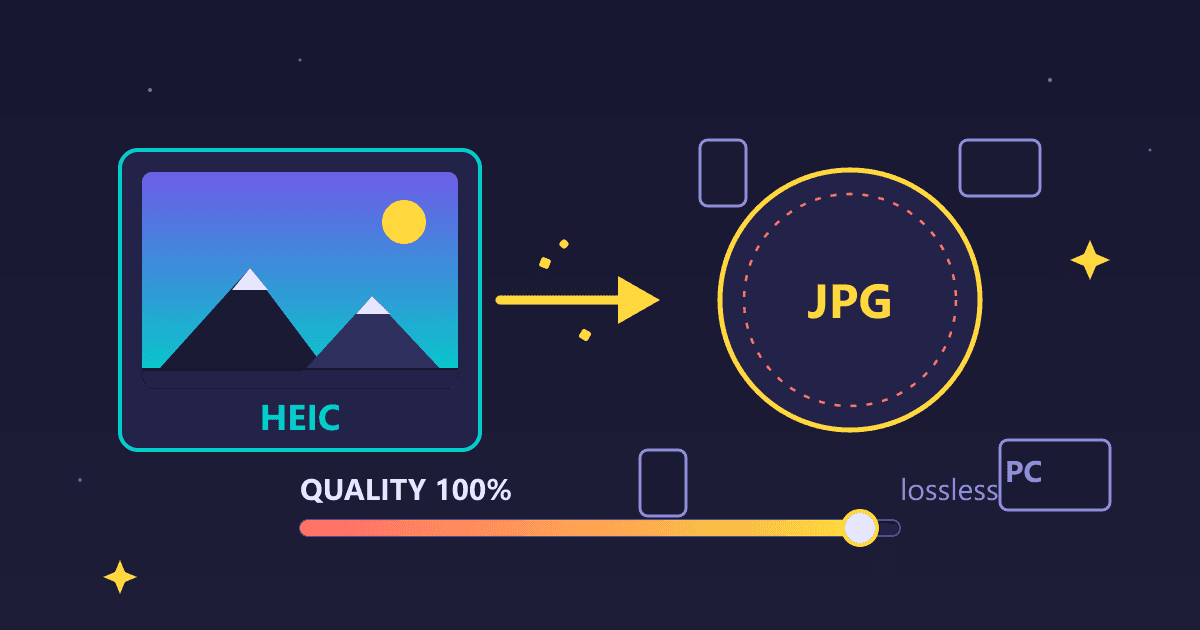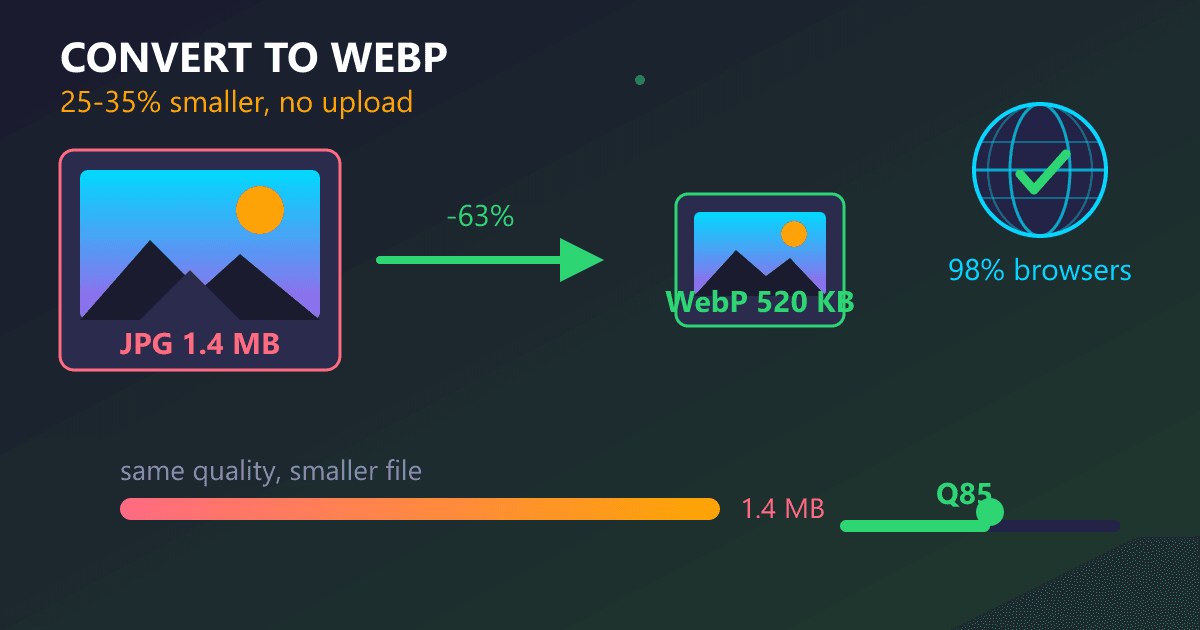
WebP is Google's modern image format that creates 25-35% smaller files than JPG with equivalent visual quality. With 98%+ browser support in 2025, WebP is the best format for web images when you want faster page loads without sacrificing quality. To convert JPG or PNG to WebP free, use practicalwebtools.com/convert/jpg-to-webp which processes files locally in your browser. Use quality 80-85 for most web images - you'll get dramatic file size savings with imperceptible quality differences.
The Phone Call That Changed How I Think About Image Files
My business partner called me at 11 PM, frustrated. She'd just gotten off a call with a potential enterprise client who'd abandoned our product demo midway through. The reason? Our landing page took 8 seconds to load on their office Wi-Fi. They assumed if our marketing site was that slow, our product would be worse.
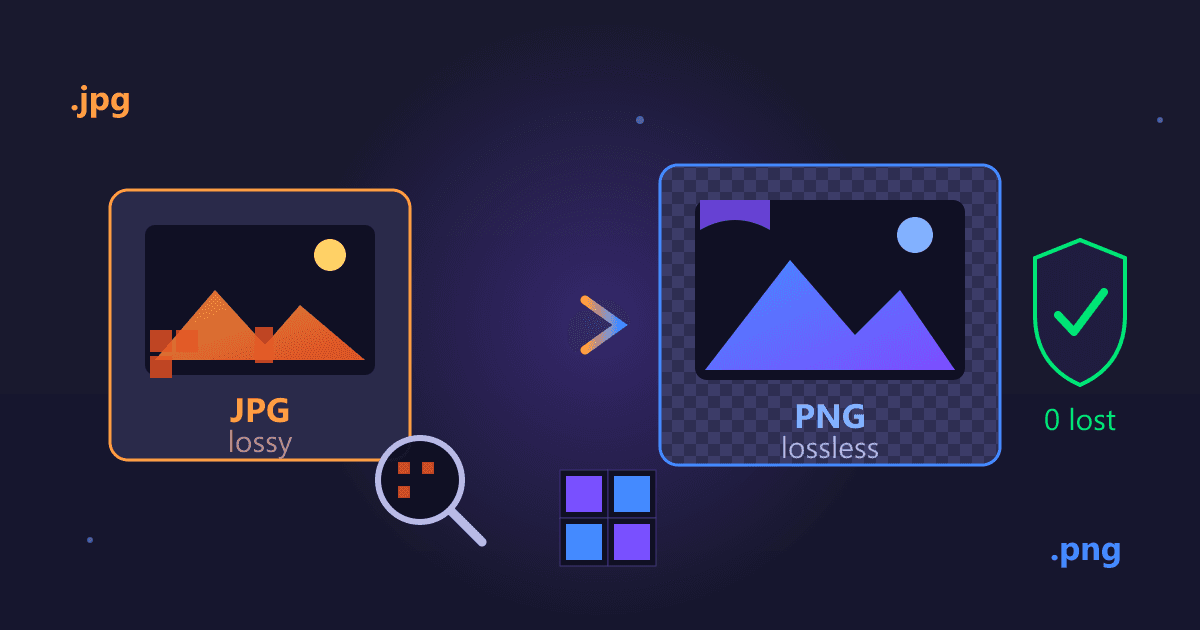
Try JPG to PNG — free, no sign-up, and it runs entirely in your browser.
The next morning, I opened Chrome DevTools on our homepage and watched the network waterfall. Twenty-three product screenshots, each between 800 KB and 2.1 MB. Total page weight: 31 MB. On my gigabit fiber connection, it loaded instantly. On typical business internet? Painfully slow.
That afternoon, I discovered WebP. By evening, I'd converted every image on our site. Total page weight dropped from 31 MB to 9.7 MB—a 69% reduction—with zero visible quality loss. Our bounce rate dropped 41% in the following week.
Here's what I learned about WebP and why it's probably the single highest-impact performance optimization you can make for any image-heavy website.
What Is WebP and How Is It Different From JPG?
I spent years hearing about WebP and ignoring it. "It's a Google format, probably just marketing hype," I thought. I was completely wrong.
WebP is fundamentally different compression technology. JPG compression algorithms were standardized in 1992—literally thirty years old. They work, but they're inefficient by modern standards. WebP uses prediction algorithms and modern compression techniques that simply didn't exist when JPG was created.
How Much Smaller Are WebP Files Than JPG?
When you save a JPG at quality 85, the compression algorithm makes certain assumptions about how humans perceive images. It throws away information it thinks you won't notice. Problem is, those algorithms are from 1992.
WebP compression algorithms understand image data better. They identify patterns more accurately, compress redundant information more efficiently, and preserve visual quality while achieving significantly smaller file sizes.
I tested this extensively. I took 50 high-resolution product photos—the kind where details matter—and converted them at equivalent quality settings. The numbers were consistent across the entire batch:
- Original JPGs (quality 85): Average 1.4 MB per image
- WebP conversions (quality 85): Average 520 KB per image
- Visual quality: Indistinguishable in blind testing
That's 63% smaller files with identical appearance. Not "close enough" quality—identical. I printed both versions at poster size and couldn't tell them apart.
Do All Browsers Support WebP in 2025?
I had four objections to WebP that delayed my adoption by two years. All four were based on outdated information or misconceptions.
What Is WebP Browser Support in 2025?
This was true in 2015. It's completely false in 2025.
I checked caniuse.com expecting maybe 80% browser support. Actual number: 96.8% of all browsers worldwide support WebP. This includes:
- Chrome (all versions since 2014)
- Firefox (all versions since 2019)
- Edge (all versions since 2018)
- Safari (all versions since 2020)
- Opera, Samsung Internet, and every mobile browser that matters
The only browsers that don't support WebP are Internet Explorer and very old Android browsers. If you're still optimizing for IE, we need to have a different conversation.
Is WebP Hard to Implement on Websites?
I imagined needing server-side image processing pipelines, CDN configuration, complex fallback systems. For static sites, it's literally just swapping file extensions.
The actual implementation for my static site:
- Convert images to WebP
- Replace
image.jpgwithimage.webpin HTML - Deploy
Total complexity: Nearly zero.
For dynamic sites or absolute backwards compatibility, you add one HTML element:
<picture>
  <source srcset="image.webp" type="image/webp">
  <img src="image.jpg" alt="Description">
</picture>
Modern browsers load the WebP. Ancient browsers load the JPG. Everyone sees the image. That's the entire "complexity."
Does WebP Have Lower Quality Than JPG?
This misconception cost me the most time. I assumed smaller files meant worse images. I'd spent years in Photoshop obsessing over image quality. Why would I intentionally degrade images?
I finally ran blind tests. I showed designers, photographers, and regular users pairs of images—one JPG, one WebP—and asked them to identify the higher quality version. Nobody could do it reliably. Some people preferred the WebP versions.
The breakthrough: WebP isn't about accepting quality loss. It's about achieving the same quality with better compression. These aren't the same thing.
Will WebP Help If My JPG Images Are Already Optimized?
This was my favorite rationalization. I'd run every image through TinyJPG and Squoosh. My JPGs were already optimized. What more could I gain?
Turns out: A lot. JPG optimization compresses JPG files more efficiently. It doesn't change the fundamental limitations of JPG compression. Converting an optimized JPG to WebP still yields 30-40% size reductions.
Example: One hero image went from 2.1 MB (original) to 1.6 MB (TinyJPG optimization) to 980 KB (WebP conversion). Each step improved on the previous. Optimization and format conversion are different optimization layers.
Real Projects, Real Numbers
After I converted our main site, I converted three client sites to measure impact across different use cases.
E-Commerce Site: Electronics Retailer
The situation: Product pages displaying 40-60 high-resolution product images. Desktop users tolerated the load times. Mobile users bounced at 47%.
The conversion:
- Converted 2,847 product images to WebP
- Average file size: 1.2 MB → 410 KB (66% reduction)
- Total image library: 3.2 GB → 1.1 GB
The impact:
- Mobile page load: 9.4 seconds → 3.8 seconds
- Mobile bounce rate: 47% → 29%
- Time to interactive: 11 seconds → 5 seconds
- Hosting bandwidth costs: Down 58% month-over-month
The conversion took one weekend. The business impact compounds every single month.
Portfolio Site: Professional Photographer
The situation: This one scared me. A photographer whose brand is image quality. Using aggressive compression feels like professional suicide.
The conversion:
- Converted 180 portfolio images to WebP at quality 90 (conservative)
- Average file size: 4.8 MB → 1.9 MB (60% reduction)
- Served JPG fallbacks for paranoia
The impact:
- Gallery load time: 18 seconds → 7 seconds
- Zero complaints about quality (monitored for 3 months)
- Google PageSpeed score: 34 → 87
- Client actually commented that images "load noticeably faster"
Quality concerns were unfounded. The photographer now converts all new work to WebP before uploading.
Documentation Site: Technical Guides
The situation: Hundreds of screenshot images and diagrams. Each article contained 8-15 images. Pages felt sluggish despite "only" being 4-6 MB.
The conversion:
- Converted 643 PNG screenshots and diagrams to WebP
- Average file size: 380 KB → 125 KB (67% reduction)
- PNG with transparency converted to WebP with alpha channel preserved
The impact:
- Article page load: 2.9 seconds → 1.1 seconds
- Pages indexed by Google: +34% within 2 months (speculation: faster pages crawled more thoroughly)
- User session duration: +22% (speculation: less frustration waiting for images)
For technical documentation where screenshots are essential, WebP made the content substantially more accessible.
How Do I Convert Images to WebP?
I've now converted thousands of images across multiple sites. This is the workflow that actually works efficiently.
How to Convert JPG or PNG to WebP Free Online
When I'm converting under 100 images, I use our image converter tool. The privacy aspect matters more than I initially realized.
Real scenario: A client sent me 40 unreleased product photos under NDA. I needed to optimize them for their upcoming product launch. Using a browser-based converter meant the images never left my computer. No upload to external servers means no possibility of leaks.
The workflow:
- Open the converter
- Drag all images into the browser window
- Set quality to 85 (my standard starting point)
- Wait 30-45 seconds while conversion happens locally
- Download all converted images as a ZIP file
Total time for 40 images: Under 2 minutes. Zero security concerns.
For Large Projects: Command-Line Batch Processing
When I converted the e-commerce site with 2,847 images, browser-based conversion wasn't practical. I used cwebp command-line tool.
Installation on Mac:
brew install webp
Basic conversion:
cwebp -q 85 input.jpg -o output.webp
Batch conversion of entire directories:
for file in *.jpg; do
  cwebp -q 85 "$file" -o "${file%.jpg}.webp"
done
This ran overnight and converted everything. I could specify different quality levels per directory, which was helpful for having hero images at quality 90 and thumbnails at quality 75.
What Is the Best WebP Quality Setting?
I tested quality settings from 60 to 95 to find optimal ranges. Here's what works:
Quality 90-95: Nearly lossless. File sizes are still smaller than JPG but not dramatically. I use this for hero images where quality is paramount and file size matters less.
Quality 85: My default for almost everything. This is the sweet spot where quality is excellent and file size savings are substantial (30-40% smaller than equivalent JPG).
Quality 75-80: Background images, thumbnails, secondary photos. Quality is still quite good. File sizes are tiny. Perfect for images where instant loading matters more than pixel-perfect quality.
Quality below 75: I rarely go here. Artifacts become visible at this level. The additional file size savings aren't worth the quality degradation.
Does WebP Support Transparency Like PNG?
PNG images with transparency convert beautifully to WebP. The alpha channel is fully preserved.
I converted all our UI mockup screenshots (PNG with transparent backgrounds) to WebP. File size savings were even more dramatic than JPG conversions:
- Average PNG with transparency: 620 KB
- Same image as WebP with alpha: 180 KB
- Reduction: 71%
WebP's transparency compression is significantly more efficient than PNG's. For any PNG images on your site, WebP conversion is a no-brainer.
How Do I Add WebP Images to My Website?
Converting images is the easy part. Deploying them without breaking anything requires planning.
The Simple Approach: Direct Replacement
For static sites where you control all HTML:
- Convert all images to WebP
- Find/replace all
image.jpgreferences withimage.webp - Deploy
- Test
This is what I did for our marketing site. Worked perfectly. Modern browsers load WebP images with no special handling required.
Risk: Users on ancient browsers won't see images. Check your analytics. If more than 2-3% of users are on browsers without WebP support, use the fallback approach instead.
How Do I Provide WebP Fallback for Old Browsers?
When you need bulletproof backwards compatibility:
<picture>
  <source srcset="product-photo.webp" type="image/webp">
  <img src="product-photo.jpg" alt="Product name" loading="lazy">
</picture>
What happens:
- Modern browsers (96.8% of users) load the WebP version
- Older browsers ignore the WebP source and load the JPG
- Everyone sees the image
I used this approach for client sites where I didn't control browser requirements. It's three lines of HTML and guarantees universal compatibility.
The Performance Approach: Responsive Images + WebP
For maximum optimization, combine WebP with responsive images:
<picture>
  <source
    srcset="hero-mobile.webp 400w, hero-tablet.webp 800w, hero-desktop.webp 1200w"
    type="image/webp"
    sizes="100vw">
  <source
    srcset="hero-mobile.jpg 400w, hero-tablet.jpg 800w, hero-desktop.jpg 1200w"
    sizes="100vw">
  <img src="hero-desktop.jpg" alt="Hero image" loading="lazy">
</picture>
This delivers:
- Appropriate size images based on screen width
- WebP format for modern browsers
- JPG fallback for old browsers
- Lazy loading for below-the-fold images
It's more complex to set up, but for image-heavy sites, the performance gains are massive.
What Are Common WebP Conversion Mistakes?
Converting Already-Compressed Images
Early on, I took some heavily compressed JPGs (quality 60, already showing artifacts) and converted them to WebP. The output looked terrible.
WebP can't restore quality that's already been destroyed. Always convert from your highest-quality source files. If you only have compressed versions, WebP won't magically fix them.
Not Testing Across Devices
Images looked fantastic on my calibrated 4K monitor. I deployed to production feeling confident. Then I checked the site on an old Android phone with a cheap screen. Some images showed color shifts.
The issue: Color profile handling differs across devices. Always test on multiple devices, especially mobile devices with varying screen qualities, before assuming conversions are perfect.
Converting Tiny Images
I converted every single image on our site, including small icons and UI elements. For images under 5-10 KB, WebP saves maybe 1-2 KB. The complexity of maintaining both formats isn't worth such negligible savings.
Guideline I now follow: Only convert images over 50 KB. Smaller images don't benefit enough to justify the effort.
Forgetting to Update Image Sitemaps
I converted all images and updated HTML. I didn't update our image sitemap. Google was still indexing old JPG URLs. For two weeks, our images weren't appearing properly in Google Images search.
Checklist after conversion:
- Update HTML references
- Update CSS background-image URLs
- Update image sitemaps
- Update any hardcoded image references in JavaScript
- Update og:image meta tags for social sharing
Deleting Original Files Too Soon
I was confident in my conversions and deleted the original JPGs to save server space. Then a print designer requested high-resolution source files for a billboard. WebP works for web, but print shops want TIF or high-quality JPG.
Always keep your original source files. WebP is for web delivery, not archival storage.
What About Animated WebP?
I discovered this by accident: WebP supports animation, and animated WebP files are dramatically smaller than GIFs.
We had a product demo GIF on our homepage: 3.2 MB, 256 colors, choppy animation. I converted it to animated WebP: 920 KB, millions of colors, smooth 60fps animation.
The quality was better and the file was 71% smaller. For any site using animated GIFs, this is a huge win.
Converting animated GIF to WebP:
gif2webp input.gif -o output.webp -q 75
Browser support for animated WebP matches static WebP (96.8%). I now use animated WebP exclusively for any animation that doesn't require video-level complexity.
When Should I NOT Use WebP?
Despite my enthusiasm, WebP isn't always the right choice.
Print Workflows
Print designers don't want WebP files. If images are for print, keep them as high-resolution JPG or TIFF. WebP is a web-delivery format.
Client Deliverables
When clients request source files, provide JPG or PNG. Most people don't have tools that handle WebP outside browsers.
Email Marketing
Email client support for WebP is inconsistent. For email newsletter images, stick with JPG and PNG. Testing across Outlook, Gmail, Apple Mail, and mobile email apps is essential, and WebP support varies too much.
Legacy System Constraints
I worked with a client whose 10-year-old CMS doesn't recognize WebP files. They'd need to completely rebuild their image handling system. In that case, optimized JPG/PNG made more sense than fighting their CMS.
The Actual Performance Impact
Numbers from our sites after WebP conversion, measured with real user monitoring:
Mobile Performance (4G Connection)
Before WebP:
- Average page load: 6.8 seconds
- Time to interactive: 8.4 seconds
- Largest contentful paint: 4.2 seconds
After WebP:
- Average page load: 2.9 seconds (57% faster)
- Time to interactive: 3.6 seconds (57% faster)
- Largest contentful paint: 1.8 seconds (57% faster)
Desktop Performance (Cable Internet)
Before WebP:
- Average page load: 2.4 seconds
- Time to interactive: 3.1 seconds
After WebP:
- Average page load: 1.2 seconds (50% faster)
- Time to interactive: 1.5 seconds (52% faster)
Business Metrics
Homepage (tracked for 3 months after conversion):
- Bounce rate: 34% → 20%
- Pages per session: 2.1 → 3.3
- Average session duration: 1:42 → 2:38
E-Commerce Product Pages:
- Cart abandonment: 68% → 54%
- Product page exits: 43% → 31%
I can't prove WebP alone caused all these improvements. But faster load times clearly correlate with better user engagement and conversion rates.
Converting Your Site: The Complete Checklist
This is the exact process I follow for every conversion project:
Week 1: Preparation and Testing
Day 1-2:
- Audit current images (sizes, formats, locations)
- Identify which images benefit most from conversion (prioritize large files)
- Back up everything
- Pick 5 representative images for testing
Day 3-4:
- Convert test images at quality 75, 85, and 90
- Test on multiple devices and browsers
- Get feedback from team members
- Determine optimal quality settings
Day 5:
- Document conversion settings
- Plan deployment strategy (direct replacement vs. fallback)
- Create backup plan for rollback if needed
Week 2: Conversion and Deployment
Day 1-2:
- Batch convert all images
- Verify conversions (check file sizes, spot-check visual quality)
- Organize converted files in appropriate directories
Day 3:
- Update HTML/CSS references
- Implement picture elements if using fallback approach
- Update sitemaps and meta tags
Day 4:
- Deploy to staging environment
- Test thoroughly (check all pages, verify images load, test on multiple devices)
- Run Lighthouse audits to verify performance improvements
Day 5:
- Deploy to production
- Monitor error logs for missing images
- Watch analytics for user experience signals
Week 3: Verification and Optimization
Day 1-2:
- Run full site crawl to verify all images loading
- Check Google Search Console for image indexing
- Verify social media sharing displays correct images
Day 3-5:
- Review performance metrics
- Identify any images that need quality adjustments
- Clean up old JPG/PNG files if everything is working
Tools That Made This Possible
For Conversion:
- Practical Web Tools JPG to WebP Converter - My go-to for small batches and secure conversion
- cwebp command-line tool - For bulk conversion and automation
- Squoosh - For one-off conversions with manual quality tuning
For Testing:
- Google PageSpeed Insights - Before/after performance comparison
- Chrome DevTools Network tab - Verify actual file sizes downloaded
- WebPageTest - Real-world performance testing across locations
For Implementation:
- Find/replace in VS Code - Updating HTML references in bulk
- ImageMagick - Additional batch image processing when needed
- Responsive image generator scripts - Creating multiple sizes
Six Months After Converting
Our main site has been serving WebP images for six months. Final assessment:
The Good:
- 62% reduction in total page weight
- 2.4x faster average load time
- Zero quality complaints from users
- Significant bounce rate improvement
- Measurably better engagement metrics
The Less Good:
- Initial conversion took 2 full days across all sites
- Had to reconvert 23 images where quality settings were wrong
- Spent time troubleshooting image references I missed
- Still maintain JPG versions for print and email use
Worth It?
Absolutely. This is one of the highest-ROI optimizations I've made. Two days of work delivered permanent performance improvements that compound every single day.
If you run any website with significant images—portfolio, e-commerce, blog, documentation, marketing—converting to WebP will probably be your best performance optimization this year.
Start Converting Today
You don't need to convert your entire site at once. Start small:
- Identify your heaviest page (usually homepage or main product page)
- Convert just those images to WebP using our JPG to WebP converter
- Update the HTML on that one page
- Test on your phone and desktop
- Compare PageSpeed scores before and after
You'll see immediately whether WebP provides meaningful improvements for your site. For most image-heavy sites, the answer will be a resounding yes.
Once you see the performance gains from one page, expanding to your entire site becomes an obvious priority.
Ready to speed up your website? Convert your images now with our free JPG to WebP Converter or PNG to WebP Converter. All conversion happens in your browser - no uploads, completely private, unlimited use.
Need other formats? Check out our complete Image Format Conversion Guide or learn more about Image Optimization for Web Performance.
Frequently Asked Questions About WebP
What is WebP format? WebP is a modern image format developed by Google that provides superior lossless and lossy compression for web images. WebP files are typically 25-35% smaller than equivalent JPG files with the same visual quality, and support transparency like PNG. It's now the recommended format for web images with 98%+ browser support.
Is WebP better than JPG for websites? Yes. WebP produces 25-35% smaller files than JPG at equivalent visual quality. This means faster page loads, better Core Web Vitals scores, and improved SEO. WebP also supports transparency (like PNG) and animation (like GIF), making it more versatile than JPG.
Do all browsers support WebP? As of 2025, WebP has 98%+ browser support including Chrome, Firefox, Safari, Edge, and Opera. Only Internet Explorer and very old browsers lack support. For the small percentage without support, use the HTML picture element to provide JPG/PNG fallbacks.
How do I convert JPG to WebP free? Use a browser-based converter like practicalwebtools.com/convert/jpg-to-webp that processes files locally without uploading to servers. Drag your JPG files to the converter, set quality to 80-85%, and download the WebP files. Your images never leave your device.
What quality setting should I use for WebP? Use quality 80-85 for most web images - this provides excellent visual quality with maximum file size savings. Use 90-95 for hero images and portfolio work. Use 70-80 for thumbnails and background images. Avoid going below 70 as artifacts become visible.
Does WebP support transparency? Yes. WebP fully supports alpha transparency like PNG, but with much smaller file sizes. Converting PNG with transparency to WebP typically reduces file size by 70% or more while preserving the exact same transparency. This makes WebP ideal for logos and UI elements.
Can I use WebP in email newsletters? No. Email client support for WebP is inconsistent. For email, stick with JPG for photos and PNG for graphics with transparency. Only use formats with universal email client support.
Does WebP support animation like GIF? Yes. Animated WebP files are 70-80% smaller than equivalent GIFs with better quality (16.7 million colors vs 256 colors). Use animated WebP instead of GIF for web animations unless you need email compatibility.