How to Convert PDFs Free Online Without Uploading to Servers
The quick answer: The best free PDF converters in 2026 process files locally in your browser rather than uploading to external servers. Browser-based tools like Practical Web Tools use WebAssembly technology to convert PDFs to Word, Excel, and images entirely on your device. This means no file uploads, no privacy risks, no registration required, and no file size limits. For confidential documents, local processing is essential.
The HR Manager Who Taught Me About PDF Privacy
Last year, I received a panicked call from a friend who manages HR for a mid-sized company. She'd been using a popular free online PDF converter for years, converting employee documents without thinking twice. One day, she searched for her company name and found fragments of converted documents indexed on Google.
Confidential salary information. Performance reviews. Personal employee details. All sitting in the cache of a "free" conversion service that apparently kept copies of everything.
She spent the next week in damage control mode, documenting the breach for legal, notifying affected employees, and explaining to executives how this happened. The converter was genuinely free, but the cost ended up being enormous.
That conversation changed how I think about PDF conversion. "Free" often has hidden costs, whether it's your data, your privacy, or your time dealing with consequences nobody anticipated.
Why PDF Conversion Still Matters in 2026
PDFs were designed to look identical everywhere. That's their strength and their limitation. They're perfect for sharing documents that shouldn't change, terrible for documents you need to edit.
Every day, millions of people need to:
- Edit a contract they received in PDF format
- Extract data from financial PDFs into spreadsheets
- Convert reports for presentation slides
- Grab images from PDF documents
- Merge multiple PDFs or split one into parts
The question isn't whether you'll need to convert PDFs. It's how you'll do it without sacrificing quality, security, or your sanity.
What Are the Different Types of PDF Converters?
Cloud-Based Converters: Fast, Convenient, Privacy Nightmare
Most "free online PDF converters" work the same way: you upload your file to their servers, they process it, you download the result. Simple, fast, and deeply problematic for anyone handling sensitive documents.
What happens to your files:
- Your document uploads to servers you don't control
- Processing happens in their infrastructure
- Files may be cached, stored, or logged
- Terms of service often grant broad rights to uploaded content
- Server breaches can expose your documents
- Some services sell aggregated data
My HR manager friend's disaster? That's the real-world consequence of this model. She didn't do anything wrong by normal standards. She just didn't realize "free" meant "you're the product."
When cloud converters make sense:
- Truly non-sensitive documents (public information, already-published content)
- Speed is critical and privacy isn't a concern
- You've read and trust the specific service's policies
- You're okay with someone else having copies of your files
Desktop Software: Powerful, Expensive, Platform-Locked
Adobe Acrobat Pro costs $20-30 per month. Other professional PDF suites range from $100-500 for perpetual licenses. They're powerful, capable tools that work entirely on your computer.
The trade-offs:
- Significant cost for occasional use
- Installation and updates required
- Platform-specific (Windows or Mac, rarely both)
- Overkill for simple conversions
- Still the best option for complex, high-volume needs
When desktop software makes sense:
- You convert PDFs professionally, daily
- You need advanced features (OCR, form creation, redaction)
- Your company provides licenses
- Volume justifies the cost
Browser-Based Local Processing: The Best of Both Worlds
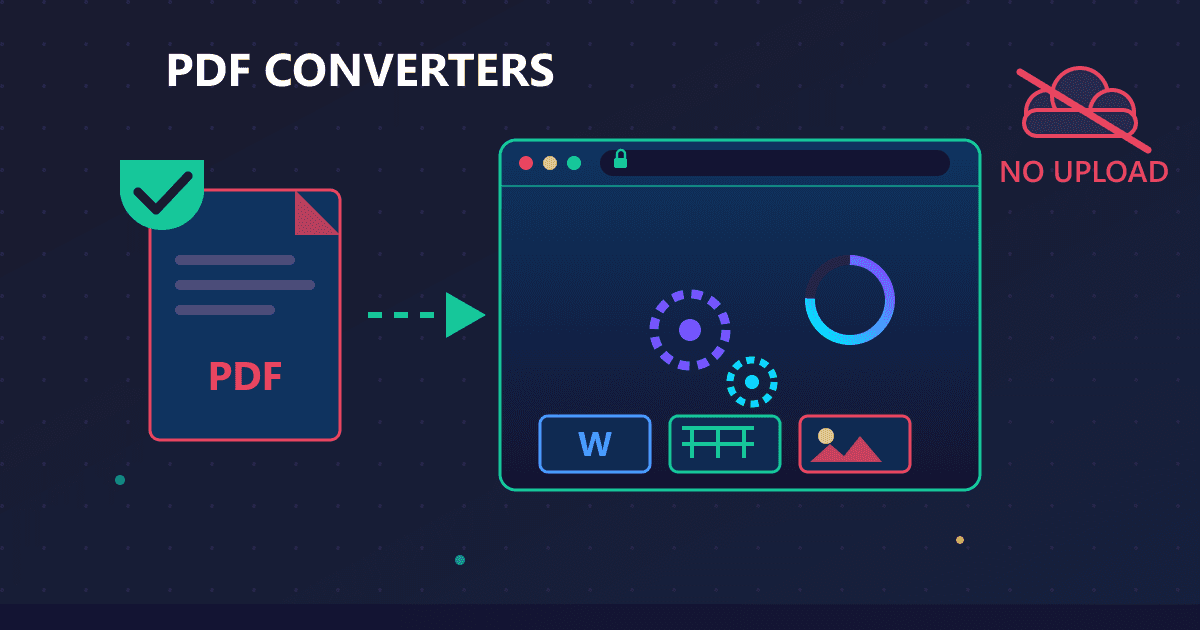
This is the category I didn't know existed until I started building conversion tools. Browser-based converters that process files locally, on your computer, without ever uploading to external servers.
Modern browsers can run sophisticated software using WebAssembly technology. The same PDF processing libraries that power desktop applications can run directly in your browser. Your files load into browser memory, get processed by code running on your machine, and never transmit anywhere.
How it works:
- You visit the converter webpage (the tool loads into your browser)
- You select your file (stays on your device)
- Processing happens in browser memory (using your CPU)
- You download the result (from local processing, not a server)
Your files never leave your computer. There's nothing to upload, nothing to cache, nothing that could end up on Google.
When browser-based local processing makes sense:
- Sensitive documents (contracts, financial, HR, legal)
- Privacy-conscious users
- People without software budgets
- Anyone who wants the convenience of web tools without the privacy compromise
How Does PDF to Word Conversion Actually Work?
Understanding what happens during conversion helps you get better results and know when conversion might fail.
PDF to Word: Reconstructing Document Structure
PDF files describe where to put ink on a page. They don't inherently contain "paragraphs" or "headings," they contain instructions like "draw these characters at these coordinates."
Converting PDF to Word means reverse-engineering document structure from visual layout:
- Groups of characters near each other become words
- Words in rows become paragraphs
- Rectangular arrangements become tables
- The converter infers formatting from visual appearance
This works well when:
- The PDF was created from a Word document
- Text is actual text (not images of text)
- Layout follows conventional patterns
- Formatting is relatively simple
This struggles when:
- The PDF is a scanned image (requires OCR first)
- Complex multi-column layouts
- Heavy use of text boxes and floating elements
- Unusual fonts or custom formatting
Practical tip: Open your PDF and try selecting text. If you can highlight individual words, conversion will probably work well. If you can only select the entire page as one object, it's likely a scanned image.
PDF to Excel: Table Extraction
PDF to Excel conversion focuses on finding tables and extracting their data into spreadsheet cells. This is both simpler (just tables) and harder (tables come in many forms).
What converters look for:
- Grid-like arrangements of cells
- Consistent alignment of columns
- Borders and lines defining cell boundaries
- Header rows that label data
Best results come from:
- PDFs with clear table borders
- Simple, regular table structures
- Financial documents designed for tabular data
- Documents originally exported from spreadsheets
Challenging scenarios:
- Borderless tables relying on spacing
- Merged cells and complex headers
- Tables that span multiple pages
- Mixed content (tables plus text)
PDF to Image: Page Rendering
This is actually the simplest conversion type. The converter renders each page as it would appear on screen, then saves that rendering as an image file.
Format choices:
- JPG: Smallest files, lossy compression, good for photos
- PNG: Larger files, lossless, better for text and graphics
- WebP: Modern format, excellent quality-to-size ratio
Resolution matters: Higher DPI means sharper images but larger files. 150 DPI works for screen viewing, 300 DPI for printing, 72 DPI for thumbnails.
How Do You Convert a PDF to Word Step by Step?
Let me walk through an actual conversion scenario I encountered recently.
The Scenario
A client sent me a 15-page contract as a PDF. I needed to review it, suggest edits, and send it back. The contract had come from their legal team's document management system.
Step 1: Assess the PDF
First, I opened the PDF and tried selecting text. The text highlighted normally, meaning it was real text, not a scanned image. Good sign.
I looked at the layout: mostly paragraphs with some numbered sections and a signature page with lines. Relatively straightforward structure.
Step 2: Convert to Word
I used our PDF to Word converter:
- Opened the converter in my browser
- Dragged the PDF file onto the upload area
- Clicked convert and waited about 10 seconds
- Downloaded the resulting Word document
Total time: maybe 30 seconds.
Step 3: Review the Conversion
I opened the Word file and checked several things:
- Text accuracy: All text converted correctly, no missing words or characters
- Paragraph breaks: The converter maintained paragraph structure
- Numbered sections: Section numbers and formatting preserved
- Headers: Page headers converted (I deleted these since they weren't needed for editing)
- Signature lines: These converted as underlined spaces, which worked fine
Step 4: Make Edits
I used Word's track changes feature to mark my suggested edits. This is exactly why PDF to Word conversion matters, I could use proper document collaboration features instead of awkwardly annotating a PDF.
Step 5: Return the Document
I saved the edited Word document and sent it back, along with the original PDF for reference. The client's legal team made final changes and generated a new PDF for signing.
Why Do Some PDFs Fail to Convert?
Not every PDF converts perfectly. Here's what I've learned about handling problem cases.
Scanned Documents
Scanned PDFs contain images of pages, not actual text. Converting them to Word produces a Word document with images, not editable text.
Solution: Run OCR (Optical Character Recognition) first to convert the image to text, then convert to your target format. Some converters do this automatically, others require a separate step.
Quality factors: OCR accuracy depends heavily on scan quality. Clear, straight, high-resolution scans convert well. Blurry, skewed, or low-resolution scans produce errors.
Complex Layouts
Multi-column documents, magazine-style layouts, and documents with extensive text boxes often convert poorly. The converter can't reliably determine reading order or how elements relate to each other.
Solution: Accept that complex layouts may need manual cleanup after conversion. Sometimes it's faster to copy-paste text sections individually rather than trying to fix a jumbled conversion.
Protected PDFs
Some PDFs have security settings that prevent conversion or editing. This is intentional protection set by the document creator.
Solution: If you have legitimate access to the content (it's your document, you have permission, etc.), you may be able to remove restrictions with the correct password. If the protection is intentional (someone doesn't want you to edit this), respect that.
Unusual Fonts
PDFs can embed fonts that may not be available on your system. When converting to Word, the document may substitute different fonts, changing appearance.
Solution: If exact formatting matters, install the original fonts on your system before converting. If you don't have the fonts, accept that text appearance may change slightly.
How Can You Convert PDFs Without Risking Privacy?
After my friend's HR disaster, I became much more careful about where I send documents. Here's my current approach:
For Sensitive Documents: Local Processing Only
Anything confidential—contracts, financial information, HR documents, legal papers—only gets processed with tools that run locally. Our PDF converters process everything in your browser. I can literally disconnect my internet and the conversion still works, because there's no server involved.
For Non-Sensitive Documents: Convenience Is Fine
Public information, already-published documents, random downloads—these can use whatever tool is convenient. Privacy matters less when the content isn't confidential.
For Uncertain Cases: Default to Private
When I'm not sure if a document is sensitive, I treat it as sensitive. Better to be overly cautious than to explain why confidential information ended up on the internet.
Common Conversion Tasks and Best Approaches
Contract Review and Editing
- Convert PDF to Word
- Make edits with track changes
- Send Word file for collaboration
- Final version gets converted back to PDF for signing
Financial Data Extraction
- Convert PDF to Excel
- Review extracted tables for accuracy
- Clean up formatting as needed
- Use data for analysis or reporting
Presentation Creation
- Convert PDF pages to images
- Import images into PowerPoint
- Or convert PDF to PowerPoint directly
- Edit slides as needed
Document Archival
- Keep original PDFs as the official version
- Create text versions for searchability
- Store both for comprehensive archives
Combining Documents
Frequently Asked Questions About Free PDF Converters
Why should I use browser-based converters instead of uploading to a website?
When you upload files to a conversion website, your documents exist on servers you don't control. They could be cached, logged, analyzed, or breached. Browser-based converters that process locally never transmit your files anywhere. Your documents stay on your device from start to finish.
Are converted documents as good as the originals?
Conversion quality depends on the source PDF and target format. Simple, text-based PDFs convert very well. Complex layouts or scanned documents may need cleanup. For most business documents, conversion is good enough for practical use; for perfect reproduction, nothing beats the original.
Can I convert password-protected PDFs?
PDFs with view passwords must be unlocked first. If you have the password, you'll need to unlock the PDF before converting. If you don't have the password, conversion isn't possible - that's the point of password protection.
How many files can I convert for free?
With browser-based local processing, there's no limit set by us. You can convert as many files as you want. The practical limit is your device's memory and processing power, but modern devices handle dozens of files easily.
Is the conversion really free with no hidden costs?
Yes. We don't charge for conversions, don't limit usage, don't add watermarks, and don't require registration. The conversion tools are genuinely free. We're able to do this because local processing doesn't require expensive server infrastructure.
What is the best free PDF to Word converter in 2026?
The best free PDF to Word converters process files locally without uploading to servers. Practical Web Tools PDF to Word converter uses WebAssembly to convert entirely in your browser. This provides privacy for confidential documents, no file size limits, and unlimited conversions without registration or payment.
Can I convert a scanned PDF to editable Word?
Scanned PDFs contain images of text, not actual text characters. Converting them requires OCR (Optical Character Recognition) first. Quality depends heavily on scan clarity - high-resolution, straight scans convert well while blurry or skewed scans produce errors. Some converters include built-in OCR, but expect to review results carefully.
How do I convert PDF to Excel without losing formatting?
PDF to Excel conversion works best with tables that have clear borders and simple structures. Before converting, verify the PDF has actual text (not scanned images) by trying to select text. After conversion, check that columns align correctly, numbers are formatted as numbers (not text), and no data was shifted between cells.
Ready to convert PDFs privately? Use our free PDF Conversion Tools to convert PDFs free online. Processing happens entirely in your browser—your files never leave your device.
Common conversions:
- PDF to Word - Edit document content
- PDF to Excel - Extract spreadsheet data
- PDF to Image - Create images from pages
- PDF to Text - Extract plain text
PDF editing tools:
- Merge PDF - Combine multiple PDFs
- Split PDF - Separate pages
- Sign PDF - Add digital signatures
- Compress PDF - Reduce file size