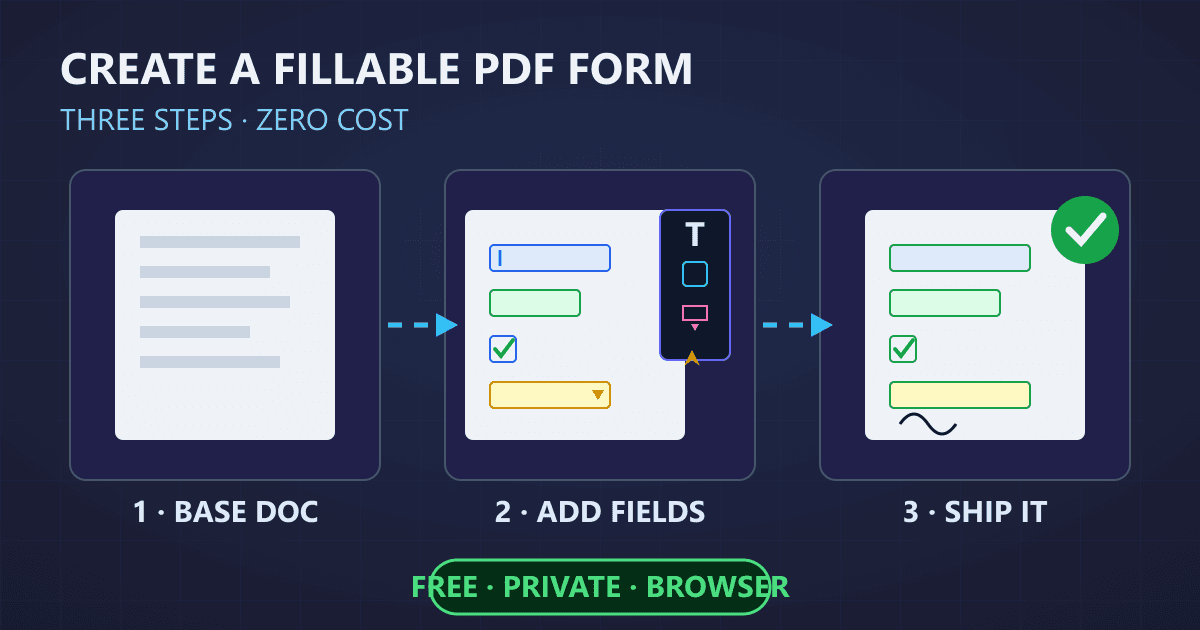
To create a fillable PDF form, you need a PDF editor that supports form field creation. Add text fields, checkboxes, dropdown menus, and other interactive elements to your document, then configure field properties like names, validation rules, and tab order. The entire process can be completed in minutes using modern browser-based tools that process everything locally on your device, meaning your sensitive form data never leaves your computer.
Three years ago, I nearly lost a major client because of a paper form disaster. We had sent over a 12-page contract that required signatures, dates, and detailed information in about 40 different places. The client printed it, filled it out by hand, scanned it back to us, and the result was a blurry, barely legible mess. Half the fields were illegible, dates were written in three different formats, and someone had accidentally skipped an entire page.
Try Fill PDF — free, no sign-up, and it runs entirely in your browser.
The client was frustrated. My team was frustrated. We wasted two weeks going back and forth trying to decipher handwriting and get missing information.
That experience completely changed how I approach document collection. Now, every form I send out is a fillable PDF with properly configured fields, validation rules, and a logical flow that guides users through the process. Data comes back clean, complete, and in exactly the format I need. The time I invested in learning to create fillable PDFs has paid for itself hundreds of times over.
Why Should You Create Fillable PDF Forms Instead of Paper Forms?
Before diving into the how-to, let me explain why fillable PDFs have become the standard for professional document collection. Over 80% of businesses now rely on PDFs for digital document exchange, and a significant portion of those are interactive forms.
How Do Fillable PDFs Improve Data Accuracy?
The biggest advantage of fillable PDFs is data quality. When someone fills out a paper form, you get whatever they decide to write, however they decide to write it. Phone numbers might be formatted a dozen different ways. Dates could be MM/DD/YYYY or DD/MM/YYYY or spelled out entirely. Required fields might be left blank.
Fillable PDF forms solve these problems through structured data entry. You define exactly what information goes where and in what format. A phone number field can require exactly 10 digits. A date field presents a calendar picker. Required fields won't let users proceed without completing them.
I worked with a medical practice that switched from paper intake forms to fillable PDFs. Their data entry errors dropped by 73% in the first month. Staff no longer spent hours deciphering handwriting or calling patients to clarify missing information.
How Do Fillable PDFs Save Time for Everyone?
Consider the workflow for a typical paper form:
- You create and print the form
- You mail or hand it to the recipient
- They fill it out by hand
- They scan or photograph the completed form
- They send it back to you
- You manually transcribe the data into your system
- You file the paper copy or organize the scanned image
Now compare that to a fillable PDF:
- You create the fillable PDF once
- You email it to the recipient
- They complete it digitally
- They email it back or submit it directly
- You extract the data automatically
The time savings multiply with every form you process. For a business handling hundreds of forms monthly, this efficiency translates to significant cost savings.
How Do Fillable PDFs Enhance Professionalism?
There is something undeniably more professional about receiving a cleanly formatted fillable form versus a paper document. It signals that your organization has invested in proper systems and cares about the user experience.
Last year, I was comparing two vendors for a major project. One sent me a paper application to fill out. The other sent a polished fillable PDF with dropdown menus, automatic calculations, and a digital signature field. Both vendors were qualified, but the fillable PDF vendor instantly seemed more organized and trustworthy.
What Types of Form Fields Can You Add to a Fillable PDF?
Understanding the available field types is essential for creating effective forms. Each field type serves a specific purpose and improves the user experience when used correctly.
What Are Text Fields and How Do You Use Them?
Text fields are the most common form element. They accept typed text input and can be configured in several ways:
Single-line text fields work best for short responses like names, email addresses, and phone numbers. You can set character limits to prevent overly long entries.
Multi-line text fields (also called text areas) allow for longer responses. Use these for comments, descriptions, or any field requiring a paragraph of text.
Password fields mask input with dots or asterisks. While less common in PDF forms, they are useful for application forms requiring temporary access codes.
When creating text fields, always provide clear labels. "Name" is ambiguous, but "Full Legal Name (First, Middle, Last)" leaves no room for confusion.
How Do Checkboxes and Radio Buttons Work?
Checkboxes allow users to select one or more options from a list. They are perfect for questions like "Select all that apply" or simple yes/no confirmations.
Radio buttons restrict selection to exactly one option from a group. Use these when choices are mutually exclusive, like "Payment Method: Credit Card / Bank Transfer / Check."
The key difference: checkboxes are independent (each can be checked or unchecked regardless of others), while radio buttons are grouped (selecting one automatically deselects others in the same group).
I once saw a form that used checkboxes for marital status. Users could technically check both "Single" and "Married" which created confusing data. Radio buttons would have prevented that error.
What Are Dropdown Menus and List Boxes?
Dropdown menus (combo boxes) present a collapsed list of options. Users click to expand the list and select one item. They are excellent for long lists like country selection or state/province fields because they save space on the form.
List boxes display multiple options simultaneously without requiring a click to expand. Users can typically select multiple items by holding Ctrl or Shift while clicking. Use these when you want users to see all options at once or when multiple selections are common.
For a form I created recently, I used dropdown menus for country selection (249 options would overwhelm the page as checkboxes) and list boxes for selecting multiple product categories of interest (users could see all 12 options and select several).
How Do Date Fields and Digital Signature Fields Work?
Date fields can present a calendar picker or accept formatted date entry. They ensure consistent date formatting across all submissions. No more confusion about whether "01/02/2025" means January 2nd or February 1st.
Digital signature fields allow users to add legally binding electronic signatures. These are essential for contracts, agreements, and any document requiring formal acknowledgment. Modern PDF tools support multiple signature types including typed, drawn, and certificate-based signatures.
Our Fillable PDF Creator supports all these field types and makes it easy to configure their properties for your specific needs.
How Do You Create a Fillable PDF Form Step by Step?
Now let us walk through the actual process of creating a fillable PDF. I will cover multiple approaches so you can choose what works best for your situation.
Step 1: How Do You Prepare Your Base Document?
Every fillable PDF starts with a base document. You have several options:
Start with an existing PDF: If you already have a static PDF form (like a scanned paper form or a PDF exported from Word), you can add fillable fields directly to it.
Create from a Word document: Design your form layout in Microsoft Word, export it to PDF, then add interactive fields.
Start from scratch: Build your form directly in a PDF editor that supports form creation.
Use a template: Many PDF tools include pre-built templates for common form types like applications, surveys, and contracts.
For most use cases, I recommend designing your layout in a word processor first. It is easier to arrange text, tables, and graphics in Word or Google Docs than in a PDF editor. Once your layout is perfect, export to PDF and add the interactive elements.
Step 2: How Do You Add Text Fields to Your Form?
Open your PDF in a tool that supports form editing. Navigate to the form tools section, which might be labeled "Prepare Form," "Form Editor," or simply "Forms" depending on your software.
Select the text field tool and draw a rectangle where you want the field to appear. The field should be large enough to display the expected input comfortably, but not so large that it looks out of place.
For each text field, configure these properties:
Field name: Use descriptive, unique names like "applicant_first_name" or "company_address_line1". These names are important for data extraction.
Default value: Optionally pre-fill the field with placeholder text like "Enter your email address."
Format: For numeric fields, you can specify that only numbers are accepted. For text, you might limit maximum characters.
Required: Mark essential fields as required so the form cannot be submitted without completing them.
Step 3: How Do You Add Selection Fields?
For checkboxes, select the checkbox tool and click where each checkbox should appear. Group related checkboxes logically, but remember each is independent.
For radio buttons, you must create a group. Draw each button, then assign them the same group name with different values. For example, a "payment_method" group might have buttons with values "credit_card," "bank_transfer," and "check."
For dropdown menus, select the dropdown tool and draw the field. Then add your list of options. Order matters because the first option often appears as the default. Consider adding a blank first option with text like "Please select..." to make it clear the field requires action.
Step 4: How Do You Configure Tab Order for Better Usability?
Tab order determines the sequence in which users move through form fields when pressing the Tab key. By default, PDF editors often set tab order based on the physical position of fields (top to bottom, left to right), but this might not match your intended flow.
Review and manually set tab order to match how users should logically complete the form. For a contact form, the natural order might be: Name, Email, Phone, Subject, Message. Even if the email field is positioned below the phone field visually, you might want users to enter email first.
Good tab order significantly improves the filling experience, especially for users who navigate by keyboard rather than mouse.
Step 5: How Do You Add Validation Rules?
Validation ensures users enter data in the correct format before they can submit the form. Common validation rules include:
Required fields: The form cannot be submitted until these are completed.
Format validation: Email fields must contain an @ symbol and valid domain. Phone numbers must match a specific pattern. Dates must be real dates.
Range validation: Numeric fields can have minimum and maximum values. Age might be limited to 0-120. Quantities might be limited to 1-100.
Character limits: Prevent excessively long entries that might break your downstream systems.
I learned the importance of validation when a form I created received a phone number entry of "please call me back later." Without validation, I had to manually follow up to get the actual phone number.
Step 6: How Do You Test Your Fillable PDF?
Before distributing your form, test it thoroughly:
Complete the form yourself: Fill out every field as a user would. Does the tab order make sense? Are field sizes appropriate? Do dropdowns contain all necessary options?
Test validation: Try submitting with required fields empty. Enter invalid data in validated fields. Confirm the form rejects improper input.
Test on multiple devices: Open the fillable PDF in different PDF readers (Adobe Acrobat Reader, Preview on Mac, browser-based readers). Form fields should work consistently across platforms.
Have someone else test it: Fresh eyes catch problems you might overlook. Ask a colleague to complete the form and provide feedback.
What Are Common Mistakes When Creating Fillable PDFs?
After creating hundreds of fillable forms and helping others troubleshoot theirs, I have seen the same mistakes repeatedly. Avoid these pitfalls to create better forms.
Why Are Generic Field Names Problematic?
When you add a text field, it might default to a name like "Text1" or "Field3." These names mean nothing and cause problems later.
If you need to extract data from submitted forms, generic names make it impossible to identify which field contains which information. Was "Text1" the first name or the email address? You cannot tell without opening every submission.
Use descriptive names: "applicant_first_name," "contact_email," "shipping_address_city." Your future self will thank you.
Why Do Some Fillable PDFs Not Work Across Platforms?
Not all PDF readers support all form features equally. A form that works perfectly in Adobe Acrobat might have issues in other readers. Some common compatibility problems:
JavaScript calculations: Complex scripts might not execute in all readers.
Advanced field types: Some readers do not support barcode fields or specialized formats.
Digital signatures: Certificate-based signatures require specific reader capabilities.
For maximum compatibility, stick to basic field types (text, checkbox, radio button, dropdown) and test across multiple platforms. If you need advanced features, provide clear instructions about required software.
Why Is Accessibility Important for Fillable PDFs?
Fillable PDFs should be usable by everyone, including people who use screen readers or keyboard-only navigation. Unfortunately, many form creators overlook accessibility.
Add tooltip text: Each field should have descriptive text that screen readers can announce.
Ensure logical reading order: The order a screen reader encounters fields should match the visual flow.
Use sufficient color contrast: Field borders and labels need enough contrast to be visible for users with low vision.
Include clear error messages: If validation fails, explain what went wrong and how to fix it.
Creating accessible forms is not just good practice, it may be legally required depending on your industry and location.
Why Should You Avoid Too Many Required Fields?
Every required field adds friction. Users might abandon your form if it demands too much information upfront.
Ask yourself honestly: do you really need their middle name? Is their fax number essential? Would the form still serve its purpose without knowing their date of birth?
Only mark fields as required if you genuinely cannot proceed without that information. For everything else, make fields optional but indicate which are most helpful.
How Can You Create Fillable PDFs Without Expensive Software?
Adobe Acrobat Pro used to be the only serious option for creating fillable PDFs, with a subscription cost of over $200 per year. Today, you have many alternatives.
What Free Online Tools Create Fillable PDFs?
Browser-based tools like our Fillable PDF Creator let you build interactive forms without installing software or paying subscription fees. You upload your base PDF (or create one from scratch), add form fields through a visual interface, configure properties, and download the finished fillable form.
The major advantage of browser-based tools is privacy. The best ones, including ours, process everything locally in your browser. Your document never uploads to external servers. This matters enormously when creating forms for sensitive information like medical intake, legal agreements, or financial applications.
What Desktop Applications Create Fillable PDFs?
If you prefer installed software, several options exist:
LibreOffice: The free, open-source office suite includes form creation capabilities. Design your form in Writer, export as PDF with form fields.
PDF-XChange Editor: A Windows application with robust form tools at a fraction of Adobe's cost.
PDFelement: Cross-platform software with form creation and editing features.
For occasional form creation, browser-based tools offer the best combination of convenience and capability. For high-volume professional use, dedicated software might offer additional features worth the investment.
How Do You Share and Collect Fillable PDF Forms?
Creating the form is only half the challenge. You also need an efficient system for distributing forms and collecting completed submissions.
What Is the Best Way to Email Fillable PDFs?
The simplest distribution method is email attachment. Send the fillable PDF, recipients complete it in their PDF reader, and they email it back.
This approach works well for:
- Low volume (fewer than 10 submissions expected)
- Known recipients (you have their email addresses)
- Simple follow-up needs (easy to track who has not responded)
The downside is manual management. You receive separate emails with attachments, must save and organize each submission, and manually follow up with non-responders.
How Do You Collect Fillable PDF Submissions at Scale?
For higher volume collection, consider these approaches:
Shared folder systems: Recipients complete the form and save it to a shared Dropbox, Google Drive, or OneDrive folder. All submissions land in one place.
Form submission services: Some PDF tools integrate with services that host your form online and collect submissions automatically. Recipients access the form via web link rather than email attachment.
PDF forms with submit buttons: Advanced forms can include a "Submit" button that emails the completed form or sends data to a web server automatically.
How Do You Extract Data from Submitted Forms?
Once you have collected completed forms, you need the data in a usable format. Options include:
Manual review: For low volumes, simply open each PDF and read the responses. This works for fewer than 20 submissions.
Automated extraction: Many PDF tools can export form data to spreadsheet formats (CSV or Excel). Field names become column headers, and each submission becomes a row.
Database integration: For enterprise use, form data can flow directly into CRM systems, databases, or other business applications.
The time you invested in using descriptive field names pays off here. Exported data with columns like "applicant_first_name" and "contact_email" is immediately useful. Data with columns like "Text1" and "Text2" requires additional cleanup.
What Are Best Practices for Fillable PDF Form Design?
Beyond the technical aspects of creating fields, good form design significantly impacts completion rates and data quality.
How Should You Structure Form Sections?
Break long forms into logical sections with clear headings. A job application might have sections for Personal Information, Education, Work Experience, and References.
Add section numbers if the form is lengthy: "Section 1 of 4: Personal Information." This helps users understand their progress and reduces abandonment.
Consider whether a single long PDF is really the best approach. Sometimes, splitting into multiple shorter forms improves completion rates. Users might complete a quick "Contact Information" form but abandon a 30-field comprehensive application.
How Much Instruction Text Should You Include?
Every form needs some guidance, but too much text overwhelms users. Strike a balance:
Essential instructions: Explain anything not immediately obvious. If a field has specific format requirements, state them clearly: "Enter phone number including area code (e.g., 555-123-4567)."
Section introductions: Brief text explaining what the section covers and why you need the information.
Help text: For complex fields, consider adding smaller help text near the field itself rather than in lengthy instruction paragraphs.
Avoid walls of text. If you have extensive terms and conditions, consider linking to a separate document rather than embedding everything in the form.
How Do You Handle Conditional Fields?
Some forms need conditional logic: "If you answered Yes to Question 5, complete Questions 6-8. Otherwise, skip to Question 9."
Basic PDF forms handle this through clear instructions. More advanced forms use JavaScript to show/hide fields based on previous answers.
For simple conditions, clear labeling works well: "Spouse Information (complete only if married)" followed by the relevant fields.
For complex branching, consider whether a PDF is the right format. Web-based forms handle conditional logic more elegantly than PDFs.
How Do You Add Submit Buttons and Email Functionality?
Many users want forms that recipients can submit directly rather than saving and emailing manually.
How Do You Create a Submit Button That Sends Email?
PDF submit buttons can be configured to send the completed form via email. When clicked, the button opens the user's email client with the form attached and your address pre-filled as the recipient.
To create this functionality:
- Add a button field to your form
- Set the button action to "Submit"
- Configure the submission settings with your email address
- Choose the submission format (complete PDF, form data only, or specific format)
The recipient needs an email client configured on their system for this to work. If they use webmail exclusively without a desktop client, the button might not function as expected.
What Are the Limitations of PDF Submit Buttons?
Email submission buttons have several limitations:
Requires email client: Does not work for users who only access email through a web browser.
Firewall issues: Corporate networks sometimes block this functionality.
No confirmation: You do not receive automatic confirmation that submission succeeded.
Spam filter risks: Automated PDF attachments sometimes trigger spam filters.
For reliable submission, combining email instructions with the option to submit directly offers the best experience.
Frequently Asked Questions
Can I create a fillable PDF from a scanned paper form?
Yes. Modern PDF tools can convert scanned images into PDFs with recognizable text (using OCR technology), then add fillable fields on top. The quality depends on the scan quality. A clear, high-resolution scan produces better results than a blurry or skewed image. Our Fillable PDF Creator handles this conversion process.
Will fillable PDFs work on mobile devices?
Most fillable PDFs work on mobile devices, but the experience varies. Simple forms with text fields, checkboxes, and dropdowns typically work well in mobile PDF readers. Complex forms with JavaScript or unusual field types may have issues. Test on mobile if your audience will primarily complete forms on phones or tablets.
How do I make form fields appear on multiple pages?
You cannot make a single field span multiple pages, but you can create separate fields on each page with the same field name. When fields share a name, they share the same value. Whatever the user enters on page 1 automatically appears on page 3. This is useful for headers, reference numbers, or signature fields that must appear throughout a document.
Can fillable PDF forms calculate totals automatically?
Yes, with some limitations. PDF forms support JavaScript for calculations. You can create fields that automatically sum values, calculate percentages, or perform other math operations. However, JavaScript support varies across PDF readers, so test thoroughly if calculations are critical.
How do I prevent users from editing a fillable PDF after submission?
After submission, you can flatten the PDF, which converts form fields into static content that cannot be edited. Some PDF tools offer automatic flattening when forms are submitted. Alternatively, you can configure forms to become read-only after certain conditions are met.
What happens if someone opens my fillable PDF in a reader that does not support forms?
The document displays normally, but form fields appear as static rectangles. Users can see where fields are located but cannot interact with them. Provide instructions noting that a PDF reader with form support is required, and suggest Adobe Acrobat Reader (free) for guaranteed compatibility.
Tools That Complement Fillable PDF Creation
Creating fillable forms often happens alongside other document tasks. These related tools help complete your workflow:
PDF Merge Tool: Combine multiple documents before adding form fields, or merge filled forms for consolidated records.
PDF Split Tool: Extract specific pages from a larger document to create focused forms.
PDF to Word Converter: Convert existing PDFs to Word for easier layout editing before recreating as fillable forms.
PDF Signing Tool: Add digital signature capabilities to your fillable forms for contracts and agreements.
Create fillable PDF forms privately in your browser. No uploads, no registration, no cost. Your documents never leave your device.
Sources:
- EaseUS PDF Guide - Fillable PDF with Submit Button
- PDFgear - Create Fillable PDF Online
- Wondershare - Best Free PDF Form Creator
- ContentSnare - Create Fillable PDF Forms Guide
- Adobe Acrobat - Convert Documents to PDF Forms
- AutoFillPDF - Latest PDF Form Creation Tools 2025
- DocuSign - How to Create Fillable PDF Forms