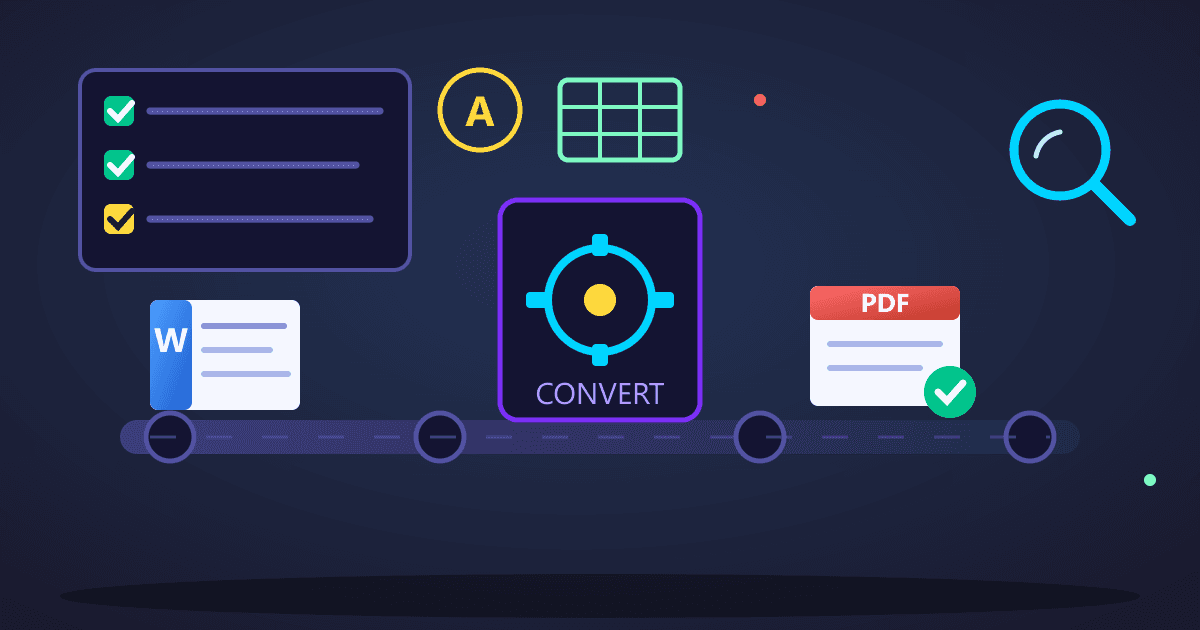
The quick answer: Document conversion best practices include: (1) Prepare source files first by embedding fonts and simplifying complex layouts, (2) Use browser-based converters like Practical Web Tools that process locally for privacy, (3) Always verify converted documents before distribution, (4) Keep original source files alongside converted versions. The most common conversion failures come from complex tables, missing fonts, and skipping verification.
I learned about document conversion the hard way. Three years ago, I was preparing a 47-page proposal for a major client worth $250,000 in revenue. The proposal was due at 9 AM on a Monday. I worked all weekend perfecting every detail in Microsoft Word—custom tables showing ROI projections, embedded charts with our competitive analysis, carefully formatted section breaks, and a professional cover page with our branding.
Try Rotate PDF — free, no sign-up, and it runs entirely in your browser.
Sunday night at 11 PM, I converted the Word document to PDF for final submission. I didn't check it carefully. I was exhausted and confident the conversion would work fine—I'd done it dozens of times before.
Monday morning at 8:45 AM, fifteen minutes before the deadline, I opened the PDF one final time to email it. My stomach dropped. The entire financial table on page 12 had collapsed into an unreadable mess. The three-year projection that should have shown quarterly breakdowns now displayed as overlapping text. The chart on page 23 had disappeared completely, replaced by an empty white rectangle. The footer on every page showed garbled characters instead of our company name.
I had fifteen minutes to fix three years of work. I was sweating. My hands were shaking as I frantically tried reconverting. Same result. I tried a different converter tool. Worse. I tried online conversion sites. They wanted me to sign up for paid accounts or were processing my confidential proposal on their servers—absolutely not acceptable with client data.
I missed the deadline. I requested an extension, explaining we had "technical difficulties." They granted 24 hours but I could hear the skepticism in their voice. The damage to our professional credibility was done before we even started.
That nightmare taught me everything I now know about document conversion. In the three years since, I've converted thousands of documents—proposals, contracts, financial reports, presentations, technical manuals. I've never had another conversion disaster because I learned what actually matters.
This guide shares everything I've learned about converting documents correctly. I'm not going to give you generic advice about "choosing the right format." I'm going to show you exactly what breaks during conversion, why it breaks, and how to prevent it. These practices come from real failures and real solutions.
Why Do Document Conversions Fail?
Before I show you how to convert documents successfully, you need to understand what's actually happening during conversion. Most people think of conversion as simple translation—like changing languages. It's not. It's more like trying to describe a painting using only words, then having someone else recreate the painting based on your description.
The Hidden Complexity of Document Formats
When you create a document in Microsoft Word, you're not creating a single cohesive object. You're creating dozens of separate elements that Word interprets and displays together:
Text Content: The actual words, stored with encoding information, language tags, and character properties
Formatting Instructions: Not the appearance itself, but instructions telling Word how to display things—"make this text Arial 12pt" or "indent this paragraph 0.5 inches"
Layout Definitions: Margins, page size, orientation, columns, sections—the container that holds everything
Embedded Objects: Images, charts, tables, diagrams—each potentially in different formats with their own internal structure
Metadata: Author information, creation dates, revision history, custom properties
Relationships: Links between elements, cross-references, table of contents entries, index markers
When you convert that Word document to PDF, the converter must interpret all those instructions and objects, then recreate the visual result in PDF's completely different structure. PDF doesn't store documents the same way Word does. It doesn't have paragraphs or formatting instructions. It has precise positions on a page where specific text should appear in specific fonts.
Here's what I learned from that failed proposal: my table didn't collapse because the converter was bad. It collapsed because my table used a complex nested structure with merged cells and custom column widths. Word displayed it perfectly because Word understood those instructions. The PDF converter tried to interpret those instructions, made different rendering decisions than Word did, and produced different output.
The chart disappeared because it was an embedded Excel object. When Word displayed my document, it asked Excel to render that chart. The PDF converter didn't have Excel, so it couldn't render the chart at all.
The footer showed garbled characters because I used a decorative font that wasn't embedded in the document. Word found the font on my system and displayed it correctly. The PDF converter couldn't find that font, substituted a different one, and the character encoding didn't match.
Every conversion failure has a technical explanation. Once you understand these mechanisms, you can prevent the failures.
The Three Categories of Conversion Problems
Through years of converting documents and troubleshooting conversion failures, I've found that problems fall into three categories:
1. Format Incompatibility
Some things simply can't convert because the target format doesn't support them. When you convert an Excel spreadsheet to PDF, the formulas don't become "PDF formulas" because PDF has no concept of formulas. The formulas become static values. You can't convert them back into working formulas later because the information is gone.
Similarly, when you convert a PDF to Word, you're not recovering the original Word document. You're using software to guess at what document structure might have created that PDF appearance. Sometimes the guess is accurate. Sometimes it's wildly wrong.
I learned this when trying to convert a PDF contract back to Word for editing. The original contract had been created in Word, converted to PDF, signed, then scanned. I needed to create a similar contract for a different client. The PDF-to-Word conversion gave me a document that looked visually similar but had completely different internal structure. Every paragraph was in a text box. Every line of the table was a separate table. It would have been faster to retype the entire contract from scratch.
2. Information Loss
Even when conversion is possible, information often gets simplified or discarded. Complex formatting becomes simpler formatting. Rich text becomes plain text. Vector graphics become raster images. Multiple elements merge into single elements.
I experienced this when converting a technical manual with complex multi-column layouts, sidebars, and call-out boxes. Converting Word to PDF preserved the visual appearance perfectly. But when I needed to convert that PDF back to Word for major revisions, the multi-column layout became a series of text boxes with no flow between them. The sidebar boxes became images. The careful structure that made the document editable was gone.
3. Rendering Differences
Even when all information transfers successfully, different software renders the same instructions differently. A line that Word breaks after "excellent" might break after "excellent solution" in another application because of microscopic differences in how fonts are measured, how spacing is calculated, or how line-break algorithms work.
These differences cascade. If line breaks change, paragraph heights change. If paragraph heights change, page breaks change. If page breaks change, your carefully designed section that fit perfectly on two facing pages now spans three pages with the heading orphaned on page one.
I spent an entire afternoon troubleshooting a converted annual report where the page numbers were off by one in the table of contents. Everything else was perfect, but the page references were wrong. The issue was subtle: a single paragraph on page 3 had wrapped differently in the conversion, adding two extra lines. Those two lines pushed content down, changing page breaks throughout the entire 80-page document.
What Is the Best Process for Converting Documents?
After that initial disaster and hundreds of subsequent conversions, I developed a systematic framework that prevents conversion problems. This isn't theoretical advice from documentation—it's practical process from real-world use.
Phase 1: Define Conversion Purpose Before Choosing Format
The biggest mistake people make is thinking about conversion as a technical process. It's not. It's a communication process. Before you convert anything, answer these questions:
What will recipients do with this document?
If they need to edit it, convert to Word or another editable format. If they need to analyze data, convert to Excel. If they need to view it exactly as you intended with no changes, convert to PDF. If they need to extract text for another purpose, convert to plain text.
I had a client request all documentation as PDF because "that's our standard." Then they complained that they couldn't edit the documents I sent. They didn't actually want PDFs—they wanted editable documents they could modify. They were confusing "standard format" with "appropriate format for the task."
On what devices will they view it?
Documents for mobile viewing need different formatting than documents for desktop or print. Large tables that work perfectly on a 27-inch monitor become unusable on a phone screen. Complex layouts with multiple columns might need simplification for mobile contexts.
I learned this when preparing documentation for field technicians. I sent them beautiful PDF technical manuals with detailed diagrams, multi-column layouts, and comprehensive tables. They couldn't use them. They needed to reference the documents on phones while working on equipment. We redesigned everything as simple single-column documents optimized for mobile viewing.
What is the expected lifespan?
Documents for immediate use can accept some format limitations. Documents for long-term archival need formats that will remain accessible for years or decades. PDF/A format exists specifically for archival because it embeds everything needed to display the document regardless of what software might be available in the future.
How critical is exact formatting?
A casual email attachment can tolerate some formatting variation. A legal contract cannot. A financial report must display numbers exactly as specified. A creative portfolio must preserve visual design precisely.
This distinction determines how much effort you invest in preparing documents for conversion and verifying conversion results.
Phase 2: Prepare Documents Before Conversion
This phase prevents 80% of conversion problems. Every minute spent preparing documents before conversion saves ten minutes troubleshooting after conversion.
Clean up formatting inconsistencies
I open the Word document (or whatever source format I'm using) and look for formatting applied manually instead of with styles:
- Text made bold by selecting it and clicking the bold button instead of applying a heading style
- Spacing created with extra blank lines instead of paragraph spacing settings
- Indentation created with spaces or tabs instead of indent settings
- Alignment created with tabs instead of table structure
Manual formatting creates conversion problems because converters handle styled content more reliably than manually formatted content. Styles are explicit instructions: "This is Heading 2." Manual formatting is ambiguous: "This text happens to be bold and slightly larger."
I spent an hour once troubleshooting why a document's headings weren't converting to PDF bookmarks. The headings looked identical to other documents where bookmarks worked perfectly. The difference: these headings were manually formatted text instead of proper heading styles. The converter didn't recognize them as structural elements.
My solution: I select all text (Ctrl+A), then check the styles panel. Any direct formatting appears in addition to the style name. I clear direct formatting and reapply it using proper styles. This takes five minutes and prevents dozens of conversion problems.
Embed resources, especially fonts
Remember my garbled footer disaster? That happened because fonts weren't embedded. Now I embed all fonts in every document before converting.
In Word, I go to Options → Save → Embed fonts in the file → Embed all characters. This increases file size but guarantees the fonts will be available during conversion. The slight file size increase is worth avoiding font substitution problems.
For images, I verify they're actually embedded in the document, not linked to external files. Linked images often don't convert because the converter can't access those external files. I can check this by copying the document file to a different location and opening it—if images disappear, they were linked rather than embedded.
Simplify complex structures before conversion
Some document elements are technically correct but too complex for reliable conversion. I've learned to identify and simplify them:
Complex nested tables: Tables inside tables inside tables. These often collapse during conversion. I flatten them into simpler structures or convert them to images if the visual layout matters more than data accessibility.
Unusual fonts: Decorative or specialized fonts that might not be available to the converter. I substitute common fonts or embed them. For documents where visual design is critical, I consider which elements absolutely need special fonts versus which can use standard fonts.
Advanced layout features: Absolute positioning, text boxes with specific wrapping, rotated elements. These convert unpredictably. I either simplify the layout or accept that I'll need to verify and potentially fix positioning after conversion.
I had a marketing document with text boxes carefully positioned to create a specific visual effect. Converting to PDF scrambled the positions completely. I rebuilt the layout using a single-column design with images, which converted perfectly. The visual result was similar, the structure was simpler, and conversion was reliable.
Verify embedded objects render correctly
Charts, diagrams, and embedded spreadsheets need special attention. I verify these display correctly in the source document before conversion:
- Are all chart elements visible (labels, legends, data points)?
- Are embedded spreadsheet objects showing current data?
- Do diagrams include all intended elements?
- Are equations and mathematical expressions formatted correctly?
Then I make a critical decision: should these convert as objects, or should I convert them to images first?
Converting as objects preserves more flexibility but introduces more risk. Converting to images (high-resolution PNG) guarantees visual accuracy but loses the ability to edit the object later.
For that failed proposal, if I had converted the Excel chart to an image before converting the document to PDF, the chart would have appeared perfectly. I would have lost the ability to update the chart data, but for a final proposal document, that was acceptable.
Now I follow this rule: if an embedded object doesn't need to be editable in the converted document, I convert it to an image first. This trades flexibility for reliability, which is usually the right tradeoff.
Phase 3: Execute Conversion with Appropriate Tools
After that proposal disaster, I became obsessive about conversion tools. I tested dozens of converters—desktop applications, online services, command-line utilities, libraries. I learned that tool selection matters enormously, and that not all converters are equivalent.
Why I built Practical Web Tools
The conversion tool landscape is messy. Desktop applications often require expensive licenses and only work on specific operating systems. Online conversion services upload your documents to their servers, which is completely unacceptable for confidential business documents. Many free converters insert watermarks, limit file sizes, or restrict batch processing unless you upgrade to paid plans.
The privacy issue particularly bothered me. After that proposal experience, I researched what online conversion services actually do with uploaded files. Some store them temporarily. Some store them permanently. Some claim they delete files immediately but actually retain them for analytics or training data. Many have vague privacy policies that give them broad rights to your content.
I absolutely could not upload client documents, financial data, or legal contracts to third-party servers. But I needed reliable conversion tools.
That's why we created Practical Web Tools with a specific philosophy: all processing happens in your browser using WebAssembly. Your documents never leave your device. We never see your files. We can't see your files. There's nothing to store, nothing to delete, nothing to secure, because the documents only exist on your computer.
This architecture delivers both privacy and convenience. You get the accessibility of a web tool without the privacy compromise of server-side processing.
Using our conversion tools effectively
Here's my typical workflow for converting documents:
- Prepare the source document using the techniques from Phase 2
- Navigate to the specific converter needed—we have dedicated tools for every common conversion pair
- Drag the document directly onto the upload area (faster than browsing)
- Review any conversion options if they're available—some conversions offer quality settings or layout options
- Process the conversion—this happens instantly for small documents, takes a few seconds for large ones
- Download the result immediately
- Verify the output before closing anything
I keep both the source file and converted file open during verification. This lets me compare them directly to catch any conversion issues immediately.
When I use our tools for batch conversion
I frequently need to convert multiple documents at once. Meeting notes accumulated over months that all need to be PDFs for archival. Training materials in various formats that need to be standardized. Product specifications that need conversion from Word to PDF for distribution.
Our batch conversion capability processes multiple files with a single operation. I can drag an entire folder of Word documents onto our Word to PDF converter, and it processes all of them.
The efficiency difference is dramatic. Converting 50 documents individually might take 30 minutes of repetitive clicking and waiting. Batch converting them takes 2 minutes of setup and a few minutes of processing.
I learned to organize files before batch conversion. I create a temporary folder with only the files I want to convert. I verify they're all prepared correctly. Then I batch convert the entire folder. This prevents converting wrong files or converting unprepared files that will fail.
Phase 4: Verify Results Systematically
This is the phase I skipped with that failed proposal. Never again. Now I verify every significant conversion before considering it complete.
Visual verification checklist
I open the converted document and systematically check:
Page layout: I scroll through the entire document, comparing page breaks to the original. Do pages break at the same places? Are there unexpected blank pages? Did content get pushed across page boundaries?
For long documents, I don't check every page in detail. I check the first few pages carefully, the last few pages, and a random sample from the middle. If those all look correct, the rest are probably fine.
Typography: I scan for font substitution problems. Do fonts look similar to the original? Are there any obviously wrong fonts? Any garbled characters or symbols?
Font problems often appear in specific places: headers, footers, special characters, mathematical symbols, foreign language text. I pay special attention to these areas.
Images and graphics: Do all images appear? Are they positioned correctly? Do they have the right size and resolution? Are there any blank spaces where images should be?
I once converted a training manual where every image appeared as a small placeholder icon. The conversion technically succeeded, but it was completely unusable. If I hadn't checked, I would have distributed useless documentation.
Tables: This is critical. I verify:
- All table data is present
- Columns align correctly
- Cell content hasn't shifted between cells
- Merged cells still appear merged
- Table extends across pages correctly if applicable
Tables cause more conversion failures than any other element. I always check them carefully.
Lists and numbering: Are numbered lists still numbered correctly? Do bullets appear? Is indentation preserved? For multi-level lists, do the levels display correctly?
Headers and footers: Do they appear on every page? Is content correct? Are page numbers sequential? Are there any formatting problems?
Content verification checklist
Beyond visual appearance, I verify the actual content:
Text completeness: I don't read every word, but I verify the document has the correct number of pages and that text hasn't been truncated. I check the beginning and end to ensure complete content.
Hyperlinks: If the document contains links, I test a representative sample. Do internal links (table of contents, cross-references) work? Do external links open correct destinations?
Special characters: I search for common special characters that sometimes convert incorrectly: trademark symbols, copyright symbols, en dashes and em dashes, curly quotes, mathematical symbols. These often convert to strange characters if encoding isn't handled correctly.
Numerical accuracy: For financial documents or technical reports, I spot-check that numbers match the original. Decimal places correct? Currency symbols present? Percentages formatted correctly?
I learned this lesson when converting a financial report where "$1,234.56" became "$1234.56" (missing comma) in conversion. Small formatting change, but it made tables harder to read and looked unprofessional.
Functional verification checklist
Finally, I verify the document works for its intended purpose:
File opens correctly: This sounds obvious, but I've had conversions produce files that opened with errors or warnings. Better to discover this immediately than when sending to clients.
File size is reasonable: Unexpectedly large files indicate conversion problems—often images that weren't compressed appropriately. Unexpectedly small files might mean content was lost.
Format compatibility: If the document will be shared with others, I verify it opens in the software they'll use. I once converted documents to .docx format for a client who used an old version of Word that couldn't open .docx files. Had to reconvert everything to .doc format.
Security and permissions: For PDFs, I verify any intended security settings are applied. Should the document allow printing? Copying text? Editing? Filling form fields? These settings often don't survive conversion from other formats and need to be reapplied.
When verification reveals problems
Sometimes conversions fail despite perfect preparation. When this happens:
Identify what specifically is wrong: Don't just see "it doesn't look right." Determine exactly which elements are wrong and how they differ from the original.
Determine if the problem is acceptable: Sometimes minor differences don't matter for the document's purpose. A table with slightly different column widths might be perfectly usable. A chart with a missing data label might be unacceptable.
Fix in the source document and reconvert: If the problem is significant, I usually fix the source document rather than editing the converted output. This maintains a clean source and ensures future conversions work correctly.
Consider alternative conversion approaches: If standard conversion fails, I might:
- Simplify the problematic elements in the source
- Convert to an intermediate format first, then to the final format
- Convert problematic sections separately and combine them
- Use the document in a different format than originally planned
I had a complex technical manual that refused to convert cleanly from Word to PDF. Tables broke, images moved, formatting was scrambled. After three failed attempts, I converted it to PDF in sections—each chapter separately. Then I used a PDF merging tool to combine them. This approach worked perfectly because it isolated the conversion complexity.
How Do You Convert Different Types of Documents?
Let me walk you through specific conversion scenarios I encounter regularly and exactly how I handle them.
Scenario 1: Converting Client Proposals (Word to PDF)
Why this matters: Proposals represent significant business value and must appear professional. They contain confidential information that cannot be uploaded to random conversion services. Formatting must be exact.
My process:
I create proposals in Word because it's excellent for collaborative editing and revision tracking. But I always deliver them as PDF for these reasons:
- Clients can't accidentally modify the proposal content
- Formatting appears identical regardless of what software clients have
- The document looks professional and polished
- File size is manageable for email attachment
Preparation steps:
- I verify all fonts are embedded (File → Options → Save → Embed fonts)
- I convert any complex charts or diagrams to high-resolution PNG images
- I use Word's built-in styles exclusively for headings, body text, lists—no manual formatting
- I check that all images are embedded, not linked
- I verify page breaks are where I want them
- I add document properties (author, title, subject) because these become PDF metadata
Conversion:
I use our Word to PDF converter. I drag the prepared Word file, it processes in seconds, I download the PDF.
Verification:
For proposals, I verify carefully because mistakes are costly:
- I open the PDF and scroll through every page, checking layout
- I verify the cover page looks professional
- I check all tables display correctly with proper alignment
- I verify images and charts appear clearly
- I check page numbers in footers are correct
- I test the PDF on both Windows and a colleague's Mac to ensure cross-platform consistency
This process takes about 5 minutes for a 40-page proposal. It's prevented every potential formatting disaster since I implemented it.
Scenario 2: Converting Financial Reports (Excel to PDF)
Why this matters: Financial data must be accurate. Tables must align perfectly. Numbers must be readable. These documents often get printed, so print layout matters.
Challenges with Excel conversion:
Excel spreadsheets are designed for infinite scrolling, but PDFs have fixed page sizes. Converting Excel to PDF requires deciding how the spreadsheet maps to pages:
- Which columns fit on each page?
- Where should page breaks occur in long data sets?
- Should large tables be rotated to landscape orientation?
- How should headers repeat across pages?
My process:
Before conversion, I prepare the Excel file for PDF output:
- I use Page Layout view in Excel to see how content will paginate
- I adjust column widths so related data stays together on pages
- I set print areas explicitly to control what gets included
- I configure repeating headers so column labels appear on every page
- I set appropriate page orientation (landscape for wide tables)
- I add headers and footers with page numbers, document title, date
- I verify print preview shows the layout I want
Only after the Excel file looks correct in print preview do I convert it.
I use a dedicated Excel to PDF converter for the actual conversion.
Verification:
For financial documents, I verify numerical accuracy:
- I spot-check numbers against the original Excel file
- I verify all tables are complete with no data truncated
- I check that column alignment makes tables readable
- I verify currency symbols and decimal places are correct
- I ensure totals and summaries are clearly visible
I learned these verification steps after converting a quarterly financial report where the totals row was cut off at a page break. The report showed all the line items but not the totals, making it useless. Now I always check that summary data is visible.
Scenario 3: Converting PDFs to Editable Documents (PDF to Word)
Why this matters: I frequently receive contracts, forms, or reports as PDF that I need to modify. Converting them to Word makes editing possible.
Reality check: PDF to Word conversion is never perfect. PDFs don't contain the structural information Word needs. Converters guess at document structure based on visual appearance. Sometimes the guesses are accurate; sometimes they're not.
When PDF to Word conversion works well:
- PDFs created from Word documents (you're essentially recovering original structure)
- PDFs with simple layouts: single column, basic formatting, standard fonts
- PDFs that are primarily text with minimal graphics
- PDFs with tables that have clear boundaries and simple structure
When PDF to Word conversion struggles:
- PDFs created from scanned documents (these need OCR, not just conversion)
- PDFs with complex multi-column layouts
- PDFs with text boxes, rotated text, unusual positioning
- PDFs with extensive graphics, overlapping elements, or layered content
- PDFs with forms or interactive elements
My process:
- I examine the PDF first to assess how complex it is
- For simple PDFs, I use our PDF to Word converter directly
- For complex PDFs, I consider whether converting is actually the best approach, or if recreating key sections manually would be faster
After conversion:
I always get a Word document that needs cleanup:
- Paragraphs might be broken into separate text boxes
- Tables might be partially converted to tabs and spaces
- Fonts might be substituted
- Formatting might be inconsistent
I budget time for this cleanup. Converting a 10-page PDF to Word might take 30 seconds. Cleaning up the resulting Word document might take 20 minutes.
Real example:
I needed to create a new service agreement based on an old one I only had as PDF. The PDF was originally created in Word, so I expected decent conversion.
I converted it using our tool. The resulting Word document was about 80% correct:
- Text was accurate
- Basic formatting was preserved
- Most tables converted correctly
But it needed fixes:
- Page header was in a text box instead of the header area
- Two tables had lost their borders
- Bullet points in one section became dashes
- Font sizing was inconsistent in a few paragraphs
I spent 15 minutes fixing these issues. Still faster than retyping a 12-page contract from scratch.
When I don't convert PDF to Word:
If the PDF is complex or the conversion results are poor, I often use a different approach:
- For forms, I fill them out in a PDF editor rather than converting to Word
- For scanned documents, I use OCR to extract text, then reformat it manually in Word
- For documents with complex layouts, I sometimes recreate only the sections I need rather than converting the entire document
Scenario 4: Extracting Data from PDFs (PDF to Excel)
Why this matters: I frequently receive reports, invoices, or data compilations as PDF when I need the data in Excel for analysis.
The challenge: Tables in PDFs are visual constructs, not data structures. What looks like a table to you is just text positioned at specific coordinates. Converters must detect that positioned text represents tabular data, then reconstruct the table structure.
When PDF to Excel conversion works well:
- PDFs with clear table boundaries and gridlines
- Simple tables without merged cells or complex structures
- Tables where columns are clearly separated
- PDFs created from Excel (you're recovering original data)
When PDF to Excel conversion struggles:
- Tables without visible gridlines (converter must guess column boundaries)
- Complex tables with merged cells, nested headers, or irregular structures
- Multiple tables on one page (converter might merge them)
- Tables split across pages
- PDFs created from scanned documents
My process:
I use our PDF to Excel converter and immediately verify the output:
- I check that the correct number of rows and columns converted
- I verify data is in the correct cells (columns didn't shift)
- I check that numerical values are numbers, not text
- I verify any totals or calculated values
Real example:
I needed to analyze expense data from six months of PDF invoices. Each invoice had a table of line items.
I converted the first invoice to Excel. The conversion was about 90% successful:
- Most data extracted correctly
- Column structure was preserved
- Numbers converted as numbers
But there were issues:
- The invoice number in the header wasn't extracted
- The subtotal/tax/total footer needed to be separated into columns
- A few currency symbols caused cells to be imported as text instead of numbers
I cleaned up the first extraction, then batch-converted all six months of invoices. Because they all had the same format, I wrote an Excel macro to apply the same cleanup steps to all of them.
Total time: 2 hours to convert and clean six months of data. Manual data entry would have taken days.
Alternative approaches when conversion fails:
If PDF to Excel conversion produces poor results:
- I sometimes extract the data as CSV (simpler format, fewer structural assumptions)
- For really complex tables, I might copy-paste from PDF to Excel, then clean up the formatting
- For scanned invoices, I use OCR to extract text, then manually structure it in Excel
- For recurring reports with the same format, I sometimes create an Excel template and manually enter just the changing data
What Are the Best Document Formats for Different Purposes?
After thousands of conversions, I've developed strong opinions about which formats work for which purposes. This isn't based on format specifications—it's based on real-world reliability and usability.
PDF: My Default for Finished Documents
I use PDF when:
- Documents are final and shouldn't be edited
- Visual appearance must be exact
- I'm sending documents to people who might not have the same software I have
- Documents need basic security (passwords, printing restrictions)
- I need documents to be searchable but not editable
- Documents will be archived long-term
I specifically don't use PDF when:
- Recipients need to edit the content
- Data needs to be analyzed or calculated
- Content will be extracted for other purposes (use plain text instead)
- The document is still being revised collaboratively
Real-world PDF decisions:
I converted our entire company policy manual to PDF because employees need to reference it but shouldn't modify it. I keep the Word originals for updates, but distribute only PDFs.
I deliver all client proposals as PDF for professional appearance and to prevent accidental modifications.
I store contracts as PDF after signing because they're legal records that must remain unchanged.
But I don't use PDF for team documentation that changes frequently. Those stay in Word or Markdown so team members can easily suggest edits.
Word: My Default for Collaborative Documents
I use Word (.docx) when:
- Documents will be edited by multiple people
- Content is still being revised
- I need track changes and comments for review
- Documents contain primarily text with basic formatting
- Recipients have Word or compatible software
I specifically don't use Word when:
- Visual layout must be absolutely exact
- Recipients might not have compatible software
- Documents contain complex data that should be calculated
- I need guaranteed cross-platform consistency
Real-world Word decisions:
I draft all proposals in Word because clients often request revisions. Word's track changes make revision cycles manageable.
I create meeting agendas in Word because attendees might suggest changes before meetings.
I write documentation drafts in Word because team members review and edit them collaboratively.
But I always convert to PDF before final distribution. Word is for creation and collaboration; PDF is for distribution and presentation.
Excel: My Default for Data
I use Excel (.xlsx) when:
- Documents contain primarily tabular data
- Data needs calculations or formulas
- Information will be sorted, filtered, or analyzed
- I need to create charts from the data
- Data will be imported into databases or other systems
I specifically don't use Excel when:
- Documents are primarily text
- Visual layout matters more than data structure
- Recipients don't need calculation capabilities
- Data should be presented but not modified
Real-world Excel decisions:
I track project budgets in Excel because I need formulas to calculate totals, percentages, and variances.
I compile survey results in Excel because I need to calculate statistics and create charts.
I manage inventory lists in Excel because I need to sort by different columns and filter by criteria.
But when I distribute budget reports to stakeholders who don't need to modify data, I convert them to PDF. This preserves the table layout while preventing accidental formula changes.
Plain Text: My Default for Content
I use plain text (.txt) when:
- Formatting is irrelevant, only content matters
- Text will be extracted and used elsewhere
- I need the smallest possible file size
- Maximum compatibility is essential
- Content will be processed programmatically
Real-world plain text decisions:
I extract plain text from PDFs when I need to count words, search content, or analyze language.
I save configuration files and code snippets as plain text because formatting would be meaningless.
I sometimes ask clients to send requirements as plain text instead of formatted documents to avoid distraction from fancy formatting and focus on content.
What Are the Most Common Document Conversion Mistakes?
After helping colleagues, clients, and friends with document conversion problems, I've seen the same mistakes repeatedly. Here are the most common ones and how to avoid them.
Mistake 1: Converting Without Purpose
The mistake: Converting documents because "we need everything in PDF" or "let's make this a Word file" without considering why.
Why it's wrong: Conversion changes document capabilities. Converting Excel to PDF loses formulas. Converting Word to plain text loses formatting. Every conversion discards some information or functionality.
The fix: Ask "what will we do with the converted document?" before converting. If the answer is "edit the data," don't convert to PDF. If the answer is "distribute without modifications," PDF might be right.
Real example: A colleague converted all team documentation to PDF "for standardization." Then team members couldn't update the documentation. We had to convert everything back to Word, making the entire exercise pointless.
Mistake 2: Not Preparing Source Documents
The mistake: Converting documents directly without checking for problems first.
Why it's wrong: Garbage in, garbage out. Documents with font problems, broken tables, missing images, or formatting inconsistencies convert unpredictably.
The fix: Spend five minutes preparing the source document before conversion. Verify fonts are embedded, images are present, tables are structured correctly, formatting is consistent.
Real example: Someone sent me a PDF to troubleshoot because "the table looks wrong." I traced back to the source Word document, which had a table created with tabs and spaces instead of proper table structure. No converter could fix that. We rebuilt the table correctly in Word, then converted to PDF. Perfect result.
Mistake 3: Trusting Conversion Without Verification
The mistake: Converting a document and immediately distributing it without checking the result.
Why it's wrong: Most conversions succeed, but when they fail, they fail silently. Charts disappear. Tables collapse. Fonts substitute. You won't know unless you check.
The fix: Open converted documents and verify them before distribution. For critical documents, check carefully. For routine documents, at least scroll through to ensure nothing is obviously broken.
Real example: My own proposal disaster. If I had checked the PDF the night I created it instead of the morning I sent it, I would have had time to fix the problems.
Mistake 4: Using Inappropriate Tools
The mistake: Using whatever converter is convenient rather than one appropriate for the task.
Why it's wrong: Different converters have different capabilities, quality levels, and privacy implications. Online services might store your documents. Old desktop software might not handle modern formats correctly. Free tools might insert watermarks.
The fix: Choose converters based on document importance and sensitivity. For confidential documents, use tools that guarantee privacy (like our browser-based converters where files never leave your device). For critical documents, use high-quality conversion engines.
Real example: Someone used a random free online converter for HR documents containing employee personal information. Those documents were uploaded to servers in another country. Potential privacy law violation, potential data breach risk—all to save $10 on conversion software.
Mistake 5: Converting in Wrong Sequence
The mistake: Converting from format A to format B to format C, losing information at each step.
Why it's wrong: Each conversion loses some information or introduces small errors. Multiple conversions compound these losses.
The fix: Convert directly from source to final format when possible. If intermediate conversions are necessary, plan the sequence to minimize information loss.
Real example: Someone converted Excel → Word → PDF → Word. The final Word document bore little resemblance to the original Excel data. All table structure was lost, formulas were gone, formatting was scrambled. Direct conversion Excel → PDF or Excel → Word would have preserved more structure.
Mistake 6: Ignoring Format Limitations
The mistake: Expecting the target format to support everything the source format had.
Why it's wrong: Formats have different capabilities. PDF has no formulas. Plain text has no formatting. JPG has no transparency.
The fix: Understand what you'll lose in conversion and decide if that's acceptable before converting.
Real example: Someone converted a complex Excel financial model to PDF for "archival." Later they needed to update the calculations. The PDF was useless because all formulas were gone. They had to redo months of work because the original Excel file was lost.
Mistake 7: Batch Converting Without Testing
The mistake: Converting hundreds of documents at once without testing conversion quality on representative samples first.
Why it's wrong: If conversion settings are wrong or documents have systematic problems, you'll convert hundreds of broken documents instead of fixing the issue once.
The fix: Test conversion on 3-5 representative documents first. Verify they converted correctly. Then batch convert the rest.
Real example: I almost made this mistake myself. I was about to batch convert 200 training documents Word → PDF. I tested one first and discovered that our company logo (embedded as a high-resolution image) made file sizes enormous—each PDF was 15MB. I reduced the logo resolution in the Word template, then batch converted. Saved gigabytes of storage and made files actually email-able.
Advanced Techniques I've Learned
Beyond basic conversion, I've learned specialized techniques for challenging situations.
Technique 1: Two-Stage Conversion for Complex Documents
When to use: When direct conversion fails or produces poor results.
How it works: Convert to an intermediate format that handles the complexity better, then convert to the final format.
Example: I had a technical manual with complex diagrams that wouldn't convert Word → PDF cleanly. The diagrams (created with Word's drawing tools) kept breaking apart.
Solution: I converted Word → HTML, which separated diagrams into individual images. Then I converted HTML → PDF. The diagrams became embedded images in the PDF, which looked identical to the originals and couldn't break apart.
Technique 2: Section-by-Section Conversion
When to use: When large documents fail to convert or produce inconsistent results.
How it works: Break the source document into sections, convert each section separately, then combine the converted sections.
Example: A 200-page report kept failing during Word → PDF conversion. The file was too complex, and the converter kept timing out.
Solution: I split the Word document into 10 chapters. Converted each chapter to PDF separately. Used a PDF merging tool to combine them into a single final PDF. This worked because each section was manageable, even though the whole document wasn't.
Technique 3: Content Extraction and Rebuild
When to use: When conversion preserves content but destroys structure so badly that cleanup would take longer than rebuilding.
How it works: Extract just the text and images from the source, then rebuild the document structure in the target format.
Example: I needed to convert a complex newsletter PDF (multiple columns, text boxes, images with text wrapping) to Word for major content revision.
Attempted solution: Direct PDF → Word conversion. Result was unusable—every element was in text boxes, columns became separate text boxes, flow between elements was broken.
Actual solution: I extracted text from the PDF. Extracted images separately. Created a new Word document with proper structure. Copied text into appropriate sections. Inserted images. Reapplied formatting. Took 30 minutes but produced a clean editable document instead of a mess.
Technique 4: Format-Specific Optimization
When to use: When conversion succeeds technically but produces suboptimal results for the target format.
How it works: After conversion, optimize the result for how it will actually be used.
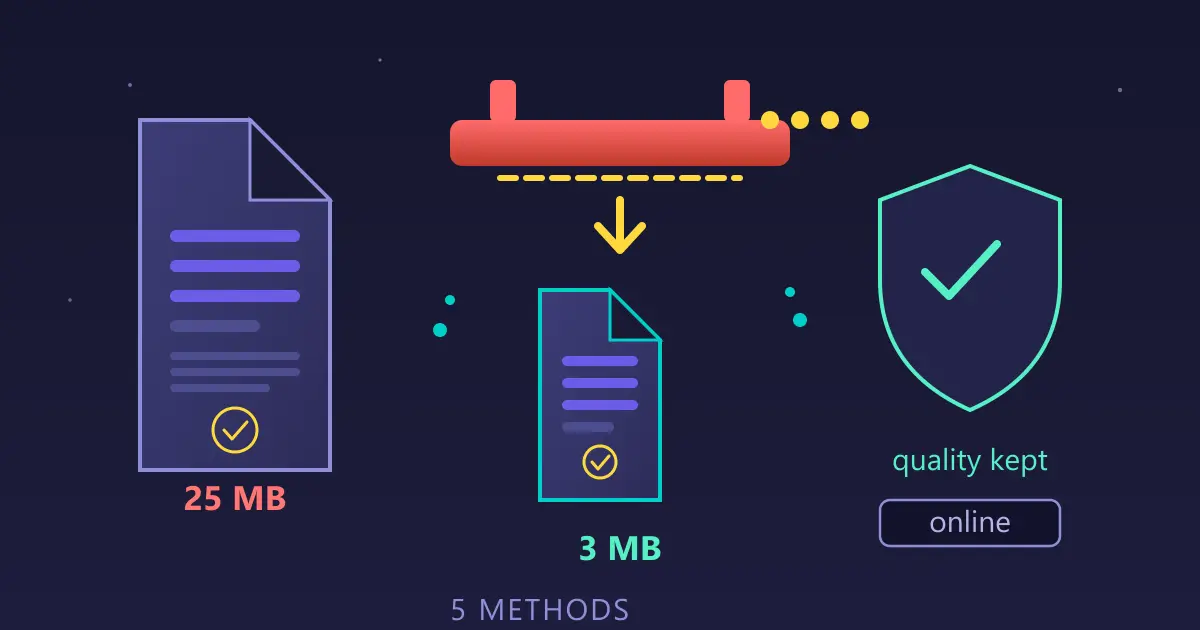
Example: Converting PowerPoint → PDF for distribution produced enormous files (50MB+ for a 20-slide presentation) because images were embedded at original high resolution.
Solution: After converting to PDF, I ran the PDF through our PDF compression tool. This reduced images to appropriate resolution for screen viewing (since these PDFs wouldn't be printed). File size dropped to 3MB with no visible quality loss. Much more practical for email distribution.
Technique 5: Preserving Structure with Styles
When to use: When converting editable formats (Word, HTML, Markdown) and you want to preserve document structure, not just appearance.
How it works: Use semantic styles (Heading 1, Heading 2, Body Text) instead of manual formatting before conversion.
Example: I needed to convert Word documents to HTML for our website. Early conversions produced messy HTML with lots of inline styling.
Solution: I went back to the source Word documents and reformatted everything using proper styles. Removed all direct formatting. Converted again. The resulting HTML was clean, properly structured, and much easier to work with. The visual appearance was identical, but the underlying code was professional instead of messy.
Tools I Use for Different Conversion Scenarios
Here's my actual toolkit for document conversion, built through years of real-world use.
For Routine Business Documents
Word to PDF: My most-used converter. Proposals, contracts, documentation, reports—anything created in Word that needs to be distributed in fixed format.
Excel to PDF: Financial reports, data summaries, project tracking sheets—converting spreadsheets for distribution while preserving table layout. Most spreadsheet applications include built-in PDF export.
PowerPoint to PDF: Presentation handouts, slide decks for distribution, archived presentations. PowerPoint's native export handles this well.
For Data Extraction
PDF to Excel: Extracting tables from PDF reports, invoices, statements for analysis.
PDF to Word: Recovering editable versions of documents I only have as PDF, extracting content for reuse.
PDF to Text: Getting plain text content for analysis, word counting, searching, or feeding into other systems.
For Presentation and Publishing
Merge PDF: Combining scanned documents or photos into PDF format, creating PDF portfolios from multiple files.
PDF to Image: Creating thumbnails of document pages, extracting specific pages as images for presentations or web use.
For Document Management
PDF Compression: Reducing file sizes for email, storage efficiency, or faster loading.
Merge PDF: Combining converted sections, assembling documents from multiple sources.
Split PDF: Extracting specific sections from large documents, separating combined documents.
The Tools I Specifically Don't Use Anymore
Desktop PDF software: Too expensive for the features I actually need. Our browser-based tools handle 95% of conversion tasks.
Online services that upload files: Privacy risk is unacceptable for business documents. I won't upload client data, financial information, or confidential documents to third-party servers.
Random free converters: Quality is inconsistent, many insert watermarks, some have malware risks. Not worth the hassle.
Office application built-in converters: These work, but they're less convenient than dedicated tools and sometimes have limitations (like Word's "Save as PDF" not always preserving all formatting).
Your Document Conversion Action Plan
Let me give you a practical, step-by-step process you can start using today for reliable document conversions.
For Standard Business Documents (Proposals, Reports, Contracts)
Goal: Convert Word/Excel documents to PDF for distribution
Process:
- Finish editing completely before conversion—don't convert works-in-progress
- Embed all fonts (File → Options → Save → Embed fonts)
- Verify images are embedded, not linked
- Use print preview to check how the document will paginate
- Convert using our Word to PDF tool or your application's built-in PDF export
- Open the resulting PDF and scroll through it completely
- Check first page, last page, and a few random middle pages for problems
- Verify any tables, images, or charts display correctly
- Distribute the PDF
Time investment: 5 minutes preparation + 30 seconds conversion + 2 minutes verification = less than 8 minutes total
For Data Extraction (Getting Tables from PDFs)
Goal: Extract data from PDF reports/invoices into Excel for analysis
Process:
- Examine the PDF to assess table complexity
- Convert using our PDF to Excel tool
- Open the resulting Excel file immediately
- Verify row and column counts match the original
- Check that data is in correct cells (columns didn't shift)
- Verify numbers are formatted as numbers, not text
- Clean up any headers/footers that need separation
- Save the cleaned Excel file with a clear name
Time investment: 2 minutes assessment + 30 seconds conversion + 5-15 minutes cleanup depending on complexity
For Document Recovery (Converting PDFs to Editable Format)
Goal: Get editable Word document from PDF
Process:
- Assess PDF complexity—simple text or complex layout?
- For simple PDFs: convert directly with PDF to Word
- For complex PDFs: consider if partial manual recreation might be faster
- Open the converted Word document
- Budget time for cleanup (usually 2-5x the conversion time)
- Fix common issues: text boxes that should be paragraphs, broken tables, font inconsistencies
- Save the cleaned Word document
Time investment: 1 minute assessment + 30 seconds conversion + 10-30 minutes cleanup for a typical document
For Batch Conversion (Multiple Documents)
Goal: Convert many documents efficiently
Process:
- Collect all documents needing conversion in a single folder
- Verify they're all prepared correctly (fonts embedded, etc.)
- Test conversion on 2-3 representative samples
- Verify sample conversions are correct
- If samples look good, batch convert all documents
- Spot-check 10-20% of batch results to ensure consistency
- Organize converted files appropriately
Time investment: 10 minutes preparation + 5-10 minutes testing + 2-5 minutes batch conversion + 5 minutes spot-checking = about 30 minutes for hundreds of documents
Start Converting Documents Correctly Today
Everything I've shared comes from real experience—real failures, real solutions, real workflows that I use daily. Document conversion doesn't have to be frustrating or unpredictable. With proper preparation, appropriate tools, and systematic verification, you can achieve consistent, professional results.
The key insights that changed my conversion success rate:
-
Preparation matters more than tool selection - Five minutes preparing the source document prevents hours troubleshooting conversion problems
-
Privacy is non-negotiable for business documents - Never upload confidential documents to unknown online services
-
Verification is essential - Always check converted documents before distribution, especially for critical materials
-
Different formats serve different purposes - Choose the target format based on what recipients will do with the document
-
Some conversions aren't worth doing - Sometimes manual recreation is faster and better than fighting with problematic conversions
Start with our free conversion tools that process everything locally in your browser. Your documents never leave your device. No uploads, no privacy risks, no accounts required.
Whether you're converting a single proposal or processing hundreds of documents, these practices will save you time, prevent frustration, and ensure professional results every time.
Ready to convert documents with confidence? Choose the conversion tool you need:
- Word to PDF - Create polished PDF documents
- PDF to Word - Extract editable content
- PDF to Excel - Analyze data from reports
- PDF to Text - Extract plain text content
- View all conversion tools - Complete toolkit for any document format
All tools are free, process files privately in your browser, and deliver professional results. Start converting smarter today.
Frequently Asked Questions About Document Conversion
Why do tables break when converting Word to PDF?
Tables break during conversion because complex structures like merged cells, nested tables, and custom column widths can be interpreted differently by the converter than by Word. To prevent this, simplify table structures before converting, avoid deeply nested tables, and consider converting complex tables to high-resolution images first if visual accuracy is more important than data editability.
How do I convert documents without losing formatting?
Embed all fonts before converting (File > Options > Save > Embed fonts in Word), simplify complex layouts, use proper styles instead of manual formatting, and verify embedded objects display correctly. After conversion, always compare the result against the original to catch any issues before distribution.
Is it safe to use online document converters?
Most online converters upload your files to external servers, creating privacy risks for confidential documents. Browser-based converters like Practical Web Tools process files entirely on your device using WebAssembly technology. Your documents never leave your computer, making this approach essential for business documents, legal files, or anything with sensitive information.
What causes fonts to change during document conversion?
Font changes occur when the converter cannot access fonts embedded in or referenced by your document. Always embed fonts in Word documents before converting. If fonts still substitute, the converter may not support certain font formats. Common system fonts like Arial, Times New Roman, and Calibri convert most reliably.
How do I convert a PDF back to editable Word?
Use a PDF to Word converter, but understand that results depend on PDF complexity. PDFs created from Word documents convert best. Complex layouts, scanned documents, and PDFs with text boxes often require manual cleanup. For very complex PDFs, it may be faster to recreate the document than to fix a poor conversion.
What is the best format for archiving documents long-term?
PDF/A is the international standard for long-term document archival. It embeds all fonts and resources, ensuring documents remain readable decades from now regardless of available software. Keep original editable files (Word, Excel) alongside PDF/A versions so you can make future updates if needed.
How do I batch convert multiple documents at once?
Organize files by type and complexity first. Test conversion on a few representative samples before processing the full batch. Use batch conversion tools that process locally for privacy. Expect about 5% of files to need individual attention due to conversion issues.
Why does my converted document have different page breaks?
Page breaks change when the converter renders fonts, spacing, or line breaks slightly differently than the source application. These small differences cascade through the document, shifting content across pages. To minimize this, use fixed page breaks where critical, embed fonts, and stick to common fonts that render consistently across systems.