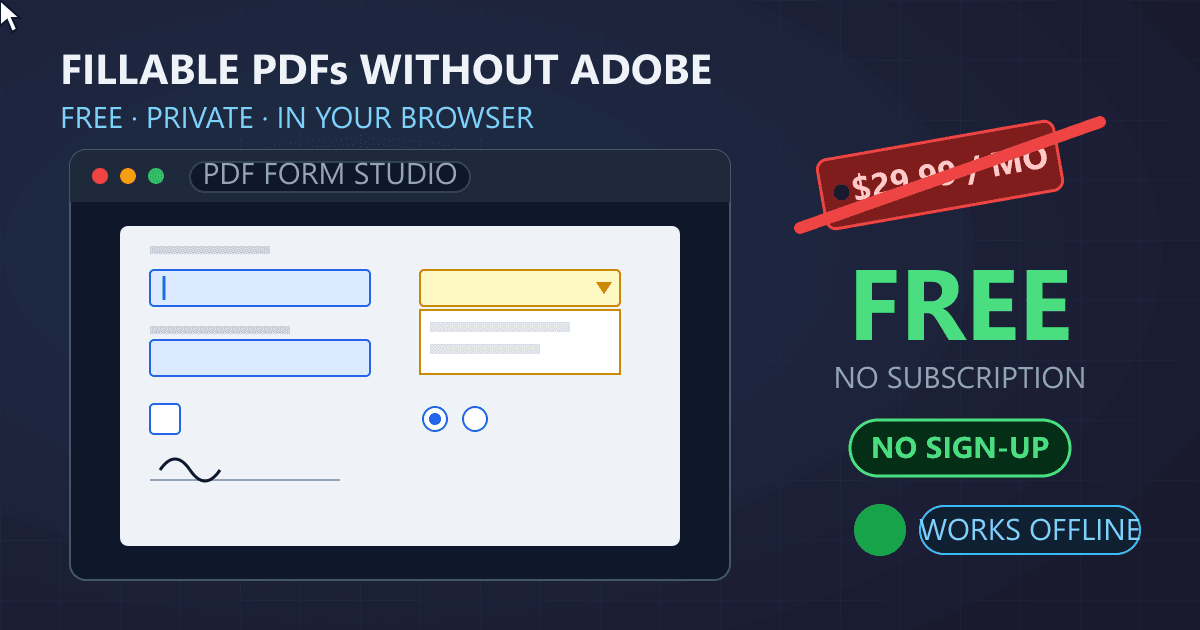
You can create fillable PDFs without Adobe Acrobat using free browser-based tools like Practical Web Tools' Fillable PDF Creator. Upload any PDF, add text fields, checkboxes, radio buttons, and dropdown menus with point-and-click simplicity, then export your fillable form in seconds. No subscription, no account creation, no software installation. Your files process entirely in your browser, so sensitive documents never touch external servers.
Three months ago, I got an urgent call from my sister. She runs a small physical therapy practice with eight employees. Her landlord had sent lease renewal paperwork as a flat PDF, and she needed to make it fillable so her business partner could review and sign it digitally.
Try Fill PDF — free, no sign-up, and it runs entirely in your browser.
"The Adobe thing wants me to pay almost thirty dollars a month," she said. "I just need to add a few signature lines and some checkboxes. Is there really no other way?"
I walked her through a free browser-based tool. Twenty minutes later, her lease document had fillable text fields, signature boxes, and date fields, all without spending a cent or creating any accounts.
That conversation made me realize how many people assume Adobe Acrobat is the only option for creating fillable PDFs. It absolutely is not. In fact, for most use cases, free alternatives work just as well and often prove easier to use.
Why Does Adobe Acrobat Cost So Much?
Before exploring alternatives, it's worth understanding what you're avoiding by not subscribing to Adobe Acrobat.
Adobe Acrobat Pro currently costs $29.99 per month on a month-to-month plan, or $19.99 per month if you commit to an annual subscription. That works out to $240-$360 per year just to create and edit PDF forms.
For comparison, that annual cost could buy you:
- A nice dinner for two, every single month
- Several months of streaming services combined
- A professional-grade external hard drive for backups
- Almost a full year of a gym membership
Adobe also offers Acrobat Standard at $22.99 per month (monthly plan) or $14.99 per month (annual), but this version has limited form-creation capabilities that frustrate many users.
The Hidden Cost: Cancellation Traps
The price tag tells only part of the story. Adobe's subscription model has generated significant controversy and legal scrutiny. The Federal Trade Commission has taken action against Adobe, alleging the company hides early termination fees and makes cancellation unnecessarily difficult.
Here's what catches many users off guard: Adobe's "monthly" pricing for the annual plan isn't actually month-to-month. You're committing to a full year. If you cancel early, you face termination fees that can equal 50% of your remaining subscription value.
Users across review platforms describe the experience:
- "I thought I signed up for one month. When I tried to cancel, they charged me for the rest of the year."
- "The cancellation process took me through five different pages trying to convince me to stay."
- "I discovered I had subscriptions I never knew I signed up for."
These aren't isolated complaints. Consumer review sites show a consistent pattern of confusion around Adobe's billing practices.
Performance and Stability Concerns
Even users who accept the pricing often encounter frustration with the software itself:
- Resource consumption: Adobe Acrobat is notoriously heavy software. Multiple users report it consuming excessive system memory and causing slowdowns on older computers.
- Crashes and data loss: Reviews consistently mention stability issues. "Very unstable, crashes a few times a week losing all changes" is a representative complaint.
- Declining quality: Long-term users report the software has actually gotten worse over time. One user who has worked with Acrobat Pro "since the very early days" noted that "instead of improving the app it is getting worse with every update."
- Form creation specifically: The form creation tools draw particular criticism. Users describe form editing as "terrible, slow, buggy, sluggish and not intuitive."
When you combine high costs, aggressive retention tactics, and software quality concerns, the appeal of free alternatives becomes obvious.
What Are the Free Alternatives to Adobe Acrobat for Fillable PDFs?
Several options exist for creating fillable PDFs without Adobe. Each has strengths and limitations worth understanding.
Browser-Based PDF Form Creators
Browser-based tools require no installation and work on any operating system. You upload your PDF, add form fields through a visual interface, and download the completed fillable document.
Practical Web Tools' Fillable PDF Creator exemplifies this approach. It offers:
- Text fields: Single-line and multi-line text inputs for names, addresses, descriptions
- Checkboxes: Multiple-selection options for agreements, selections, preferences
- Radio buttons: Single-selection option groups for yes/no questions or multiple choice
- Dropdown menus: Select lists with predefined options
The critical advantage of browser-based processing: your files never leave your device. Everything happens locally using WebAssembly technology. For sensitive documents like contracts, medical forms, or financial paperwork, this privacy guarantee matters enormously.
Think about the irony of most online PDF tools: you're trying to create a professional form for confidential information, but first you must upload that document to a stranger's server. Browser-based local processing eliminates this concern entirely.
Desktop Software Alternatives
Free desktop applications can also create fillable PDFs:
LibreOffice Draw: The open-source office suite includes PDF form creation. It's more complex than browser tools but offers additional layout capabilities. The learning curve is steeper, and you need to install software on your machine.
PDF-XChange Editor (Free Version): Available for Windows, the free version includes basic form creation. Some advanced features require the paid upgrade.
Scribus: This open-source desktop publishing application can create PDF forms as part of larger document design projects. It's overkill for simple form creation but powerful for complex layouts.
Why Browser-Based Tools Often Work Best
For occasional form creation needs, browser-based tools typically provide the best experience:
- No installation: Works immediately on any computer with a modern browser
- No learning curve: Visual point-and-click interfaces require minimal training
- Cross-platform: Works identically on Windows, Mac, Linux, and Chromebooks
- Always updated: No software updates to manage or compatibility issues to troubleshoot
- Privacy-focused: The best options process files locally without server uploads
For my sister's lease document, a browser-based tool was perfect. She opened the page, uploaded her PDF, clicked to add fields where she needed them, and downloaded the result. Total time invested: less than the hold time for Adobe's customer service line.
How Do I Create a Fillable PDF Without Adobe? Step-by-Step Guide
Let me walk you through the exact process using a browser-based tool. These steps work for contracts, applications, surveys, intake forms, registration documents, or any other PDF you need to make interactive.
Step 1: Prepare Your Source PDF
Start with the PDF you want to convert to a fillable form. This might be:
- A document you created and exported to PDF
- A form someone sent you as a flat (non-fillable) PDF
- A scanned paper form saved as PDF
- A template downloaded from the internet
The source PDF's quality affects your final result. Clean, well-organized PDFs work best. If your source is a low-quality scan, consider whether recreating the form from scratch might be easier.
Step 2: Upload to the Form Creator
Navigate to Practical Web Tools' Fillable PDF Creator and upload your PDF. You can click to browse or drag and drop the file.
The PDF loads in an editing view where you can see each page. Take a moment to scroll through and identify where you need to add interactive elements.
Step 3: Add Text Fields
Text fields are the most common form element. You'll use them for:
- Names and signatures
- Addresses and contact information
- Dates
- Written responses
- Comments and notes
Click the text field tool, then click on your PDF where you want the field to appear. You can resize and reposition fields after placing them. For each field, consider setting:
- Field name: A descriptive identifier (like "applicant_name" or "start_date")
- Default text: Placeholder or instructional text users see before typing
- Required status: Whether the field must be completed
Step 4: Add Selection Elements
For questions with predefined answers, use checkboxes, radio buttons, or dropdowns:
Checkboxes work for multiple-selection questions:
- "Check all certifications you hold"
- "Select the services you're interested in"
- Agreement confirmations ("I have read and accept...")
Radio buttons work for single-selection questions:
- Yes/No questions
- Rating scales
- Category selections where only one answer is valid
Dropdown menus work when you have many predefined options:
- State or country selection
- Department or category choices
- Date selections for months or years
Step 5: Review Field Properties
Each form field has properties you can customize:
- Name: The internal identifier (important if you'll process form data programmatically)
- Appearance: Border style, background color, text formatting
- Behavior: Read-only status, required field designation
- Validation: For text fields, you might restrict input to numbers or specific formats
Take time to name fields descriptively. "field_1" and "field_2" make sense during creation but create confusion later when reviewing submitted forms.
Step 6: Test and Export
Before exporting, mentally walk through the form as a user would experience it:
- Are fields positioned logically for the reading order?
- Is there enough space for expected responses?
- Do checkboxes and radio buttons group sensibly?
- Are required fields clearly indicated?
Export your fillable PDF when satisfied. The downloaded file works in virtually any PDF reader: Adobe Reader (the free viewer), Chrome's built-in PDF viewer, Firefox, Preview on Mac, and third-party readers.
What Types of Documents Work Best as Fillable PDFs?
Certain documents benefit enormously from fillable form fields. Others work better as simple flat PDFs or even different formats entirely.
Excellent Candidates for Fillable PDFs
Application forms: Employment applications, rental applications, membership applications, and permit applications all work excellently as fillable PDFs. Applicants can type their information cleanly, and you receive legible, consistent responses.
Contracts and agreements: Adding signature fields, date fields, and initial boxes transforms flat contracts into executable documents. Recipients can review, complete required fields, and return signed versions without printing.
Medical intake forms: Patient information forms, medical history questionnaires, and consent documents work well as fillable PDFs. The privacy advantage of browser-based processing matters particularly for healthcare documents.
Registration forms: Event registration, course enrollment, and membership signup forms translate perfectly to fillable PDFs. Dropdown menus work well for session or category selection.
Surveys and questionnaires: Customer feedback forms, research surveys, and assessment questionnaires benefit from the structure that form fields provide. Radio buttons and checkboxes ensure consistent response formats.
Order forms: Product order forms, service request forms, and quote requests work well when structured with appropriate fields for quantities, selections, and contact information.
Documents That Might Need a Different Approach
Highly complex forms: Forms with hundreds of fields or intricate conditional logic might work better as web-based forms rather than PDF forms. HTML forms can show and hide fields dynamically in ways PDFs cannot easily replicate.
Forms requiring real-time validation: If responses need immediate verification (checking inventory, validating email addresses, calculating totals), web forms offer capabilities PDFs lack.
Collaborative documents: If multiple people need to edit the same content simultaneously, Google Docs or similar collaborative platforms work better than PDFs.
Frequently updated forms: If the form structure changes regularly, maintaining a web-based version might prove more efficient than repeatedly recreating PDF forms.
How Do Fillable PDFs Created Without Adobe Compare to Adobe-Created Forms?
A reasonable question: if you skip Adobe, do you get inferior results? In most practical scenarios, the answer is no.
Form Field Compatibility
Fillable PDF forms created with free tools use the same underlying PDF form specification as Adobe Acrobat. The form fields are standard PDF form objects that work in:
- Adobe Acrobat Reader (the free version Adobe provides for viewing)
- Google Chrome's PDF viewer
- Mozilla Firefox's PDF viewer
- Apple Preview on macOS
- Microsoft Edge's PDF viewer
- Most third-party PDF readers
Recipients don't need to know or care which tool created the form. They experience identical functionality when filling it out.
Feature Parity for Common Use Cases
For typical form creation needs, free tools provide equivalent capabilities:
- Text fields of various sizes
- Checkboxes and radio buttons
- Dropdown selection menus
- Date fields
- Signature areas
Adobe Acrobat Pro does offer advanced features that free tools may lack:
- JavaScript form scripting for complex calculations
- Barcode generation within forms
- Advanced form field validation rules
- Form distribution and response collection workflows
However, these advanced features matter for specialized applications. Most users creating contracts, applications, or intake forms never need them.
Where Adobe Acrobat Genuinely Excels
To be fair, Adobe Acrobat Pro does offer capabilities that justify its cost for certain users:
Enterprise form workflows: Large organizations distributing thousands of forms with automated response collection benefit from Adobe's enterprise features.
Complex calculation forms: Tax forms, financial worksheets, or engineering calculations with interdependent fields use JavaScript capabilities that free tools don't match.
Certification and compliance: Industries requiring certified PDF/A archives or specific accessibility compliance may need Adobe's specialized export options.
High-volume professional use: Design agencies, legal firms, and other organizations working with PDFs constantly might justify the subscription as a core business expense.
For occasional use, one-off projects, or basic form creation, free tools provide everything needed without the ongoing cost.
Real-World Examples: Fillable PDFs Without Adobe
Let me share some specific scenarios where free fillable PDF creation solved real problems.
The Rental Application
A property management company had been sending printed rental applications to prospects, who would fill them out by hand, scan them, and email them back. The handwritten responses were often illegible, and the scanning process was cumbersome.
They converted their application to a fillable PDF using a browser-based tool. The application now includes:
- Text fields for personal information and employment history
- Checkboxes for property preferences
- Radio buttons for yes/no background questions
- Signature and date fields
Completed applications are now legible and consistent. The property manager spends less time deciphering handwriting and can process applications faster.
The Employee Onboarding Packet
A small business with 25 employees needed new hires to complete several forms: tax withholding, direct deposit authorization, emergency contacts, equipment acknowledgment, and policy agreements.
Rather than printing stacks of paper forms, they created fillable PDF versions of each document. New employees receive a folder of PDFs, complete them electronically, and return them via email. The HR manager reviews completed forms on screen, saving printing, scanning, and storage costs.
The Client Intake Form
A consulting firm needed clients to provide detailed project information before initial meetings. Their previous process involved lengthy email exchanges gathering requirements.
They created a comprehensive fillable intake form covering:
- Company information and contacts
- Project objectives and constraints
- Budget and timeline expectations
- Technical requirements and preferences
Clients complete the form before the first meeting, making initial consultations more productive. The structured format ensures no critical questions get missed.
The Event Registration Form
A community organization runs quarterly events requiring attendee registration. They created a fillable registration PDF with:
- Attendee name and contact fields
- Dropdown for session selection
- Checkboxes for dietary restrictions and accessibility needs
- Radio buttons for t-shirt size selection
Volunteers can process registrations without interpreting handwritten forms or manually entering data from paper submissions.
Tips for Creating Professional Fillable PDFs
After helping dozens of people create fillable forms, I've noticed patterns in what separates polished results from frustrating ones.
Layout and Spacing
Give fields adequate room. A text field for someone's full name needs more width than one for a zip code. When fields are too cramped, completed forms look crowded and unprofessional.
Maintain consistent spacing. When form fields align neatly and maintain consistent gaps, the form looks intentional and polished. Irregular spacing makes forms feel hastily assembled.
Consider the tab order. Users completing forms often press Tab to move between fields. Arrange fields so the tab order follows logical reading sequence, typically left-to-right and top-to-bottom.
Field Naming Conventions
Use descriptive names. "first_name" and "last_name" beat "field1" and "field2" when you later need to reference specific responses.
Be consistent. Pick a naming convention and stick with it. Either "firstName" or "first_name" or "FirstName" works fine individually, but mixing conventions creates confusion.
Group related fields. Use prefixes to group related fields: "emergency_contact_name", "emergency_contact_phone", "emergency_contact_relationship".
Validation and Requirements
Mark required fields clearly. Users should know which fields they must complete. Visual indicators like asterisks or color coding help.
Don't over-require. Every required field creates friction. Only mandate fields you genuinely need.
Consider field types carefully. A date field ensures consistent date formatting. A dropdown for state selection prevents typos and variations ("CA" vs "California" vs "Calif.").
Testing Before Distribution
Test on multiple devices. A form that works perfectly in Chrome might behave differently in Preview or Adobe Reader. Test key workflows on the devices your recipients actually use.
Test with realistic data. Enter actual-length names, addresses, and responses. You'll catch sizing issues that aren't obvious with short test entries.
Get feedback before wide distribution. Have a colleague or friend complete the form as if they were a real recipient. Their confusion points reveal design improvements.
Frequently Asked Questions
Do fillable PDFs created without Adobe work in Adobe Reader?
Yes. Fillable PDFs use a standard specification that Adobe Reader supports fully. Recipients with the free Adobe Reader can fill out and save forms created with any compliant tool. They can also complete forms in Chrome, Firefox, Edge, or Preview without installing any software.
Can I create fillable PDFs on a Mac without Adobe?
Absolutely. Browser-based tools work identically on Macs, Windows PCs, and Linux machines. You only need a modern web browser. Some Mac users also use Preview for basic annotations, though Preview's form creation capabilities are limited compared to dedicated tools.
How do I add a signature field to a PDF without Adobe?
Most fillable PDF creators include signature field options. You place the field like any other form element, and recipients can sign using built-in signing tools in their PDF viewer. Recipients typically sign by typing their name, drawing with a mouse or trackpad, or uploading an image of their signature.
Can I password-protect a fillable PDF created without Adobe?
Yes. After creating your fillable form, you can add password protection using tools like Practical Web Tools' PDF Security features. You can set passwords to open the document or to restrict certain actions like printing or editing the form structure.
What happens to my data when I use a browser-based PDF tool?
With properly designed browser-based tools, your data stays on your device. The PDF processing happens locally using WebAssembly technology rather than on remote servers. Your files never upload to anyone's servers, and no one can access your documents. This privacy advantage is particularly important for sensitive forms containing personal, financial, or medical information.
Can recipients save a filled-out PDF form?
Yes. When someone fills out your form in Adobe Reader, Chrome, Firefox, or most other PDF viewers, they can save the completed version with their responses intact. They can also print the completed form or email it back to you.
Is there a limit to how many fields I can add?
Practical limits depend on the specific tool, but browser-based creators typically support dozens or hundreds of fields per form. Most real-world forms fall well within these limits. If you're creating a form with hundreds of fields, consider whether a web-based form might provide a better user experience.
How do I edit a fillable PDF after I've created it?
You can reopen the fillable PDF in the same tool you used to create it. Add, remove, or modify fields as needed, then export the updated version. Keep the original source PDF and your fillable version organized so you can make future updates easily.
Complementary Tools for PDF Form Workflows
Creating fillable PDFs is often one step in a larger document workflow. These related tools help with common next steps:
PDF Merge Tool: Combine multiple completed forms into a single document for archiving or review
PDF Split Tool: Extract specific pages from multi-page forms when you only need certain sections
PDF to Word: If you need to substantially redesign a form, converting to Word first may be easier than editing the PDF directly
PDF Security: Add password protection to completed forms containing sensitive information
Create fillable PDFs without subscriptions or software installation. Your documents stay private, processing entirely in your browser. Try the Fillable PDF Creator now.
Updated October 2026: Free Browser Form-Building Is Now Table Stakes
When this guide was written, "free fillable PDF" still meant tolerating watermarks, page limits, or desktop installs. That trade-off is largely gone. In 2026, browser-based editors do text fields, checkboxes, dropdowns, and digital signature blocks at parity with desktop software — and Adobe's pricing has only moved one direction.
What changed since publication:
- Acrobat pricing climbed again. Acrobat Pro now runs about $23/month on the annual plan (~$280/year) — up meaningfully from the ~$20/month era this guide referenced. Every price hike widens the free-tool gap for a task that takes minutes.
- Chromium's built-in PDF fill is genuinely good now. Chrome and Edge fill and save most AcroForm fields natively, no plugin. For people who only need to complete someone else's form, that alone retires half the old workflows.
- Client-side processing became the default. The current generation of free editors (including this site's) runs form-building entirely in your browser via WebAssembly — the document never uploads. In 2025 that was a differentiator; in 2026, sending an HR intake form to a third-party server for processing is a compliance question, not just a privacy preference.
- E-signature norms solidified. Dry-signing (typed or drawn signature on a form field) is accepted by virtually every US counterparty that isn't regulated otherwise. The fill-then-sign flow in a free tool now covers the overwhelming majority of SMB paperwork.
The 2026 quick recommendation
- Need to fill a form once? Open it in Chrome/Edge and type. Done.
- Need to create fillable forms (contracts, intake, onboarding)? Use the free Fillable PDF Creator — draw fields directly on the PDF, all client-side, no account.
- Need to fix text before adding fields? Edit PDF Text handles the corrections first, then pass the cleaned file to the form builder.
- Combining multiple source forms? Merge PDF them first so you're building fields on one final document instead of repeating work.
The core method in this guide still works exactly as written — what's changed is that the free path no longer asks you to compromise.