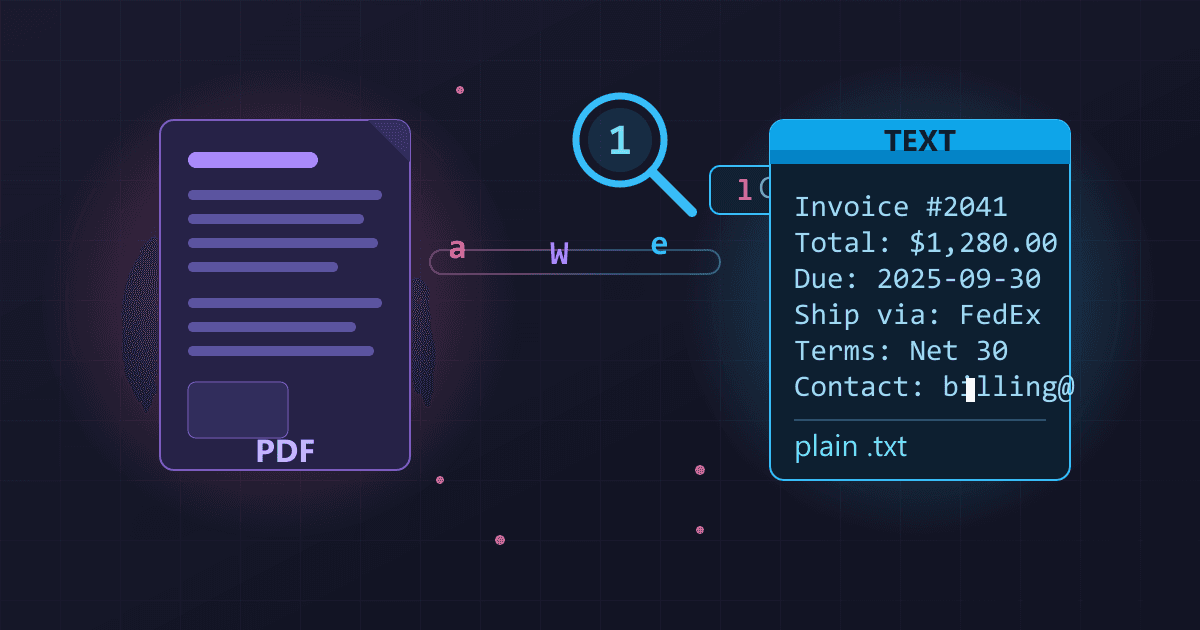
To extract text from a PDF, use a PDF-to-text converter that reads the document's text layer and outputs plain text you can copy, search, and edit. Native digital PDFs (created from Word, Excel, or web pages) extract text with 99-100% accuracy in seconds. Scanned PDFs require OCR (Optical Character Recognition) and achieve 85-98% accuracy depending on scan quality. Browser-based tools process files locally so your documents never leave your device.
Five years ago, I was on a tight deadline to analyze customer feedback buried in 72 PDF survey responses. Each response contained valuable insights I needed to categorize, quote in my report, and analyze for patterns. I started copy-pasting from PDFs into my analysis spreadsheet.
Try Extract PDF Pages — free, no sign-up, and it runs entirely in your browser.
After two hours, I'd processed exactly four responses. The copy-paste process was destroying formatting, creating random line breaks, occasionally dropping entire paragraphs, and inserting mysterious characters that broke my spreadsheet formulas. At this rate, completing the analysis would take three full days of mind-numbing drudgery.
That frustrating afternoon taught me something crucial: when you need actual text from PDFs for real work, proper extraction tools transform impossibly tedious tasks into minutes of automated processing.
Why Can I Not Copy Text from Some PDF Files?
If you've ever tried to select text in a PDF and gotten either nothing or garbled nonsense, you've encountered one of PDF's most confusing quirks. Understanding why this happens helps you choose the right extraction method.
What Is the Difference Between Text-Based and Image-Based PDFs?
There are fundamentally two types of PDFs, and they behave completely differently when you try to extract text:
Text-based PDFs store actual text characters with font and positioning information. When you view a text-based PDF, the reader software draws text using the embedded font data. These PDFs allow text selection, searching, and copying because the underlying data is actual text. They typically come from exporting Word documents, saving web pages, or printing to PDF.
Image-based PDFs contain photographs of pages—essentially pictures that happen to show text. When you view an image-based PDF, the reader displays images. The software has no idea the images contain text because it just sees pixels. These typically come from scanning paper documents, photographing pages, or saving screenshots.
How Do I Tell Which Type of PDF I Have?
The simplest test: try to select text in your PDF viewer. Click and drag across some text. If it highlights and you can copy it, you have a text-based PDF. If nothing highlights or the highlight doesn't follow word boundaries properly, you likely have an image-based PDF.
Another test: zoom in significantly. Text-based PDFs stay crisp at any zoom level because they're rendered from scalable font data. Image-based PDFs become pixelated because you're enlarging a fixed-resolution photograph.
How Do I Extract Text from Text-Based PDFs?
Text-based PDFs are straightforward because the text data already exists—you just need to access it.
What Is the Easiest Way to Get Text from a PDF?
The most basic approach: open the PDF in any reader, select all text (Ctrl+A or Cmd+A), and copy (Ctrl+C or Cmd+C). Paste into any text application.
This works but has significant limitations:
- Multi-column layouts often paste in wrong reading order
- Tables become jumbled text
- Headers and footers repeat throughout
- Formatting is lost entirely
- Large documents require manual cleanup
For small, simple documents, this quick method works fine. For anything complex, you need better tools.
How Do I Use a PDF to Text Converter?
Our PDF to Text converter provides cleaner extraction with better handling of complex layouts.
Navigate to the converter and upload your PDF. The tool analyzes document structure and extracts text while attempting to preserve logical reading order. You get clean plaintext output without the formatting chaos of simple copy-paste.
The key advantage: your document never leaves your computer. Everything processes locally in your browser using WebAssembly technology, making it safe for confidential documents.
What Formatting Does PDF to Text Preserve?
PDF to text conversion produces plaintext—no bold, italics, fonts, or colors. However, good converters preserve:
- Paragraph breaks: Logical text blocks remain separated
- Reading order: Multi-column layouts extract in proper sequence
- List structure: Numbered and bulleted lists maintain sequence
- Basic tables: Simple tables convert to tab-separated values
Complex formatting like graphics, charts, and styled text boxes doesn't survive text extraction. If you need those elements, consider PDF to Word conversion instead.
How Do I Extract Text from Scanned PDFs?
Scanned PDFs require OCR (Optical Character Recognition) to identify text within images. This is fundamentally different from extracting existing text data.
How Does OCR Work?
OCR software analyzes images looking for patterns that match letters, numbers, and symbols. Modern OCR uses machine learning models trained on millions of document images to recognize characters even when partially obscured, slightly tilted, or using unusual fonts.
The process works roughly like this:
- Identify regions likely to contain text
- Segment text into individual characters
- Match character images against known patterns
- Apply language models to correct obvious errors
- Output recognized text
What Affects OCR Accuracy?
Several factors dramatically impact how well OCR recognizes text:
Scan resolution: Higher DPI provides more detail for character recognition. Minimum recommended: 300 DPI. Better results at 600 DPI.
Image contrast: Clear black text on white background extracts best. Low contrast, yellowed paper, or faded ink creates problems.
Document condition: Creases, stains, tears, and handwritten annotations confuse OCR.
Font clarity: Standard fonts like Times New Roman or Arial extract well. Decorative, handwritten, or unusual fonts cause errors.
What Common OCR Errors Should I Watch For?
Even good OCR makes predictable mistakes:
Similar-looking characters:
- 1, l, I (one, lowercase L, uppercase I)
- 0, O (zero, uppercase O)
- 5, S (five, uppercase S)
- rn, m (r-n combination versus m)
Spacing problems:
- Words running together (missingspaces)
- Extra spaces in words (w o r d s)
- Line breaks in wrong places
Always proofread OCR output, especially for numbers and proper nouns where errors matter most.
How Do I Extract Text Step by Step?
Here's my systematic process for extracting text from any PDF.
Step 1: How Do I Determine My PDF Type?
Before extracting anything, identify what you're working with:
- Open the PDF and try to select text
- If text selects cleanly: text-based PDF (easy extraction)
- If nothing selects or selection is erratic: image-based PDF (needs OCR)
- If some pages select and others don't: mixed document (handle separately)
Step 2: How Do I Use the PDF to Text Converter?
Navigate to our PDF to Text converter, upload your file, and download the extracted text. Processing typically completes in 5-30 seconds depending on document length and whether OCR is needed.
For text-based PDFs, default settings work perfectly. For scanned PDFs, the converter automatically applies OCR when it detects image-based pages.
All processing happens in your browser—your files never leave your device, making this safe for confidential contracts, financial documents, and sensitive business information.
Step 3: How Do I Verify Extraction Quality?
After extraction, always verify quality:
- Spot-check several paragraphs against the original PDF
- Verify any numbers, especially financial data or measurements
- Check proper nouns and technical terms
- Look for obvious formatting problems
For critical documents, complete verification is worth the time investment.
What Are Common Text Extraction Scenarios?
These real situations show practical text extraction applications.
How Do I Extract Research Paper Content for Analysis?
A graduate student needed to compile quotes from fifty research papers for literature review. Manually copying from each PDF would take days.
Using text extraction, she processed all fifty papers in under an hour. The extracted text was searchable, allowing her to find specific topics across the entire corpus. She copied relevant passages directly into her notes with proper page references.
How Do I Make Scanned Contracts Searchable?
A law firm had boxes of paper contracts that had been scanned to PDF years ago. The scans were stored but unsearchable—finding specific clauses required manually reading each document.
Using OCR extraction, they processed their entire archive. Keyword searches now find relevant contracts instantly. What previously took paralegals hours now takes seconds.
How Do I Convert Old Documents for Accessibility?
A university library had historical documents available only as scanned PDFs. Visually impaired students couldn't use screen readers on image-based PDFs.
OCR extraction converted the documents to searchable text that screen readers could process. Students gained access to materials previously inaccessible to them.
How Do I Build a Searchable Knowledge Base?
A consulting firm accumulated 12 years of project reports and analysis PDFs—thousands of pages of valuable intellectual capital locked in individual files.
Extracting text from their entire document archive created a searchable text repository. Full-text search across the complete knowledge base transformed research from hours to seconds.
What Problems Can Occur During Text Extraction?
Not every extraction is straightforward. Understanding common issues helps you work efficiently.
Why Is My Extracted Text in Wrong Order?
PDFs don't always store text in reading order. A two-column document might store all of column one, then all of column two—or it might interleave them line-by-line across both columns.
Good extraction tools analyze spatial positioning to determine logical reading order. But complex layouts—especially those with sidebars, call-out boxes, or unusual designs—can confuse this analysis.
Solution: For problematic documents, extract sections separately or manually reorder after extraction.
Why Does Extracted Text Have Strange Line Breaks?
PDF format treats each visual line as a separate text element. When extracted, each line becomes a separate line in your text file, even if sentences continue across breaks.
Solution: Most text editors have "join lines" or "unwrap" functions. Use find-and-replace to remove unnecessary line breaks while preserving paragraph separation.
Why Do Tables Lose Their Structure?
PDF tables are visual constructions—lines and spacing creating the appearance of structure. Text extraction sees individual cells but usually loses table structure, creating flowing text that obscures data relationships.
Solution: For PDFs with important tables, use PDF to Excel conversion instead. Excel converters specifically detect and preserve table structure.
Why Does Privacy Matter for Text Extraction?
Text extraction often involves confidential documents. Where your files go during processing is a genuine security concern.
What Privacy Risks Do Cloud-Based Extractors Create?
Traditional extraction services upload your PDF to external servers for processing. During this process:
Your document content exists on their systems: The entire document sits on servers you don't control.
Your text may be logged or stored: Many services retain uploaded documents for various purposes.
You're trusting their security: Their employee access policies, security practices, and data handling must be flawless.
How Does Browser-Based Extraction Protect Documents?
When extraction happens entirely in your browser:
No upload occurs: Your PDF stays on your device throughout processing.
No external storage: There's nowhere for your document to be stored externally.
No trust required: You don't need to trust anyone's security because they never access your data.
Compliance simplified: HIPAA, legal privilege, financial data protection—all become simpler when documents never leave your control.
Our PDF to Text converter processes everything locally using WebAssembly technology. From upload to download, your files remain on your computer.
Frequently Asked Questions
Why can I not copy text from my PDF?
You likely have a scanned PDF (image of text rather than actual text data) or a PDF with text embedded as non-selectable elements. Try using our PDF to Text converter which can extract text from both text-based PDFs and scanned documents using OCR.
What is the difference between PDF to Text and PDF to Word conversion?
PDF to Text produces plain text without any formatting—just the words and paragraph breaks. PDF to Word attempts to recreate the document structure including fonts, styles, tables, and images. Use text extraction when you only need content; use Word conversion when you need to edit and maintain formatting.
How accurate is OCR for scanned documents?
Modern OCR achieves 85-98% accuracy depending on scan quality. High-resolution scans (300+ DPI) with clear contrast typically reach 95-98% accuracy. Lower quality scans, unusual fonts, or damaged documents may achieve only 85-90% accuracy. Always proofread extracted text from scanned sources.
Can I extract text from password-protected PDFs?
PDFs with permission restrictions (blocking copying but allowing viewing) can often have text extracted using converter tools. PDFs with open passwords (requiring password to view) cannot be processed until you provide the password.
Do my files get uploaded to a server during text extraction?
Not with our tool. Our PDF to Text converter processes everything locally in your browser using WebAssembly technology. Your files never leave your device. You can verify this by monitoring network traffic during processing.
How long does text extraction take?
Text extraction from text-based PDFs typically completes in 5-15 seconds regardless of document length. OCR processing of scanned documents takes longer—approximately 2-5 seconds per page depending on complexity and your device's processing power.
Why does my extracted text have wrong characters or symbols?
Character encoding issues occur when PDFs use non-standard fonts without proper character mapping. This is a problem with the PDF itself rather than the extraction process. Try a different extraction tool, or for critical documents, manual transcription may be necessary.
What happens to tables when extracting text?
Table structure is usually lost. Text extraction pulls content from cells but not the relationships between cells. For documents where table structure matters, use PDF to Excel conversion instead.
Complementary Tools for Document Workflows
Text extraction often works alongside other document operations:
PDF to Word: When you need formatting preserved, not just text
PDF to Excel: When extracting tabular data for spreadsheet analysis
Split PDF: Extract specific pages before text conversion
Merge PDF: Combine multiple documents before bulk text extraction
Extract text from PDFs privately in your browser. No uploads, no registration, no cost. Your documents stay on your device.