How to Optimize PDF Workflows: Complete Guide to Efficient Document Processing
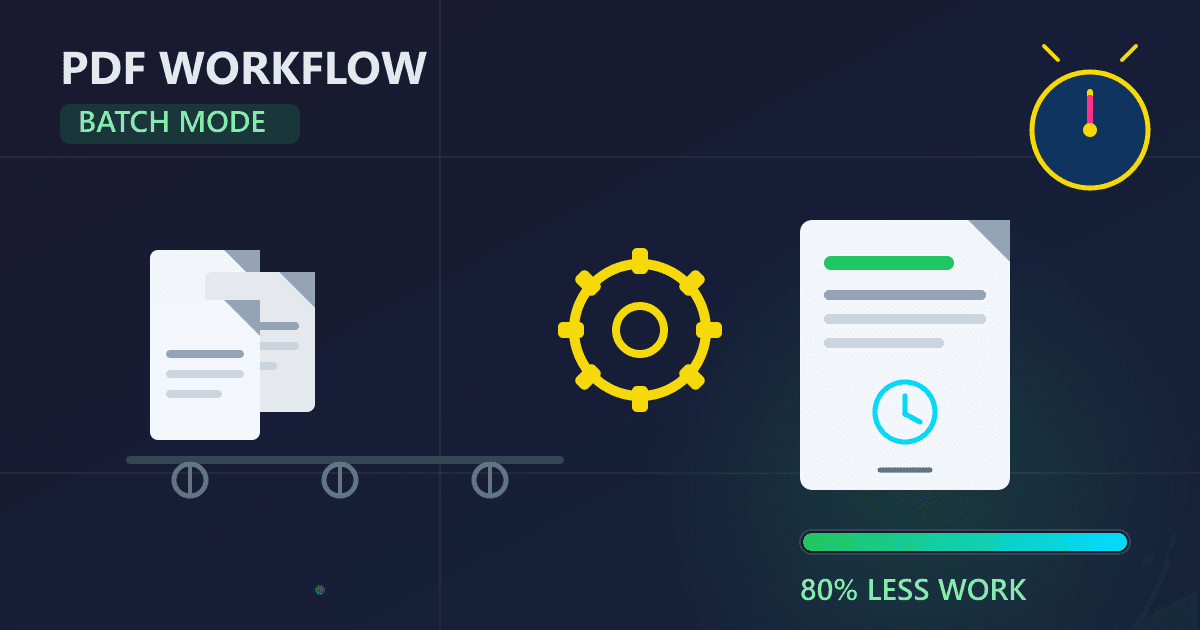
To optimize PDF workflows, implement batch processing, consolidate tools, standardize procedures, and automate repetitive tasks. Most organizations can reduce PDF processing time by 60-80% through systematic optimization. The key strategies include: processing similar files together instead of one-at-a-time, using a single unified toolkit rather than multiple scattered tools, documenting standard workflows, and scheduling regular processing sessions. Browser-based tools that process files locally provide the additional benefit of keeping confidential documents private.
Three years ago, I inherited a disaster. Our marketing agency's document workflow was killing productivity, and nobody seemed to notice because the pain was distributed across dozens of small frustrations rather than one catastrophic failure.
Try Rotate PDF — free, no sign-up, and it runs entirely in your browser.
Every morning, our project managers received client assets as PDFs—brand guidelines, product photos, testimonial sheets, case studies. They needed to extract specific pages, combine files from multiple sources, compress oversized documents for email, and organize everything into client folders. This process consumed 90 minutes of productive work time every single day. Multiply that by eight project managers, and we were burning 12 hours daily on document shuffling instead of actual client work.
When I proposed optimizing our PDF workflows, leadership initially dismissed it as "process minutiae." But when I framed it as recovering $135,000 in labor costs with zero reduction in quality or service, they paid attention.
Six months after implementing the optimizations I'm about to share with you, our PDF manipulation time dropped from 12 hours daily to less than 2 hours. We reclaimed 10 hours of productive time every day.
What Is the Hidden Cost of Inefficient PDF Workflows?
Before you can fix PDF workflow problems, you need to understand what inefficient workflows actually cost. The expense isn't just time—though time is significant. Poor workflows create cascading problems that affect quality, consistency, scalability, and employee morale.
How Much Time Do PDF Tasks Actually Consume?
Most people dramatically underestimate how much time they spend on PDF tasks because the work is distributed across many small actions throughout the day rather than consolidated into obvious blocks.
Try this exercise: For one full workday, track every instance where you interact with a PDF. Not just "working on PDFs" as a task, but every discrete action: downloading, opening, saving, converting, extracting, merging, compressing, emailing, organizing. Track the start and end time of each action to the minute.
When I had our team do this exercise, the results shocked everyone. People who estimated they spent "maybe 20 minutes a day" on PDF work discovered they actually spent 75-90 minutes. The time was invisible because it was fragmented: three minutes here to download and open a file, five minutes there to extract relevant pages, two minutes to compress, four minutes to organize in folders.
The mathematics of small time losses are brutal. If you spend just five minutes per document, and you handle 30 documents per day, that's 150 minutes—two and a half hours of pure document manipulation. Over a year, assuming 230 working days, that's 575 hours.
How Do Errors Multiply in Manual Workflows?
Manual, repetitive work breeds errors. When you're extracting pages from your fifteenth PDF of the morning, your attention wavers. You select pages 23-27 instead of 22-26. You save the file with yesterday's date in the filename. You forget to compress before emailing, forcing the recipient to deal with a massive attachment.
These aren't catastrophic failures, but they create friction. Recipients request resends. Files get misorganized and have to be found again later. Oversized emails bounce, causing delays in time-sensitive processes.
Our agency experienced this when a project manager accidentally extracted the wrong pages from a competitor analysis report before sharing it with the client. Instead of sending pages discussing our client's competitive advantages, she sent pages analyzing a different company in their space. That single error cost us credibility during a contract renewal negotiation.
Why Does Growth Become Painful Without Optimization?
When workflows depend on individual people performing manual tasks repeatedly, scaling becomes expensive and difficult. Hiring more staff to handle more volume means linear cost scaling—twice the documents requires twice the people.
One client I worked with had a medical practice that processed patient intake forms. Initially, they handled 50 new patients per month. A part-time administrative assistant spent 10 hours monthly on PDF form processing. As the practice grew to 150 patients per month, that 10 hours became 30 hours. They hired a second part-time person. At 300 patients monthly, they needed three people spending 30 hours each monthly just processing intake forms.
When we implemented workflow optimizations—batch processing for downloads, automated extraction based on standardized form structure, rule-based renaming and filing—the time dropped from 90 hours monthly back to about 15 hours. One person could handle the entire volume that previously required three.
How Do I Audit My Current PDF Workflow?
You can't optimize what you don't measure. The first step in workflow improvement is understanding exactly what your current process looks like, where time goes, and which steps create problems.
How Do I Map My Document Journey?
Start by creating a visual map of how PDFs flow through your organization or personal workflow. Track documents from the moment they enter your system until they reach their final destination.
For our marketing agency, the map looked like this:
Entry Points:
- Client email attachments
- File sharing service downloads (Dropbox, Google Drive)
- Scanner output from physical documents
- Designer deliverables from project folders
Processing Steps:
- Download files to local computer
- Open in PDF reader to review content
- Extract specific pages needed for immediate project
- Merge multiple source files into project-specific compilations
- Compress for email transmission or web upload
- Rename according to project naming conventions
- Upload to project management system
- Archive original files in appropriate folder structure
Exit Points:
- Email to clients or team members
- Project management system storage
- Long-term archive folders
- Shared folders for team access
Creating this map revealed several bottlenecks immediately:
- Files were downloaded individually rather than batch-processed
- Each file was opened and reviewed before being processed
- Extraction and merging happened sequentially rather than combined
- Compression settings were adjusted individually per file based on guesswork
- File naming happened manually, requiring mental recall of naming conventions
What Metrics Should I Track?
After mapping your workflow, measure how long each step actually takes. You need baseline metrics to quantify improvement later.
Track these metrics for at least one full week:
Time per action type:
- Average time to download a document
- Average time to review/identify needed pages
- Average time to extract pages
- Average time to merge multiple files
- Average time to compress a file
- Average time to rename a file
- Average time to organize in folders
Volume metrics:
- Documents processed per day/week
- Pages extracted per document on average
- Files merged per compilation on average
- Percentage of documents requiring compression
Quality metrics:
- Error rate (files mis-extracted, wrong pages, incorrect naming, etc.)
- Rework rate (how often you have to redo a task due to errors)
- Complaints or questions from recipients
How Do I Identify Pain Points?
With your workflow mapped and timed, identify specific pain points to prioritize for optimization. Look for:
High-frequency, high-time tasks: Actions you perform many times that each take significant time compound quickly. Reducing a 5-minute task that happens 20 times daily saves 100 minutes per day—nearly two hours.
High-error-rate tasks: Actions where mistakes happen frequently create rework and quality problems worth addressing.
Bottleneck tasks: Actions where work queues up waiting for completion block everything downstream.
Frustration tasks: Actions that people complain about or actively dislike cause morale problems and deserve attention.
What Is Batch Processing and Why Does It Transform Efficiency?
The single most impactful workflow optimization is shifting from sequential, one-at-a-time processing to batch processing where you handle multiple similar items simultaneously.
How Does Batch Processing Save Time?
When you process files one at a time, you incur setup and context-switching overhead for each file. You have to:
- Locate and open the file
- Assess what needs to be done
- Configure tool settings
- Perform the action
- Save and close
- Move to the next file and repeat
Steps 1-3 happen repeatedly, even when you're performing identical actions on multiple similar files. This overhead can consume 30-50% of your total processing time.
Batch processing eliminates most of this overhead. Instead of configure-act-save-repeat, you:
- Collect all similar files
- Configure settings once
- Process all files with those settings
- Review results collectively
The time savings compound with volume. Processing 20 files individually might take 60 minutes (3 minutes per file). Batch processing those same 20 files might take 15 minutes total—a 75% reduction in time.
How Do I Implement Batch Processing?
Identify which tasks in your workflow involve performing identical or similar actions on multiple files. These are candidates for batch processing.
Batch Compression: Instead of compressing each file individually as you finish working on it, accumulate all files needing compression throughout the morning, then compress all of them together during a dedicated 10-minute batch processing session.
Using our file compression tool, you can upload multiple files simultaneously. Select all files needing compression, upload them together, choose your compression settings once, and process them all. What took 40 individual compression operations consuming 100 minutes now happens in one 10-minute batch.
Batch Conversion: If you regularly convert PDFs to other formats (Word, Excel, images) or convert other formats to PDF, batch these conversions rather than doing them individually.
Batch Extraction: When you need to extract specific pages from multiple similar documents, process them together rather than one at a time. Using our PDF split tool, you can work through multiple extractions efficiently.
Batch Merging: Using our merge PDF tool, combine multiple related documents in a single operation rather than merging pairs sequentially.
How Should I Schedule Batch Processing?
The key to successful batch processing is establishing regular rhythms so batch processing becomes a habit rather than something you have to remember to do.
Time-based batches: Process accumulated files at specific times daily or weekly. For example, "Every day at 10:30am, I process all PDFs that accumulated since yesterday's batch."
Volume-based batches: Process when accumulation reaches a specific threshold. For example, "When I have 10 or more files needing compression, I process them all together."
Milestone-based batches: Process at specific workflow milestones. For example, "At the end of each project phase, I batch process all associated PDFs."
For our agency, we implemented time-based batches:
- 9:30am daily: Batch download and process all overnight client submissions
- 11:00am daily: Batch compress all files prepared for client distribution
- 3:00pm daily: Batch merge project compilations from morning work
- End of day Friday: Batch archive all completed project files
How Does Tool Consolidation Improve Efficiency?
Using multiple different tools for PDF tasks creates significant friction. Every tool has its own interface to learn, its own quirks to remember, its own login to maintain, and its own settings to configure.
What Is the Cost of Tool Fragmentation?
When I audited our agency's PDF tools, I discovered the team was using seven different applications:
- Adobe Acrobat for viewing and basic editing
- Smallpdf (online) for compression
- ILovePDF (online) for merging
- Sejda (online) for extraction
- PDFtk (command-line) for batch operations
- Preview on Mac for quick viewing
- A random assortment of other online tools
This fragmentation had real costs:
Context switching overhead: Switching between tools interrupts focus and requires mental reorientation. Our time tracking revealed that people spent 15-30 seconds per tool switch just reorienting themselves.
Inconsistent interfaces: Each tool has different conventions for how you upload files, select settings, and download results.
Account management overhead: Many online tools require accounts, with separate logins, passwords, subscription management.
Privacy concerns: Using multiple online tools means your documents pass through multiple third-party servers, increasing privacy risk.
Why Should I Use a Unified Toolkit?
Consolidating PDF operations into a unified toolset eliminates these costs and creates compound efficiency gains.
Our solution was Practical Web Tools, which provides a complete PDF toolkit in one interface:
Single interface to learn: Every operation uses the same upload, settings, and download flow. Once you learn how one tool works, you know how all of them work.
Workflow integration: Because all tools are in one place, workflows flow naturally. Extract pages from a document, compress the result, and merge with other files without ever downloading intermediate results or switching tools.
No account requirements: Our tools work without signup or login. No passwords to forget, no subscription tiers to manage, no authentication friction.
Privacy preservation: All processing happens in your browser using WebAssembly. Files never upload to our servers, eliminating privacy concerns inherent in cloud-based tools.
After consolidating to this unified toolkit, our team's average time per document decreased by 30% even before we implemented other optimizations.
How Do I Create Standardized Workflows?
Creating and documenting standard workflows for common PDF tasks ensures consistency, reduces errors, and enables delegation.
Why Does Standardization Matter?
In our agency's pre-optimization state, every project manager had their own approach to PDF processing. This variability created several problems:
Quality inconsistency: Client deliverables looked different depending on who processed them.
Training difficulties: New hires had to figure out their own workflows because there was no standard to teach.
Knowledge silos: When someone who processed documents a particular way went on vacation or left the company, nobody else knew how to replicate their results.
Inefficiency replication: Without standardization, everyone made the same mistakes rather than learning from collective experience.
How Do I Create Effective Workflow Standards?
Start with your most frequent PDF tasks. For each task, document the optimal process step-by-step in enough detail that someone unfamiliar with the task could follow it successfully.
Workflow Standard Example: Client Deliverable Preparation
Purpose: Prepare project deliverables for client transmission Frequency: 3-5 times per project Time: 15 minutes when standardized
Steps:
-
Collect source files
- Navigate to project folder: [ProjectID]-[ClientName]
- Verify all deliverable files present in /deliverables subfolder
- Count files to confirm against project scope document
-
Extract relevant sections
- For multi-page documents, extract only sections specified in scope
- Use PDF split tool for extraction
- Name extracted files: [ClientName][DocumentName][Section].pdf
- Save extracted files to /deliverables-final subfolder
-
Merge if required
- If scope specifies single document delivery, merge all components
- Use PDF merge tool
- Merge order: Cover letter, Executive summary, Main content, Appendices
- Name merged file: [ClientName]_[ProjectName]Deliverable[Date].pdf
-
Compress for transmission
- Target file size: Under 8MB for email, under 15MB for file sharing
- Use PDF compress tool
- Settings: Balanced compression (preserves readability while reducing size)
- Verify compressed size meets target
-
Quality verification
- Open compressed file and spot-check three random pages for quality
- Verify all sections present if merged
- Confirm filename matches convention
- Check file size is within target range
-
Delivery
- Upload to project management system
- Send client notification email with download link
- Update project status to "Deliverables sent"
How Do I Measure Optimization Results?
Optimization isn't a one-time project. Workflows drift over time as people develop new habits, as document volumes change, and as business needs evolve.
What Metrics Should I Compare?
Compare your post-optimization metrics to the baseline measurements you captured during the audit phase.
For our agency, the before and after looked like this:
Time metrics:
- Average daily PDF processing time per person: 90 minutes to 18 minutes (80% reduction)
- Team total daily PDF processing time: 12 hours to 2.4 hours (80% reduction)
- Average time per document: 4.5 minutes to 1.2 minutes (73% reduction)
Quality metrics:
- Document errors requiring rework: 8-12 per week to 1-2 per week (88% reduction)
- Client complaints about formatting/quality: 3-4 per month to 0-1 per month (83% reduction)
- Files requiring re-processing: 15-20 per week to 2-3 per week (87% reduction)
Volume scalability:
- Documents processed per project manager: 25-30 per day to 40-50 per day
- Onboarding time for new team members: 3 weeks to 1 week
How Do I Maintain Optimization Discipline?
Workflows naturally drift toward inefficiency over time unless you actively maintain discipline. We implemented these maintenance practices:
Monthly workflow reviews: Every month, the team spends 30 minutes reviewing the past month's PDF processing. What worked well? What problems occurred? Are we still following our standards?
Quarterly metrics updates: Every three months, we re-measure our key metrics to verify that optimizations are holding.
New hire checklist: When bringing on new team members, we use a standardized onboarding checklist that includes explicit training on our PDF workflows.
Exception tracking: When someone has to deviate from standard workflows, we log it with a brief note about why.
What Is My PDF Workflow Optimization Action Plan?
Here's your concrete action plan to implement these improvements:
Week 1: Audit and Baseline
Days 1-2: Map your current PDF workflow from document entry to final disposition. Identify every step, tool, and decision point.
Days 3-5: Track your time on PDF tasks. Be honest and granular—every action counts.
Weekend: Analyze your audit data. Calculate your total time cost, identify your top 3-5 pain points.
Week 2: Quick Wins
Days 1-2: Implement tool consolidation. Identify a unified toolkit (like Practical Web Tools) that covers your main needs.
Days 3-4: Implement batch processing for your highest-frequency task.
Day 5: Document your first standardized workflow.
Week 3-4: Full Implementation
Week 3: Expand batch processing to additional tasks. Implement scheduled batch processing times.
Week 4: Document additional workflow standards. Focus on your top pain points identified in Week 1.
Month 2: Measurement and Refinement
Week 5-8: Follow your new optimized workflows consistently. Track your time again to measure improvement.
End of Month 2: Compare your metrics to your Week 1 baseline. Calculate your time savings, error reduction, and capacity improvement.
Frequently Asked Questions
How much time can I save by optimizing PDF workflows?
Most organizations reduce PDF processing time by 60-80% through systematic optimization. If you currently spend 90 minutes daily on PDF tasks, optimization typically reduces this to 15-20 minutes. The exact savings depend on your current inefficiencies and document volume.
What is the fastest way to process multiple PDF files?
Batch processing is the fastest approach. Instead of processing files one at a time, collect similar files and process them together. Upload multiple files to your PDF tool simultaneously, apply the same settings to all, and process in one operation. This eliminates the setup and context-switching overhead of individual processing.
Do PDF tools upload my files to external servers?
Many cloud-based PDF tools upload files to their servers for processing. Our tools at Practical Web Tools process everything locally in your browser using WebAssembly technology. Your files never leave your device, making them safe for confidential documents without privacy concerns.
How do I reduce errors in PDF document processing?
Standardize your workflows by documenting step-by-step procedures for common tasks. Use consistent naming conventions, verify results against source documents, and implement quality checkpoints. Batch processing also reduces errors by eliminating repetitive decision-making where mistakes occur.
What PDF tools should I use for efficient workflows?
Use a unified toolkit that handles all common PDF operations: merging, splitting, compression, conversion, and signing. Our PDF tools provide all these functions in one interface with consistent operation. This eliminates tool-switching overhead and ensures consistent results.
How do I compress multiple PDFs at once?
Use our compression tool and upload all files simultaneously. Select your compression settings once, then process all files together. Download results individually or as a ZIP archive. This batch approach is dramatically faster than compressing files one at a time.
What is the best way to organize PDF files?
Create a consistent folder structure and naming convention before processing. Use descriptive filenames that include client name, document type, and date (e.g., ClientName_Report_2025-01-15.pdf). Process files in batches and organize immediately after processing rather than leaving files scattered.
How long does it take to optimize PDF workflows?
Initial optimization takes about 2-4 weeks: one week for auditing current workflows and measuring baseline metrics, two weeks for implementing changes (batch processing, tool consolidation, standardization), and ongoing refinement. Most time savings appear within the first week of implementing batch processing.
Optimize your PDF workflows with browser-based tools that never upload your files to servers. Process confidential documents privately while saving hours of productive time.