How to Convert PNG to JPG (or JPG to PNG) Free Online (No Upload Required)
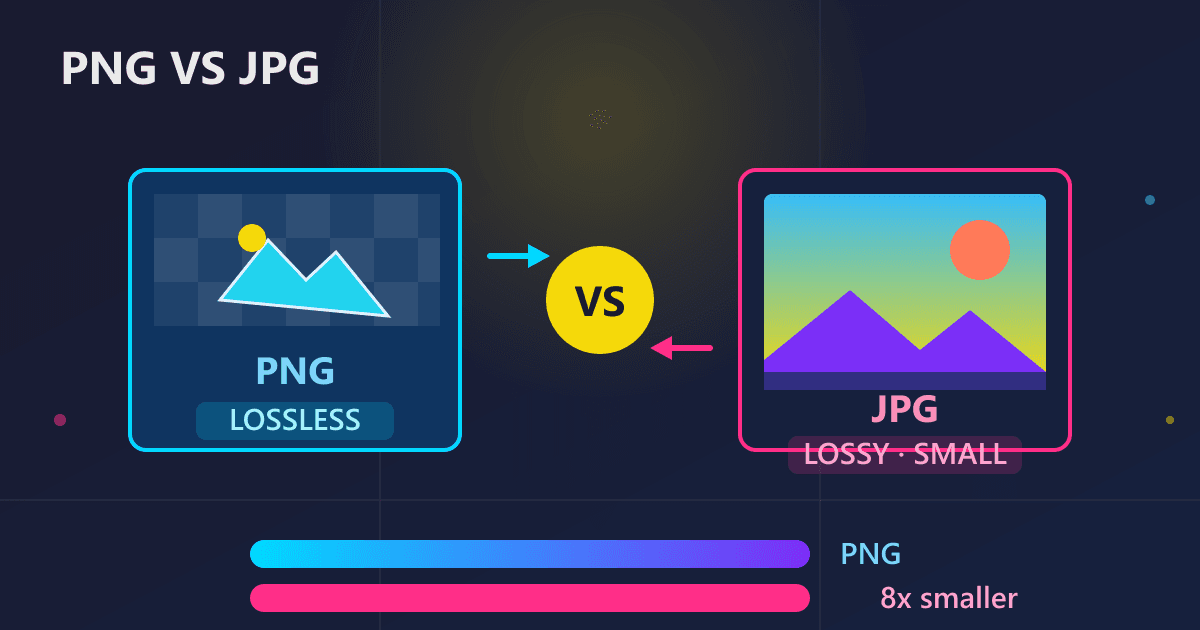
PNG vs JPG: The key difference is compression type. JPG uses lossy compression ideal for photographs - files are 70-90% smaller but lose some quality with each save. PNG uses lossless compression perfect for graphics, logos, and images needing transparency - every pixel is preserved exactly, but files are larger. Use JPG for photos at quality 80-85 for web. Use PNG for logos, screenshots, and graphics with text or transparency. Convert between formats free at practicalwebtools.com with no upload required - all processing happens locally in your browser.
Two years ago, I nearly lost a $75,000 website redesign project because of an image format mistake I didn't know I was making.
Try JPG to PNG — free, no sign-up, and it runs entirely in your browser.
My design agency had spent three months creating a beautiful, content-rich website for a boutique hotel chain. The site featured hundreds of high-resolution photos showcasing rooms, amenities, and local attractions. Every image looked pixel-perfect on our development servers. The client approved the designs enthusiastically. We launched with confidence.
Within 24 hours of going live, complaints started flooding in. The website was painfully slow—taking 15-20 seconds to load on mobile devices. Potential guests were bouncing before the page even rendered. The client's booking conversion rate, which we'd promised to improve, had actually gotten worse. The hotel's marketing director called our CEO directly, furious, threatening to withhold final payment and demand a refund.
The problem? Every single photo was saved as PNG. Our junior designer, fresh out of design school where instructors obsessed over image quality, had exported every photograph as PNG to "preserve quality." Those gorgeous 4000x3000 pixel photos of suites and swimming pools weighed 8-12MB each as PNG files. A single page with six images was pushing 50MB of data. On typical mobile connections, pages took 20+ seconds to load. We were asking potential guests to wait through a painful eternity just to see a hotel room.
The fix was embarrassingly simple: convert all photographs from PNG to JPG. Those 8-12MB PNGs became 300-400KB JPGs at 85% quality—visually indistinguishable to human eyes but 25 times smaller in file size. After batch converting 400+ images, the entire website load time dropped from 18 seconds to under 2 seconds. Conversions recovered within a week. The client, impressed by how quickly we fixed the problem, not only paid in full but hired us for two additional properties.
That expensive lesson taught me something crucial: understanding PNG vs JPG isn't academic knowledge for pixel nerds. It's practical information that affects whether websites load fast enough for people to use, whether email attachments are small enough to send, whether bandwidth costs spiral out of control, and whether users have good experiences with your content.
This guide will teach you exactly when to use PNG, when to use JPG, and how to convert between them without uploading your images to cloud servers. More importantly, it will help you avoid making the expensive mistakes I made.
Why Does Image Format Choice Matter for Websites?
Most people treat image format selection as an afterthought. You export from Photoshop or save from your phone, accepting whatever format comes as default. This approach costs you money and creates problems you might not connect back to their root cause.
The Real-World Cost of Wrong Format Choices
Website performance suffers: Every 1-second delay in page load time reduces conversions by approximately 7%. If your site takes 5 seconds to load instead of 2 seconds because you're using PNG instead of JPG for photographs, you're potentially losing 21% of your conversions. For an e-commerce site doing $500,000 annually, that's $105,000 in lost revenue.
Cloud storage costs multiply: A photography business storing client galleries as PNG instead of JPG might use 10-25x more storage space. At cloud storage prices of $0.023 per GB monthly (AWS S3 standard tier), storing 10TB of PNGs costs $230/month. The same images as JPG at 400GB cost $9.20/month. That's $2,650 annually saved with correct format choice.
Email attachments bounce: Email servers typically limit attachments to 10-25MB. A PNG screenshot might be 6MB while the same image as JPG is 600KB. Sending five screenshots as PNG (30MB) fails. Converted to JPG (3MB), they send successfully. Wrong format choice creates frustrating communication failures.
Mobile data caps get exceeded: Users on metered mobile connections pay for every megabyte. Serving unnecessarily large PNGs instead of appropriately compressed JPGs costs your users real money. They might not consciously attribute their data overage charges to your website, but they'll subconsciously avoid sites that feel "slow" or "data-hungry."
SEO rankings drop: Google's Core Web Vitals include Largest Contentful Paint (LCP), measuring how quickly the largest content element loads. Large PNG images create poor LCP scores, directly hurting search rankings. Converting to appropriate JPG format improves load times, improves LCP, and improves search visibility.
These aren't hypothetical problems. These are consequences I've observed in real client projects over a decade of web development and design work.
What Is the Difference Between Lossy and Lossless Compression?
The fundamental difference between JPG and PNG comes down to how they compress data.
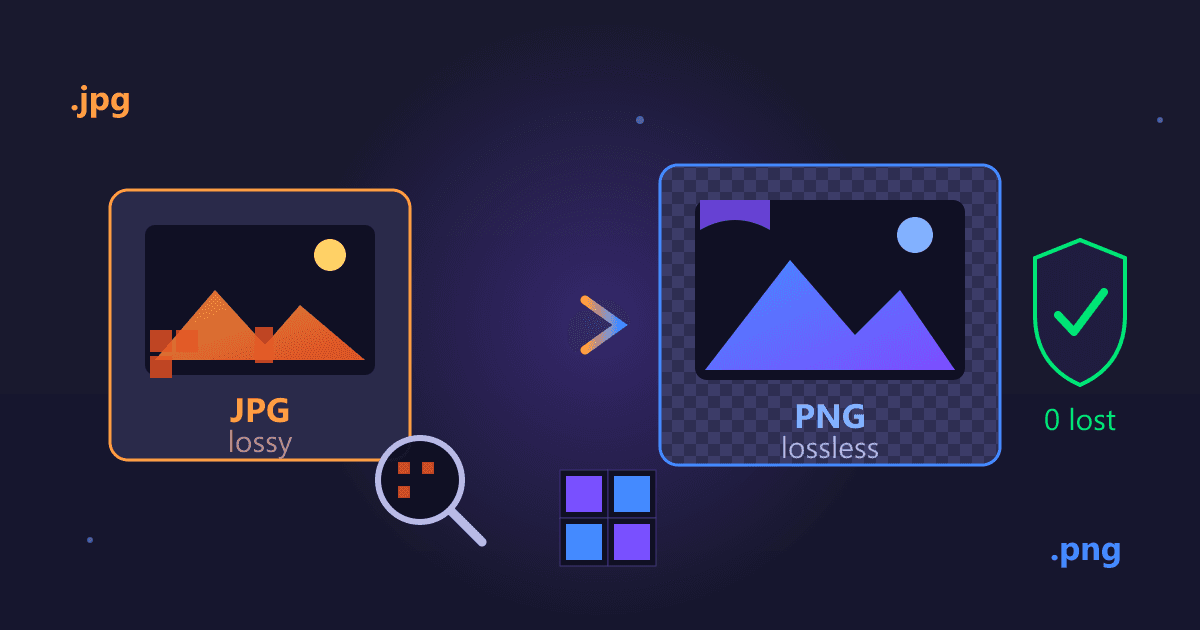
PNG uses lossless compression: When you save an image as PNG, every pixel's color information is preserved exactly. If you save, close, and reopen the file 100 times, it remains bit-for-bit identical to the original. This perfect preservation comes at a cost—file sizes are large, especially for complex images like photographs.
Think of lossless compression like zip files for documents. The compression reduces space required, but when uncompressed, you get exactly what you started with, character-for-character. Nothing is lost.
JPG uses lossy compression: When you save as JPG, the format analyzes the image and discards information human eyes won't notice is missing. Subtle color gradations get simplified. Minor details in visually complex areas get smoothed. The compression is smart—it removes data unlikely to be perceived—but the data is permanently gone. Once saved as JPG, you can't restore that lost information.
Think of lossy compression like summarizing a novel. The summary captures the story's essence in fewer words, but you've lost specific descriptive details. A good summary keeps everything important; a bad summary loses meaning along with detail. JPG quality settings control this tradeoff.
The practical implication: PNG excels when every pixel matters (logos, text, graphics, UI elements). JPG excels when file size matters and minor quality loss is acceptable (photographs, natural images, backgrounds).
When Should I Use JPG Format?
JPG was designed specifically for photographs and natural images. These images have characteristics that make lossy compression effective.
Ideal JPG Use Cases
Digital photography: Any photo from a camera or phone is naturally suited for JPG. The continuous tones, gradual color transitions, and visual complexity of photographs benefit from JPG's compression algorithm. A 24-megapixel photo might be 72MB as an uncompressed image, 24MB as PNG, but only 3-5MB as JPG at quality settings that preserve all perceptible detail.
I worked with a real estate photography company that was storing property photos as PNG "for quality." Their 256GB hard drives filled after just 80 photoshoots. After converting their entire archive from PNG to JPG at 90% quality—with zero perceptible quality loss—their 1,200 property libraries fit on a single drive with room to spare. They reclaimed $2,000 in storage hardware costs immediately.
Website background images: Large hero images, full-width backgrounds, and scenic photos should almost always be JPG. These images are typically large in dimensions (1920px wide or more), making file size a critical concern. A 1920x1080 hero image might be 3-4MB as PNG but 150-300KB as JPG at appropriate quality.
Social media photos: Platforms like Instagram, Facebook, and Twitter recompress images anyway. Uploading PNG provides no quality benefit over well-compressed JPG, while consuming more bandwidth during upload. Starting with appropriate JPG format makes uploads faster and reduces your data usage.
Email attachments of photographs: When sending photo attachments, JPG format ensures maximum compatibility and minimum file size. Recipients can view them without special software, and the smaller sizes mean faster sending, faster receiving, and lower likelihood of exceeding attachment size limits.
Product photography for e-commerce: Online store product images should be JPG to balance quality and load speed. Customers need to see product details clearly, but they won't wait through slow page loads. JPG at 80-90% quality shows all necessary detail while keeping pages fast.
A client's e-commerce site had 1,200 product pages, each with 6 photos. Using PNG (average 2MB per photo), each product page loaded 12MB of images. Converted to JPG at 85% quality (average 180KB per photo), pages loaded 1.08MB of images. That's 91% reduction in image data, translating directly to faster load times and better conversion rates.
What Is the Best JPG Quality Setting for Web Images?
Not all JPG compression is created equal. The quality setting determines how aggressively the format discards information. Finding the right balance is critical.
90-100% quality: Minimal compression, large files (often 80-90% of PNG size). Only use when you need near-lossless quality and size isn't a concern. Practical applications are rare—if you need this quality level, consider whether PNG might be more appropriate.
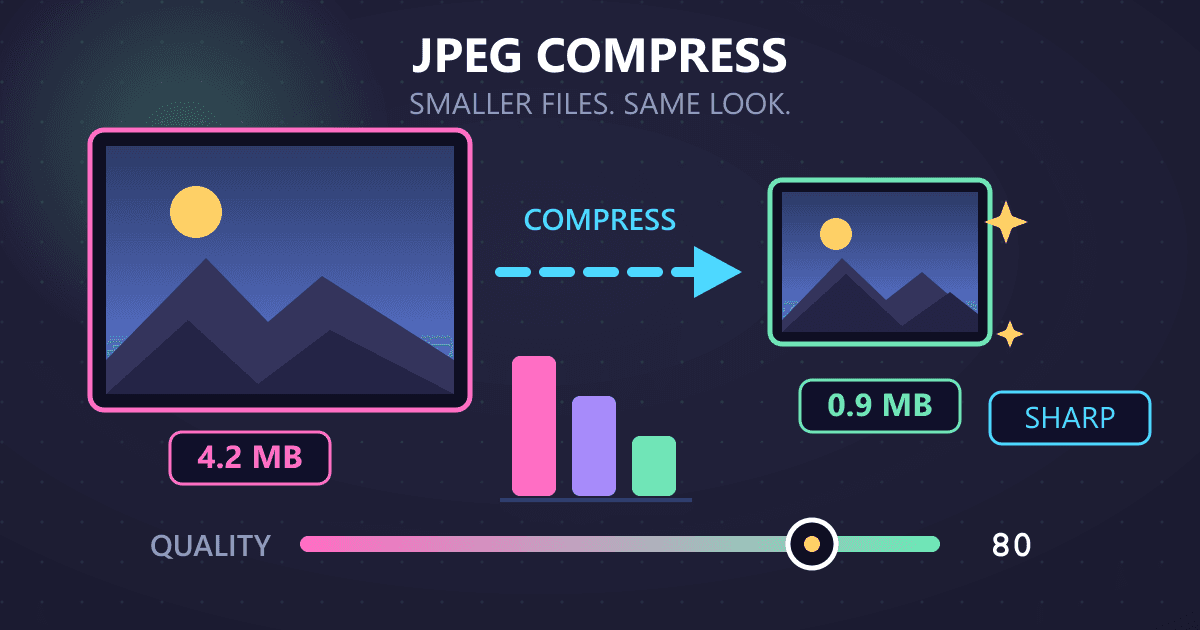
80-90% quality: High quality with significant size savings (typically 30-40% of PNG size). This range is the sweet spot for most photography. Compression artifacts are imperceptible to casual viewing. Use for portfolio photography, professional presentations, and situations where quality perception matters.
70-80% quality: Good quality with substantial size savings (typically 15-25% of PNG size). Minor artifacts may be visible on close inspection but not in normal viewing. Use for web content, blog images, and situations where load speed matters but quality still matters.
60-70% quality: Acceptable quality with aggressive compression (typically 10-15% of PNG size). Artifacts visible on inspection but image remains usable. Use for thumbnails, previews, or situations where extreme size reduction outweighs quality concerns.
Below 60% quality: Significant visible quality loss. Avoid except for tiny thumbnails or situations where image quality is genuinely unimportant.
For the hotel website disaster I described earlier, we settled on 85% quality for hero images (where visual impact mattered most) and 75% quality for gallery thumbnails (where load speed and data usage mattered more). This differentiated approach balanced quality perception with performance requirements.
When Should I Use PNG Format?
PNG shines in situations where lossless quality matters and file size is less critical.
Ideal PNG Use Cases
Logos and brand assets: Company logos, especially with text or fine lines, should always be PNG. The lossless compression preserves every edge sharply. JPG compression creates visible artifacts around text and sharp edges—subtle halos and color bleeding that make logos look unprofessional.
I once reviewed a startup's brand guidelines where they'd saved their logo as JPG. The compression artifacts around the lettering made their logo look fuzzy and low-quality in every context. Converting to PNG immediately improved brand perception across their entire web presence.
Images with text: Screenshots, infographics, charts with labels—anything where text must remain crisp needs PNG. JPG compression blurs text edges, making it harder to read and less professional-looking. This is especially noticeable at smaller sizes or on high-DPI displays.
Images requiring transparency: Only PNG supports transparent backgrounds (technically, so does GIF, but PNG is superior in almost every way). If you need an image that sits cleanly over different colored backgrounds, PNG is your only good choice. Logos with transparent backgrounds, UI elements, overlay graphics—all require PNG.
Line art and illustrations: Digital illustrations with solid colors and defined edges compress better and look sharper in PNG format. The hard edges and limited color palette that make these images ill-suited for JPG make them ideal for PNG.
Screenshots of user interfaces: When capturing software interfaces, design mockups, or anything with UI elements, PNG preserves button edges, text readability, and visual clarity. JPG compression makes interfaces look blurry and unprofessional.
A software company I worked with was using JPG for all their documentation screenshots. Customer support was fielding questions about features that were clearly visible in the screenshots but unreadable due to JPG compression artifacts around text. After switching to PNG for all documentation and tutorial images, support questions about unclear screenshots dropped by 70%.
Images you'll edit multiple times: If you're going to open, edit, and save an image repeatedly, start with PNG to avoid cumulative quality loss. Each time you save as JPG, you lose a bit more quality. This generational loss accumulates. Starting with PNG and converting to JPG only for final distribution preserves maximum quality through your editing workflow.
Why Are PNG Files So Large?
PNG's perfect quality comes at a cost: file size. For photographs and complex images, PNG files can be enormous.
A 4000x3000 pixel photograph might be:
- 8-14MB as PNG
- 1-2MB as JPG at 90% quality
- 300-600KB as JPG at 80% quality
That PNG contains 7-13MB of data that human eyes can't actually distinguish from a good JPG. You're paying storage costs, bandwidth costs, and performance costs for imperceptible quality differences.
The solution isn't "never use PNG for photos" but rather "understand when PNG's benefits justify its costs." For your photography portfolio's hero image that visitors study closely, PNG might be worth it. For the 50 thumbnail images in your gallery grid, PNG is wasteful.
How Do I Convert PNG to JPG Without Losing Quality?
Converting from PNG to JPG requires understanding what "quality" actually means in this context.
Setting Expectations: What You're Really Losing
When converting PNG to JPG, you're not losing quality in the sense of "the image gets worse." You're making a conscious tradeoff: accepting imperceptible quality reduction in exchange for substantial file size reduction.
At JPG quality settings of 80-90%, the differences between PNG and JPG are:
- Technically measurable: Software can detect that pixels have changed slightly
- Practically imperceptible: Human eyes cannot see the differences in normal viewing conditions
- Visually insignificant: Even side-by-side comparison requires zooming to 200-300% and looking for artifacts
This is similar to audio compression. Most people can't distinguish between a lossless FLAC audio file and a well-encoded 320kbps MP3. Both sound excellent. The MP3 is technically different, but practically equivalent for listening purposes. The file size savings are dramatic.
The key is choosing appropriate quality settings for your use case. A JPG at 50% quality looks noticeably worse than the PNG original. A JPG at 85% quality looks effectively identical to the PNG while being 5-8x smaller.
Step-by-Step: PNG to JPG Conversion
Let me walk you through converting PNG to JPG properly, using our privacy-preserving browser-based tool.
Step 1: Identify which images should be converted Not every PNG should become JPG. Before converting, verify you're converting appropriate images:
- Photographs, natural images, scenic backgrounds → Convert to JPG
- Logos, text-heavy images, transparency needed → Keep as PNG
- Screenshots with UI elements → Usually keep as PNG
- Illustrations with photos → Convert to JPG
Step 2: Navigate to the converter Open Practical Web Tools PNG to JPG Converter in your browser. No signup required, no account needed, just a tool ready to use.
Step 3: Upload your PNG files Drag your PNG images onto the upload area, or click to browse and select them. You can upload multiple files simultaneously for batch conversion. The files load directly into your browser's memory—nothing is uploaded to our servers.
Step 4: Choose quality settings For most photographs, I recommend:
- 85-90% for images where quality matters (portfolios, hero images)
- 75-85% for general web content (blog images, galleries)
- 65-75% for thumbnails or previews
Start with 85% and adjust if file size needs to be smaller.
Step 5: Convert and download Click convert and wait a few seconds while processing happens locally in your browser. When complete, download your converted JPG files. Compare the original PNG and converted JPG file sizes to see your savings.
Step 6: Quality check Open both the original PNG and the converted JPG. View them at 100% size (actual pixels) on your screen. If you can't see quality differences at normal viewing distance, the conversion was successful. If you notice artifacts or quality loss, reconvert at a higher quality setting.
For the hotel website project, we batch-converted 400+ PNGs to JPG at 85% quality. The entire conversion process took about 20 minutes (including quality checking a sample of images). The result: 94% reduction in total image data, dramatically faster page loads, and zero perceptible quality loss in actual use.
What Happens to Transparency When Converting PNG to JPG?
JPG doesn't support transparency. When you convert a PNG with transparent areas to JPG, those transparent areas become solid colors—typically white.
If your PNG has transparency, you have two options:
Option 1: Accept white background If the image will always appear on white backgrounds anyway (like document images or printable graphics), converting to JPG with white background is fine. The transparency wasn't providing value.
Option 2: Keep as PNG If the image needs to appear on various colored backgrounds, maintain the PNG format. Transparency is a feature JPG simply cannot provide, and there's no workaround for this limitation.
Option 3: Add background before converting If you know the background color the image will appear on, use an image editor to add that colored background layer, then convert to JPG. This gives you JPG's file size benefits while making the image work on the intended background.
Does Converting JPG to PNG Improve Quality?
Converting JPG to PNG is technically simple but conceptually misunderstood. Let me clarify what this conversion does and doesn't do.
Understanding What You're Actually Getting
When you convert JPG to PNG, you are not magically restoring lost quality. The information that JPG compression discarded is gone permanently. Converting to PNG doesn't bring it back.
Think of it like photocopying a photocopy. Converting JPG to PNG is like taking a photocopy and laminating it. The lamination protects the copy from future degradation, but it doesn't make the copy any closer to the original document. Similarly, PNG conversion prevents future quality loss but doesn't restore already-lost quality.
When Should I Convert JPG to PNG?
So why would you ever convert JPG to PNG if you're not gaining quality? Several practical reasons:
Preparing for editing workflow: If you need to make multiple edits to a JPG image, converting to PNG first prevents cumulative quality loss. Each time you save a JPG after editing, it recompresses and loses a bit more quality. Converting to PNG, doing all your edits, then converting back to JPG for final delivery loses quality only once.
Adding transparency: If you need to remove the background from an image to make it transparent, you must convert to PNG first since JPG doesn't support transparency. You're converting formats not to improve the base image quality but to enable transparency as a feature.
Meeting technical requirements: Some print services, design tools, or publishing platforms require PNG input even for photographic content. Converting JPG to PNG meets the technical requirement even though it doesn't improve quality.
Standardizing formats: In a large project with mixed source images, you might convert everything to PNG during development for consistency, then optimize to appropriate final formats (JPG for photos, PNG for graphics) for delivery. This workflow simplifies internal processing even though some conversions don't provide direct benefits.
Step-by-Step: JPG to PNG Conversion
Converting JPG to PNG is even simpler than the reverse since there's no quality setting to choose.
Step 1: Navigate to the converter Open Practical Web Tools JPG to PNG Converter in your browser.
Step 2: Upload your JPG files Drag your JPG images onto the upload area or click to browse. Batch upload is supported for converting multiple images simultaneously.
Step 3: Convert Processing happens automatically in your browser. No quality settings needed since PNG is lossless—it will perfectly preserve whatever quality (or lack thereof) exists in your JPG source.
Step 4: Download your PNG files Download the converted PNG files. Expect them to be 3-8x larger than the source JPG since PNG doesn't compress photographic data as efficiently.
Important: If you're converting JPG to PNG just because you think PNG is "better quality," stop and reconsider. You're making files larger without quality improvement. Only convert JPG to PNG when you have a specific reason (need transparency, preparing for editing, technical requirement).
How Can I Convert Images Without Uploading to the Cloud?
The image conversion tool you choose has significant privacy implications that extend beyond paranoia.
What Happens When You Use Cloud-Based Converters
Traditional online converters require uploading your images to their servers. During this process:
Your images travel across the internet: Even with HTTPS encryption, your images pass through multiple network nodes between your computer and the service's servers. More points of potential interception and logging.
Your images exist on someone else's hardware: Once uploaded, your images sit on storage you don't control, administered by people you don't know, in data centers with security practices you can't verify.
Terms of service often permit retention: Read the fine print of popular free converters. Many state they may retain uploaded files for "quality improvement," "debugging," or unspecified periods. Some claim rights to use uploaded content.
Data breaches expose your content: When image conversion services get hacked—and they do—your uploaded images may be exposed. Product photos, screenshots containing confidential information, personal photographs, client work—all potentially compromised.
A photographer client discovered this the hard way when a free converter service he'd used was breached. Internal product photos he'd converted while preparing a confidential launch campaign appeared on a data leak forum three days before the official announcement. The breach cost his client the element of surprise in their launch, and cost him that client relationship.
How Browser-Based Conversion Protects Your Privacy
Our converters at Practical Web Tools work entirely differently. Using WebAssembly technology, the conversion happens inside your browser, locally on your device.
No upload occurs: Your images never leave your computer. They're read from your local storage into your browser's memory, converted using code running locally, and saved back to your local storage. Zero network transmission of image data.
No server-side processing: We don't have servers running conversion operations because we don't need them. The conversion happens on your CPU/GPU using your computer's resources.
No retention possibility: Since we never receive your files, we can't retain them. There's nothing to delete, nothing to breach, nothing to expose. Your images exist only on hardware you control.
No tracking or logging: We don't log what you convert, how many files you process, or what those files contain. We couldn't even if we wanted to—the data never reaches our servers.
This architecture means you can safely convert:
- Product photos for unreleased launches
- Screenshots containing confidential business information
- Client work protected by NDAs
- Personal photographs
- Any sensitive visual content
For regulated industries—photographers working with client photos, agencies handling confidential campaigns, healthcare providers working with patient-related images—browser-based conversion isn't just convenient. It's the only approach that maintains required privacy protections.
What Are Common Image Conversion Mistakes to Avoid?
After a decade of watching people convert images, I've identified patterns in common mistakes. Learn from others' errors.
Mistake 1: Converting Everything to PNG "For Quality"
The error: Saving all images as PNG because PNG is "lossless" and therefore "better."
Why it fails: For photographs, PNG's file sizes are 5-15x larger than JPG without perceptible quality improvement. You waste storage, bandwidth, and performance for quality differences human eyes cannot detect.
The fix: Use PNG for what it's designed for (graphics, logos, transparency) and JPG for what it's designed for (photographs). Match format to content type.
Mistake 2: Repeatedly Saving JPGs
The error: Opening a JPG, making small edits, saving as JPG, repeating this cycle multiple times.
Why it fails: Each save operation recompresses the image, losing a bit more quality each time. This generational loss accumulates, creating visible artifacts after several edit-save cycles.
The fix: If you need to edit an image multiple times, convert to PNG first, do all your edits, then save as JPG once for final delivery. Alternatively, use image editors that can edit JPG non-destructively without recompressing on every save.
Mistake 3: Converting JPG to PNG Expecting Quality Improvement
The error: Converting JPG to PNG thinking the conversion will somehow restore lost quality.
Why it fails: Once information is lost through JPG compression, it's gone permanently. Converting to PNG doesn't magically restore it—you just get a larger file containing the same quality (or lack thereof) as the JPG.
The fix: Only convert JPG to PNG when you have a specific reason (need transparency, preparing for multiple edits, technical requirement), not for imaginary quality improvements.
Mistake 4: Using Too-Aggressive JPG Compression
The error: Compressing JPGs to 50-60% quality to achieve maximum file size reduction.
Why it fails: Below 70% quality, JPG artifacts become visible in normal viewing. The images look bad, creating poor impressions and hurting brand perception. The size savings aren't worth the quality cost.
The fix: Stay in the 75-90% quality range for photographs. The sweet spot is 80-85% for most web use—substantial size reduction with imperceptible quality loss.
Mistake 5: Forgetting to Verify Conversions
The error: Batch converting hundreds of images and immediately using them without checking results.
Why it fails: Conversion problems—incorrect quality settings, artifacts, color shifts—propagate across all your images. By the time you notice, you've published dozens of low-quality images.
The fix: After any batch conversion, sample-check 5-10 images by opening both the original and converted versions side-by-side. Verify quality is acceptable before proceeding to use all converted images.
Real Results: Format Choice Impact
Let me show you concrete examples of how format choice affects real projects.
Case Study: E-Commerce Product Gallery
Situation: Online furniture store with 800 products, each with 8 photos. Photos were originally saved as PNG by a well-meaning but misinformed designer.
Before optimization:
- Average PNG size: 3.2MB per image
- Average product page: 25.6MB of images
- Mobile page load time: 12-15 seconds on 4G
- Bounce rate: 58%
- Image-related hosting costs: $240/month
After conversion to JPG at 85% quality:
- Average JPG size: 380KB per image
- Average product page: 3MB of images
- Mobile page load time: 2-3 seconds on 4G
- Bounce rate: 31%
- Image-related hosting costs: $35/month
Results: 46% reduction in bounce rate, improved conversion rate (more visitors stayed to see products), and $205/month savings in hosting costs ($2,460 annually).
Case Study: Corporate Blog
Situation: Technology company blog with heavy screenshot usage. Someone had been converting all screenshots to JPG "for faster loading."
Problems observed:
- Text in screenshots was blurry and hard to read
- UI elements looked fuzzy and unprofessional
- Readers commented that tutorial steps were "hard to follow"
- Brand perception suffered from low-quality imagery
Solution: Convert all screenshot and UI images from JPG to PNG, keep photographic header images as JPG.
Results:
- Screenshots became crisp and readable
- Tutorial completion rate improved by 23%
- Reader complaints about unclear instructions dropped to nearly zero
- Average page load time increased by 0.3 seconds but readability improvement was worth the tradeoff
This demonstrates that format choice isn't just about file size—it's about choosing the right format for the right content to optimize the metrics that actually matter for your use case.
Case Study: Photography Portfolio
Situation: Professional photographer using PNG for entire portfolio (120 images) because "quality matters for my work."
Before:
- Average image size: 8.5MB as PNG
- Total portfolio page: 1,020MB
- Load time on fast connection: 45-60 seconds
- Portfolio views: Many visitors left during loading
- Monthly bandwidth costs: $180
After conversion to JPG at 92% quality:
- Average image size: 1.8MB as JPG
- Total portfolio page: 216MB
- Load time on fast connection: 8-12 seconds
- Portfolio views: Substantially increased completion rate
- Monthly bandwidth costs: $40
Quality verification: The photographer compared PNG and JPG versions on a calibrated monitor at 100% zoom. At 92% quality, even professional scrutiny revealed no perceptible differences. At 88% quality, very minor differences were detectable only at 200% zoom—differences that would never be noticed in normal portfolio viewing.
Results: 78% reduction in page size, vastly improved user experience, $140/month bandwidth savings, and zero negative impact on perceived image quality.
Your Image Format Decision Framework
Use this decision tree for future format choices:
Is this image a photograph or natural/complex image?
- Yes → Use JPG (85% quality for important images, 75% for general use)
- No → Continue to next question
Does this image contain text, UI elements, or sharp graphics?
- Yes → Use PNG
- No → Continue to next question
Does this image need transparent backgrounds?
- Yes → Use PNG
- No → Continue to next question
Will you edit this image multiple times?
- Yes → Use PNG during editing, convert to JPG for final delivery
- No → Use JPG
This framework covers 95% of real-world format decisions. The remaining 5% edge cases require specific technical knowledge about your use case.
Taking Control of Your Images
That expensive hotel website mistake taught me that image format choice isn't a minor technical detail—it's a fundamental decision that affects website performance, user experience, business results, and costs.
Format choice determines whether your website loads fast enough for impatient users, whether your email attachments successfully send, whether your cloud storage costs stay reasonable, and whether your images look professional or amateurish.
The right format choice seems invisible because everything just works. The wrong format choice creates problems that might not be obviously connected to their root cause—slow sites, bounced emails, excessive costs, poor brand perception.
When you need to convert between PNG and JPG, do it right. Our PNG to JPG converter and JPG to PNG converter process everything locally in your browser, keeping your images completely private. No upload, no retention, no risk.
Convert photographs to JPG at 80-85% quality. Keep logos, text, and graphics as PNG. Verify your results. Make intentional format choices instead of accepting defaults.
Your images will load faster, look better, cost less, and work correctly. And you'll never lose a $75,000 project because of an image format mistake.
Frequently Asked Questions About PNG vs JPG
What is the main difference between PNG and JPG? The main difference is compression type. JPG uses lossy compression that discards some image data to achieve smaller files (typically 70-90% smaller than PNG for photos). PNG uses lossless compression that preserves every pixel exactly, resulting in larger files but perfect quality preservation.
Should I use PNG or JPG for my website? Use JPG for photographs and images with complex color gradients - you'll get 70-90% smaller files with minimal visible quality loss at 80-85% quality. Use PNG for logos, screenshots, graphics with text, and any image requiring transparency. For best performance, consider WebP which offers benefits of both.
Does converting PNG to JPG reduce quality? Yes, converting PNG to JPG introduces some quality loss because JPG uses lossy compression. However, at quality settings of 80-85%, this loss is typically imperceptible to human eyes. The tradeoff is dramatically smaller file sizes - often 5-10x smaller than the original PNG.
Does converting JPG to PNG improve quality? No. Converting JPG to PNG does not restore quality that was lost during JPG compression. Once image data is discarded by JPG compression, it's gone permanently. PNG conversion only prevents future quality loss from subsequent edits - it doesn't restore what's already lost.
What JPG quality setting should I use? Use 80-85% quality for most web images - this provides excellent visual quality with significant file size savings. Use 90-95% for hero images and portfolio work. Use 70-80% for thumbnails and secondary images. Avoid going below 70% as compression artifacts become visible.
Why do PNG files of photos become so large? PNG uses lossless compression optimized for graphics with flat colors and sharp edges. Photographs have millions of subtle color variations that PNG cannot compress efficiently. A photo that's 300KB as JPG might be 3-5MB as PNG with no visible quality improvement.
How do I convert images without uploading to cloud servers? Use browser-based converters like practicalwebtools.com that process files locally using WebAssembly technology. Your images never leave your device - all conversion happens entirely in your browser, ensuring complete privacy for sensitive content.
Can I convert PNG with transparency to JPG? Yes, but the transparent areas will become solid white (or another background color). JPG does not support transparency. If you need to maintain transparency, keep the image as PNG or convert to WebP, which supports both compression and transparency.