Does re-saving a JPG destroy your photo? The honest answer surprised me: I took one test image, re-saved it seven times in a row, and measured the pixel-level damage after every generation. One chain barely changed at all. Another accumulated 7.6 times the error of a single save — with almost no warning in the file size.
The difference between those two outcomes isn't luck. It's three specific behaviors: whether the quality setting stays the same, whether the codec stays the same, and whether each re-save secretly drops the quality a little lower. Once you see the numbers, you'll never guess about image degradation again.
Try JPG to WebP — free, no sign-up, and it runs entirely in your browser.
Key takeaway: re-saving at the same quality with the same codec is nearly harmless. Switching codecs or letting quality slide is what actually eats your photos.
How I Ran the Test
Everything below comes from a real experiment, not vendor documentation. Here's the setup so you can judge the results yourself:
- Test image: a 1,200 × 800 photographic-style scene — smooth gradients (sky-like), sensor-style noise, and hard dark rectangles mimicking signage and text edges. High-frequency detail plus smooth areas is exactly the mix that stresses image codecs.
- Codecs: JPEG and WebP, both at quality 80 for the fixed-quality chains, then a descending ladder from quality 90 down to 30.
- Measurement: RMSE (root-mean-square error) between each generation and the pristine original, on the 0–255 pixel scale, plus file size at every step.
A rough guide to reading RMSE numbers: around 3 is barely visible, around 8–10 is visible softness and artifacts when you zoom, and above 20 is objectively mushy. The exact thresholds depend on the image, but the trend is what matters.
I ran three fixed-quality chains first — JPEG only, WebP only, and alternating between the two — then the descending ladders that mimic what social platforms actually do to your uploads.
Myth #1: "Every Re-Save Destroys Your Photo"
This is the one everybody repeats, and it's mostly false. Here's what happened when I re-saved the same image seven consecutive times at quality 80, without changing anything else:
- JPEG → JPEG, seven saves: error went from 3.86 after the first save to 3.87 after the seventh. That's a 0.3% increase — effectively zero.
- WebP → WebP, seven saves: error went from 3.86 to 4.10. Again, nearly flat.
- File sizes in both chains stabilized after the second generation and then stopped moving.
The first save is the expensive one. Every same-quality re-save after that is almost free.
Why? Modern encoders are deterministic. When a JPEG at quality 80 is re-encoded at quality 80, the quantization tables match, so the coefficients that survived the first pass mostly survive the second. The damage was already done in generation one; re-applying the same math barely compounds.
So if you've been keeping a "do not touch" JPEG out of fear that opening and re-saving it will grind it into dust — you can relax, as long as your editor doesn't quietly re-compress at a lower quality behind your back. That caveat is where the real damage lives, and it's next.
Culprit #1: Switching Codecs Back and Forth
Now watch what happens when the quality setting stays identical but the codec alternates every save — JPG to WebP to JPG to WebP, seven times at quality 80:
- Generation 1 (WebP): error 3.86
- Generation 2 (back to JPG): 4.74 — a 23% jump from one codec switch
- Generation 4: 4.93
- Generation 7: 5.02 — and still climbing slowly
Each hop between formats re-quantizes the image in a different mathematical basis. JPEG throws away information in 8×8 DCT blocks; WebP does predictive coding plus its own transform. They don't throw away the same information, so every switch carves out a fresh, slightly different slice of detail.
The file sizes told on the chain too: they oscillated between roughly 64 KB and 120 KB depending on which codec had just touched the file, because each format compresses the other's leftovers with different efficiency.
Practical rule: converting formats is a one-way street. Every JPG↔WebP↔PNG round trip adds loss, even at identical quality settings.
This is the trap behind "I just converted it to WebP for my website, then back to JPG for an email, then to WebP again." Three conversions, three fresh rounds of loss. If you need a JPG from an original, go back to the original each time — a proper JPG to WebP converter exists so you can produce the web copy from the master, not from the previous conversion. Same logic in reverse for WebP back to JPG when a form or app demands JPEG.
Culprit #2: The Descending Quality Ladder
Here's the killer, and it's almost never the user's choice — it's what messaging apps and social platforms do silently. Each upload gets re-compressed, often a bit more aggressively than the last. I simulated that with a quality ladder from 90 down to 30, one step per save:
- JPEG ladder: error climbed 2.96 → 4.99 → 7.35 → 10.01 → 12.88 → 16.54 → 22.42. By the final step, the image had 7.6× the damage of a single careful save. That's visibly mushy territory.
- WebP ladder, same descent: 2.18 → 4.38 → 5.32 → 5.91 → 6.60 → 7.36 → 8.69. Serious, but roughly a third of JPEG's damage.
- Alternating ladder (JPG/WebP with quality dropping): ended around 7.0 — the WebP hops cushioned the JPEG hits.
One app "optimizing" your upload costs more than five disciplined re-saves at home.
The image-degradation mechanism is simple: once quality 70 has smeared the fine detail away, quality 60 can't preserve what no longer exists — and it smears the remaining structure further. Loss compounds because information never comes back.
The Trap: File Size Stays Flat While Quality Falls
The most useful discovery for everyday sanity checks: in the JPEG ladder, file size collapsed from 226 KB to about 154 KB by the third step — and then plateaued. Steps 3 through 7 all sat near 153–155 KB while error nearly tripled.
So "the file is still 150 KB, it must be fine" is exactly wrong. Later destructive saves can't add bytes back; they spend their bits re-encoding damage. Size tells you how much data survived, not how faithful it is to the original scene.
If you're comparing two versions of an image you downloaded and re-uploaded a few times, don't trust the byte count. Open both at 100% zoom next to the original (or the oldest copy you have) and look at edges — text, hair, brickwork. Edges are where generational loss shows first.
WebP's Unexpected Silver Lining
Two findings favored WebP beyond its famous file-size advantage:
- At matched quality numbers, the WebP-only chain stabilized at 95 KB versus JPEG's 123 KB — 23% smaller at essentially equal measured error.
- On the descending ladder, WebP degraded far more gracefully (final error 8.69 vs 22.42), because its compression at low quality settings stays closer to the image structure.
That second point matters for anything that passes through other people's pipelines — blog images, marketplace listings, chat apps. Starting from WebP doesn't make re-compression impossible, but it leaves more headroom before things fall apart.
This is also why converting old JPG archives to WebP makes sense once, from the original, and not repeatedly. A single thoughtful conversion captures the size win; repeated cycles capture the loss.
Five Rules That Fall Out of the Data
Everything above compresses (pun intended) into five habits:
- Keep a pristine master. The original camera file, or a lossless PNG copy, never gets overwritten. All conversions branch from it. Saving your master as PNG is trivial with a JPG to PNG converter — PNG is lossless, so it freezes the current quality forever.
- Convert from the master, never from the previous conversion. This single habit eliminates the compounding chain entirely.
- When you must re-save, keep quality constant or higher. Same codec plus same quality is nearly free, per the flat RMSE lines above.
- Treat every upload to a platform as a lossy event. Send the highest-quality version the platform accepts; it has the most headroom to survive their ladder.
- Watch edges, not file size. Zoom to 100% on text or hair. Byte counts plateau while quality keeps falling.
If you maintain a website, the same rules apply to your image pipeline: compress once at publish time, not at every edit. For batches, running files through a proper compression tool once — instead of letting your CMS re-compress on every save — keeps generations at one.
What This Means for Your Photo Library
Think in terms of a family tree. The master is the trunk; every purpose-built copy (web-optimized WebP, emailed JPG, printed PNG) is a branch cut fresh from the trunk. Branches never grow from other branches.
People who lose photos to generational loss almost always broke that rule by accident: downloaded from WhatsApp, edited, re-saved, uploaded, downloaded again. Five years later the picture looks like a VHS tape — and no single step was obviously to blame.
The math says you'd need dozens of disciplined same-quality re-saves to equal the damage of one careless month on social platforms. Protect the trunk, be careless with branches, and your images will outlive every format war.
The PNG Island Experiment: When Lossless Silently Isn't
A reader scenario worth testing directly: you keep a PNG working copy of a photo that originally arrived as a JPG. Every PNG re-save is lossless, so you're safe forever, right? Mostly — but with one expensive catch I measured.
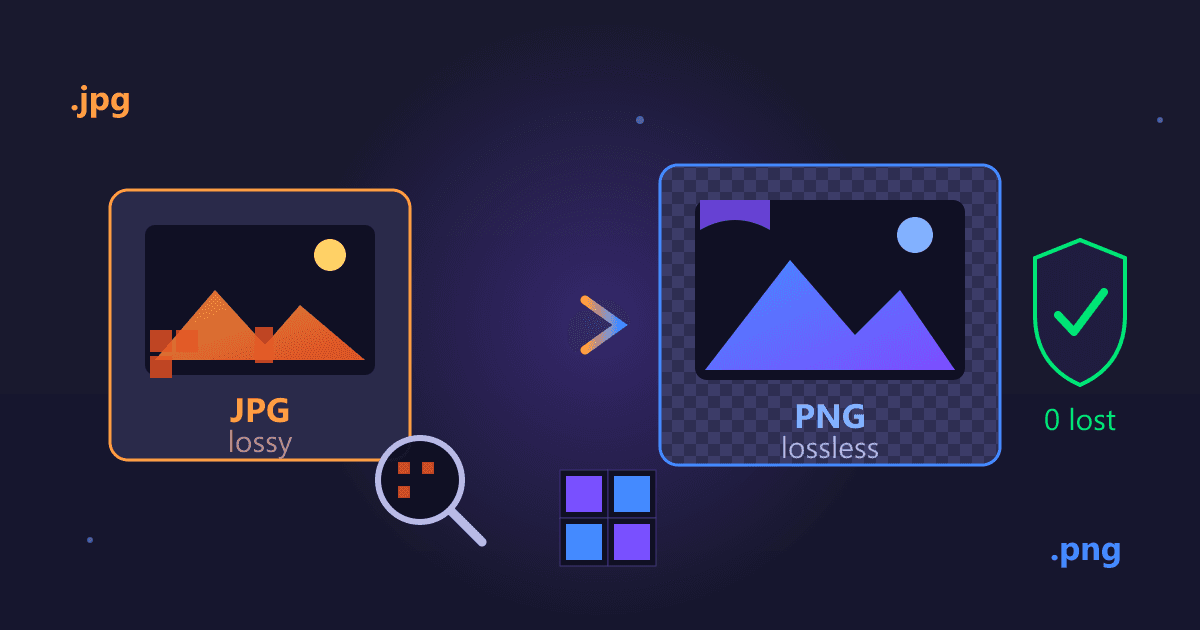
Converting the damaged JPG (generation 3 of the mixed chain) to PNG froze the damage at exactly that level: every later PNG re-save was pixel-identical, confirmed by RMSE staying flat at 4.77 across five further saves. Lossless holds. But the PNG could not give back what the JPG had already thrown away — and it cost 1,078 KB, eleven times the 95 KB WebP copy, to store a permanently mid-generation image.
That leads to a rule almost nobody follows: convert to PNG only at milestones — final edit, signed-off version, archive point — not as a daily working format for photos. The right order of operations is:
- Keep the true original untouched (camera file or first-generation PNG).
- Edit and derive freely, converting straight from the original each time.
- Freeze a lossless copy when a version is final and must never degrade again.
The failure mode to avoid: importing a WhatsApp JPG into your editor, saving as PNG for safety, editing for weeks, then wondering why the final export looks softer than the photo you remember taking. The damage was imported with the file; PNG just made it permanent and 11× heavier.
Spotting Ladder Damage in the Wild (a 60-Second Audit)
You can run this audit on any suspicious image you've downloaded, without any tools:
- Zoom to 100% on text and edges. Ladder damage shows as smeared letterforms and halos around high-contrast boundaries — the JPEG 8×8 grid becomes visible as faint blocking when quality dropped below ~50.
- Look at flat areas like sky or walls. Early ladder steps keep them clean; late steps show banding and blotchy color drift, because fine noise was destroyed and the encoder started quantizing structure.
- Check the pixel dimensions against the source. Platforms downscale aggressively alongside re-compression; a photo you shot at 4032 px coming back at 1080 px has been through at least one destructive pass regardless of what the app claims.
- Compare file size to siblings. Among photos from the same shoot, the one that's dramatically smaller at identical dimensions has been recompressed hardest.
If the audit fails — smeared text plus banding — the copy is a late-generation derivative. Don't restore from it; go back up the chain to the oldest copy you can find. And when you must produce new derivatives of a photo whose original is lost, convert once to a lossless PNG snapshot before any further edits, so the bleeding stops there.
For everything you want to test on your own files, the same conversions I used are free and run entirely in your browser: JPG to PNG for lossless freezing, JPG to WebP for web copies, and PNG to JPG when a form demands JPEG.
FAQ
Does re-saving a JPG at the same quality setting lose quality? Almost none. In my test, seven consecutive JPEG saves at quality 80 moved measured error from 3.86 to 3.87 — a 0.3% change. The first save does the damage; same-quality re-saves barely compound it.
Is converting JPG to WebP lossy? Yes, one round of loss at conversion time — WebP lossy mode re-encodes the pixels. But at matched quality settings WebP was both smaller (95 KB vs 123 KB in my chain) and gentler under repeated re-compression. Convert once from the original, not in cycles.
How many times can an image be re-saved before quality loss is visible? At constant quality with one codec: dozens of times with little visible change. With codec switching each time: visible softness can appear within a handful of conversions. With quality dropping each save (the platform ladder): visible damage by the third or fourth step in my test.
Why did my file size stay the same while the image got worse? Because later lossy saves re-encode existing damage rather than adding new information. My JPEG ladder sat at ~154 KB for five consecutive steps while measured error nearly tripled. File size measures surviving data, not fidelity.
What's the best format for keeping a master copy? A lossless format: the original camera file (RAW or highest-quality JPG) or a PNG copy. PNG re-saves are pixel-perfect forever, so your master never degrades no matter how many times you open or copy it.