You have a PDF with something on it that should not be there. A bank statement with your account number. A contract draft with a clause someone already cut. A tax form with your Social Security number sitting in plain sight. You need it gone — visibly and, ideally, permanently.
The good news: you can white out text in a PDF for free, in your browser, in under two minutes. The bad news: most people do it in a way that only looks deleted while the text stays fully recoverable underneath. This guide covers both halves — how to do it, and how to make sure it's actually gone.
Try Crop PDF — free, no sign-up, and it runs entirely in your browser.
Quick Answer: How to White Out Text in a PDF
- Open a free browser-based PDF editor such as the Edit PDF Text tool — no install, and files stay on your device.
- Click the text you want removed and delete it (or type replacement text over the area).
- Export the PDF and download the new copy.
- If the file contains truly sensitive data, flatten it — see the redaction section below before you send it to anyone.
That handles the visible layer. Whether the data is actually gone depends on which method you used, which is the part almost every tutorial skips.
White Out vs. Redact: The Difference That Matters
These two words get used interchangeably, and that's where people get burned.
- Whiting out means covering or deleting the visible text. It's what you want for typos, outdated clauses, or anything cosmetic.
- Redacting means destroying the underlying text data so no one can copy, paste, search, or forensically extract it. It's what the law effectively requires for Social Security numbers, medical records, and anything covered by privacy regulations.
Here's the trap: drawing a white rectangle over text in a standard PDF editor does not delete the text. The rectangle is just a new object layered on top. Anyone can:
- Select and copy the area — the hidden text often comes along with it.
- Open the file in a free editor, click the white box, and delete it.
- Run a text-extractor or search for a keyword and watch the "removed" content appear.
There's a famous category of court filing leaks where someone blacked out names with a drawn box, and reporters extracted the text in seconds. Don't be that person.
| Your goal | Right method | Data actually removed? |
|---|---|---|
| Fix a typo or swap a word | Edit the text directly | Yes |
| Hide a paragraph visually | White box + flatten | Only after flattening |
| Remove SSN, medical, or financial data | Flatten to image | Yes (with one caveat) |
Method 1: Edit the Text Directly (Best for Digital PDFs)
If the PDF was exported from Word, Google Docs, or any editor — rather than scanned — the text is real, selectable text. That makes this the cleanest method, because deleting the text deletes the data too.
- Go to the free PDF text editor.
- Upload your PDF. The tool runs entirely in your browser, so contracts and financial documents never leave your machine — no account, no upload to a server.
- Click the text you want to remove. Edit it, delete it, or type your replacement.
- Export and download the finished PDF.
Because you're changing the text layer itself rather than painting over it, there's no hidden copy left behind. This is also the right move when you're not deleting but changing — updating a date, fixing a name, or revising a clause before you send a draft back.
Limitation: this only works on selectable text. If you can't highlight the words with your mouse, you have a scanned PDF — skip to Method 3.
Method 2: White Box + Flatten (For Mixed Content)
Sometimes the thing you want gone sits next to content you need to keep exactly as-is — a signature you don't want to disturb, a table, a stamp. Editing around it is risky; covering it is safer.
The workflow:
- Cover the sensitive area with a white box (or white text) in your PDF editor.
- Flatten the PDF — merge every layer, box, and annotation permanently into the page.
- Save the flattened copy and send that.
Flattening is the step everyone forgets. Without it, the box is a removable object. With it, the box becomes part of the page image and the text underneath is no longer recoverable by clicking around.
A quick self-check before you send anything: open your finished PDF, try to select the whited-out area with your cursor, and try copying it into a text editor. If anything hidden pastes out, it's not flattened. Do this every time — it takes ten seconds.
Method 3: The Scanned-PDF Problem (And Its Honest Caveat)
Scanned PDFs are pictures of text, not text. You can't click and delete a word any more than you can edit a photograph of a sentence. Two options:
Option A — flatten to image, always. If the scan has an invisible OCR text layer (many do — that's how scanned PDFs become searchable), that layer still contains every word you covered up. Flatten the document so the OCR layer is discarded along with your edit. Test with the copy-paste check above.
Option B — re-sensor and re-OCR. For serious redaction on a scan, cover the area, flatten, then run OCR again if you need the document searchable. The new text layer is built from the flattened image, so the covered content never re-enters the file.
The caveat worth knowing: flattening destroys all text on the page, not just the hidden parts. Your whole document becomes an image — it will look identical but lose selectability, and screen readers can't read it unless you re-add an OCR layer. For most people whiting out one detail, that trade is fine. For a 60-page accessible document, do Method 1 on the digital original instead of the scan.
Method 4: The Word Round-Trip (When You Have Lots of Edits)
If you're removing or rewriting text throughout a long document, editing a PDF one click at a time is the slow way. Flip it back into an editor:
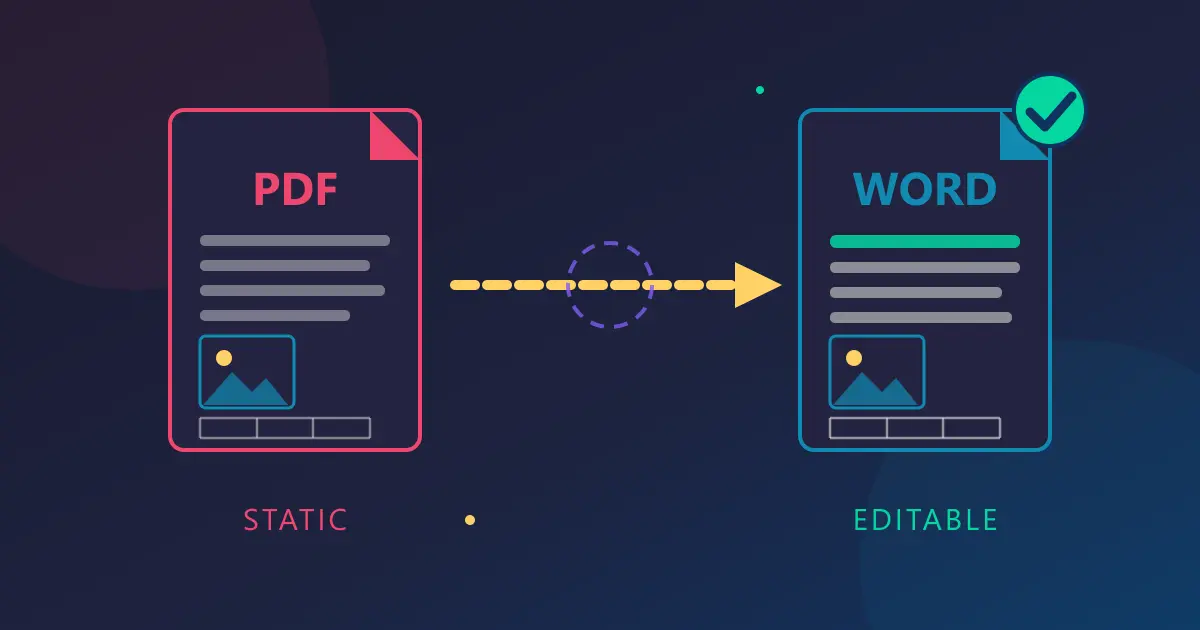
- Convert the PDF to Word — free, browser-based, conversion happens locally.
- Delete or rewrite everything in the Word file, where find-and-repeat edits take seconds.
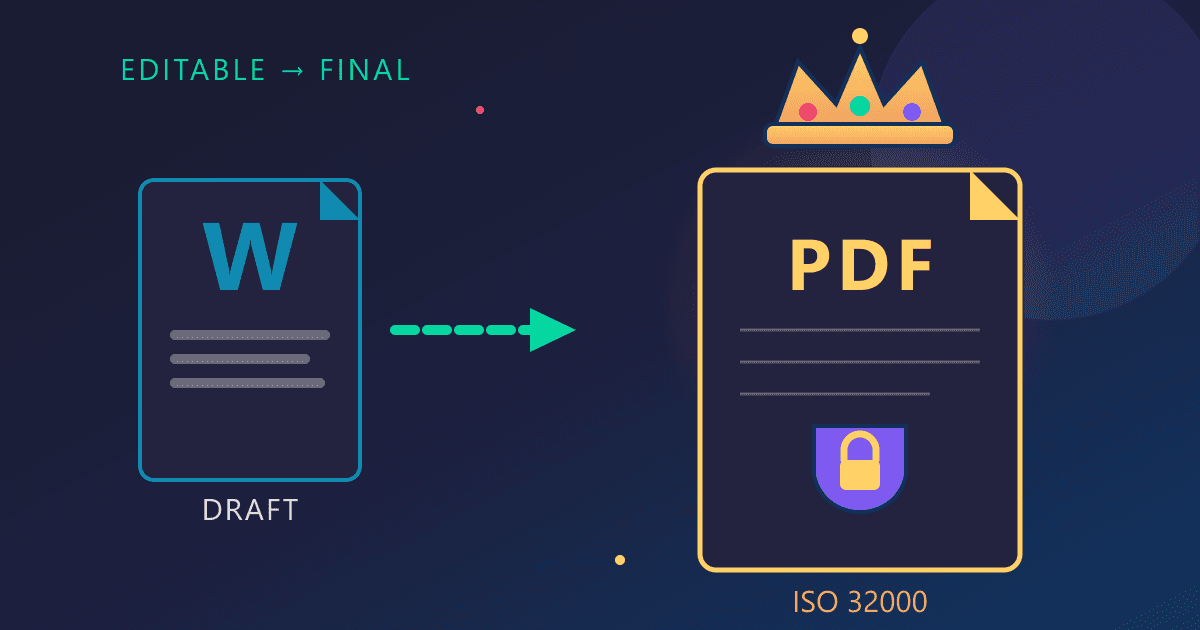
- Export to PDF again from Word.
This works best on text-heavy documents with simple layouts — reports, letters, drafts. Complex formatting (multi-column layouts, precision tables, forms) can shift during conversion, so compare the result before you rely on it. And note the same rule as Method 1: it only applies to digital PDFs. A scanned PDF converted to Word arrives as full-page images in a .docx wrapper.
One more trap: the round-trip is a new file, but if you started from a PDF with tracked changes or hidden comments, check that Word didn't carry them over before you export and share.
Before You Send: The 30-Second Safety Check
Run this sequence on any redacted PDF before it leaves your machine:
- Copy-paste test: try selecting the whited-out area and pasting into Notepad. Nothing should come out.
- Search test: Ctrl+F for a keyword from the removed text. Zero hits or "not found" is what you want.
- Layers/metadata: if the file once had comments or annotations, make sure your editor's final export didn't keep them in the file's metadata.
- Page count sanity: flattening and re-exporting occasionally drops or duplicates a page. A five-second scroll-through catches it.
None of this requires special software — just a text editor and your eyes.
What About Just Printing and Re-Scanning?
It works, honestly. Print the PDF with the area covered by a physical white label, re-scan it, and the digital text is genuinely destroyed — the new file is a fresh image with no text layer at all.
But it's the worst option for anything you do regularly:
- You lose all searchable text unless you OCR the result.
- Scan quality drops with every generation — text gets softer, file sizes get bigger.
- It takes ten minutes instead of two, and it can't be done on a phone.
Use it as the nuclear option when you absolutely don't trust the software path and the document is short. For everything else, flatten digitally.
Choosing the Right Tool: What Actually Matters
Every free PDF white-out tool on the web boils down to three questions:
- Does it upload your file? Server-based tools can keep copies. For tax forms, bank statements, and medical records, browser-only processing is the only comfortable answer — the Edit PDF Text tool, for example, processes everything locally.
- Can it flatten? If a tool only draws boxes and can't flatten or rasterize, your "redaction" is a sticker, not a deletion.
- Does it handle scans? If your PDF has no selectable text, you need a tool with rasterize/flatten capability, not just a text editor.
The full PDF toolbox — merge, split, rotate, page numbers, organizers — covers the surrounding workflow too. Whiting out one clause, then needing to merge the result with an appendix, is a very common one-two punch during contract season.
FAQ
Can I white out text in a PDF for free?
Yes. Free browser tools like the Edit PDF Text editor let you delete or change text directly, with no install and no upload — the file stays on your device the whole time.
Is a white box over text actually removed?
No. A white box is just an object layered on top; the text underneath usually remains in the file and can be copied or extracted. You must flatten the PDF so the layers merge permanently — then the covered text is truly gone.
How do I redact a PDF permanently?
Delete the text directly (for digital PDFs) or cover it and flatten the document to an image (for scanned PDFs). Then test: try to select and copy the area, and Ctrl+F for a word from the removed content. If both come up empty, the data is gone.
Can I white out text in a scanned PDF?
Not by editing — scans are images, so there's no text layer to click. Cover the area, then flatten the PDF so any hidden OCR text layer is discarded. Re-run OCR afterward only if you need the document searchable again.
Does converting a PDF to Word remove hidden text?
Converting a digital PDF to Word brings the text into an editable document where you can delete it for good, then re-export to PDF. It doesn't work on scans (those arrive as images), and you should verify formatting survived the round-trip.
Is whiting out the same as redacting?
Visually similar, legally different. Whiting out hides content from view; redacting destroys the underlying data. Courts and regulators expect redaction — if a covered word can be copy-pasted back out, it was not redacted.