Voice recordings are among the most sensitive files people routinely hand to the internet. An interview contains two people's unguarded sentences. A voice memo from a doctor's appointment repeats back a diagnosis. A lecture capture includes whoever asked questions from the back row. A meeting about a layoff plan is a recording you can be legally liable for leaking. Yet the default transcription workflow — drop the file into a web service — means uploading the whole recording to somebody else's server before the first word comes back.
The local-AI alternative used to mean installing an app. MacWhisper built a business on exactly that promise — transcription that happens on your Mac — with a Pro tier for the full feature set. Now the same promise works in a browser tab: the free private transcription tool loads Whisper, OpenAI's open-source speech model, and runs it on your own hardware through WebGPU, with an automatic fallback to CPU when the browser can't use the GPU. Your audio never uploads; the only network traffic is the one-time model download from a CDN. No account, no sign-up.
Try Private Transcription — free, no sign-up.
This guide covers what that workflow looks like in practice: honest performance expectations, the subtitle and interview pipelines, how to think about model sizes, and the companion habit of turning rambling voice notes into structured text without any upload at all.
The short answer
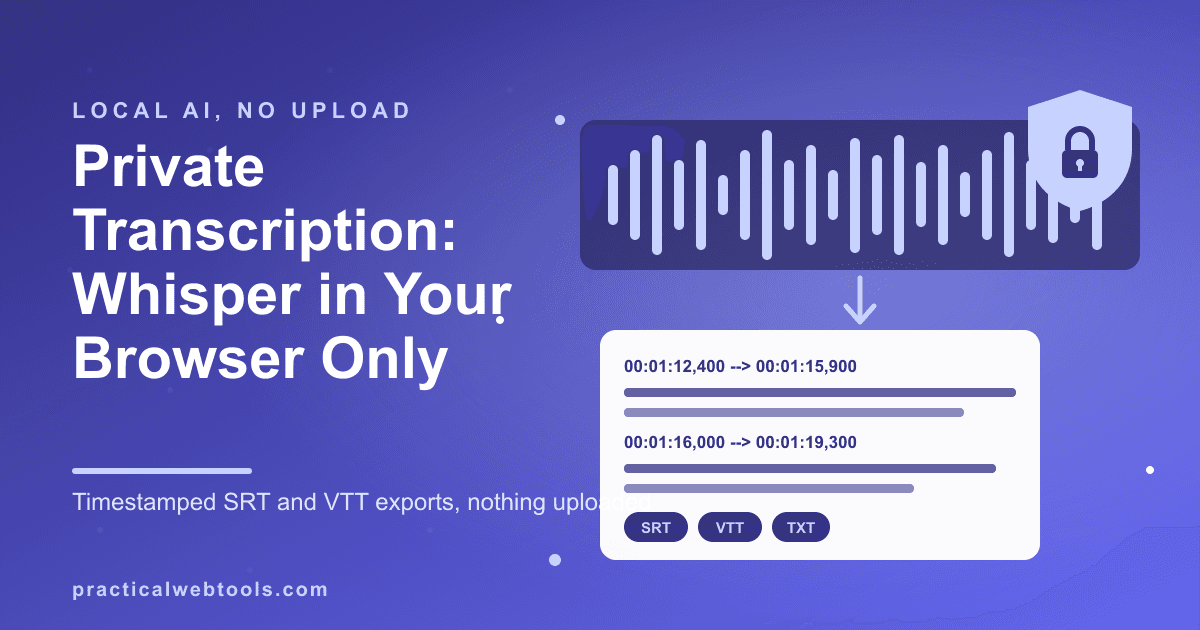
Open the browser transcription tool, drop an audio or video file, and let it download the model the first time — the base Whisper model is roughly an 80 MB one-time fetch, cached afterward. You get a timestamped transcript you can search and lightly edit, then export as SRT, VTT, or plain text. The transcription itself runs on your device; the file you dropped never transmits anywhere. For voice notes rather than recordings, the companion voice note structurer records straight from your microphone and returns a cleaned, organized version of what you said — same local-only arrangement.
What "local transcription" actually means
Worth being precise, because "private" gets used loosely:
- The audio file never leaves your device. The tool reads it with the browser's file APIs, decodes it in the page, and feeds the raw audio to the model in memory. There is no upload endpoint involved in transcription at all.
- The model comes down once, then runs locally. Whisper's weights are fetched from a CDN the first time you use the tool — that's real network traffic, which is why the tool tells you the size before it starts. After that the model is cached and inference happens on your CPU or GPU.
- No account, no sign-up. Nothing to register, nothing tied to your identity, no transcript stored anywhere but the tab you're working in.
That's a meaningfully different trust model from cloud transcription, where the recording uploads to a server, gets processed there, and retention is a policy question rather than an architectural impossibility. For anything you'd hesitate to email a stranger, architecture beats policy. (The general version of this argument — what actually happens to files you give to AI services — is covered in the is it safe to upload documents to ChatGPT guide.)
Whisper, briefly, and what quality to expect
Whisper is the speech-recognition model OpenAI open-sourced in 2022 and has left open since. It's become the default engine of the local-transcription world: robust to accents, decent with background noise, and strong at the things matter for transcripts people actually use — sentence punctuation and, crucially, timestamps. It comes in sizes; the browser tool ships the base model (~80 MB), which is the sweet spot of accuracy per megabyte for on-device use. In a real end-to-end test on a WebGPU machine, the base model produced correctly timestamped segments with the download included.
Set expectations honestly: base-class models transcribe clean single-speaker audio very well; heavy crosstalk, distant-mic conference audio, and niche vocabulary will produce errors. The editing step exists for a reason — the tool lets you fix a misheard name and export the corrected file rather than treating the output as gospel.
Performance: WebGPU, CPU fallback, and what to expect
The performance story has two branches:
- WebGPU (Chrome/Edge and other modern browsers on machines with a usable GPU): the model runs as GPU compute. Expect the comfortable case — a recording processes at a pace that feels like "done while you glance away" on a modern laptop GPU, with the base model's size keeping the download to a one-time ~80 MB.
- CPU fallback: if the browser can't negotiate WebGPU, the same model runs on CPU automatically. It works — accuracy is identical — it's simply slower, and for long recordings you'll want the tab left alone to chew.
Two practical notes. First, close the 40-tab browser session before transcribing an hour-long file; you're borrowing the machine's memory either way. Second, the model download is cached — the second transcription doesn't re-fetch, which is the difference between "try it on a short file first" being advice and being an ordeal.
The subtitle workflow: interview to SRT
The highest-value use of timestamps is subtitles. The pipeline:
- Record or collect. Whatever produced the file — a phone's voice-memo app, a Zoom local recording, a camera's audio track — drop it in.
- Transcribe with timestamps. Each segment arrives with start and end times.
- Fix the proper nouns. Search the transcript, correct names and jargon once; every future export carries the fix.
- Export SRT or VTT. SRT for most editors and players; VTT where the platform asks for it specifically. Plain text is there when you just need the words.
- Load into your video. The exported subtitle file drops straight into editors like the free browser video editor workflow or any player that takes SRT.
The interview variant of the same pipeline is why privacy matters most here: journalism, research, and HR investigations all involve recordings where the consent to be recorded was explicit but the consent to be uploaded to a third-party service was never asked. Local transcription keeps the circle at the size of the recorder's own machine.
From ramble to note: the voice-note structurer
The sibling workflow is not about recordings at all — it's about the voice memos you make while walking. The voice note structurer records from your microphone, transcribes with the same local stack, then restructures the rambly result into a cleaned, organized version — headings, sentences, the three action items you buried in minute two. Recording a memo in the moment and cleaning it after is how many writers sidestep blank-page paralysis; the voice typing workflow piece covers the same habit from the typing side.
Because the structurer never uploads your voice either, it's suitable for the memos you'd never dictate to a phone assistant — client names, half-formed gripes, numbers you shouldn't repeat.
What the paid tools charge for
The local-transcription product category is real and mostly desktop-shaped. MacWhisper's free tier exists with the Pro features paid; the pitch is identical to this tool's — on-device Whisper — minus the installation. Cloud services (Descript and the meeting-notetaker class) charge subscriptions and process your audio server-side; what you get for the upload is collaboration, speaker labeling at scale, and heavy editing features. The guide to recording voice online privately covers the recording side of that tradeoff.
The honest summary: if your transcription is a collaboration artifact that lives in someone's cloud anyway, cloud tools earn their keep. If your transcription is a file — an interview, a memo, a deposition, a lecture — the browser pipeline does the same job with a strictly smaller blast radius, at a price of zero.
Frequently Asked Questions
Does my audio file get uploaded anywhere?
No. The file is read and decoded inside the browser tab, and the model runs on your own hardware. The only network traffic is the one-time model download from a CDN the first time you use the tool; after that it's cached.
Is it really free, with no account?
Yes — no sign-up, no account, no watermarking of the exported transcript. The tool is one of the site's free browser tools.
How long can recordings be?
The practical ceiling is your machine's memory and patience rather than a policy limit. Short-to-medium files are the sweet spot on CPU; with WebGPU, hour-scale recordings are workable. For anything very long, process it in parts.
What formats can I export?
SRT and VTT (both timestamped, for subtitles and editors) plus plain text. You can edit the transcript before exporting, so fixes to names and jargon carry into every export.
How accurate is it on accents and background noise?
Whisper-class models are notably robust to accents and moderate noise, and the base model handles clean single-speaker audio very well. Expect errors on crosstalk, distant mics, and specialized vocabulary — the edit-then-export step is there for exactly that.
How is this different from MacWhisper?
Same underlying model, same privacy promise, different delivery: MacWhisper is an installed Mac app with paid Pro tiers, while this runs in any modern browser with no install, using WebGPU when available and CPU otherwise.