The signature looked perfect in the builder preview: custom font, colored accent line, logo floating left of the name. Then you pasted it into Gmail, sent yourself a test, and opened it — the font defaulted, the layout collapsed, and the logo sat three lines below where it belonged. Nothing was broken in your build; the build was in the wrong dialect. Gmail and Outlook do not render web HTML, they render a small, hostile subset of it, and most signature tools quietly ignore that.
The free email signature generator at Practical Web Tools is built around the constraint instead of around the preview. You fill in a form, style the signature, and the tool emits inline-CSS table HTML — the one format email clients reliably accept — with explicit colors chosen so dark mode does not wash the result out. A live preview shows the signature as you build it, and a copy-into-Gmail path puts it on your clipboard ready to paste; both the preview and the clipboard flow are verified working.
Try Email Signature Generator — free, no sign-up.
The rest of this article explains why signatures break, what the inline-table pattern actually is, how dark mode changes the design rules, and the exact install steps for Gmail and Outlook. It ends with the one caveat that trips up most first-time signature makers: logos must live at a hosted image URL, not inside the email.
Why signatures break between the preview and the inbox
Two rendering engines are responsible for almost every broken signature, and they break things in opposite ways.
Gmail sanitizes pasted and incoming HTML aggressively. It strips <style> blocks — so every rule the builder wrote in a central stylesheet evaporates at paste time — and it strips class attributes, which removes the hooks those styles would have targeted. What survives is whatever styling was written inline, directly on each element. A signature that leans on a stylesheet for its fonts, spacing, and colors arrives as mostly unstyled text. Gmail is also where the freemium squeeze shows up: signature builders commonly paywall exactly the copy-into-Gmail step, or inject their own badge into the free output, as of late 2026. The generator linked above does neither — the HTML is yours, badge-free, and the copy-into-Gmail path is the main feature, not the upsell.
Outlook desktop breaks things the other way: it renders email HTML with the Word engine, not a browser engine. That means weak support for modern CSS, quirks in margins and padding, and a strong preference for the table-based layout techniques web developers abandoned twenty years ago. Webmail Outlook and new Outlook are more forgiving than the classic desktop client, but the safe target remains the lowest common denominator.
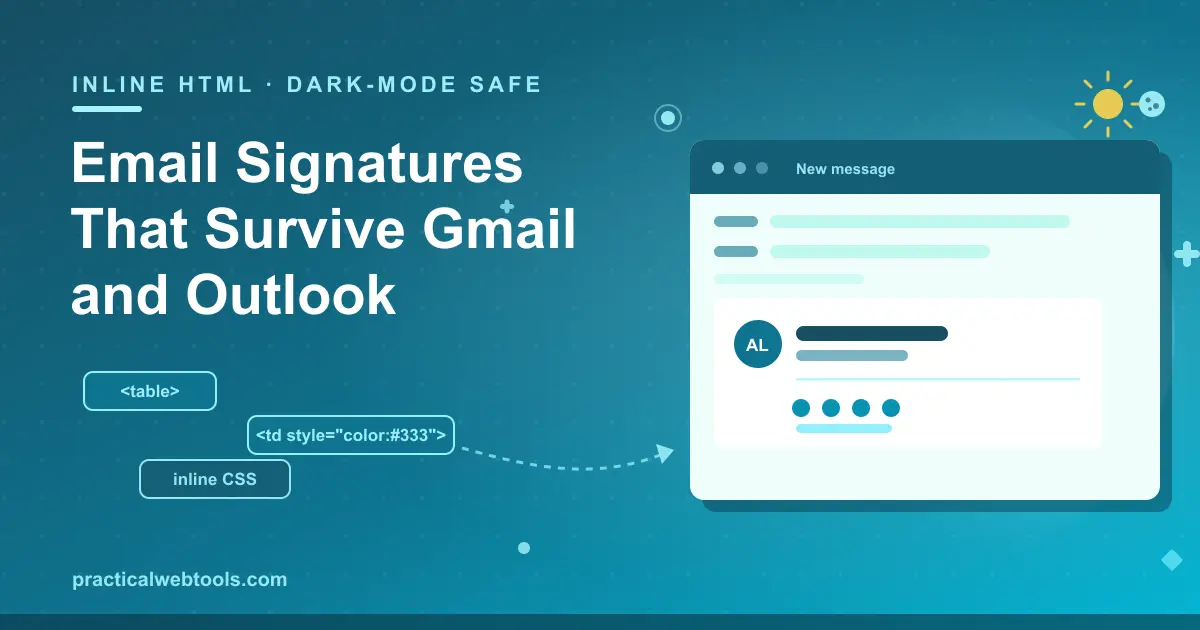
The conclusion from those two constraints is the inline-table pattern: layout with table cells, styling with inline attributes on every element, no stylesheet, no classes. That is precisely what the signature generator emits.
The inline-table pattern, in one glance
Stripped to its skeleton, an email-safe signature looks like this — simplified, but structurally what the generator produces:
<table cellpadding="0" cellspacing="0" border="0"
       style="font-family: Arial, sans-serif;">
  <tr>
    <td style="padding-right: 14px; vertical-align: top;">
      <img src="https://your-site.com/logo.png" width="64" height="64"
           alt="Logo" style="display: block; border: 0;">
    </td>
    <td style="vertical-align: top;">
      <div style="font-size: 15px; font-weight: bold; color: #1f2937;">
        Ada Lovelace
      </div>
      <div style="font-size: 13px; color: #4b5563;">
        Head of Computation, Analytical Engines
      </div>
      <div style="font-size: 12px; color: #6b7280;">
        <a href="https://your-site.com" style="color: #0f766e; text-decoration: none;">
          your-site.com
        </a>
      </div>
    </td>
  </tr>
</table>
Four properties do the work. Every style is inline, on the element it decorates, so nothing depends on a stylesheet Gmail will strip. Layout lives in <td> cells rather than flexbox or grid, which the Word engine renders predictably. Font sizes are fixed pixels, because email clients negotiate font stacks badly. And every color is explicit rather than inherited, which is what the next section depends on. Web-standard practice would call this retrograde; in email, it is simply the only dialect that survives the trip.
Dark mode that doesn't wash out
Half your recipients now read mail in a dark-mode client, and dark mode breaks signatures that were never designed for it. The failure mode is inheritance: a signature with no explicit background and text colors inherits the client's theme, so dark-gray designer text that looked fine on white silently lands on the client's near-black background and becomes unreadable, or the client force-inverts a color pair into a mangled combination nobody chose.
The defense is the one the generator applies: explicit background and text colors on the signature's table, so the signature carries its own palette instead of borrowing the reader's. Two practical rules follow for anyone hand-editing the output:
- Avoid pure black and pure white.
#000000text on a#ffffffcell is exactly the pair dark-mode clients love to invert, and inverted pure pairs produce the harshest results. Off-black on off-white — near-black text like#1f2937on a near-white cell — reads the same to the eye and survives inversion far better. - Keep the contrast in the colors themselves. A gray-on-gray "subtle" signature has no margin for a theme shift; explicit mid-tones with real contrast keep working when a client dims or inverts the canvas.
Check the finished signature in both a light and a dark inbox before rolling it out — the live preview in the generator shows the design, but the two-inbox test is the honest one.
Installing it in Gmail and Outlook
The generator's copy-into-Gmail path handles the clipboard side; the paste lands in three places depending on the client:
Gmail (web): open Settings (the gear icon), then See all settings, then the General tab, and scroll to the Signature section. Create a new signature, click into the signature editor box, and paste. Save changes, then select the signature as the default for new emails and, if you want it there too, for replies.
New Outlook and Outlook on the web: open Settings, then Mail, then Compose and reply. Paste into the signature editor, save, and choose whether replies and forwards get the signature as well.
Classic Outlook desktop: go to File, then Options, then Mail, and open Signatures. Create a new signature, paste, save, and assign it as the default for new messages and replies.
One caveat belongs in the same breath as pasting: if the signature includes a logo image, it must reference a hosted image URL — a public HTTPS link, the way the sample above does — not an attached file. Signatures are HTML, and HTML cannot carry attachments inside it; a logo that is a hosted link renders everywhere, while an attached or drag-pasted image depends on the client's handling and often arrives as a file icon instead. Host the logo somewhere stable (your site, a CDN), because every recipient's client fetches it from that URL at read time.
Signatures versus e-signatures, briefly
A terminology trap worth avoiding: an email signature is the sign-off block this article is about; an electronic signature is a cryptographic mechanism for signing documents and agreements, with legal weight and its own best practices. The two share a word and nothing else. If you came here looking for the document-signing kind, the e-signature best-practices guide covers that; everyone else, back to the signature block.
Honest limitations
Inline-table HTML is verbose and unpleasant to hand-edit — the right workflow is to change the fields in the generator and re-copy the output, not to patch the markup by hand. Rendering still varies by client and by the recipient's settings: font fallbacks happen when a client lacks your font, some recipients block remote images until they allow them, and no signature is pixel-identical across every inbox ever shipped. Dark-mode behavior in particular is per-client — explicit colors make it robust, not invulnerable. And the generator styles a signature; it cannot make one conservative legal disclaimer shorter, a decision that stays with you.
For what it does cover — form in, inline-CSS table HTML out, verified copy-into-Gmail flow, dark-mode-safe colors — it is free, with no badge injected into your output. Open the email signature generator, fill the form, paste once, and stop re-typing your details.
Frequently Asked Questions
Why did my signature break when I pasted it into Gmail?
Almost certainly stripped styling. Gmail removes <style> blocks and class attributes from pasted HTML, so any signature that depends on a stylesheet loses its fonts, spacing, and colors at paste time. Inline-CSS table HTML — what this generator emits — survives because every style lives on the element itself.
How do I add the signature to Gmail?
Gmail Settings, then See all settings, then General, then the Signature section: create a new signature, paste the HTML into the editor, save, and set it as the default for new messages. The generator's copy-into-Gmail path puts the signature on your clipboard ready for that paste.
Why does Outlook render my signature differently?
Outlook desktop renders email HTML with the Word engine, which has weak support for modern CSS and predictable-but-old-fashioned handling of layout. Table-based layout with inline styles is the pattern it renders most faithfully, which is why generators target it.
Will my signature look right in dark mode?
If its colors are explicit, mostly yes. The generator sets explicit background and text colors on the signature's table so it does not inherit a dark theme and become unreadable. For hand-built signatures, avoid pure black-on-white pairs, which invert harshest, and test in one light and one dark inbox.
Can I include a logo image?
Yes, as a hosted image at a public HTTPS URL — not as an attachment. Email HTML loads images from links, so the logo must live somewhere stable that recipient clients can fetch it from. Expect some recipients to have remote images blocked until they choose to display them; alt text covers the gap.
Is the HTML free to use, or does it carry a badge?
Free and badge-free. The generator outputs plain inline-CSS table HTML you can paste into any client or hand to your team — there is no paywalled copy step and no injected branding, which as of late 2026 is the differentiator from most signature builders.