Your Essential Guide to a Secure Digital Travel Wallet
The thrill of an upcoming trip can quickly be dampened by an official travel warning. Whether it's a health advisory, political unrest, or a natural disaster alert, these notifications from bodies like the U.S. Department of State can be unsettling. They serve as a stark reminder that while travel broadens our horizons, it also comes with inherent risks. But fear, and the paralysis that often comes with it, is not the answer. Preparation is.
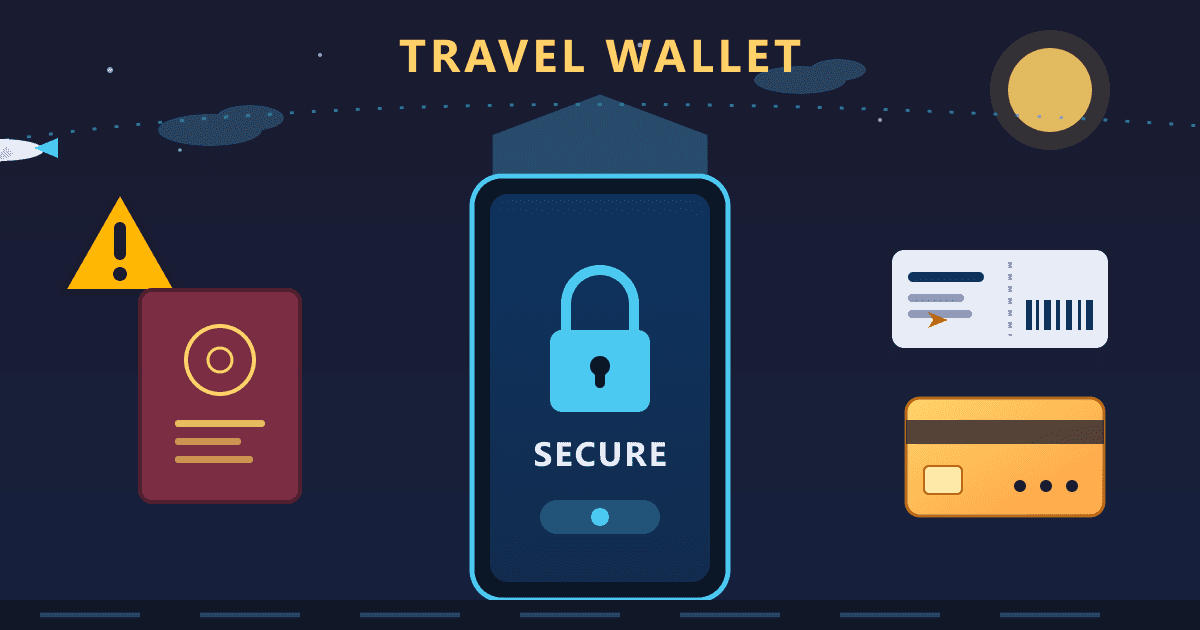
In an age where your smartphone is your lifeline, what if you could carry every essential document—passport, visa, flight tickets, hotel bookings, insurance details—in a single, encrypted, and instantly accessible file? This isn't just about convenience; it's a critical safety measure that directly addresses the concerns highlighted in travel advisories. Losing a passport or having your wallet stolen is a nightmare scenario, especially in a foreign country under stressful circumstances.
Try Protect PDF — free, no sign-up, and it runs entirely in your browser.
This guide will walk you through the step-by-step process of creating a secure digital travel wallet. We’ll show you how to use free, private, and powerful online tools to scan your documents, consolidate them into one master PDF, and protect it with a password. Think of it as your digital emergency kit—a small effort that provides enormous peace of mind, allowing you to travel smarter and safer, no matter the destination.
Why a Digital Travel Wallet is Non-Negotiable Today
While we all hope for smooth travels, the reality is that disruptions happen. Understanding the modern travel landscape and the limitations of physical documents is the first step toward better preparation.
The Ever-Present Reality of Travel Warnings
Travel advisories are more common than ever. From health pandemics to sudden geopolitical shifts, the world can be unpredictable. These warnings are issued to help citizens make informed decisions. A digital wallet empowers you to heed this advice by being prepared for the unexpected. If an advisory suggests having copies of your documents, a secure digital file is the most robust and accessible way to comply.
The Risks of Relying Only on Physical Documents
Your passport, driver's license, and credit cards are invaluable. Relying solely on the physical copies presents several risks:
- Theft: Pickpocketing and bag snatching are unfortunate realities in many tourist hotspots. Losing your wallet or passport can derail your entire trip.
- Loss: In the hustle of moving between airports, hotels, and train stations, it's easy for a document to slip out of a bag or be left behind.
- Damage: An unexpected downpour or a spilled drink can render paper documents illegible and useless.
- Inconvenience: Carrying a folder full of printed confirmations is bulky and inefficient. Accessing them requires rummaging through your bags, which isn't always safe or practical.
- Replacement Hassles: Replacing a lost or stolen passport while abroad is a bureaucratic, time-consuming, and stressful process involving embassy visits and lengthy paperwork.
The Unmatched Benefits of a Secure Digital Backup
A password-protected digital copy of your documents mitigates all these risks and offers significant advantages:
- Instant Access: Your entire portfolio of travel documents is available on your phone, tablet, or any computer with internet access.
- Centralized Organization: No more searching through different emails and apps for a booking confirmation or insurance number. It’s all in one master file.
- Enhanced Security: A strong password makes your digital wallet far more secure than a physical wallet, which offers no protection once it's gone.
- Emergency Proof of Identity: If you lose everything, having a digital copy of your passport and ID can significantly expedite the process of getting help from your embassy or consulate.
What to Include in Your Digital Travel Wallet
Building a comprehensive digital wallet is about gathering all the information you might need in a pinch. Think of it as a snapshot of your travel identity and logistics.
Essential Documents for Every Traveler
This is your core checklist. Ensure you have clear, high-quality digital copies of each of these:
- Passport: The photo page and any pages with visas or entry/exit stamps for your current trip.
- Government-Issued ID: Your driver’s license or national ID card.
- Travel Itinerary: All flight, train, and bus tickets and confirmations.
- Accommodation Bookings: Hotel, Airbnb, or hostel confirmations with addresses and contact numbers.
- Travel Insurance Policy: The full policy document, and especially the page with your policy number and the 24/7 emergency assistance phone number.
- Emergency Contact List: A simple text page with names, relationships, and phone numbers for key contacts back home, as well as your bank's international fraud department and your country's local embassy or consulate.
- Health Documents: COVID-19 vaccination certificates, yellow fever cards, or other required medical proofs.
Optional but Highly Recommended Additions
For an extra layer of preparedness, consider adding these:
- Credit and Debit Cards: A copy of the front and back of each card you’re traveling with. This gives you the card numbers and the crucial security/CVV code and bank contact info if they are lost or stolen.
- Rental Car Agreements: Confirmation numbers, pickup locations, and insurance details.
- Event Tickets: Any pre-booked tours, museum passes, or concert tickets.
- Medical Information: A brief list of any critical allergies, chronic conditions, or current medications (both generic and brand names).
- Prescriptions: A photo of the doctor's prescription for any necessary medications.
Step-by-Step Guide: Creating Your Secure Digital Wallet
Now for the practical part. Follow these three simple steps to build your own secure, all-in-one travel document PDF.
Step 1: Digitize Your Physical Documents
Your first task is to create high-quality digital versions of your paper documents. You don't need a fancy scanner; your smartphone is perfectly capable.
-
For iPhone Users (Notes App):
- Open the Notes app and create a new note.
- Tap the camera icon and select "Scan Documents."
- Position the document in the viewfinder. The app will automatically detect and capture the page.
- Continue scanning all your documents. When finished, tap "Save." The scan will be saved as a PDF within the note.
- Tap the share icon to save the PDF to your Files app.
-
For Android Users (Google Drive App):
- Open the Google Drive app.
- Tap the "+" icon in the bottom right corner.
- Select "Scan."
- Position the document and tap the shutter button to capture it. You can crop or adjust the colors as needed.
- Tap the "+" icon again to add more pages to the same PDF file.
- When done, tap "Save" to upload the PDF to your Google Drive.
Pro Tip: For the best results, place documents on a dark, flat surface in a well-lit area to avoid shadows and ensure text is crisp and clear. Give each file a logical name (e.g., Passport_JDoe.pdf, Flight_NYC-LHR.pdf) to stay organized.
Step 2: Consolidate Everything into One Master File
Having a dozen separate PDF files is better than nothing, but it's still inefficient in an emergency. The goal is to have a single, master document. This is where a powerful online tool comes in handy.
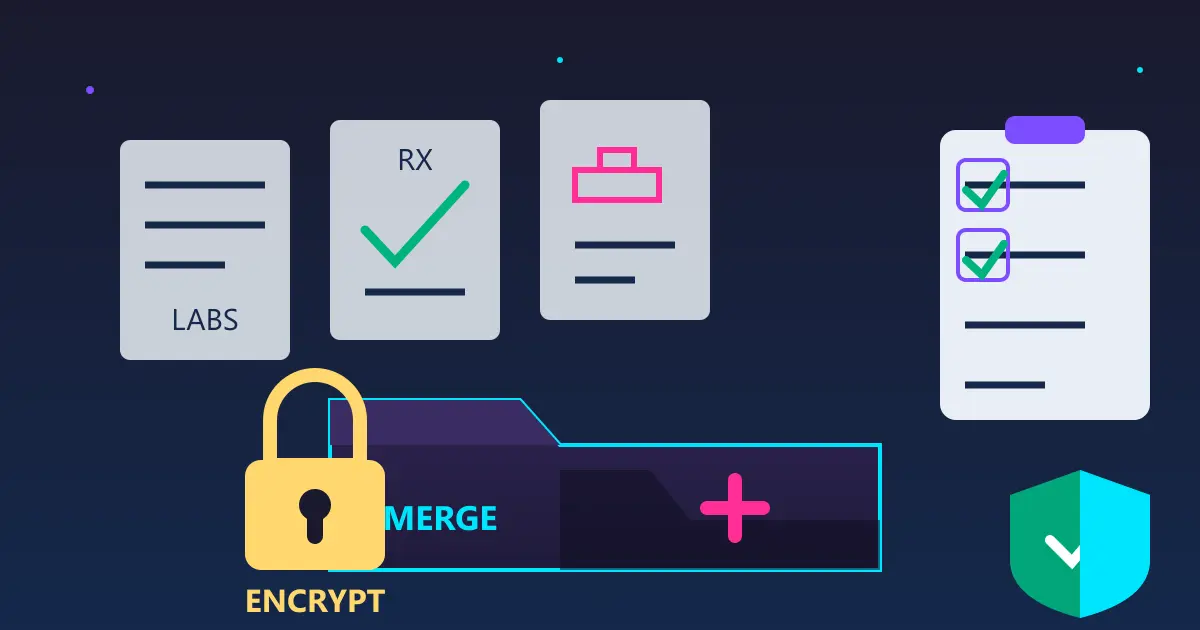
We recommend using Practical Web Tools' free and private Merge PDFs tool. It allows you to combine multiple PDF files into one seamless document right in your browser.
- Navigate to the Tool: Open your web browser and go to practicalwebtools.com/edit/merge-pdf.
- Upload Your Files: Click the "Select PDF files" button and select all the individual document PDFs you created in Step 1. You can also drag and drop them onto the page.
- Order Your Documents: Once uploaded, you can drag the file thumbnails to reorder them. A good practice is to put your passport and ID first, followed by travel itineraries, and then insurance and other documents.
- Merge: Click the "Merge PDF" button. The tool will process your files and combine them into a single PDF.
- Download: Your merged master file will be ready for download in seconds.
Our tools are designed with your privacy in mind. Your files are processed securely on your own device or our servers and are automatically deleted after a short period. We never access or store your personal information.
Occasionally, you might scan an extra blank page or need only a portion of a larger document. Before merging, you can easily clean up your files using our Split PDF tool to extract only the pages you need.
Step 3: Secure Your Master PDF with a Password
This is the most critical step. Your merged PDF contains a wealth of sensitive personal information. Leaving it unprotected would be a major security risk. You must encrypt it with a strong password.
While Practical Web Tools focuses on conversion and editing, you can easily password-protect your PDF using free features in software like Adobe Acrobat Reader or various other online services.
- Choosing a Strong Password:
- Don't use personal information: Avoid birthdays, names, or addresses.
- Use a passphrase: Think of a memorable but random phrase like
BlueGiraffeFlies@Midnight!. - Mix it up: Use a combination of uppercase letters, lowercase letters, numbers, and symbols.
- Storing the Password:
- Store it securely in a reputable password manager (like Bitwarden, 1Password, or LastPass).
- Crucially, share the password with a trusted emergency contact back home. They can't help you access the file if they don't have the key.
Storing and Accessing Your Digital Wallet Securely
With your password-protected master PDF created, the final piece of the puzzle is ensuring you can access it when you need it most.
Best Practices for Cloud Storage
Storing your digital wallet in a secure cloud service (like Google Drive, Dropbox, or iCloud) is the best way to ensure you can access it from any device, anywhere in the world.
- Enable Two-Factor Authentication (2FA): This is non-negotiable. 2FA adds a critical layer of security to your cloud account, requiring a second verification step (like a code sent to your phone) before granting access.
- Organize Clearly: Create a specific folder named "Travel Documents" or similar so you know exactly where to find the file in a hurry.
Offline Access is Key
Never rely solely on cloud access. What if you're in a location with no Wi-Fi or cellular data? Before you leave, download a copy of the encrypted PDF directly onto your smartphone and your tablet or laptop.
- On your phone, save it to the native "Files" app.
- This ensures that even in an internet dead zone, your most important information is still at your fingertips.
Travel Smart, Travel Prepared
Facing a travel warning doesn't have to mean canceling your plans. It means heightening your awareness and taking proactive steps to protect yourself. Creating a secure digital travel wallet is one of the most effective preparations you can make. It transforms a scattered collection of papers and emails into a powerful, centralized, and secure resource.
This simple, 30-minute task provides invaluable security and peace of mind, freeing you to focus on the enriching experiences that travel has to offer. In a situation where you need to present a signed form or application quickly, you can even use our Sign PDF tool to add your electronic signature to a document before sending it off.
Ready to build your own digital safety net? Gather your documents and use our free, private Merge PDFs tool to create your single, secure master file today. Travel safely and confidently.