You hit Ctrl+P, saved a web page as a PDF, and the right third of the page is just... gone. Or the text runs edge-to-edge with no margins, or page two is blank. This is one of the most common print-to-PDF complaints, and in almost every case the cause is the same: the web page is wider than the paper, and the browser would rather silently crop it than shrink it.
The good news: you rarely need any software to fix it. Here are the seven fixes that work, ranked from fastest to most involved.
Try Organize PDF Pages — free, no sign-up, and it runs entirely in your browser.
Fix 1: Change the Scale Setting (The #1 Cause)
When a PDF is cut off on the right side, the page layout is wider than the printable area. Chrome, Edge, and Firefox all quietly print at 100% scale and crop whatever doesn't fit.
To fix it in the print dialog:
- Press Ctrl+P (or Cmd+P on Mac) on the page.
- In the print sidebar, find the Scale setting (Chrome/Edge: under "More settings").
- Drop it from Default (100%) to 80–90%.
- Check the preview on the left — the cut-off content should slide back into frame.
- Choose Save as PDF as the destination and save.
Start at 90% and work down. Most fixed-width sites fit by 85%; very wide dashboards and tables may need 70%.
Why this works: the browser renders the page at its natural width, then fits that render into the paper width at the percentage you choose. At 100%, anything beyond the paper edge is discarded.
Fix 2: Switch to Landscape
If the page contains a wide table, a Gantt chart, a calendar, or code blocks, portrait A4/Letter paper (8.27–8.5 inches wide) is simply too narrow.
In the print dialog, set Orientation → Landscape. That instantly buys you roughly 2.7 extra inches of usable width, which is enough for most wide layouts. Combine landscape with an 85% scale and nearly every cut-off page fits.
Fix 3: Turn Off Headers, Footers, and Margins Set to "None"
Two sneaky culprits people overlook:
- Margins set to "None": content that was fine suddenly prints edge-to-edge and looks cut off at the edges. Set margins to Default or Minimum instead.
- Headers and footers enabled: they add a printed strip that can overlap content on tightly-spaced pages and make the PDF look truncated at top or bottom.
Both live in the same "More settings" section of the Chrome/Edge print dialog. Toggle them off (or set margins back) and re-check the preview.
Fix 4: Use Reader Mode Before Printing
Ads, sidebars, sticky headers, and chat widgets are the reason many pages are physically wider than your screen. Reader mode strips them out.
- Chrome/Edge: look for the reader icon in the address bar, or use Extensions like Reader View. On Edge, it's built in.
- Firefox: the reader icon appears in the address bar on article-style pages.
- Safari: click the lines icon at the left of the address bar.
Reader mode reflows the article into a single narrow column — the single best fix for printing news articles, blog posts, and documentation. Bonus: the PDF is dramatically shorter because all the nav clutter is gone.
Fix 5: Print a Selection Instead of the Whole Page
When only one section matters (a recipe, a receipt, a table), don't fight the whole page's layout:
- Select the content you want with your mouse.
- Press Ctrl+P.
- In the dialog, choose Selection instead of "All pages" (Chrome/Edge support this; in Firefox it's under "Print selection only").
You get a clean PDF of exactly the part you needed, already reflowed to the page width.
Fix 6: Collapse or Close Overlays Before Saving
Cookie banners, newsletter pop-ups, and open hamburger menus change the page's layout width. Dismiss them all before pressing Ctrl+P. If a banner refuses to close, an Esc keypress usually clears the topmost overlay — press it a few times, then print.
Sticky "back to top" buttons and floating chat bubbles also burn vertical space on every printed page. Reader mode (Fix 4) removes these automatically.
Fix 7: Convert the Page to a Real PDF File Instead
Browser print-to-PDF is a rendering of a live page — a screenshot in PDF clothing. If you need the page's actual text as a clean, selectable document (or the print dialog keeps fighting you), go the other direction: save or convert the page's HTML into a proper PDF.
A dedicated converter gives you a single-column, text-first document without ads or cropped edges:
- If you have the page saved as an HTML file: use the free HTML to PDF converter — it converts the file entirely in your browser, nothing is uploaded.
- Want the page's content in a note-friendly form? The PDF to Markdown tool turns existing PDFs into clean, portable text you can reformat and re-export.
After Saving: 3 Quick PDF Cleanups
The save is half the job. Three free browser-based cleanups finish it:
- Trim the junk pages — the last printed page is often 10% content and 90% whitespace. Use split and organize PDF to drop empty pages and reorder sections.
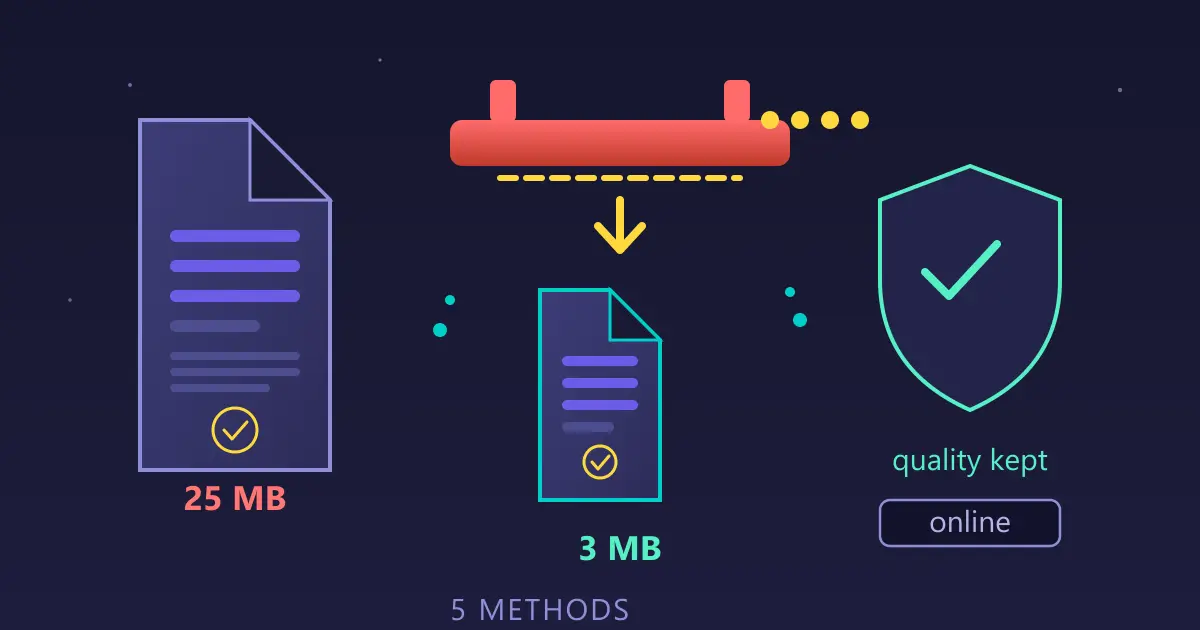
- Shrink the file — print-to-PDF output embeds full-resolution background images and can hit 20+ MB. The compress PDF tool typically cuts this dramatically, all client-side.
- Staple pages together — saved a page in three parts? Merge PDF combines them in seconds without uploading anything.
Why Browsers Cut Content Off (30-Second Version)
A web page has no fixed width — it's however wide your screen is. Paper does have a fixed width. When you print, the browser has three choices: reflow everything (breaks layouts), shrink the whole page (your Scale setting), or crop (the default when scale is 100%). Cut-off output just means the browser chose "crop." Every fix above is a different way of forcing it to reflow or shrink instead.
FAQ
Why does print to PDF cut off the right side of the page?
The web page is wider than the paper. Browsers print at 100% scale by default and crop anything beyond the paper's right edge. Lower the Scale setting to 80–90% in the print dialog's "More settings" section, or switch to landscape orientation.
How do I save a whole webpage as one PDF?
Press Ctrl+P, set the destination to "Save as PDF," remove page range limits, and check the preview for cut-off content. For very long pages, enable "Background graphics" only if you need images — it keeps file size smaller. To shrink a huge result, run it through a PDF compressor afterward.
Does print to PDF reduce quality?
Text stays sharp because it's printed as real vector text, not a screenshot. Photos keep their original resolution, which is exactly why print-to-PDF files get so large — the compress PDF tool can reclaim most of that space.
Why is my saved PDF missing the page background or colors?
Browsers disable background graphics by default to save ink. In the print dialog, open "More settings" and enable Background graphics before saving.
Is a printed PDF searchable, or is it just an image?
A browser print-to-PDF keeps the text as real, selectable, searchable text — unlike a screenshot. That also means you can later convert it to editable formats or extract it with tools like PDF to Markdown.