Thirty certificates, one design, and an afternoon you will not get back: that is the default way these jobs get done. Open the template, swap the name, export, rename the file, scroll to the next row on the class list, repeat. Word's mail merge automates the repetition but produces documents that look like tax forms. Design apps produce something prettier, but on the free path you are duplicating a page per person and exporting one file at a time.
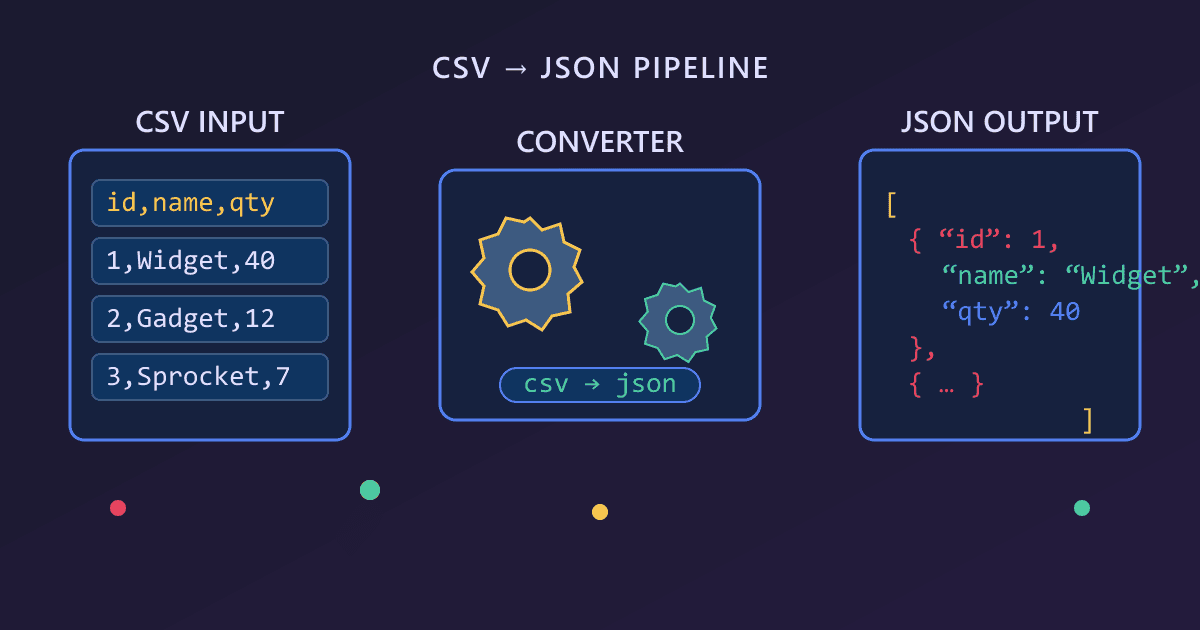
The free bulk certificate generator at Practical Web Tools applies the mail-merge model to a designed certificate instead. You build one template in the browser, type merge fields such as {name}, {course}, and {date} wherever the personal text belongs, upload a CSV of recipients, and the tool renders one PNG per row — packed into a single ZIP — plus a combined PDF of the entire batch. No install, no sign-up, and no watermark on the exports.
Try Certificate Generator — free, no sign-up.
This guide walks the full pipeline: how to design a certificate that reads as official rather than as clip art, how to prepare the spreadsheet so nothing renders wrong, how to preview every row before committing, and what to check before you print or send. If you can fill out a spreadsheet, you can run this.
One template, one spreadsheet, every certificate
The tool is built around one separation: the design stays fixed, the data stays variable. The fixed part is a single canvas — it renders at 1500×1060 pixels, a comfortable landscape certificate proportion — holding the border, the title, the seal, and the signature lines. The variable part is a set of merge fields: any {column} placeholder that matches a header in your CSV is substituted row by row at render time.
So {name} becomes Maria Chen on row 1 and Jonas Ekström on row 2, while everything around those two names stays pixel-identical. That is what makes bulk output look deliberate instead of mail-merged: a human designs once, with full attention to spacing and hierarchy, and the machine repeats that design without drifting, whether the batch is 12 rows or 300.
Because the preview canvas is the same renderer that produces the exports, what you verify is what you download. The canvas preview includes row navigation, so you can step through every recipient before exporting anything. In testing, that stepper is what turned hope into certainty: the longest name on the list, the accented characters, the course title that runs to two lines — all of it checkable in a few clicks, not after 40 manual exports.
Designing a certificate that looks official
Credibility on paper comes from restraint, not ornament. Nearly every legitimate certificate follows the same skeleton, and it is worth copying deliberately:
| Element | Purpose | Detail that sells it |
|---|---|---|
| Organization line | Who is issuing | Small, letter-spaced text at the very top |
| Title | What it is | "Certificate of Completion" set large, in a serif or a strong sans |
| Recipient name | Who earned it | The largest personal text, sitting on a drawn rule |
| Course or reason | Why | One line, set smaller, directly under the name rule |
| Date and signatures | When and who vouched | Two short rules at the bottom, one for a signature, one for a date |
The five fixed elements worth perfecting
The border. A double rule — a heavier outer line and a thin inner one, a few millimeters apart — does more for authority than any decorative frame. Keep both lines in the same ink color as the title.
The seal. A simple circular seal near the signature block reads as institutional. Keep it to one accent color and one per certificate; two seals look like an apology.
The name line. Set the name in a serif and size it against the longest name in your CSV. If Maria-Concepción del Rosario overflows the line in the preview, drop the point size until she does not, then step through a few rows to confirm normal names still look generous.
The signature rules. Two short horizontal rules with printed labels beneath them — "Director" and "Date" — anchor the bottom of the layout and give the eye a place to land after the name.
Restraint. Two typefaces at most, one accent color, and margins wider than feel natural. Certificates that look homemade almost always break all three rules at once: five fonts, four colors, and content touching the border.
Preparing the CSV: the make-or-break step
Every rendering problem in a mail merge traces back to the spreadsheet, not the tool. The rules are short:
| Rule | Broken | Fixed |
|---|---|---|
| Headers match merge fields exactly | Name (trailing space) |
name |
| One row per recipient | Two students on one line | One line each |
| Quote fields containing commas | Last, First unquoted | "Last, First" |
| Save as UTF-8 | José renders as garbled text | UTF-8 CSV |
| One date format throughout | 3/5/26 and May 3 in one column | 2026-05-03 |
| No stray rows | Blank row 17 in the middle | Deleted |
Getting the list out is one step on either platform: in Excel, Save As and pick the CSV UTF-8 option; in Google Sheets, File, then Download, then Comma Separated Values. Keep the header row exactly matching the merge fields you typed into the template and the file is ready to drop in.
One point worth pausing on: the CSV you drop in carries real names — students, staff, volunteers, sometimes minors. The tool runs in your browser, so there is no upload, no sign-up — nothing you type or drop leaves your device. The class list goes from your spreadsheet to your downloads folder without an intermediate copy on anyone's server.
The workflow, start to finish
- Build the fixed design. Border, organization line, title, seal, signature rules. Everything except the personal text.
- Type the merge fields.
{name}on the name line,{course}under it,{date}at the bottom — any CSV column header works as a placeholder. - Export the CSV. UTF-8, headers matching the placeholders, one row per recipient.
- Upload the CSV. The tool reads the columns and maps them onto the placeholders.
- Step through the rows. Use the row navigation in the canvas preview to visit the problem rows first: the longest name, the accented names, the two-line course titles.
- Fix problems in the spreadsheet, not the design. A stray space in a header or a broken date shows up in the preview; correct the CSV and re-upload.
- Export. One ZIP holding a PNG per row, plus the combined PDF of the whole batch.
- Spot-check three files. First row, a middle row with an accented name, last row. If those three are right, the batch is right.
A 30-student class is about a minute of work once the template exists. A 500-row batch — a full conference roster or an entire course catalog — is the same single upload and the same two downloads.
Where bulk certificates actually get used
The classroom is the obvious case: end-of-term awards, reading challenges, perfect attendance, science fair placements. One teacher, one design, thirty names. The certificate maker for teachers use case is exactly why merge fields beat copy-and-paste — the design effort is amortized across the whole list instead of being re-spent on every row.
Outside schools the same shape recurs. Corporate training teams issue completion certificates for internal courses and compliance modules. Conference and webinar organizers send attendance certificates to hundreds of attendees at once. Volunteer organizations recognize service hours. Offices run peer-nominated awards and end-of-year superlatives, where the tone is lighter but the batch math is identical.
It is also the same instinct behind other personalized paper gifts — if you like making one designed artifact and producing many personal copies, the photo calendar gift workflow is a close cousin.
The export checklist
Before you print or send, run this list:
- The ZIP should contain one PNG per CSV row. If the count differs from the row count, a stray blank row is the usual suspect.
- The PDF is the print master — one document, pages in the same order as the spreadsheet.
- Accents and diacritics: open one file with a name like Zoë or Ekström and confirm it rendered as typed.
- The longest name: confirm it stayed on one line and did not collide with the border.
- Dates: one consistent format across a few rows.
- For printing: 1500×1060 pixels is roughly a 10 by 7 inch page at 150 dpi; print the PDF with "fit to page" on letter or A4 and the proportions hold.
- For sending: the per-recipient PNGs are ready to email or post individually — no cropping or renaming by hand, because each file already carries exactly one name.
What the paid template services charge
Render services in the Robolly and PDFMonkey class solve the same mail-merge problem as a hosted product, and as of late 2026 they gate bulk PNG and PDF rendering behind subscriptions or trials. That pricing can make sense when you are wiring certificate delivery into a real product with a server and a signup flow behind it.
For the recurring real-world jobs — a class each June, a workshop each month, a volunteer dinner each spring — the browser pipeline does the identical render for free, with no watermark and no account. The only infrastructure involved is the tab you already have open, and the only artifact you keep is the ZIP and the PDF in your downloads folder. Run the math on your own case: if the certificates are a task and not a product, the subscription has nothing to sell you.
Frequently Asked Questions
Is the export really free, with no watermark? Yes. The ZIP of per-recipient PNGs and the combined PDF render without watermarks or credits, and the rendering happens in your browser, so there is no per-certificate fee and nothing to unlock at the end.
Do I need to install anything or create an account? No. The bulk certificate generator runs in a browser tab. No upload, no sign-up — nothing you type or drop leaves your device, which matters when the CSV is a class list of minors.
How do I get my list out of Excel or Google Sheets? Export as CSV: in Excel, use Save As and pick the CSV UTF-8 option; in Google Sheets, use File, then Download, then Comma Separated Values. Keep the header row exactly matching your merge fields and drop the file in.
What resolution are the generated PNGs? The canvas renders at 1500×1060 pixels and the exports come from that same rendering — about 10 by 7 inches at 150 dpi in print, and sharp at full width on screen.
Will accented and non-English names come out right? They will if the CSV is saved as UTF-8, which Excel's CSV UTF-8 option and Google Sheets' standard download both produce. Step through the affected rows in the preview before exporting to confirm.
How many certificates can one batch hold? The batch is whatever your spreadsheet is: a 30-row class list and a 500-row roster go through the same single upload and come out as one ZIP plus one combined PDF.