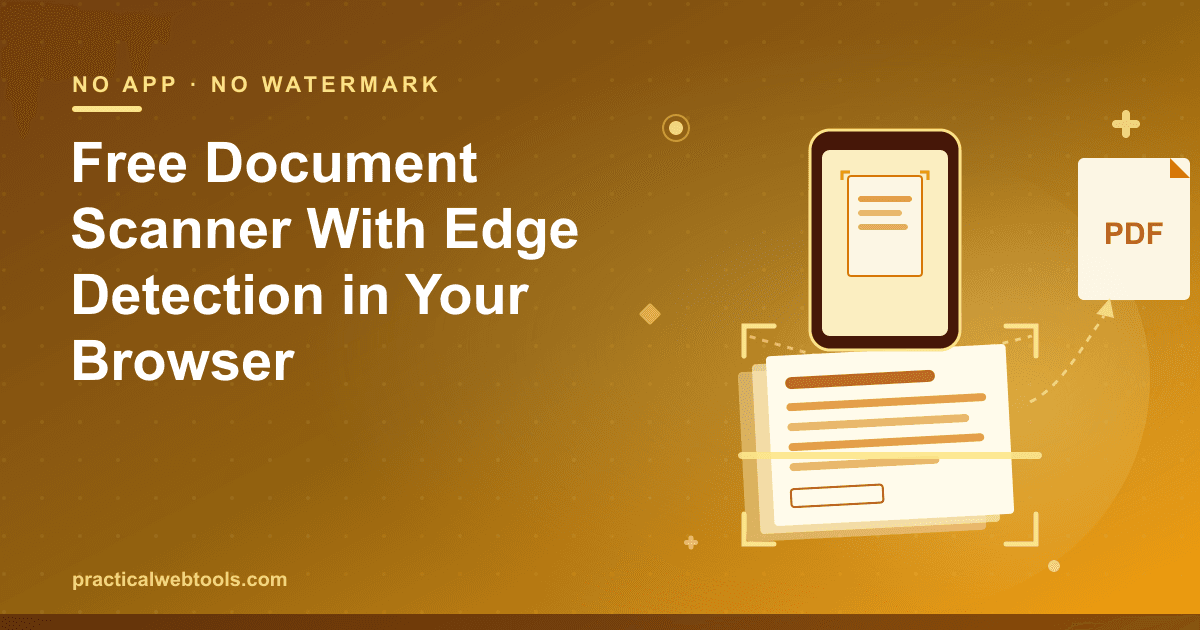
The document scanner everyone carries is the phone camera; the part nobody wants is the app that usually comes with it. Install a scanner app and you get a watermark on exports, a page limit on the free tier, and a subscription screen between you and your own paperwork. The free document scanner at Practical Web Tools skips all of that: you open a page, aim your phone's camera (or drop photos you already took), and the whole pipeline — edge detection, perspective correction, contrast enhancement, PDF assembly — runs in the browser tab.
This is not a thin wrapper that emails your photo to a server. The image processing is done on-device, and the pipeline is verified end to end: a sample photographed page went through automatic edge detection and perspective correction, got contrast-enhanced black-and-white rendering, and came out as a clean multi-page PDF — a two-page scan in testing, with the homography and adaptive thresholding implemented in the page itself and no server round-trip anywhere in the sequence.
Try Document Scanner — free, no sign-up.
The practical consequence is bigger than "free." Rental agreements, tax letters, medical paperwork, IDs you should not be uploading to an unknown backend — with a browser scanner, no upload, no sign-up — nothing you type or drop leaves your device. And since a scanning session always leaves your camera roll littered with near-duplicate shots, the workflow pairs naturally with the photo deduplicator covered near the end of this article.
Why browser scanning finally works
Browser-based scanning had a bad reputation for years, for two reasons that have both eroded. The first was camera access: browsers could not touch a camera until the getUserMedia API gave pages secure, permission-gated access to the video feed — the same mechanism every video-call site uses. When you point the scanner page at a document, the frames stream into the tab over an encrypted connection, and you grant or deny the permission yourself.
The second was hardware. Phone cameras now resolve a letter-sized page at plenty of pixels per line of text, and the math involved in scanning — edge detection, a perspective transform, per-pixel thresholding — is not heavy by modern standards; it is the kind of work a 2026 phone or laptop finishes near-instantly. The result is a scanner that is genuinely local: the verified pipeline described above runs its homography and adaptive thresholding inside the page, and the finished multi-page PDF is assembled in the browser and downloaded from it.
There is a trade to understand, not a catch: a phone camera is not a flatbed. Lighting is whatever the room gives you, and the software can only correct geometry, not physics. That is what the capture checklist below is for.
What edge detection and perspective correction actually do
Two algorithms do most of the work of turning a photo into something that looks scanned, and both are worth understanding in outline because they explain the capture advice.
Edge detection finds the document. The page is almost always the brightest, most uniform rectangle in the frame, so the detector looks for the strong boundary between paper and background and locks onto the four corners. This is why a white page on a white desk is the classic failure: there is no edge to detect, because there is no contrast to be an edge.
Perspective correction flattens the page. You will never hold a phone perfectly parallel to paper, so the page in the photo is a tilted quadrilateral rather than a rectangle. A homography — the same family of transform that projectors use to square an image onto a wall — maps those four detected corners onto the corners of a true rectangle, stretching the interior of the page to match. The result reads as if the paper had been pressed flat under glass.
Adaptive thresholding finishes the job. A global "make everything below one brightness black" rule fails on photos, because one part of the page sits in shadow and another under a lamp. Adaptive thresholding decides black-versus-white locally, relative to the brightness of each pixel's neighborhood, so text stays crisp while soft shadows and paper texture drop out. The output is the high-contrast black-and-white page that reads as a scan rather than a photograph.
The capture checklist
The algorithms above are strong but not magical. Five habits cover almost everything:
| Habit | Why it matters |
|---|---|
| Put the page on a dark surface | Edge detection needs contrast at the paper's boundary; a white page on a dark table outlines itself |
| Fill the frame with the page | More pixels per letter means cleaner thresholding and sharper small print |
| Avoid direct light and glare | A glare spot is a white hole in the page — thresholding cannot recover text that was never captured |
| Shoot from above, roughly parallel | Perspective correction handles tilt, but extreme angles stretch one edge of the page and lose sharpness there |
| Prefer even, indirect light | Adaptive thresholding forgives uneven light, not a hard shadow bar across a paragraph |
None of these require anything you do not already own. A dark table, a window without sun hitting the paper, and ten seconds of steadying the phone covers it.
From camera roll to a multi-page PDF
The workflow in the document scanner is deliberately short:
- Open the page on your phone and allow camera access — or, on a desktop, drop in photos you already took.
- Capture the first page. The scanner detects the document's edges automatically; confirm the corners look right.
- Repeat for each additional page. Each capture goes through the same edge detection, perspective correction, and contrast-enhanced black-and-white conversion.
- Assemble and download the multi-page PDF. In testing, a two-page scan came out as a single scan.pdf — one document, page order intact.
One honest note on what you get: the pages in that PDF are images of text, not text itself. If you want the scan searchable — full-text search in your PDF reader, copy-paste from a paragraph — the next step is OCR, and there are three free methods for making a scanned PDF searchable covered here. Scan first, OCR second is the standard order; trying to OCR a skewed, shadowed photograph works far worse than OCR on a corrected, thresholded page.
The archive cleanup that follows every scanning spree
Scanning sessions create a second problem that nobody plans for: the camera roll afterwards. You took three shots of page one because your hand moved, two of page two "just in case," and the originals stay there for months because deleting them by hand is tedious. This is where the photo deduplicator earns its place in the workflow.
It works differently from a file-level duplicate finder. Exact-duplicate tools compare bytes, which misses everything a camera produces, because every shot of the same page is a different file with different noise. The deduplicator computes a perceptual hash — dHash, a tiny fingerprint of the brightness gradients in the image — and clusters the folder by similarity, then shows near-duplicates side by side so you pick the keeper. In testing on a small folder, seven files collapsed into two clusters, with the reclaimable space shown before anything was deleted.
That exact mechanism generalizes past scanning: burst photos of documents, screenshots saved twice at different sizes, the twelve near-identical shots from every family event. Perceptual hashing catches resized and re-encoded copies that byte comparison cannot see, which is most of the duplicates people actually have.
What the paid scanner apps gate
For comparison, the incumbent apps as of late 2026: Genius Scan runs a freemium model with premium features behind the paywall, and CamScanner-class apps are the aggressive case — watermarked exports, page-count limits on the free tier, and a subscription pushed at every export. None of this is hidden; it is the business model, and it works because scanning is an occasional, urgent task where people pay to remove friction they did not expect.
| Option | Cost | Catches |
|---|---|---|
| Browser document scanner | Free | None — no watermark, no page limit, no account |
| Genius Scan | Freemium | Premium features paid |
| CamScanner-class apps | Freemium | Watermarks or page limits on free tier, subscription prompts |
The browser scanner's honest weaknesses are the flip side of no-install: there is no background auto-capture mode, no cloud inbox watching for receipts, no OCR text layer by default. What you get is the core scan-to-PDF pipeline — edge detection, correction, contrast, multi-page assembly — executed locally, with nothing watermarked and nothing uploaded. For paperwork you touch a few times a month, that is the better trade. Start with the free document scanner, keep the capture checklist in mind, and OCR the result when you need search.
Frequently Asked Questions
Do I need to install an app to scan documents?
No. The scanner runs in the browser — open the page, allow camera access, and capture. The camera feed and all image processing stay in the tab; there is nothing to install and nothing to uninstall afterwards.
Can I use it on a desktop computer without a camera?
Yes. The tool also accepts dropped images, so you can process photos taken earlier on any device — the same edge detection, perspective correction, and multi-page PDF export apply to dropped files.
Is the exported PDF watermarked?
No. The multi-page PDF you download is clean — the verified test output was a two-page scan.pdf with no watermark and no branding anywhere on the pages.
How is this different from just photographing a document?
A photo is a tilted, unevenly lit rectangle of pixels. The scanner detects the page's edges, corrects the perspective to a flat rectangle, and applies adaptive thresholding for high-contrast black-and-white output — the visual difference between "photo of paper" and "scan" — then bundles pages into one PDF.
Are my documents uploaded to a server?
No. The pipeline — edge detection, homography, thresholding, PDF assembly — runs entirely in your browser. No upload, no sign-up — nothing you type or drop leaves your device.
Can I make the scanned PDF searchable?
Yes, with OCR as a second step. The scanner gives you corrected, high-contrast page images in a PDF; running OCR on that output converts it to searchable text, and free methods for exactly that are covered in the searchable-scan guide.