Beat the Bots: 6 ATS Resume Mistakes & How to Fix Them
Try the free tool
Keyword Research Tool →Discover trending keywords, compare search interest over time, and analyze Google Trends data for SEO
You’ve spent hours, maybe even days, perfecting your resume. You’ve tailored your experience, chosen the perfect action verbs, and proofread it a dozen times. You click 'submit' on your dream job application, feeling a surge of hope, only to be met with... silence. If this sounds familiar, you’re not alone. The culprit is often an invisible gatekeeper standing between you and the hiring manager: the Applicant Tracking System (ATS).
In today's competitive job market, the vast majority of large and mid-sized companies use ATS software to manage the high volume of applications they receive. This software scans and parses your resume, ranking it based on its relevance to the job description. If your resume isn't formatted in a way the machine can understand, or if it's missing key information, it can be filtered out before a human ever sees it. It’s the infamous resume 'black hole.'
But don't despair. Beating the bots is not about trickery; it's about understanding the rules of the game. This comprehensive guide will walk you through the most common resume mistakes that get you rejected by ATS software and provide clear, actionable steps to fix them.
First, What Exactly is an ATS?
An Applicant Tracking System is a software application that enables the electronic handling of recruitment and hiring needs. Think of it as a Human Resources robot. Its primary job is to sort through hundreds, sometimes thousands, of resumes to find the most qualified candidates. It does this by:
- Scanning: The ATS scans your resume document for text.
- Parsing: It then parses, or breaks down, that text into categories it understands, like 'Contact Information,' 'Work Experience,' and 'Skills.'
- Ranking: Finally, it scores your resume against the job description by matching keywords, skills, and experience.
Candidates with the highest scores are passed on to a recruiter for human review. Those with low scores are often automatically rejected or filed away, never to be seen. Your goal is to create a resume that is not only compelling to a human but also perfectly parsible by the machine.
Mistake #1: Submitting the Wrong File Type
One of the first hurdles your resume faces is its file format. Submitting a file the ATS can't read is like showing up to an interview and speaking a different language. It's an instant disqualification.
Why It’s a Problem
ATS software is programmed to read specific file types, most commonly .docx (Microsoft Word) and .pdf (Portable Document Format). While PDFs are great for preserving your formatting for human eyes, some older ATS versions can struggle to read them, especially if the PDF is essentially an image of the text rather than text itself. Other formats like .pages, .odt, .jpg, or .png are almost always unreadable.
The Fix
- Read the Instructions: The job application will almost always specify the preferred file format. Follow this instruction to the letter.
- Default to .docx: When in doubt, a .docx file is often the safest bet. It's the most universally compatible format for ATS parsers.
- Use Text-Based PDFs: If you prefer a PDF, ensure it's a text-based file. A simple test is to see if you can click and drag to highlight the text within the PDF. If you can't, it's likely an image-based file and will be unreadable by an ATS.
- Avoid Template Software with Proprietary Formats: Some resume-building websites export in formats that are not ATS-friendly. Always save your final version as a .docx or a standard PDF.
Mistake #2: Overly Creative Formatting and Design
A visually stunning resume might look impressive to you, but to an ATS, it can be an incomprehensible mess. These systems prioritize function over form and read resumes in a simple, linear fashion.
Why It’s a Problem
Fancy design elements can trip up the parsing software, causing it to misread or completely ignore critical information.
- Columns and Tables: ATS parsers read left-to-right, top-to-bottom. If you use a two-column layout, the system might read straight across, mashing the two columns together into a nonsensical sentence.
- Headers and Footers: Information placed in the header or footer of a Word document (like your name and contact info) is often completely skipped by the ATS.
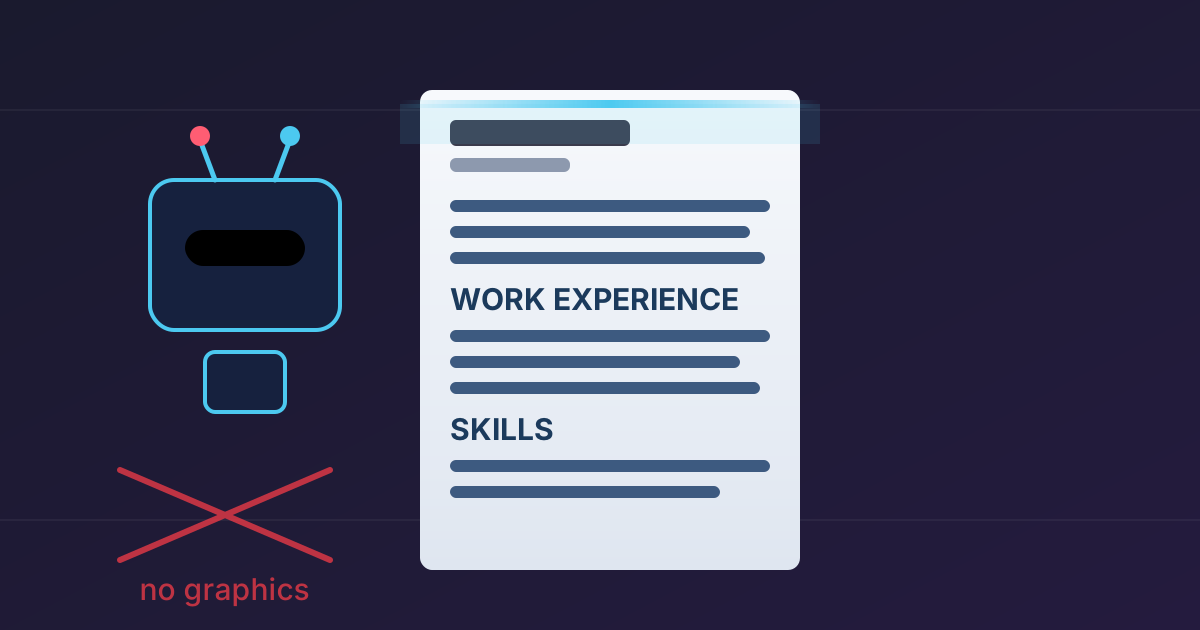
- Graphics and Images: Logos, icons, photos, and skill-level charts (like star ratings or progress bars) are invisible to an ATS. The space they occupy is just a blank to the machine.
- Unusual Fonts: Creative or custom fonts may not be recognized, causing your resume to be rendered as a series of jumbled symbols.
The Fix
- Keep It Simple: Use a clean, single-column layout.
- Use Standard Fonts: Stick to universally recognized, web-safe fonts like Arial, Calibri, Times New Roman, or Georgia.
- Use Standard Bullets: Use traditional solid or open circle bullet points. Avoid arrows, checkmarks, or other fancy symbols.
- No Graphics: Remove all photos, logos, and charts. Represent your skills with text, not visuals (e.g., list 'Adobe Photoshop (Expert)' instead of using a 5-star rating).
- Body Content Only: Place all information, including your contact details, within the main body of the document.
Mistake #3: Unconventional Section Headings
Just as the ATS needs a simple layout to navigate your resume, it also needs familiar signposts. These signposts are your section headings.
Why It’s a Problem
ATS software is programmed to look for standard section titles to categorize your information. If you get creative with headings like 'My Professional Journey' instead of 'Work Experience,' or 'Things I’m Great At' instead of 'Skills,' the system may not know how to classify that information, and it will be ignored.
The Fix
Stick to the classics. These headings are almost universally recognized by ATS software.
| Instead of using... | Use this standard heading... |
|---|---|
| My Career Path | Work Experience or Professional Experience |
| Where I've Studied | Education |
| What I'm Good At | Skills or Technical Skills |
| My Accomplishments | Achievements or Key Accomplishments |
| People Who Vouch For Me | References |
Using these standard titles ensures the parser correctly files your experience, education, and skills, giving you full credit for your qualifications.
Mistake #4: Failing the Keyword Test
This is arguably the most important part of optimizing your resume for an ATS. The system's primary function is to act as a matching engine, comparing the text of your resume to the text of the job description.
Why It’s a Problem
If your resume doesn't contain the specific keywords and phrases the recruiter has designated as important, your match score will be low, and you'll be filtered out. It doesn't matter if you're qualified; if you don't speak the right language, the bot won't recognize you.
The Fix
- Analyze the Job Description: This is your cheat sheet. Read through the job posting and identify the key skills, qualifications, technologies, and responsibilities listed. These are your target keywords.
- Mirror the Language: Use the exact terminology from the job description. If it asks for experience in 'digital marketing strategy,' make sure that phrase appears on your resume, not just 'online marketing.'
- Integrate Keywords Naturally: Weave these keywords into the descriptions of your work experience and your skills section. For example, instead of saying 'Managed a team,' you could say 'Led a team of 5 in the execution of a new digital marketing strategy, increasing lead generation by 20%.'
- Include Both Acronyms and Full Phrases: The system might be looking for 'SEO' or 'Search Engine Optimization.' To be safe, include both. A good practice is to write out the full phrase first, followed by the acronym in parentheses: 'Search Engine Optimization (SEO).'
- Don't 'Keyword Stuff': While keywords are crucial, your resume still needs to be readable for a human. Don't just list keywords without context. Ensure they are part of compelling, achievement-oriented bullet points.
Mistake #5: Incorrectly Sized or Compressed Files
After all your hard work, a simple technical issue like file size can prevent your application from ever being submitted successfully. Many online application portals have strict limits on the size of uploaded files.
Why It’s a Problem
Job application systems often have file size limits, typically between 1MB and 5MB. A resume that includes high-resolution elements or is saved in an inefficient format can easily exceed this limit, resulting in an upload error. Furthermore, if you're asked to submit multiple documents (resume, cover letter, portfolio) as a single file, you need to do it correctly.
The Fix
- Keep the Document Lean: Sticking to a text-only, single-column format will naturally keep your file size small.
- Compress When Necessary: If you need to package your resume with a portfolio or other documents, you’ll need to compress them into a single archive. Using a free, secure tool to Compress Files into a standard .ZIP format is the best approach. It's the most widely accepted archive format and ensures your submission gets through.
- Handle Uncommon Formats: Occasionally, you might receive application guidelines or materials from a recruiter in a less common format like .RAR or .7Z. Before you can work with them, you may need a tool to convert a RAR to ZIP or perform a 7Z to ZIP conversion. Being prepared for different file types makes the application process smoother.
Mistake #6: Hiding or Obscuring Contact Information
Even if your resume scores perfectly and impresses the recruiter, it’s all for nothing if they can’t figure out how to contact you. As mentioned earlier, placing this vital info in the document's header is a common mistake.
Why It’s a Problem
Because many ATS parsers are programmed to skip headers and footers, your name, email, phone number, and LinkedIn profile link could be completely missed. Without this information, your application is a dead end.
The Fix
- Top of the Body: Place all your contact information at the very top of the main body of your resume.
- Keep It Simple: Don't use icons for your phone or email. Spell out the labels clearly: 'Phone:', 'Email:', 'LinkedIn:'.
- Standard Format: List one phone number and one professional email address. For your address, listing just your City, State, and ZIP code is sufficient and privacy-conscious.
Your ATS-Proof Resume Checklist
Before you submit your next application, run through this quick checklist:
- File Format: Is it a .docx or a text-based .pdf?
- Layout: Is it a clean, single-column format?
- Fonts: Am I using a standard, readable font like Arial or Calibri?
- Graphics: Have I removed all images, logos, tables, and charts?
- Headings: Are my section titles standard (e.g., 'Work Experience', 'Skills')?
- Contact Info: Is my contact information in the main body at the top of the page?
- Keywords: Have I tailored the resume with keywords directly from the job description?
- Plain Text Test: Have I copied and pasted the content into a plain text editor to check for parsing errors?
Don't Just Beat the Bots—Impress the Humans
Crafting an ATS-friendly resume might seem like a tedious, technical task, but it’s the most important first step in a modern job search. Remember, the goal isn’t just to get past the software; it’s to deliver a clear, powerful, and easy-to-read document to the hiring manager on the other side. Often, the principles of good ATS optimization—clarity, simplicity, and relevance—are also the principles of a great, human-friendly resume.
By avoiding these common mistakes, you’re not just gaming a system; you’re ensuring your qualifications get the attention they deserve. You’re taking control of your job application and dramatically increasing your chances of landing an interview.
Now that your resume is optimized, make sure all your application files are ready to go. If you need to bundle documents or manage different file types, Practical Web Tools offers a suite of free and privacy-focused file management tools to help you every step of the way.


