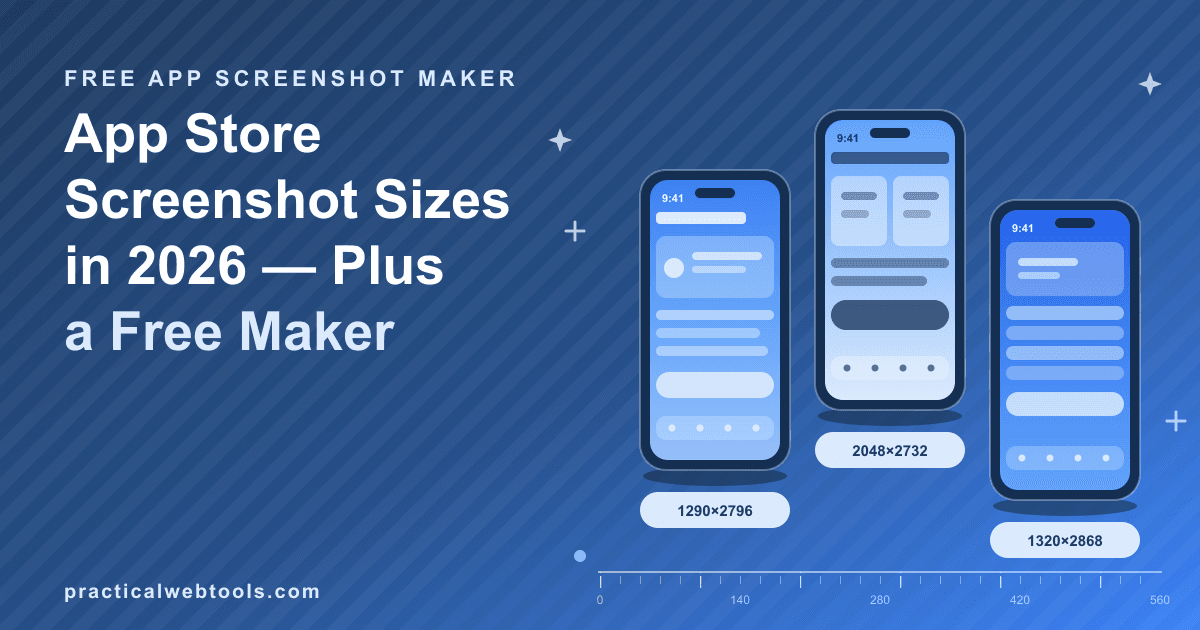
Store screenshots do more selling than your app description ever will — a visitor sees the first two frames before reading a word of copy. And yet the most common reason a listing submission bounces is not the design at all, it is the mechanics: wrong pixel size, an alpha channel hiding in a PNG, a missing required device set. The sizes are knowable. They are in the tables below, current as of late 2026, for both stores.
The second half of this post is the workflow. The free app screenshot maker runs in the browser and exports the exact store sizes — including 1290×2796 for the iPhone 6.7-inch class and 2048×2732 for the iPad 12.9-inch — with device frames, caption and feature panels, backgrounds, multi-language caption sets, and batch export as a ZIP of images plus a PDF, all watermark-free.
Try App Store Screenshot Maker — free, no sign-up.
Sizes first, conversion second, workflow last.
App Store screenshot sizes (iPhone and iPad, late 2026)
Current Apple requirements, late 2026, by device class:
| Device | Size (pixels) |
|---|---|
| iPhone 6.9″ / 6.7″ | 1320×2868 or 1290×2796 |
| iPhone 6.5″ | 1284×2778 (legacy: 1242×2688) |
| iPhone 5.5″ | 1242×2208 |
| iPad 13″ | 2064×2752 |
| iPad 12.9″ | 2048×2732 |
| iPad 11″ | 1668×2388 |
Three rules do most of the work. First, Apple accepts the largest required set and scales down for smaller displays, which simplifies your life considerably: master your iPhone screenshots at 1320×2868 (or 1290×2796) and your iPad screenshots at 2064×2752, and the smaller device classes inherit them. Second, you may supply one to ten screenshots per device — ten slots, and the first two carry almost all the conversion weight. Third, the format: PNG or JPEG, and no alpha — a PNG with a transparent background will be rejected, so flatten transparency before you export.
When people say "iPhone 6.7-inch screenshot size," they mean 1290×2796. It is also the safest single master for a new iPhone-only app: current, widely required, and it downscales without re-layout.
One practical note that follows from the scaling rule: capture at the device's native resolution rather than upscaling smaller captures. The store scales large images down cleanly, but scaling up softens UI text, and screenshots live or die on caption legibility at thumbnail size. A native-resolution master survives the store's resizing in every direction; an upscaled one starts behind.
Google Play screenshot sizes (Play Console)
| Asset | Requirement |
|---|---|
| Screenshots | JPEG or 24-bit PNG (no alpha) |
| Minimum side | 320 pixels |
| Maximum side | 3840 pixels |
| Feature graphic | 1024×500 |
Play is more relaxed about exact dimensions — any screenshot between a 320-pixel minimum side and a 3840-pixel maximum qualifies, which is why many teams ship the same 1290×2796 masters to both stores and let Apple's strictness set the pipeline. The format rules rhyme with Apple's: JPEG or 24-bit PNG, and alpha is rejected.
The feature graphic is the one Play-only asset to design deliberately. At 1024×500 it is a wide banner, not a screenshot crop, and it does promotional work screenshots never do. Give it its own composition: app name, one value proposition, your cleanest product moment.
One Play-specific habit worth resisting: because anything between 320 and 3840 pixels qualifies, teams sometimes reuse phone-sized screenshots for the tablet listing and let the console stretch them. Tablet screenshots at tablet aspect read better to exactly the audience that section reaches, and since the maker exports every store preset, the extra set costs minutes, not a redesign.
Why the first two screenshots decide the listing
Store visitors scan before they read, and the scan happens almost entirely on the first one or two frames — everything below them requires a gesture most people never make. Three rules separate frames that convert from frames that merely exist:
Lead with the outcome. Frame one shows the single most valuable thing the app does, with a caption of three to six words. Not a login screen, not a menu, not a settings page — the outcome, in the app, looking its best.
One idea per frame. After frame one, each screenshot carries exactly one feature, captioned in the same style, the same length class, the same position. Hierarchy is what makes ten frames readable: the eye learns where to find the caption and spends its attention on the content instead of re-orienting on every frame.
Prepare dark-mode variants. If the app ships a dark mode, design a matching variant set rather than letting the OS invert your carefully chosen white. Screenshots built on pure white glare when everything around them flips to dark; a variant set reads as maintained, and maintenance reads as trust.
A concrete caption ladder makes the hierarchy tangible. For a habit tracker: frame one, "Streaks that stick"; frame two, "Build habits in 30 seconds"; frame three, "See your week at a glance"; frame four, "Private by default." Every caption is three to five words, none uses feature jargon, and read top to bottom they function as an elevator pitch. That is the test to run on your own set: read only the captions, in order, and check whether someone who never opens the app can still tell you what it does. If they cannot, the frames are decoration, not selling.
Localization without redoing the design
Both stores let you localize listings, and the part that genuinely needs translating is the caption — the UI inside the screenshot mostly stays as-is. That is the argument for keeping captions in their own layer, separate from the background art: design once, then swap text per language.
The maker supports multi-language caption sets on exactly that model. One layout carries every locale; the batch export produces the full matrix — every size, every language — as a ZIP of PNGs plus a PDF for review. Reviewing localized screenshots in a PDF beats clicking through a store console in every measurable way, mostly because you can hand the PDF to the translator and ask whether "3–6 words" survived the journey into German.
The export checklist
Run this before any submission, either store:
- Exact sizes from the tables above — or the maker's built-in store presets
- 1–10 screenshots per device (Apple), first two frames carrying the pitch
- PNG or JPEG with the alpha channel flattened — transparency gets rejected
- Play: minimum side 320 px, maximum side 3840 px
- Feature graphic 1024×500 designed as its own piece, not a crop
- Caption hierarchy consistent across every frame
- Dark-mode variants prepared if the app ships dark
- Localized captions for every locale you list in
Most rejected submissions die on the third and fourth bullets. The design was fine; the file was wrong.
The free workflow: app screenshots without Photoshop
- Design frame one first. Outcome, three-to-six-word caption, the app at its best. If frame one is weak, no batch exporter fixes it.
- Open the app screenshot maker and pick the device frame — phone or tablet — plus a background. The frame plus backdrop do the composition work a designer used to do by hand in Photoshop.
- Add the caption and feature panels. One idea per frame; keep the style identical across the set.
- Set the export size to the store presets. 1290×2796 for the iPhone 6.7-inch class, 2048×2732 for iPad 12.9-inch, and so on down the table — the presets match the requirements above.
- Duplicate per locale and swap the caption text using the multi-language caption sets; the layout and backgrounds stay untouched.
- Batch export. A ZIP with every PNG at exact store sizes, plus a PDF for review — watermark-free, so what you review is what ships.
- Run the checklist. Especially the alpha-channel bullet.
The maker is browser-based — nothing to install — and it keeps your unreleased marketing assets where they belong: no upload, no sign-up — nothing you type or drop leaves your device. For teams that want custom background shapes or bespoke icons beyond the preset panels, the browser vector editor workflow covers making those assets without Illustrator.
What the paid makers charge
App screenshot makers settled into a $9–29 per month band — Picasso, AppScreens, and AppLaunchpad all live in that range as of late 2026 — and the standard gate is the export: the free tiers let you design happily, then watermark the output until you subscribe. The composition itself — frames, caption panels, backgrounds, resizing to exact store dimensions — is deterministic rendering a browser does natively, which is why the maker above can export watermark-free at exact store sizes for free. Pay for a maker when you want its template library and team workflow; do not pay because a watermark held your listing hostage.
Frequently Asked Questions
Which iPhone screenshot size should I upload?
The largest required set: 1320×2868 or 1290×2796. Apple scales down for smaller displays, so one modern master covers the lineup. The 6.5-inch (1284×2778) and 5.5-inch (1242×2208) sizes exist for the older device classes still listed in requirements.
How many screenshots should I provide?
Apple allows one to ten per device. Use all ten only if every frame earns its place; a tight five with strong captions usually serves a listing better than ten padded ones.
JPEG or PNG?
Apple accepts both; Google Play accepts JPEG and 24-bit PNG. Neither store accepts alpha. For UI frames dense with text, PNG is the safer render — JPEG artifacts collect around lettering and scale badly.
Do I need separate screenshots for every iPad size?
No. Apple accepts the largest required set and scales down, so a 2064×2752 (iPad 13″) or 2048×2732 (12.9″) master covers the smaller iPad classes without extra exports.
What is the feature graphic, and do I need one?
A 1024×500 image Google Play asks for alongside your screenshots. Treat it as its own design — app name, one value proposition, your cleanest product moment — rather than a cropped screenshot.
Is the free maker actually watermark-free?
Yes. Exports come out at exact store sizes with no overlay, and the batch ZIP plus PDF outputs are unrestricted — what you review is what ships to the store.