A Complete Guide to File Compression: ZIP, RAR, 7Z & More
Have you ever tried to email a crucial presentation, only to be met with the dreaded "File size limit exceeded" message? Or perhaps you've stared at your hard drive's dwindling free space, wondering where it all went. In our digital world, we're constantly creating, sharing, and storing files. As these files grow in size and number, managing them becomes a significant challenge. The solution? File compression.
File compression is the unsung hero of digital file management. It’s a clever process that shrinks your files, making them easier to store, faster to transfer, and simpler to organize. But with a jumble of acronyms like ZIP, RAR, 7Z, and TAR.GZ, it's easy to get lost. Which format is the best? Does it even matter?
This comprehensive guide will demystify the world of file archives. We'll explore what file compression is, break down the pros and cons of the most popular formats, and show you how to handle them with ease—all without needing to install complicated software.
What is File Compression and Why Does It Matter?
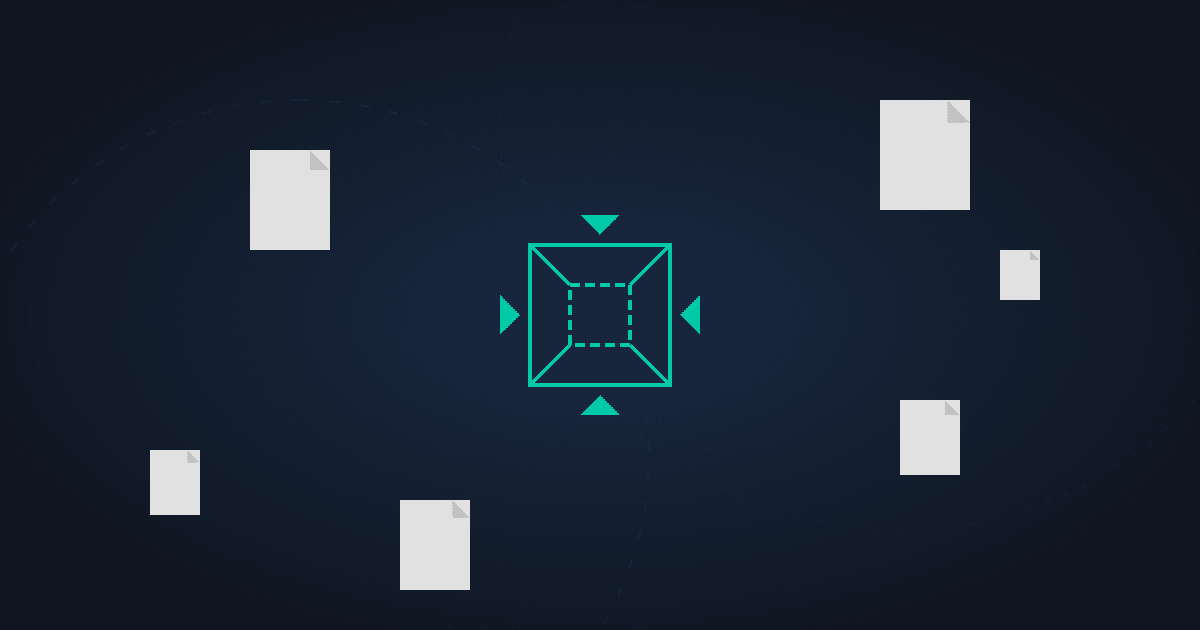
At its core, file compression is the process of encoding information using fewer bits than the original representation. Think of it like creating a shorthand for your data. A compression algorithm scans a file for repetitive patterns. Instead of writing out the same long pattern over and over, it creates a small reference in a "dictionary" and simply points to that reference each time the pattern appears. When you decompress the file, the algorithm uses this dictionary to rebuild the data perfectly, byte for byte.
This is known as lossless compression, which is what archive formats like ZIP, RAR, and 7Z use. It ensures that the decompressed file is an exact, identical copy of the original, with no loss of data. This is crucial for documents, software, and any file where data integrity is paramount. It differs from lossy compression, used for media like JPEGs and MP3s, which permanently discards some data to achieve much smaller file sizes.
So, why should you care? The benefits are immensely practical:
- Saves Precious Disk Space: This is the most obvious benefit. Compressing large files or folders can free up significant space on your hard drive, SSD, or cloud storage.
- Faster File Transfers: Smaller files upload and download much faster. This is a game-changer for sending files via email, messaging apps, or cloud services.
- Better Organization: Compression allows you to bundle multiple files and folders into a single, neat package called an archive. This is perfect for grouping project files or photos from an event before sharing or backing them up.
- Enhanced Security: Most modern archive formats allow you to encrypt and password-protect your files, adding a vital layer of security for sensitive information.
The Titans of Compression: A Deep Dive into Archive Formats
Not all compression formats are created equal. They differ in compression ratio, speed, and features. Let's break down the most common ones you'll encounter.
Comparison at a Glance
For a quick overview, here's how the major formats stack up against each other:
| Feature | .ZIP | .RAR | .7Z (7-Zip) | .TAR.GZ (Tarball) |
|---|---|---|---|---|
| Compression Ratio | Good | Excellent | Best-in-class | Good |
| Speed | Fast | Moderate | Slower to compress, fast to decompress | Fast |
| OS Support | Universal (Native on Win/macOS/Linux) | Needs specific software to create | Needs specific software | Native on Linux/macOS, needs tool on Win |
| Encryption | Basic (ZipCrypto), optional AES-256 | AES-256 | AES-256 | None (must use other tools) |
| Key Feature | Maximum compatibility | Error recovery & splitting | Superior compression | Preserves file permissions |
| License | Open Standard | Proprietary | Open Source (LGPL) | Open Source |
The Ubiquitous .ZIP
The ZIP format is the de facto standard for file compression, and for good reason: it’s everywhere. Introduced in 1989, it has become natively integrated into virtually every major operating system, including Windows, macOS, and most Linux distributions. You can create and open a ZIP file on almost any computer without installing extra software.
Pros:
- Universal Compatibility: Its greatest strength. You can confidently send a ZIP file to anyone, knowing they'll be able to open it.
- Speed: ZIP's DEFLATE algorithm is well-balanced, providing good compression speeds.
Cons:
- Weaker Compression: Compared to more modern alternatives like RAR and 7Z, ZIP generally produces larger file sizes.
Best for: Emailing attachments, sharing files with non-technical users, and any situation where compatibility is the top priority.
The Powerful .RAR
Developed by Eugene Roshal (the name RAR stands for Roshal Archive), the RAR format is a proprietary powerhouse known for its excellent compression and robust feature set. While you need specific software like WinRAR to create RAR archives, many third-party tools can extract them.
Pros:
- High Compression Ratio: RAR often creates significantly smaller files than ZIP, especially with large sets of files.
- Error Recovery: It can include a "recovery record," which can help repair a corrupted archive if the data is damaged during transfer or storage.
- Archive Splitting: RAR has excellent built-in support for splitting a large archive into smaller, more manageable volumes.
Cons:
- Proprietary: The compression algorithm is licensed, so creating RAR files is restricted to licensed software.
If you ever receive a RAR file but need it in a more universally accepted format, you can easily convert it. An online RAR to ZIP converter can do the job in seconds, right from your browser.
Best for: Archiving large media files, long-term backups where data integrity is key, and splitting huge datasets for transfer.
The Efficient .7Z (7-Zip)
The 7Z format is the star of the open-source world. It was developed for the 7-Zip archiver and most commonly uses the LZMA and LZMA2 compression algorithms. Its main claim to fame is its outstanding compression ratio, often outperforming both ZIP and RAR.
Pros:
- Superior Compression: 7Z frequently produces the smallest archive sizes, making it the king of space-saving.
- Open Source: The format is completely free and open, with no licensing restrictions.
- Strong Encryption: It offers robust AES-256 encryption for securing your data.
Cons:
- Less Native Support: To get the most out of 7Z, users often need to install 7-Zip or a compatible archiver, as it's not built into Windows or macOS.
- Slower Compression: Achieving its high compression ratio can sometimes take longer than creating a ZIP or RAR file.
Best for: Personal backups, archiving data for long-term storage where maximum space efficiency is the goal, and sending files to other tech-savvy users.
The Linux/Unix Staples: .TAR and .GZ (Tarball)
You'll often see files with a .tar.gz or .tgz extension, especially when dealing with software source code or backups from Linux systems. This is a "tarball." It's important to understand that this is a two-step process:
- TAR (Tape Archive): The
tarutility doesn't compress files. It bundles them together, preserving file permissions and directory structures meticulously. - GZ (Gzip): The
gziputility is then used to compress the single.tarfile.
Pros:
- Preserves System Attributes: It’s the gold standard for packaging files on Unix-like systems (Linux, macOS) because it perfectly maintains ownership and permission settings.
- Standard in Open Source: Almost all open-source software is distributed as a tarball.
Cons:
- Not Ideal for Windows: While modern Windows has tar support, it can still be less intuitive for users unfamiliar with it.
Best for: Backing up systems, distributing source code, and moving files between Linux or macOS environments.
A Practical Guide: Compressing and Decompressing Files Online
While desktop software is powerful, you don't always need to install a program to manage archives. Online tools offer a quick, accessible, and secure way to handle your compression needs, especially if you're on a computer that isn't your own or you just need to perform a one-off task.
Step-by-Step: How to Compress Your Files Online
Let's say you have a folder of project documents and images you need to email. An online tool can bundle them into a single ZIP file for you.
- Open the Tool: Navigate to a privacy-focused online tool. For a simple and secure option, our Compress Files tool is an excellent choice. A key benefit is that all processing happens in your browser, so your files are never uploaded to a server.
- Select Your Files: Click the "Select Files" button and choose all the documents, images, and folders you want to include in your archive.
- Start Compressing: Once your files are loaded, simply click the "Compress" button. The tool's in-browser magic will get to work, creating a ZIP archive.
- Download Your Archive: In a few moments, your download will begin automatically. You'll have a single
.zipfile, ready to be stored or shared.
Step-by-Step: How to Decompress an Archive Online
What if you're on the receiving end? Someone has sent you a .rar or .7z file, but you don't have the software to open it.
- Choose the Right Tool: Find an online extractor that supports multiple formats. The Decompress Files tool on our site is designed for this, handling ZIP, RAR, 7Z, and more.
- Upload the Archive: Click to select the compressed file from your computer.
- Extract the Contents: The tool will process the file locally in your browser and display its contents.
- Download What You Need: You can then download all the extracted files at once or select individual files to save to your computer.
Using these browser-based tools is the fastest way to manage archives without cluttering your system with new software.
Conclusion: Choose the Right Tool for the Job
File compression is an essential skill for efficient digital living. It saves space, speeds up transfers, and keeps your files organized. While the various formats can seem confusing, the choice usually comes down to a simple trade-off:
- For compatibility, use ZIP.
- For features and recovery, use RAR.
- For maximum compression, use 7Z.
Understanding these differences empowers you to manage your digital assets like a pro. And with modern web technology, you no longer need dedicated software for every task.
Ready to take control of your files? Try our free and privacy-focused online tools today. Whether you need to Compress Files into a tidy package or Decompress Files from an archive you just received, we have you covered. No downloads, no sign-ups—just simple, secure file management right in your browser.