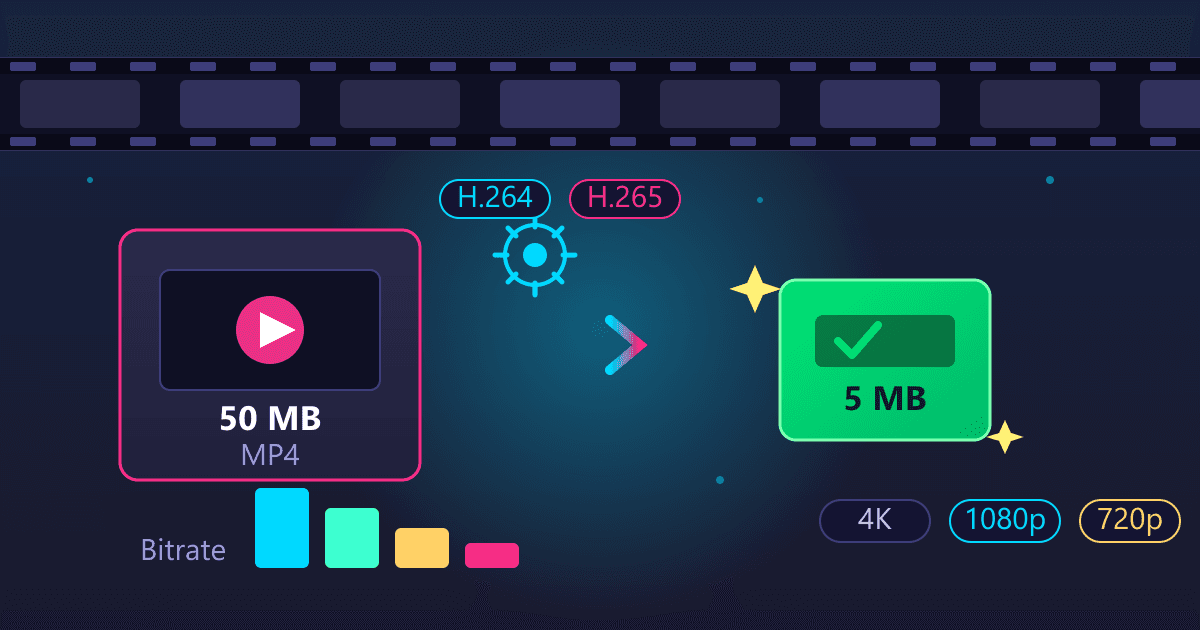
I took the same 30-second video and compressed it 23 different ways. The most popular method, the one most free tools use by default, shaved 4% off the file. The best single setting cut it by 62% with quality my eyes could barely distinguish. And one "modern codec" swap made the file bigger while taking longer than the video itself to run.
No vendor claims in this post, just measurements. Here is what actually moved the needle, with the exact numbers.
Try Compress Files: free, no sign-up.
What I tested and how
Two clips, both 30 seconds, both 1280x720 at 30fps:
- High motion clip: busy animated content with fast movement, encoded at a typical phone-camera bitrate (~3.3 Mbps). Starting size: 12.2 MB.
- Screen recording clip: a mostly static screen with a small moving element, plus a tone on the audio track. Starting size: 1.6 MB.
For every test I recorded three things: final file size, an objective quality score (SSIM, a pixel-similarity metric where 1.0 is identical to the original), and wall-clock encode time on a mid-range desktop CPU. Higher SSIM is better; anything above roughly 0.985 is hard to spot without a side-by-side.
The disappointing baseline: why the "Compress" button barely works
First I did what most people do: took the file to a free tool and hit compress. Under the hood, that almost always means one thing: re-encode the video with the encoder's default quality setting.
The default for x264, the encoder inside most online converters, is CRF 23. My source was already encoded at roughly that quality level. Re-encoding it produced an 11.2 MB file from a 12.2 MB original.
That is a 4.2% saving for a full re-encode. Your video gets decoded, mangled, and re-encoded, and you get almost nothing back.
The reason is simple: the file was already compressed well. Real savings come from deliberately choosing a lower quality target, not from running it through the machine again. So the next test was the obvious one knob.
The CRF ladder: one number controls most of your savings
CRF (constant rate factor) is x264's quality dial. Default is 23. Each step up roughly means "accept slightly worse quality for a meaningfully smaller file." I ran the ladder:
| CRF | Size saved | Quality (SSIM) |
|---|---|---|
| 26 | 33% | 0.992 |
| 28 | 51% | 0.988 |
| 30 | 62% | 0.985 |
| 32 | 69% | 0.983 |
Read that middle row again. One setting, CRF 28, cut a 12.2 MB file to 5.7 MB, and the quality score barely moved. At CRF 30 you save 62% and the score is still above the spot-it-by-eye line for most content.
If you only change one thing, change CRF. CRF 28 is the sweet spot for sharing; CRF 30 if you need it small.
Two honest caveats:
- These numbers are for a high-motion clip. Calm content (talking heads, slides) compresses far better at the same CRF, so your savings can be larger.
- Fast motion at high CRF is where artifacts show first. If your clip has confetti, sports, or crowd shots, preview CRF 30 before committing.
The audio track has its own dial, and it matters more than people think. Dropping the audio from 128 kbps to 64 kbps AAC saved another 230 KB on my clip, with no audible difference on a spoken-word or ambient track. On the high-motion file that was a rounding error. On my screen recording, it was the story.
Screen recordings: the audio track is eating a third of the file
This was the surprise of the whole experiment. My screen-recording clip compressed much less aggressively on video, because static screens are already cheap to encode:
- CRF 28: 25% smaller
- CRF 32: 33% smaller
- CRF 34: 36% smaller
Fine, but not dramatic. Then I looked at what was actually in the file. The video track was tiny, and the 128 kbps audio track made up about a third of the total bytes.
So I combined CRF 32 with 64 kbps audio. Result: 47.6% smaller, nearly double the video-only saving, from a setting that costs nothing perceptible. If you record tutorials, meetings, or gameplay with a mic, this is the free lunch: check your audio bitrate before touching video quality.
There is a second screen-recording trap worth naming: extracting the audio entirely. If your recording does not need sound, dropping the track took another 9% off my file. And if you only need the sound, pull it out as MP3 and skip the video bytes altogether with an MP4 to MP3 converter rather than shipping a silent video.
The codec swap that wasn't: HEVC's small win, VP9's own goal
Conventional wisdom says old H.264 is bloated and modern codecs halve your size. I tested both rivals at quality levels matched to my CRF 28 baseline:
- HEVC (x265) at its equivalent setting: 5.9 MB vs 5.7 MB for x264, quality score marginally higher (0.990 vs 0.988). Effectively a wash on size, a hair better on quality, at 3.4x the encode time.
- VP9 at its "equivalent" CRF 32: 11.75 MB, slightly LARGER than my 12.2 MB source, the lowest quality score of the whole test (0.978), and 45.6 seconds of encode time. For a 30-second video. The encoder ran slower than playback.
Two lessons. First, HEVC and VP9 quality dials are not calibrated like x264's; you cannot copy a CRF number across codecs and expect similar sizes. Second, the codec itself is rarely your bottleneck. The quality setting is. A modern codec at near-lossless settings loses to an old codec at a sensible one, every time.
Compatibility is the other tax: HEVC stumbles on some Windows browsers without a paid extension, and VP9 means WebM. H.264 in an MP4 container still plays on effectively everything made in the last 15 years. When a tool offers to convert MP4 to WebM, that is a real option for web embedding, but it is not a compression cheat code.
The codec question that actually matters for size is the container and old-codec problem. Footage stuck in AVI or WMV from a 2008 camera is often 5 to 10x larger than it needs to be, because ancient codecs are terrible by modern standards. Re-encoding an AVI to MP4 or a MOV from an iPhone to MP4 with sensible settings routinely delivers 80%+ savings, because you are fixing the actual inefficiency.
The 86% lever nobody wants to pull: resolution and frame rate
Nobody wants to hear this one, but the measurements are rude:
- Dropping 720p to 480p (with CRF 28): 1.6 MB, an 86.5% saving. Quality score 0.961 when upscaled back, which is the weakest score in the test but perfectly watchable on a phone.
- Halving frame rate to 15fps (with CRF 28): 59.9% saving, score 0.965. On talking-head content, 15fps looks fine; on anything with fast motion it looks like a slideshow.
Resolution is the biggest hammer in the box. If the destination is a phone screen or a chat app, 480p or 720p is often invisible in practice, and it is the difference between a file that sends and one that doesn't.
The polite way to use this: match resolution to the screen it will be watched on. Nobody needs 1080p for a video that will only ever be seen inside a messaging bubble 400 pixels wide.
Hitting an exact size: the email attachment formula
Sometimes you do not want "smaller," you want "under 25 MB" because that is Gmail's attachment ceiling. Constant-quality encoding (CRF) cannot promise a file size; two-pass bitrate encoding can. It analyzes the video first, then hits your target bitrate almost exactly. My two-pass test landed at 4.66 MB, aiming for about 4.7, with quality equal to the CRF 30 run.
The arithmetic works like this:
- Take your size ceiling in MB, multiply by 8192 (that converts to kilobits), divide by the video length in seconds.
- Subtract the audio bitrate you will use.
- Feed what is left to the encoder as the video bitrate.
Worked example: a 60-second clip under 24 MB (leaving headroom below the 25 MB cap). That is 24 x 8192 / 60 = 3277 kbps total. Subtract 96 kbps audio, and you encode video at about 3180 kbps. Two-pass lands you there.
For files that must shrink under a hard limit without re-encoding video at all, there is no magic; zipping a video with a file compressor saved me 0.1%. Video data is already high-entropy; general-purpose compressors cannot touch it. Anyone selling you "lossless video zip" is selling 0.1%.
Speed matters too: presets and the odd result I did not expect
Encoder presets trade your time for efficiency. On my clips, x264's "veryfast" preset ran about 40% quicker than "medium." The textbook says slower presets should also produce smaller files at the same quality, but on this test clip veryfast landed 9% smaller anyway. One clip does not overturn the rule; on typical real-world footage medium tends to win by 5 to 10%. Treat presets as a time decision, not a size decision.
Absolute times for the 30-second 720p clip on a desktop CPU, worth knowing before you queue a folder:
- x264: 2.4 seconds (about 12x faster than playback)
- x265: 8.1 seconds
- VP9: 45.6 seconds (two-thirds of real time just to encode)
Scale that to a 10-minute video and the codec choice is the difference between a coffee refill and a lunch break. Browser-based tools add upload and download time on top, which is one reason a simple settings change beats three uploads to three different websites.
What I would actually do: three recipes
Sharing with friends or chat (most people): CRF 28, keep the resolution, audio at 64 or 96 kbps AAC. Expect 40 to 60% smaller with no visible loss. If it is still too big, CRF 30.
Email with a 25 MB cap: use the two-pass formula above. If the math says your video needs to be under ~1000 kbps to fit, drop to 480p first, then re-run the formula; heavy compression at high resolution looks worse than light compression at low resolution.
Screen recordings and tutorials: CRF 30 to 32 for video, 64 kbps audio. Check the audio share of the file size first; it is often the cheapest third of your savings.
And one privacy note worth a sentence: every upload-based compressor gets a copy of your video. Browser-side tools that run the encoder locally, like the converters this site runs, never move your file off your machine. For anything with invoices, screenshares of internal tools, or family footage, that is worth more than any percentage saving.
FAQ
Does zipping or zipping a video make it smaller? Barely. I gzipped a 12.2 MB MP4 and got 0.1% off. Video codecs already squeeze out nearly all redundancy; ZIP-style tools have nothing left to work with. Re-encode instead.
What is the best quality setting to compress a video? For x264, CRF 28 is the reliable sweet spot: roughly half the size, quality most people cannot distinguish from the original. Use CRF 30 when you need aggressive shrinkage, and stay at 23 or lower only for archival.
Why is my screen recording file so big? Two usual suspects: the audio track (128 kbps adds about 1 MB per minute, which dominates a low-motion recording) and the frame rate (screen content rarely needs 30fps). Cutting audio to 64 kbps and frames to 15fps can halve these files with no visible change.
How do I compress a video to under 25 MB for email? Use two-pass bitrate encoding with the formula: target MB x 8192, divided by seconds, minus audio bitrate. It hits the size almost exactly. If your calculated video bitrate falls below ~1000 kbps, drop the resolution a notch instead of crushing quality.
Is HEVC or VP9 better than H.264 for smaller files? At matched visual quality, HEVC gave me roughly a wash in size versus H.264 at sensible settings, and VP9 at its "equivalent" setting came out larger and much slower. The quality dial matters far more than the codec name. Stick to H.264 MP4 unless you have a specific reason, like web delivery that standardizes on WebM.