The Ultimate Guide to File Archiving: ZIP, 7Z, TAR & More
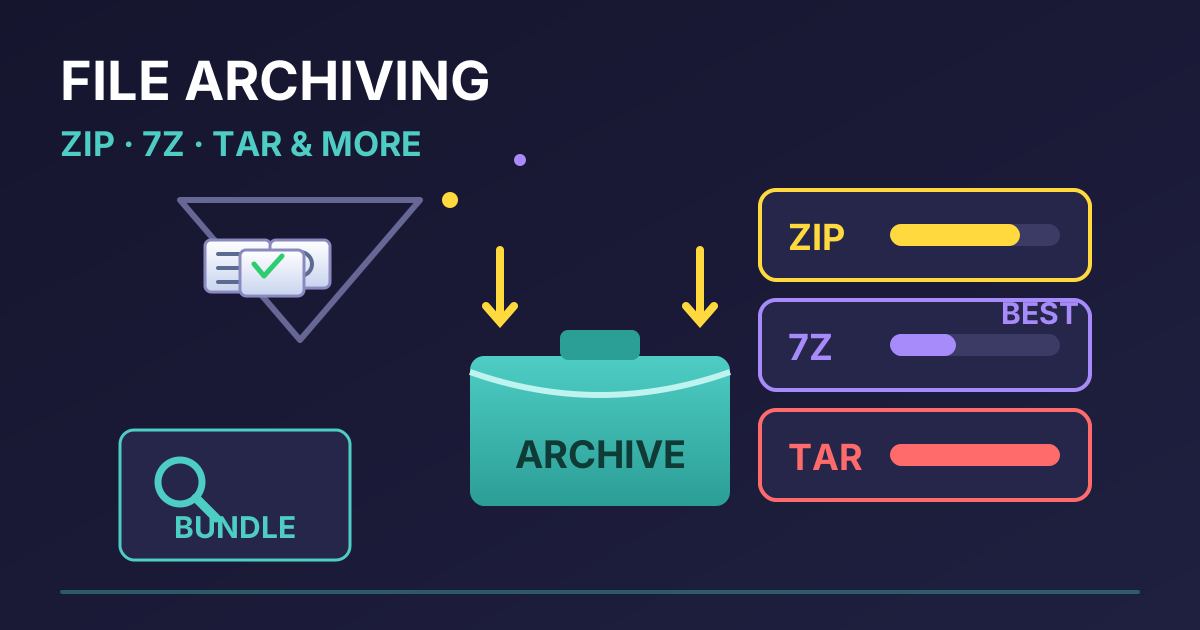
In our increasingly digital world, we juggle a massive amount of data every day. From project documents and family photos to software downloads and email attachments, managing these files efficiently is crucial. This is where file archiving comes in—a simple yet powerful technique for bundling multiple files into a single, smaller package. But with a sea of acronyms like ZIP, 7Z, RAR, and TAR, how do you know which one to use and when?
This comprehensive guide will demystify the world of file archiving. We'll explore the most common formats, break down their pros and cons, and show you how to manage them like a pro using easy, accessible online tools. Whether you're trying to save disk space, send a large collection of files over email, or simply keep your projects organized, understanding file archives is an essential digital skill.
What is File Archiving? A Tale of Two Tasks
Many people use the terms "archiving" and "compressing" interchangeably, but they represent two distinct, albeit related, processes:
-
Archiving: This is the process of combining multiple files and folders into a single file (the archive). This is incredibly useful for organization and portability. Think of it as putting many documents into a single manila folder before filing it away. The TAR format, for example, is a pure archiver.
-
Compression: This is the process of reducing the file size of data by using clever algorithms to remove redundancy. This saves storage space and makes files faster to transfer over the internet.
Most modern archive formats, like ZIP and 7Z, do both. They first bundle your files into a single package and then compress that package to make it smaller. This combination is what makes them so powerful for everyday use.
The Most Common Archive Formats Explained
While dozens of archive formats exist, a few have become dominant. Let's break down the key players you're most likely to encounter.
ZIP: The Universal Standard
If you've ever downloaded a file from the internet, you've almost certainly encountered a .zip file. Created in 1989, it's the most widely supported archive format in the world.
- Pros: Its biggest advantage is ubiquity. Virtually every operating system—Windows, macOS, Linux, Android, and iOS—has built-in support for creating and extracting ZIP files without needing any third-party software.
- Cons: While convenient, the DEFLATE compression algorithm it traditionally uses is older and less efficient than more modern alternatives. A file compressed as a ZIP will often be larger than the same file compressed as a 7Z or RAR.
- Best for: Sharing files with others when you're unsure what software they have. It's the safest bet for maximum compatibility.
7Z: The High-Compression Champion
The .7z format is the native format of the open-source archiver 7-Zip. It's renowned for its incredibly high compression ratio, thanks primarily to its default LZMA2 algorithm.
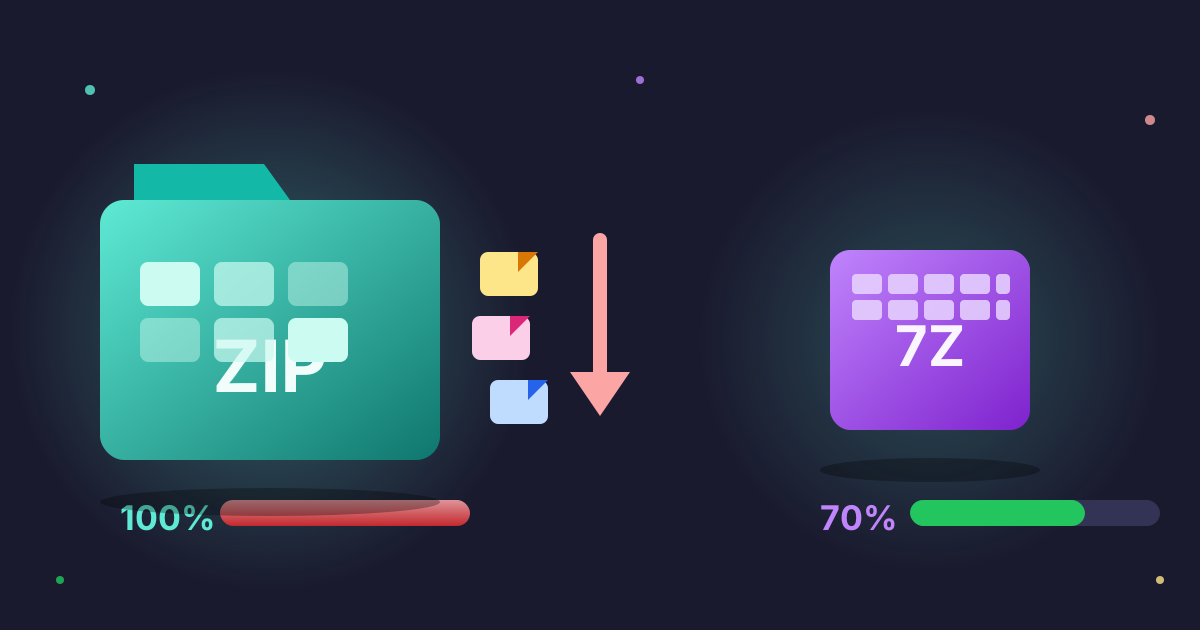
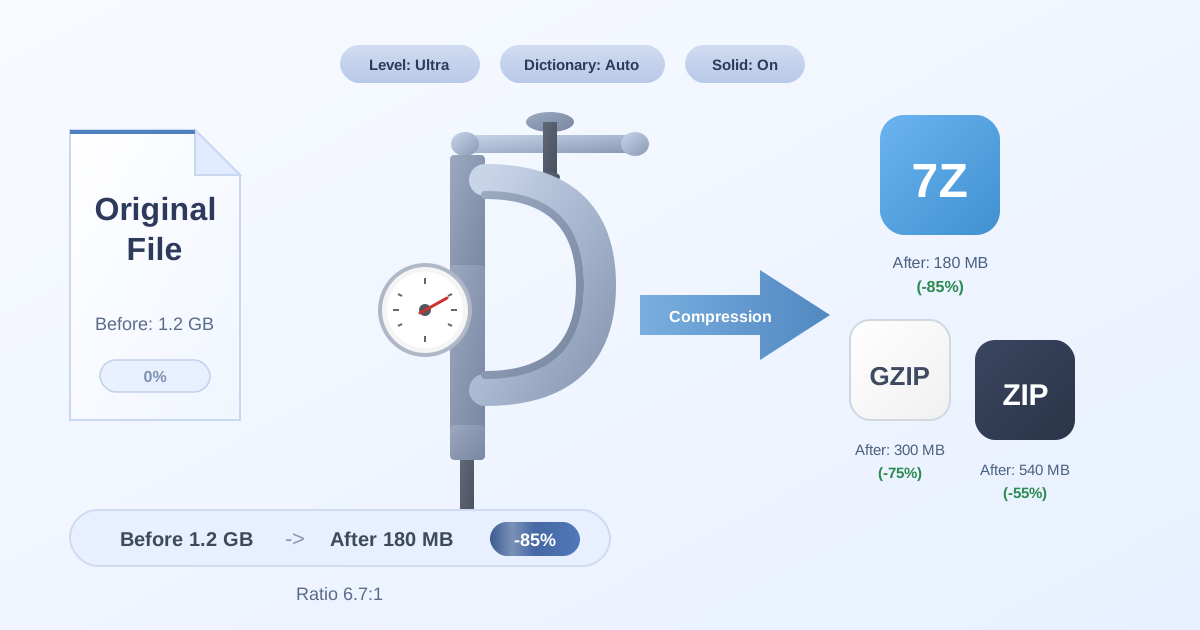
- Pros: It can often create archives that are 30-70% smaller than their ZIP counterparts, which is a significant saving for large files or backups. It also supports strong AES-256 encryption.
- Cons: Its main drawback is less native support. While many third-party tools can open 7Z files, Windows and macOS don't support it out of the box, requiring users to install software like 7-Zip or The Unarchiver.
- Best for: Personal backups, long-term storage, or sending large files when you know the recipient can open them. It's the top choice when minimizing file size is the highest priority.
TAR: The Tape Archive
TAR stands for Tape Archive, which hints at its origins in the Unix world for backing up data to tape drives. Unlike ZIP and 7Z, TAR is purely an archiver—it bundles files together but does not compress them on its own.
- Pros: It excels at preserving file system information, like permissions and directory structures, which is critical for backing up and moving applications or operating system files, especially on Linux and macOS.
- Cons: On its own, it offers no size reduction.
- How it's used: TAR is almost always paired with a separate compression utility. This is why you see files with double extensions like
.tar.gz(or.tgz) and.tar.bz2. The files are first bundled into a single.tarfile, and then that file is compressed using Gzip (.gz) or Bzip2 (.bz2).
Archive Format Comparison
To help you decide, here's a quick comparison table:
| Feature | ZIP | 7Z | TAR |
|---|---|---|---|
| Primary Use | General purpose, maximum compatibility | Maximum compression, storage | Bundling files on Unix/Linux systems |
| Compression | Good (DEFLATE algorithm) | Excellent (LZMA/LZMA2 algorithms) | None (must be paired with Gzip, etc.) |
| Compatibility | Universal (natively supported) | Good (requires third-party software) | Excellent (on Linux/macOS), needs tools on Windows |
| File Extension(s) | .zip |
.7z |
.tar, .tar.gz, .tgz |
How to Create and Open Archive Files Online
While desktop software is powerful, you don't always need to install an application for simple archiving tasks. Browser-based tools are fast, private, and require no installation, making them perfect for quick jobs.
Creating an Archive
Need to bundle a few reports and images into a single file to email to a colleague? Instead of fumbling with desktop software, you can do it right in your browser.
For a quick and easy way to create a ZIP archive from multiple files, our Compress Files tool is the perfect solution.
- Visit the Compress Files tool page.
- Drag and drop your files or click to upload them.
- The tool will instantly bundle and compress them into a single ZIP file.
- Click the "Download" button to save your new archive.
It's secure, private (your files never leave your computer), and incredibly fast.
Opening an Archive
What if you're on a computer that's not your own—like at a library or a hotel—and you receive a compressed file? You might not have the rights to install software. This is where an online decompressor shines.
If you've received an archive and need to extract its contents on the fly, you can use our secure Decompress Files tool. It handles various formats, including ZIP, 7Z, and RAR, letting you access your files from anywhere.
Converting Between Archive Formats: When and Why?
Sometimes you have an archive in one format but need it in another. This is a common scenario:
- Compatibility: You created a high-efficiency 7Z archive, but the person you're sending it to can only open ZIP files.
- Space Savings: You have a collection of old ZIP archives and want to convert them to 7Z to reclaim significant disk space.
- System Migration: You need to move a TAR archive from a Linux server to a Windows machine and want to convert it to a more Windows-friendly ZIP format.
Online converters make this process trivial. For example, let's say you want to maximize your storage space by converting a ZIP file to 7Z.
- Go to the ZIP to 7Z converter on our website.
- Upload your .zip file.
- The tool will process the file, re-compressing it using the more efficient 7Z algorithm.
- Download your new, smaller .7z file.
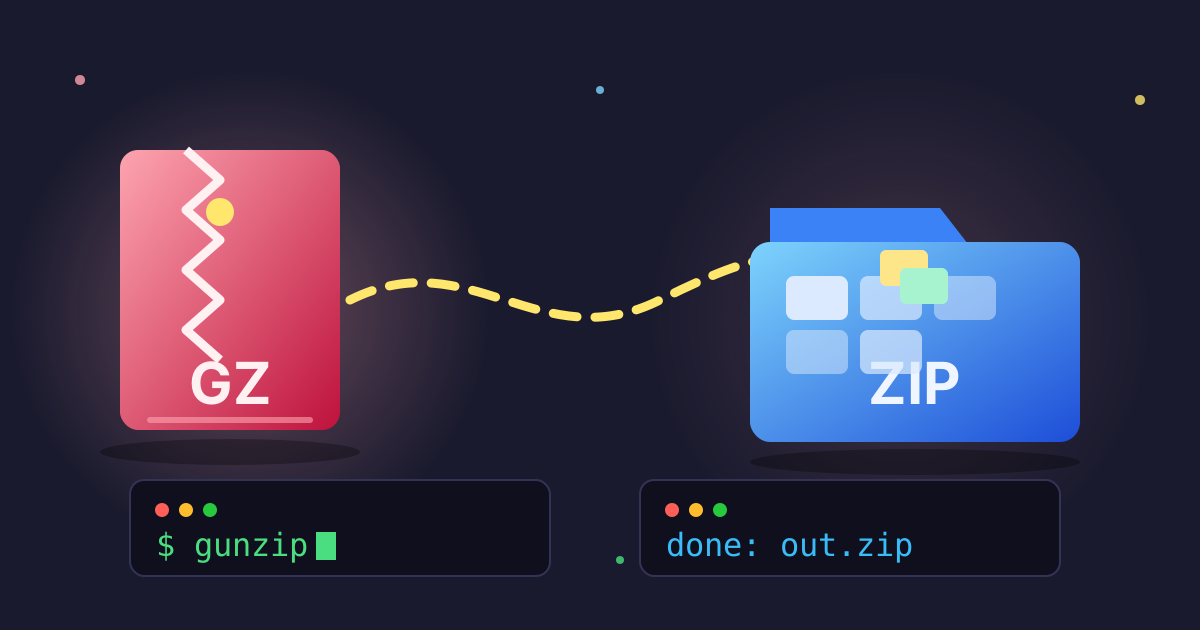
This same principle applies in reverse. If you need to ensure compatibility, converting a 7Z file back to a universally accessible ZIP is just as easy using a tool like our 7Z to ZIP converter.
Best Practices for File Archiving
To get the most out of archiving, follow these simple best practices:
- Choose the Right Format: Use ZIP for sharing and compatibility. Use 7Z for personal storage and maximum compression.
- Use Logical Naming Conventions: Name your archives clearly (e.g.,
Project_Alpha_Reports_2023-10-26.zip). This makes them easy to find later. - Don't Compress the Incompressible: Media files like JPEGs, MP3s, and MP4s are already highly compressed. Adding them to a compressed archive will yield little to no size savings. Use an archive (like ZIP with no compression or TAR) simply to bundle them together if needed.
- Consider Encryption: If your archive contains sensitive information, use a format that supports strong encryption, like 7Z with AES-256, and always use a strong, unique password.
- Split Large Archives: If you need to archive a massive folder (e.g., 50GB), consider splitting it into smaller, more manageable volumes (e.g., ten 5GB files). This makes them easier to upload, download, and manage.
Conclusion: Master Your Digital Clutter
File archiving is more than just a way to save a few megabytes; it's a fundamental strategy for effective digital organization. By understanding the key differences between formats like ZIP, 7Z, and TAR, you can make informed decisions that save you time, space, and headaches. Whether you need the universal compatibility of ZIP or the raw compression power of 7Z, there's a tool for every task.
Ready to take control of your files? Explore our suite of free and private file management tools. Try compressing a folder for your next email attachment or converting an old archive to a more efficient format. Your future, more organized self will thank you.