Extract Audio from MP4 to MP3 Free: The Ultimate Guide

You've just watched a brilliant lecture on YouTube, a live concert with an unforgettable solo, or a family video with a hilarious conversation, and you think, "I wish I could just listen to that on my phone." You have the MP4 video file, but what you really want is the audio track as a lightweight, universally playable MP3 file.
Sound familiar? You're not alone. The need to isolate audio from video is incredibly common, whether for convenience, creativity, or simply to save space. The great news is that you don't need to download clunky, complicated software to do it. With the right online tools, you can extract high-quality audio from any MP4 video in just a few clicks—for free.
This comprehensive guide will walk you through everything you need to know. We'll cover why you might want to extract audio, explain the difference between MP4 and MP3, provide a step-by-step tutorial on using free online tools, and even explore other audio formats for specific needs. Let's dive in and turn your videos into portable audio experiences.
Why Extract Audio from a Video?
Before we get into the "how," let's explore the "why." The reasons for stripping audio from a video file are as diverse as the videos themselves. Here are some of the most common and practical applications:
Create a Podcast or Audio Lecture
Many interviews, presentations, and educational seminars are recorded as videos. By extracting the audio, you can convert this content into a podcast-style format. This allows you to listen while commuting, exercising, or doing chores, making it much easier to absorb information without being glued to a screen.
Save Music and Soundtracks
Have you ever discovered an amazing song from a live performance video, a movie scene, or an indie artist's video upload? Extracting the audio lets you add that track to your personal music library. It's perfect for saving unique versions of songs or soundtracks that aren't available on streaming platforms.
Build a Sound Clip Library
Content creators, video editors, and social media managers often need sound bites, effects, or memorable quotes for their projects. Extracting audio from videos is an excellent way to build a custom library of sound clips, whether it's a famous movie line for a meme or a specific sound effect for a video edit.
Reduce File Size for Sharing and Storage
Video files (MP4) are significantly larger than audio files (MP3) because they contain massive amounts of visual data. If you only need the audio portion of a file, converting it to MP3 dramatically reduces its size. This makes it faster to share via email or messaging apps and saves precious storage space on your devices.
Increase Accessibility and Convenience
Listening is often more convenient than watching. By converting a video guide, a long speech, or a documentary into an MP3, you can consume the content in situations where watching a screen isn't feasible or safe, like when you're driving.
Understanding the Formats: MP4 vs. MP3
To understand the extraction process, it helps to know a little about the file formats you're working with. They might seem similar, but they serve fundamentally different purposes.
What is an MP4 (MPEG-4 Part 14)?
Think of an MP4 file as a multimedia container. It's a digital box that can hold multiple types of data together in a single file. An MP4 file typically contains:
- A video stream: The moving pictures, encoded in a format like H.264 or H.265.
- An audio stream: The sound, often encoded in a format like AAC (Advanced Audio Coding).
- Metadata: Information about the file, like the title, artist, and cover art.
- Subtitles: Text tracks for different languages.
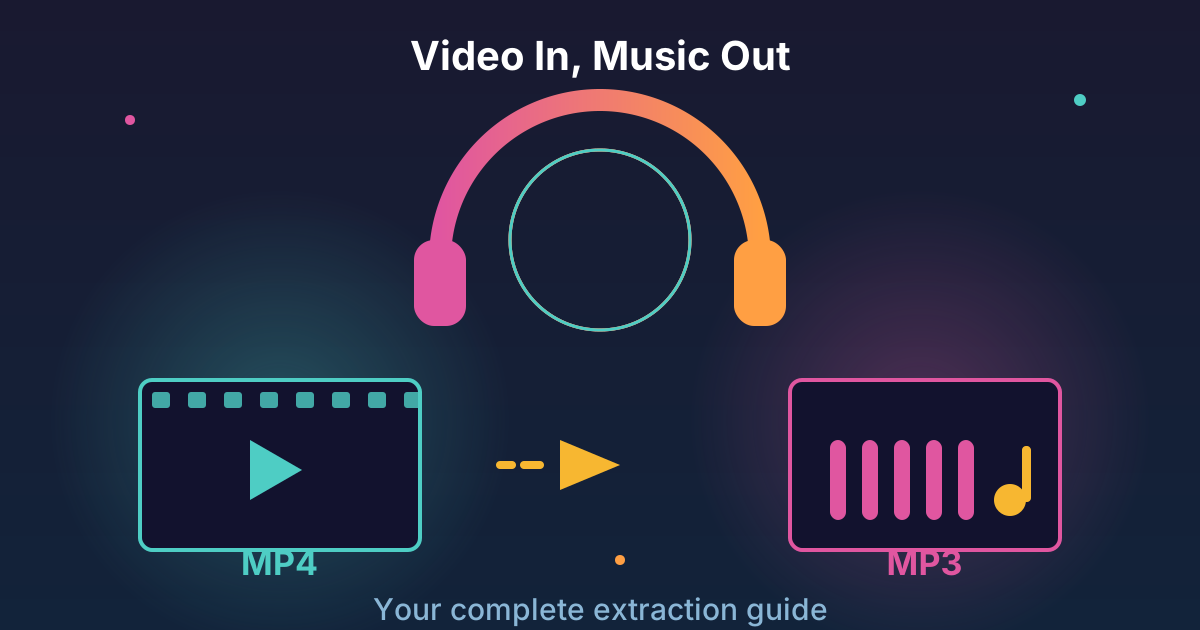
Because it's a container, the process of getting the audio out isn't about "converting" the video itself. It's about opening the container, taking out the audio stream, and then re-packaging it into an audio-only format.
What is an MP3 (MPEG-1 Audio Layer III)?
MP3 is purely an audio format. For decades, it has been the world's most popular format for digital music due to its excellent balance of file size and sound quality. It uses "lossy" compression, which means it intelligently removes parts of the sound data that the human ear is least likely to notice. This allows for a significant reduction in file size with minimal perceptible loss in quality, making it perfect for portable devices and streaming.
When you "extract" audio from an MP4 to an MP3, the online tool takes the audio stream from the MP4 (which is often in AAC format) and re-encodes it using the MP3 compression algorithm.
How to Extract Audio from MP4 to MP3 Online: A Step-by-Step Guide
Using an online tool is the fastest and easiest method for most users. You don't need to install any software, and the process is typically straightforward. Here’s a general step-by-step guide that applies to most reputable online converters, including the privacy-focused tools you'll find at Practical Web Tools.
Step 1: Find a Trustworthy Online Tool
Your first step is crucial. The internet is filled with conversion websites, but not all are created equal. When choosing a tool, prioritize your security and privacy. Look for:
- A Clear Privacy Policy: The site should explain what happens to your uploaded files. Reputable sites delete your files from their servers automatically after a short period.
- Secure Connection (HTTPS): Check for the padlock icon in your browser's address bar. This ensures your connection to the site is encrypted.
- No Registration Required: You shouldn't have to provide personal information or create an account for a simple conversion.
- Clean, Uncluttered Interface: The best tools are easy to use and aren't covered in misleading ads or pop-ups.
Step 2: Upload Your MP4 Video File
Once you've chosen a tool, you'll see an upload area. You typically have two options:
- Drag and Drop: Simply drag your MP4 file from your computer folder and drop it onto the designated area on the webpage.
- Browse for File: Click the "Upload," "Choose File," or similar button to open a file explorer window. Navigate to your MP4 file and select it.
Be mindful of file size limits, as most free online services have a cap (e.g., 500 MB or 1 GB).
Step 3: Select Your Output Format as MP3
After the upload is complete, the tool will ask you to choose the desired output format. In this case, select MP3. Many converters will also offer a range of other audio formats. This is a good time to consider if MP3 is truly the best fit for your needs. We'll discuss some alternatives later in this article.
Step 4: Adjust Quality Settings (Optional)
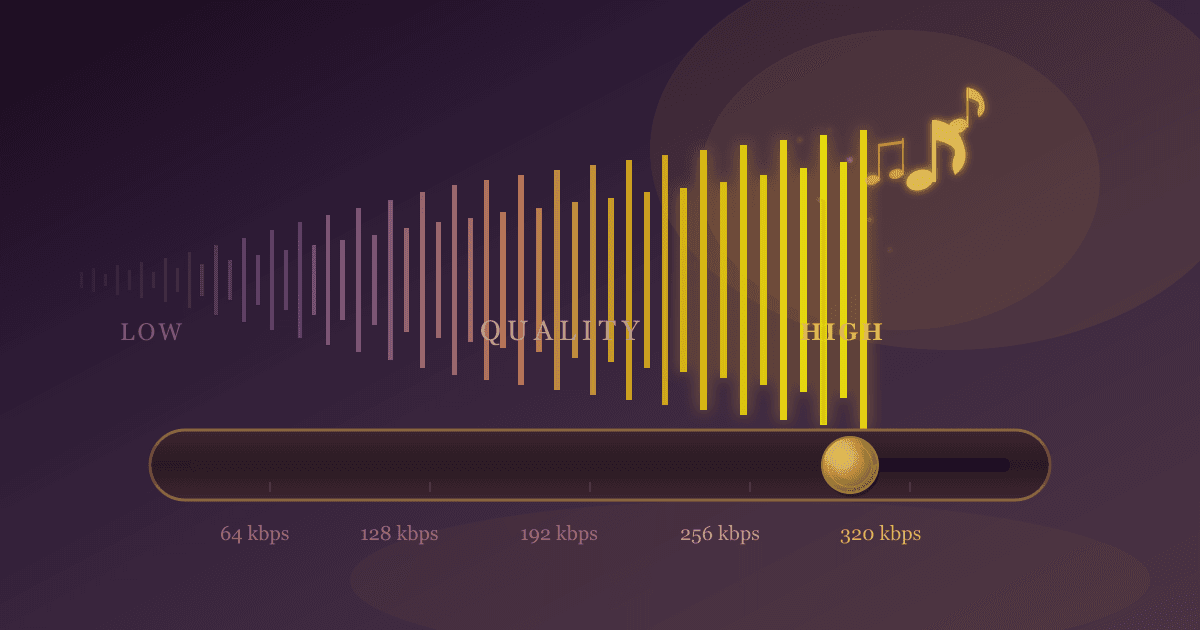
Some advanced online converters allow you to tweak the audio settings before you start the extraction. The most common setting is bitrate, measured in kilobits per second (kbps).
- What is Bitrate? Bitrate determines the quality and file size of your MP3. A higher bitrate means better audio quality but a larger file size.
- Common Bitrate Options:
- 128 kbps: Decent quality, very small file size. Good for speech (podcasts, lectures).
- 192 kbps: Good quality, often considered the standard for music.
- 320 kbps: High quality, virtually indistinguishable from a CD for most listeners. The best choice if quality is your top priority.
If you're unsure, 192 kbps is a safe and effective choice for most purposes.
Step 5: Start the Extraction Process
With your file uploaded and settings configured, click the "Convert," "Extract," or "Start" button. The tool's servers will now process your file. This involves reading the MP4 container, isolating the audio stream, re-encoding it to the MP3 format with your chosen settings, and packaging the final file.
The process duration depends on the original video's length and your internet connection speed, but it usually only takes a minute or two.
Step 6: Download Your New MP3 File
Once the conversion is finished, a download link or button will appear. Click it to save your brand new MP3 file to your computer or mobile device. Congratulations, you've successfully extracted the audio from your video!
Beyond MP3: When to Use Other Audio Formats
MP3 is the king of compatibility, but it's not always the best format for every situation. Understanding the alternatives can help you make a more informed choice. Many of the tools and workflows you use for MP3 can be adapted for these other formats.
For Professional Audio Editing: WAV
If you plan to edit the extracted audio in software like Audacity or Adobe Audition, MP3 is not the ideal choice. Every time you save a lossy file like an MP3, it gets re-compressed, and quality degrades. WAV (Waveform Audio File Format) is an uncompressed format that preserves 100% of the original audio data. It's the standard for professional audio production.
Workflow: You could extract the audio to MP3 for a quick listen, and if you decide it needs editing, use a dedicated tool to convert that file. For instance, an MP3 to WAV converter will prepare your file for high-quality editing.
For High-Fidelity Archiving: FLAC
What if you want the absolute best possible quality without the massive file sizes of WAV? FLAC (Free Lossless Audio Codec) is the answer. It uses lossless compression, meaning it reduces file size by about 50% compared to WAV without discarding any audio data. It's the preferred format for audiophiles and for archiving music.
Workflow: If you extract a high-quality audio stream and want to keep it in pristine condition, converting it from its original format or even an intermediary MP3 to FLAC can be a great step. You can easily do this with a tool like our free MP3 to FLAC converter.
For Open-Source Flexibility: OGG
OGG Vorbis is a fully open-source and patent-free alternative to MP3 and AAC. It often provides slightly better sound quality than MP3 at the same bitrate. While not as universally supported as MP3, it's a favorite in the open-source community and is supported by many modern devices and software (including Spotify).
Workflow: If you prefer using open-source formats, consider converting your final audio files to OGG. It's a simple process with an online MP3 to OGG tool.
Frequently Asked Questions (FAQ)
Q1: Is it legal to extract audio from an MP4 video?
This is a common and important question. The legality depends on the video's copyright status and your intended use. It is generally legal to extract audio for personal, non-commercial use from content you own (like your own home videos) or content that is in the public domain. It is a violation of copyright to extract and distribute audio from copyrighted material (like commercial movies or music videos) without the copyright holder's permission. Always respect copyright law.
Q2: Will I lose audio quality when extracting from MP4 to MP3?
Yes, there is a technical loss of quality, but it's almost always imperceptible. The audio in an MP4 is already compressed (usually as AAC). Converting it to another lossy format like MP3 involves re-compression. However, if you choose a high bitrate (192 kbps or 320 kbps), the resulting MP3 will sound excellent and any quality difference will be practically impossible for the average person to hear.
Q3: What's the difference between extracting and converting?
In this context, the terms are often used interchangeably. Technically, you are extracting the audio stream from the MP4 container and then converting (or re-encoding) that stream into the MP3 format.
Conclusion: Your Audio, Your Way
Extracting audio from an MP4 video is a simple, powerful technique that unlocks a world of convenience and creativity. Whether you're building a playlist of rare live tracks, creating a podcast from a webinar, or just saving a funny family moment, online tools make the process accessible to everyone, regardless of technical skill.
By following the steps outlined in this guide and choosing secure, privacy-focused tools, you can confidently and safely convert your videos to high-quality audio files in minutes.
Ready to get started? Explore Practical Web Tools' suite of free and secure audio tools to manage, convert, and perfect all your sound files. No downloads, no sign-ups, just simple and effective solutions for your digital life.