HEIC to JPG: Convert iPhone Photos Without Quality Loss

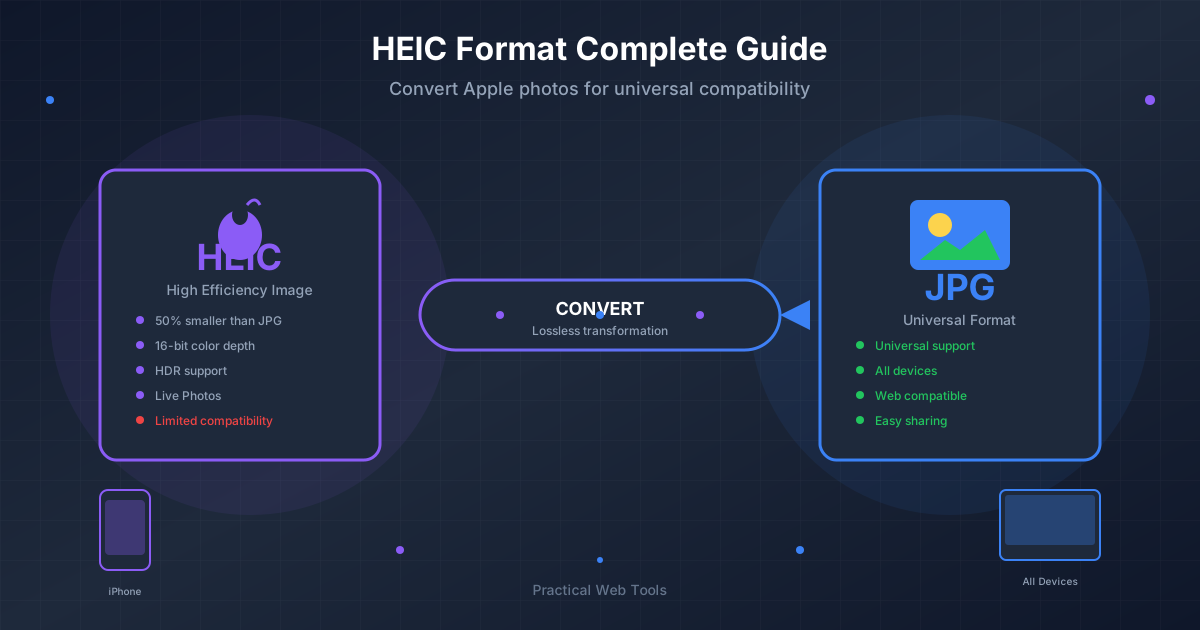
You just took the perfect photo on your iPhone. The lighting is sublime, the composition is spot-on, and you've captured a memory you want to share. But when you transfer it to your computer or try to upload it to a website, you hit a wall. What is this strange .HEIC file, and why won't anything open it?\n\nIf this scenario sounds familiar, you're not alone. Since iOS 11, Apple has used HEIC as the default image format for its devices, and while it's a powerful and efficient format, its compatibility outside the Apple ecosystem can be a major headache. The good news is that there's a simple solution: converting your HEIC photos to the universally accepted JPG format.\n\nThis comprehensive guide will walk you through everything you need to know about converting HEIC to JPG without sacrificing the quality of your precious photos. We'll explore what HEIC is, compare it to JPG, and provide step-by-step instructions for converting your images using a variety of methods.\n\n## What is HEIC and Why Does Apple Use It?\n\nHEIC stands for High-Efficiency Image Container. It's the file format Apple uses to store images captured on modern iPhones and iPads. It's not a format Apple invented from scratch; rather, it's based on the High-Efficiency Video Coding (HEVC) or H.265 video compression standard. The goal, as the name implies, is efficiency.\n\nApple switched to HEIC for several key reasons:\n\n* Smaller File Sizes: HEIC files are typically about 50% smaller than their JPG counterparts, with no noticeable reduction in image quality. This means you can store twice as many photos on your iPhone or in your iCloud account without running out of space.\n* Superior Quality: It's not just about size. HEIC can store more image data than JPG. It supports 16-bit deep color, compared to JPG's 8-bit. This allows for a wider range of colors and smoother gradients, which is especially beneficial for editing.\n* Advanced Features: The HEIC container is more flexible than JPG. It can store multiple images in a single file (which is how Apple saves Live Photos and Burst mode shots), as well as transparency information (like a PNG file) and image edits like cropping and rotating, which can be undone later.\n\nThe problem? Despite its technical superiority, HEIC isn't as widely supported as the decades-old JPG format. This leads to compatibility issues when you want to share your photos with Android users, use them on a Windows PC, or upload them to certain websites and applications.\n\n## HEIC vs. JPG: A Quick Comparison\n\nTo understand why you might need to convert your files, it's helpful to see a direct comparison. JPG (or JPEG) has been the web's standard image format for decades, prized for its excellent balance of quality and file size, and most importantly, its universal compatibility.\n\nHere’s how they stack up:\n\n| Feature | HEIC (High-Efficiency Image Container) | JPG (Joint Photographic Experts Group) |\n| :--- | :--- | :--- |\n| File Size | Approximately 50% smaller than JPG for similar quality. | Larger file size. |\n| Image Quality | Excellent. Can capture more data for better quality. | Very good, but it's a lossy format that can degrade with re-saving. |\n| Compatibility | Limited. Native to Apple devices, requires extensions on Windows. | Universal. Supported by virtually every device, browser, and software. |\n| Color Depth| Up to 16-bit per channel. | 8-bit per channel. |\n| Features | Supports transparency, animations, and multi-image containers (Live Photos). | Does not support transparency or animations. |\n| Compression | Advanced and more efficient lossy compression. | Older, but still effective, lossy compression. |\n\nThe bottom line: HEIC is the more modern, efficient format, but JPG remains the king of compatibility. For sharing and universal use, JPG is still the safest bet.\n\n## When Should You Convert HEIC to JPG?\n\nYou'll find yourself needing to convert from HEIC to JPG in several common situations:\n\n* Sharing with non-Apple users: If you're sending photos to friends or family using Android phones or Windows PCs, converting them to JPG ensures they can open them without any issues.\n* Uploading to websites: Many websites, content management systems, and social media platforms still don't fully support HEIC uploads. Converting to JPG is the easiest way to guarantee your images will be accepted.\n* Using older photo editing software: While modern programs like Adobe Photoshop and Lightroom now support HEIC, older versions or other editing applications may not.\n* Printing photos: Most online and in-store photo printing services require images to be in JPG or PNG format.\n* Long-term archiving: While HEIC is great, for maximum future-proofing and accessibility across any potential device, JPG is a more universally stable format.\n\n## How to Convert HEIC to JPG Without Losing Quality: 4 Methods\n\nNow for the practical part. Converting your files is easy, and you have several options depending on your device and preference. We'll focus on methods that preserve the highest possible quality.\n\n### Method 1: The Easiest Way - Using an Online Converter\n\nFor speed, convenience, and batch processing, nothing beats a good online tool. You don't need to install any software, and you can convert files from any device with a web browser. The key is to use a tool that respects your privacy.\n\nOur HEIC to JPG converter is designed to be fast, free, and secure. It processes your files directly in your browser, meaning your precious photos are never uploaded to a server, guaranteeing your privacy.\n\nHere’s how to use it step-by-step:\n\n1. Navigate to the Tool: Open your web browser and go to the Practical Web Tools HEIC to JPG converter.\n2. Select Your Files: You can either drag and drop your .heic files directly onto the page or click the "Select Files" button to browse your computer or phone for the images you want to convert. You can select multiple files at once for batch conversion.\n3. Convert: The tool will automatically begin the conversion process as soon as the files are selected. You'll see a progress bar for each image.\n4. Download: Once converted, a "Download" button will appear next to each file. Click it to save the new JPG to your device. If you converted multiple files, you can also use the "Download All" button to get a ZIP file containing all your new JPGs.\n\nThat's it! In under a minute, you have universally compatible JPG files without compromising on quality.\n\n### Method 2: On Your iPhone or iPad (Built-in Methods)\n\nYour iPhone has built-in ways to handle HEIC to JPG conversion, though they are sometimes less direct.\n\nChange Your Camera Settings (for future photos):\n\nIf you consistently need JPGs, you can tell your iPhone to stop shooting in HEIC altogether.\n\n1. Go to Settings > Camera.\n2. Tap on Formats.\n3. Select Most Compatible. Your iPhone will now save all new photos as JPGs.\n\nAutomatic Conversion When Sharing:\n\nYour iPhone is smart. When you share a HEIC photo using Mail, Messages, or AirDrop to a non-Apple device, iOS often converts it to a JPG automatically. However, this isn't always foolproof and doesn't give you direct control.\n\nManual Conversion using the Files App:\n\nThis is a clever trick to convert photos already on your device.\n\n1. Open the Photos app and select the HEIC image(s) you want to convert.\n2. Tap the Share icon in the bottom-left corner.\n3. Choose Copy Photos.\n4. Now, open the Files app.\n5. Browse to a location (e.g., "On My iPhone").\n6. Long-press on an empty space and tap Paste.\n7. The photos will be pasted as JPG files. You can then share them from the Files app.\n\n### Method 3: On Your Mac\n\nmacOS has excellent native support for HEIC, and converting images is straightforward using built-in applications.\n\nUsing the Preview App:\n\n1. Double-click your HEIC file to open it in Preview.\n2. From the menu bar, go to File > Export.\n3. In the export dialog box, click the Format dropdown menu and select JPEG.\n4. Use the Quality slider to choose the desired quality. Drag it all the way to the right for "Best" to minimize quality loss.\n5. Rename the file if you wish, choose a save location, and click Save.\n\nUsing the Photos App:\n\nIf your photos are already in your Mac's Photos library, this is the best method.\n\n1. Open the Photos app and select one or more images.\n2. From the menu bar, go to File > Export > Export [X] Photo(s)...\n3. In the pop-up window, set the Photo Kind to JPEG.\n4. Set the JPEG Quality to Maximum.\n5. Click Export, choose where to save them, and you're done.\n\n### Method 4: On Your Windows PC\n\nFor a long time, Windows struggled with HEIC files. Thankfully, recent versions of Windows 10 and 11 have made it much easier.\n\nInstall the Necessary Extensions:\n\nTo open HEIC files natively, you may need to install two extensions from the Microsoft Store.\n\n1. Go to the Microsoft Store and search for HEIF Image Extensions. This is usually free.\n2. You may also need the HEVC Video Extensions. This sometimes costs a nominal fee ($0.99), but it's often pre-installed on newer PCs.\n\nConvert using the Windows Photos App:\n\nOnce the extensions are installed, you can open and convert HEIC files easily.\n\n1. Right-click the HEIC file and choose Open with > Photos.\n2. Once the image is open, click the ... (See more) icon in the top toolbar.\n3. Select Save as.\n4. In the "Save as type" dropdown menu, choose .jpg.\n5. Click Save.\n\n## Debunking the "Quality Loss" Myth\n\nA common concern is losing quality during conversion. It's important to understand that both HEIC and JPG are "lossy" compression formats. This means they discard some image data to reduce file size. The key is that they are designed to discard data that the human eye is least likely to notice.\n\nWhen you convert a HEIC file to a JPG at a high-quality setting (90% or above), the additional data loss is practically imperceptible. For all intents and purposes—sharing online, printing standard-sized photos, or viewing on a screen—a high-quality converted JPG is visually identical to the original HEIC file.\n\nSignificant quality loss only occurs if you repeatedly save a JPG over and over again at lower quality settings. A single, high-quality conversion from HEIC to JPG will preserve your photo's integrity.\n\n## Beyond Conversion: Optimizing Your Images\n\nOnce your photo is in the versatile JPG format, a world of possibilities opens up. You might need to make further edits before sharing it.\n\n* Removing the Background: Need a clean, professional look for a profile picture or an e-commerce product? After converting your image, you can use a tool like our free Background Remover to instantly create a transparent background.\n* Changing Formats: Sometimes, JPG isn't the final destination. If you've removed the background and need to preserve the transparency, you'll want to convert your JPG to PNG.\n\n## What About Converting Back? JPG to HEIC\n\nWhile less common, you might want to convert the other way. If you have a large library of JPGs and want to save storage space on your Apple devices, converting them to HEIC can be a great solution. Our JPG to HEIC converter can help you do just that, shrinking your files while maintaining quality. Just remember that converting from JPG to HEIC won't magically restore any quality that was lost in the original JPG compression.\n\n## Conclusion\n\nHEIC is a fantastic, modern image format that allows us to store more high-quality photos than ever before. However, its limited compatibility can be a frustrating roadblock. By understanding the simple methods to convert your HEIC files to the universally supported JPG format, you can get the best of both worlds: efficient storage on your iPhone and effortless sharing with everyone, everywhere.\n\nWhether you use the built-in features of your device or opt for the speed and convenience of an online tool, you can be confident that you're not losing the quality that makes your photos special.\n\nReady to free your photos from the confines of HEIC? Try our free and secure HEIC to JPG converter now and see how easy it is to make your images compatible with any device or platform!