You’ve seen it before: that perfectly curated Instagram bio or a witty Twitter/X profile with text that’s just… different. Some letters are raised, others are styled like tiny capital letters. It catches your eye and makes the profile memorable. Have you ever wondered how they do it? Is it a secret font? A hidden setting?
The answer is simpler and more fascinating than you might think. It's not a font at all, but a clever use of Unicode characters. In this comprehensive guide, we'll demystify the world of tiny text, including superscript, subscript, and small caps. We’ll show you how to generate them, where to use them for maximum impact, and the crucial best practices to follow so your profile looks stylish without sacrificing readability or accessibility.
Try Tiny Text Generator: free, no sign-up.
What Exactly is Tiny Text? The Unicode Secret
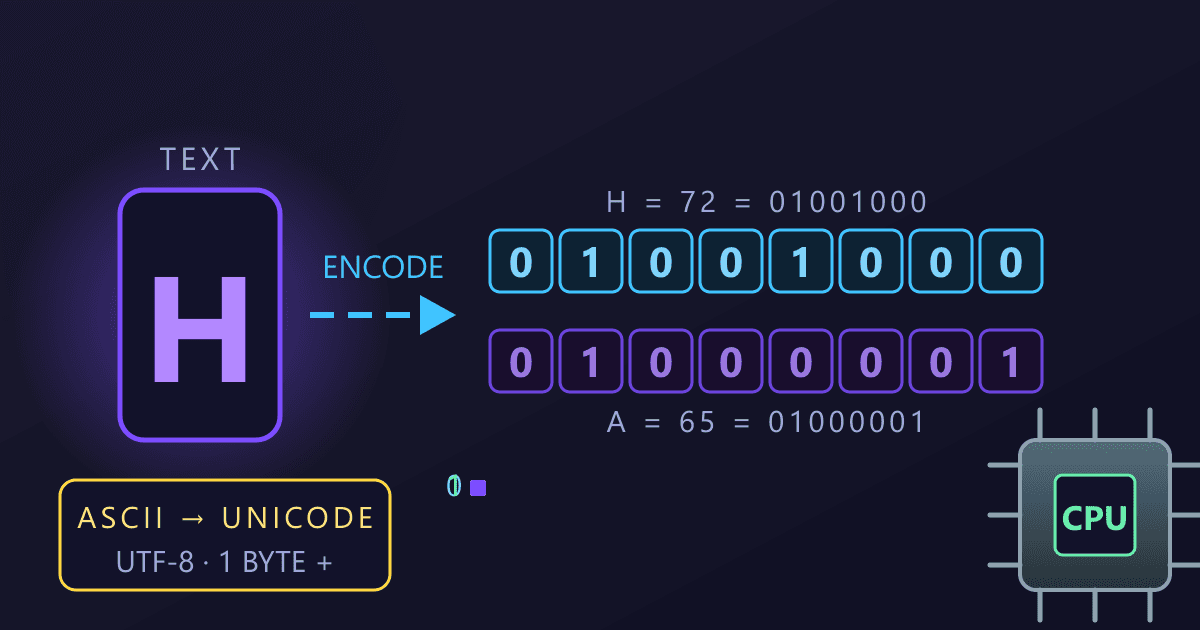
When you type on your keyboard, you're typically using a standard set of characters defined by systems like ASCII. However, the modern web runs on Unicode, a much larger standard that aims to include every character from every language, plus a vast array of symbols, emojis, and special character variations.
This is where tiny text comes from. Superscript letters (ˡⁱᵏᵉ ᵗʰⁱˢ), subscript letters (ₗᵢₖₑ ₜₕᵢₛ), and small caps (ʟɪᴋᴇ ᴛʜɪs) are simply different characters within the Unicode standard. They are not a style applied to normal letters; they are distinct characters themselves.
Think of it this way: 'a' and 'A' are different characters. Similarly, 'a' and the superscript 'ᵃ' are also treated as different characters by your computer. The incredible advantage of this is that because they are standardized characters, you can copy and paste them almost anywhere that supports Unicode—which includes virtually all social media platforms, messaging apps, and modern websites.
This is why you can't just select text in your Instagram bio and change the "font" to make it smaller. Instead, you need to generate these special Unicode characters and paste them in.
Superscript vs. Subscript vs. Small Caps: What's the Difference?
While often grouped under the umbrella term "tiny text," these three styles have distinct appearances and are best used for different purposes. Understanding the difference will help you use them more effectively to create your desired aesthetic.
Here’s a breakdown to help you choose the right style for your bio:
| Style | Example | Description | Common Uses |
|---|---|---|---|
| Superscript | ʸᵒᵘʳ ᵀᵉˣᵗ ᴴᵉʳᵉ |
Characters are smaller and raised above the normal text baseline. | Trademarks (™), ordinal numbers (1ˢᵗ, 2ⁿᵈ), mathematical exponents (x²), aesthetic flair. |
| Subscript | ᵧₒᵤᵣ ₜₑₓₜ ₕₑᵣₑ |
Characters are smaller and lowered below the normal text baseline. | Chemical formulas (H₂O), mathematical notations, subtle notes or asides. |
| Small Caps | ʏᴏᴜʀ ᴛᴇxᴛ ʜᴇʀᴇ |
Characters look like uppercase letters but are sized similarly to lowercase ones. | Professional-looking headings, emphasizing acronyms (NASA), creating a classic or formal look. |
Choosing the right one depends entirely on the vibe you're going for. Superscript can feel playful or clever, while small caps can lend an air of sophistication and design-consciousness to your profile.
How to Generate Tiny Text for Your Bio: A Step-by-Step Guide
Ready to start styling your own bio? The process is incredibly simple. You don't need any technical skills—just a reliable text generator and a flair for creativity.
Here’s how to do it in five easy steps:
Step 1: Find a Tiny Text Generator
First, you'll need a tool to convert your standard text into these special Unicode characters. A quick search for "tiny text generator" or "small caps generator" will yield many free online options. These web-based tools do the heavy lifting of mapping each standard letter to its Unicode equivalent.
Step 2: Type or Paste Your Desired Text
Once you're on a generator site, you'll see a text box, usually at the top of the page. This is where you'll enter the text you want to convert. For example, you might type your job title, a fun quote, or a call to action.
Step 3: Choose Your Style
Most generators will automatically produce your text in dozens of different Unicode styles. Scroll through the options to see your text rendered as superscript, small caps, and many other fancy styles like cursive, gothic, or circled letters. Find the one that best fits the aesthetic of your profile.
Step 4: Copy the Generated Text
The generator will display your converted text in a separate box. Most tools have a convenient "Copy" button next to each style. Click it to copy the Unicode characters to your clipboard.
Step 5: Paste it Into Your Bio or Post
Navigate to the social media platform of your choice (Instagram, TikTok, Twitter/X, etc.) and edit your profile. Go to the bio section (or your name field) and simply paste the text you copied. It should appear exactly as it did in the generator. Save your changes, and you're done! Your profile now has a unique, eye-catching element.
Where to Use Tiny Text for Maximum Impact
Now that you know how to create tiny text, where should you use it? Here are some of the most popular and effective places:
- Instagram Bio: This is the most common use case. Use it to highlight your job title (
ᴘʜᴏᴛᴏɢʀᴀᴘʜᴇʀ & ᴅɪʀᴇᴄᴛᴏʀ), a key value proposition (ᴴᵉˡᵖᶦⁿᵍ ʸᵒᵘ ᴳʳᵒʷ), or just to add some stylistic separation between lines. - Instagram Name Field: Using tiny text in your name field can make you stand out in comments and search results. However, be aware of the potential SEO downsides we discuss below.
- Twitter/X Bio & Display Name: Similar to Instagram, it’s a great way to add personality. Small caps for a professional title or superscript for a quirky tagline can make your profile more memorable.
- TikTok Bio: With limited space, using superscript can be a clever way to fit more information or just make your bio pop in a sea of standard text.
- LinkedIn Profile: Use with extreme caution. While it might work for a headline if you're in a highly creative field, LinkedIn is a professional platform. Overly stylized text can come across as unprofessional or gimmicky. Small caps for an acronym might be acceptable, but avoid anything too flashy.
- Social Media Posts & Comments: Add emphasis to a specific word or phrase within a caption or comment to make it stand out.
Best Practices & Potential Pitfalls of Using Unicode Text
While tiny text is a fun and effective way to customize your online presence, it's not without its drawbacks. Before you convert your entire bio, it's crucial to understand the potential issues related to accessibility, SEO, and readability.
The Accessibility Problem
This is the most important consideration. Screen readers, which are used by visually impaired individuals to navigate the web, may not interpret these special Unicode characters correctly. A screen reader might:
- Skip the text entirely, meaning a visually impaired user would miss the information completely.
- Read the characters' technical names, such as "latin letter small capital a," which is confusing and disruptive.
- Spell the word out letter by letter, making it tedious and difficult to understand.
Best Practice: Never use tiny text for essential information like your name, contact details, or critical calls to action. Reserve it for purely decorative or secondary information.
The Searchability (SEO) Problem
Search engines like Google index content to help users find what they're looking for. When you use Unicode characters, a search engine might not recognize "ꜱᴇᴏ ᴇxᴘᴇʀᴛ" as the phrase "SEO expert." This means if someone searches for you by your name or profession, your profile may not appear if that information is written in tiny text.
Best Practice: Keep your primary keywords—your name, location, and profession—in standard text. Use tiny text to stylize non-critical words that add flavor but aren't essential for search.
The Readability & Rendering Problem
What looks great on your iPhone might look like a mess of boxes (□□□) on someone else's older Android phone or Windows PC. Not all devices and operating systems have full support for every Unicode character. Furthermore, overuse of stylized text can make your bio genuinely difficult to read, even if it renders correctly. A cluttered, illegible bio can deter followers rather than attract them.
Best Practice: Less is more. Use tiny text sparingly for emphasis. After updating your bio, check it on different devices (ask a friend!) to ensure it displays as intended for everyone.
Beyond the Bio: Managing Your Digital Brand Assets
Crafting the perfect online presence is about more than just stylized text in a bio. It’s about creating a cohesive brand, and that often involves managing the digital assets that support it—your portfolio, media kit, product photos, or client deliverables.
Just as you customize your bio for a specific aesthetic, you need to manage your digital files for specific platforms and purposes. These asset packages are often bundled into archives like ZIP, RAR, or 7Z files to keep them organized and easy to share.
Efficiency in your workflow is just as important as the aesthetic of your bio. Before you can even send that impressive portfolio to a potential client, you might need to bundle it. But large files can be a headache for both sender and receiver. That's why it's crucial to Compress Files into a manageable ZIP archive, making them easy to email and quick to download.
And what if a collaborator sends you assets in a format your computer can't open, like 7Z? You don't need to hunt for and install special software. You can use a simple, private, web-based tool to quickly convert that 7Z to ZIP right in your browser and get back to what matters. Streamlining these small technical tasks frees you up to focus on the creative work that defines your brand.
Frequently Asked Questions (FAQ)
Is tiny text a font?
No, tiny text is not a font. It's a collection of special characters from the Unicode standard. This is why you can copy and paste it across different platforms, whereas you can't do the same with a font style.
Will tiny text work everywhere?
It works on most modern platforms and devices that have adopted the Unicode standard, which includes Instagram, Twitter/X, Facebook, TikTok, iOS, and Android. However, some older devices or specific apps might not render all characters correctly, showing them as squares or question marks.
Is using superscript and small caps bad for SEO?
It can be. Search engines may not index these special characters as standard text. If your username or bio contains important keywords written in tiny text, your profile may be less discoverable through search. It's best to use it for non-essential, decorative text.
How does tiny text affect accessibility?
This is a significant concern. Screen readers used by visually impaired people often struggle with Unicode text. They might skip it or read it out in a confusing way. For this reason, you should never use tiny text for critical information and should always use it sparingly.
Conclusion: Style with Substance
Tiny text, whether it's elegant small caps or playful superscript, is a powerful tool for personalizing your digital footprint. It can help you stand out, express your personality, and create a visually appealing profile that captures attention.
However, with great power comes great responsibility. The key to using tiny text effectively is to do so with intention and awareness. Prioritize clarity, accessibility, and readability above all else. Use these styles as an accent—a dash of spice to enhance your profile, not the main ingredient.
By following the best practices outlined in this guide, you can create a bio that is both stylish and inclusive, ensuring your first impression is a great one for every visitor.
Ready to explore more ways to master your digital world? Check out our full suite of over 455 free, private, and practical online tools designed to make your life easier.