How to Compress WAV Files: The Ultimate Guide to Smaller Audio

Have you ever recorded a podcast, mixed a song, or saved an important audio clip only to be shocked by its massive file size? You're likely dealing with a WAV file. These uncompressed audio giants offer pristine quality, but their size makes them impractical for sharing, streaming, or storing on your phone.
Don't worry, you don't have to sacrifice all that quality for convenience. The solution is compression. By intelligently reducing the file size of your WAV audio, you can make it portable, shareable, and web-friendly. This comprehensive guide will walk you through everything you need to know about WAV file compression, from understanding the difference between lossy and lossless formats to choosing the perfect format for your needs and a step-by-step tutorial on how to do it.
What is a WAV File? The Uncompressed Audio Giant
WAV, which stands for Waveform Audio File Format, is one of the oldest and most common audio formats in the digital world. Developed by Microsoft and IBM, it has become a standard for professional-grade, uncompressed audio on Windows systems, much like AIFF is for macOS.
The key characteristic of a standard WAV file is that it contains raw, uncompressed audio data using Pulse Code Modulation (PCM). Think of it as a perfect digital snapshot of an analog sound wave. It captures every nuance, every detail, and every bit of data from the original recording without any alteration or data removal.
Pros of WAV Files:
- Maximum Quality: Because it's uncompressed, a WAV file represents the truest digital representation of the original audio source. This is why it's the format of choice for recording studios, audio engineers, and sound designers.
- Editing Flexibility: When you're editing audio—cutting, mixing, adding effects—you want to work with the most data possible to avoid quality degradation with each save. WAV is perfect for this.
Cons of WAV Files:
- Enormous File Size: This is the format's biggest drawback. All that uncompressed data takes up a lot of space. A single minute of CD-quality stereo audio (16-bit, 44.1kHz) takes up about 10 MB. A three-minute song can easily exceed 30 MB, and a one-hour podcast can be over 600 MB.
This is precisely why we need compression.
Why Compress a WAV File? The Case for Smaller Audio
Compressing your WAV files unlocks a world of convenience. While you always want to keep your original, high-quality WAV file as a master copy, creating compressed versions is essential for virtually every other application.
- Saving Storage Space: Whether it's on your computer's hard drive, your phone, or a cloud storage service, space is finite. Converting a library of WAV files to a compressed format can free up gigabytes of space.
- Easy Sharing and Transfer: Trying to email a 50 MB WAV file is a non-starter for most email clients. Uploading it to a file-sharing service can be slow. A compressed 5 MB file, however, is quick to upload and easy for the recipient to download.
- Streaming and Web Use: If you embed a WAV file on a website, visitors will have to wait for the entire large file to download before it plays. Compressed formats are much smaller, enabling near-instant streaming for podcasts, music players, and other web audio.
- Device Compatibility and Portability: While most modern computers can play WAV files, many portable music players, smartphones, and smart devices are optimized for compressed formats like MP3 and AAC. They load faster and allow you to store thousands of songs instead of a few hundred.
Understanding Audio Compression: Lossy vs. Lossless
Before you start converting files, it's crucial to understand the two fundamental types of audio compression. This choice will directly impact your file's size and audio quality.
Lossless Compression
Lossless compression is a method that reduces file size without throwing away a single bit of the original audio data. It works by identifying and eliminating statistical redundancies in the data, similar to how a ZIP file compresses documents.
- Analogy: Imagine writing a sentence: "The cat saw the dog and the dog saw the cat." A lossless algorithm could rewrite this as "1=the cat, 2=the dog, 3=saw. 1 3 2 and 2 3 1." It's a more efficient way to store the same information. When you "unzip" the audio file for playback, it's reconstructed into a bit-for-bit perfect copy of the original WAV.
- Pros: Absolutely no loss in audio quality. It's the perfect choice for archiving master recordings.
- Cons: The file size reduction is modest, typically between 40-60% of the original WAV file size.
- Common Formats: FLAC (Free Lossless Audio Codec), ALAC (Apple Lossless Audio Codec).
Lossy Compression
Lossy compression achieves much more significant file size reduction by permanently deleting parts of the audio data. It uses a science called psychoacoustics to intelligently remove sounds that the human ear is least likely to notice, such as very high frequencies or sounds that are masked by louder sounds.
- Analogy: Think of a high-resolution photograph. When you save it as a JPEG, the algorithm discards subtle color information that you likely won't miss, resulting in a much smaller file. The change is irreversible. Once the data is gone, it's gone forever.
- Pros: Massive file size reduction, often creating files that are 10% or less of the original WAV file's size.
- Cons: There is a permanent, though often imperceptible, loss of audio quality.
- Common Formats: MP3, AAC, OGG Vorbis, WMA.
Comparison Table: Lossy vs. Lossless
| Feature | Lossless Compression | Lossy Compression |
|---|---|---|
| Quality | Identical to the original source (perfect) | Reduced from the original (from near-perfect to poor) |
| File Size | Moderate reduction (approx. 50% of original) | Significant reduction (approx. 10% of original) |
| Reversibility | Fully reversible to the original WAV file | Irreversible; data is permanently deleted |
| Best For | Archiving master copies, audiophile listening | Streaming, sharing, portable devices, everyday use |
| Examples | FLAC, ALAC | MP3, AAC, OGG Vorbis |
The Best Formats for Compressing WAV Files
Now for the practical part: which format should you choose? It depends entirely on your goal.
For Maximum Quality (Lossless): FLAC
If your goal is to reduce the file size for archival purposes without sacrificing any quality, FLAC (Free Lossless Audio Codec) is the undisputed king. It's open-source, widely supported on non-Apple devices, and provides excellent compression for a lossless format. This is the format for audiophiles and producers who want to store their master WAV files more efficiently.
For Everyday Use & Compatibility (Lossy): MP3
The MP3 (MPEG-1 Audio Layer III) is the format everyone knows. Its greatest strength is its universal compatibility. Virtually every digital audio device made in the last 25 years can play an MP3 file. While newer codecs are more efficient, MP3 at a high bitrate (256kbps or 320kbps) offers excellent quality that is indistinguishable from the original WAV for most listeners. It's the perfect workhorse for sharing music with friends or loading up a portable player.
While this guide focuses on compressing WAV files, audio conversion works in all directions. For instance, if you have an MP3 but need to use it in a professional audio editor that requires an uncompressed format, a tool to convert MP3 to WAV is invaluable. Just remember that this won't magically restore the quality lost during the original MP3 compression.
For Modern Streaming & Apple Devices (Lossy): AAC
AAC (Advanced Audio Coding) is often considered the successor to MP3. It was designed to provide better audio quality at the same bitrate. This efficiency is why it has been adopted as the standard for major platforms like YouTube, Apple Music, and iTunes. If you're primarily using Apple devices or want a slightly more modern and efficient codec than MP3, AAC is an excellent choice. A 256kbps AAC file is often considered to have comparable or better quality than a 320kbps MP3 file.
Standardizing your library is easy with the right tools. An MP3 to AAC converter, for example, can help you prepare your audio files for optimal playback in the Apple ecosystem.
For Open-Source Enthusiasts (Lossy): OGG Vorbis
OGG is a container format, and Vorbis is the audio codec typically found inside it. Like FLAC, OGG Vorbis is open-source and patent-free, which has made it a popular choice in the video game industry and with some streaming services. In terms of quality, it's highly competitive with AAC and MP3, often providing slightly better results at mid-range bitrates. Its main drawback is that it isn't as universally supported as MP3, particularly on Apple devices without a third-party app.
For those who prefer open-source solutions, converting your existing library is straightforward. If you have a collection of MP3s, a utility to convert MP3 to OGG can help you embrace this powerful format.
How to Compress a WAV File: A Step-by-Step Guide
Here are two common, easy methods to compress your WAV files.
Method 1: Using Online Audio Converters
For quick, one-off conversions without installing software, online tools are perfect. We at Practical Web Tools offer a suite of privacy-focused converters that get the job done right in your browser.
Pros: No installation needed, simple interface, fast for single files.
How to do it:
- Navigate to an online audio converter tool.
- Upload your WAV file by dragging and dropping it or clicking the upload button.
- Select your desired output format from the dropdown menu (e.g., MP3, AAC, FLAC).
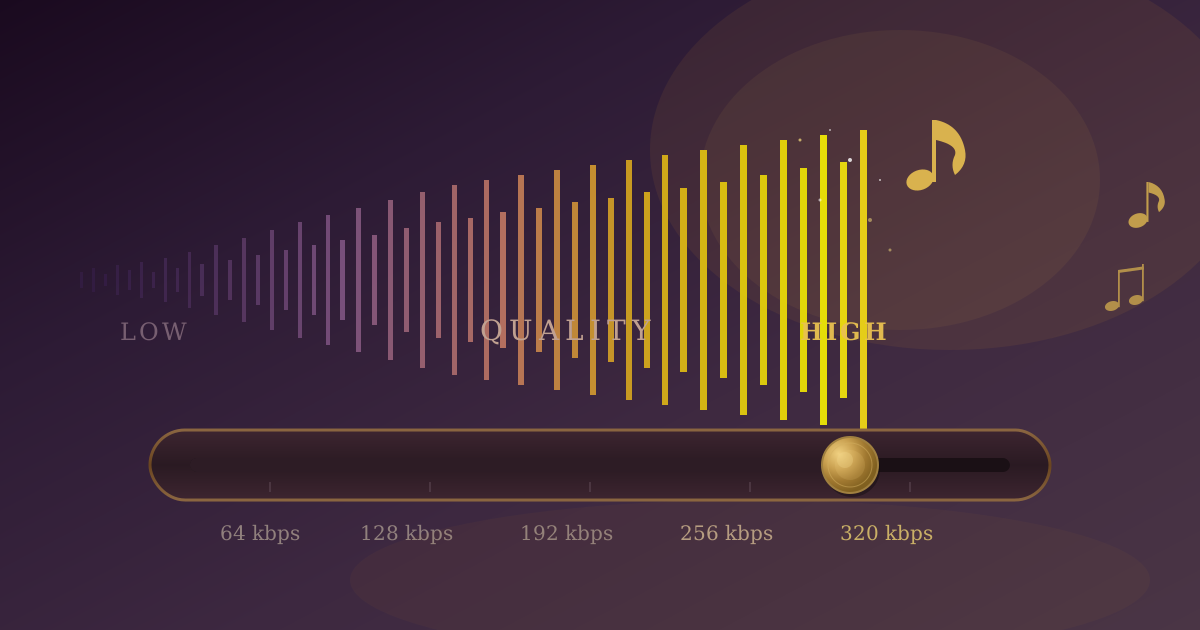
- Choose Quality Settings: Most tools will offer a slider or dropdown for bitrate (e.g., 128kbps, 192kbps, 320kbps). For good quality, choose 192kbps or higher.
- Convert: Click the "Convert" or "Compress" button and wait for the process to complete.
- Download your new, smaller file.
Method 2: Using Desktop Software (Audacity)
For more control, batch processing, or offline work, free desktop software like Audacity is an excellent choice.
Pros: Works offline, powerful editing features, batch processing capabilities, total control over settings.
How to do it:
- Download and Install: If you don't have it, download Audacity from its official website. It's free and available for Windows, macOS, and Linux.
- Open Your File: Launch Audacity and go to
File > Open, then select your WAV file. - Export the File: Go to
File > Export. You will see several options likeExport as MP3,Export as OGG, etc. Choose your desired format. - Set Quality Options: A dialog box will appear. Here you can choose the bitrate mode (Constant, Variable, Average) and the quality level. For a high-quality MP3, select
Constantand320kbps. - Save: Name your file, choose where to save it, and click
Save. - Edit Metadata (Optional): A final screen will appear allowing you to edit the artist, title, album, and other metadata tags for your new file. Fill it out and click
OK.
Best Practices for WAV Compression
To get the best results, keep these tips in mind:
- Always Keep the Original: Treat your master WAV file like a photo negative. Store it safely and only work with copies. You can always create a new compressed file from the WAV, but you can never restore quality to a lossy file.
- Know Your Purpose: Choose the format and bitrate that matches your needs. For a podcast where clarity is key, a 128kbps mono MP3 might be perfect. For music, you'll want 256kbps or 320kbps stereo MP3/AAC.
- Don't Over-Compress: While smaller is better, there's a point of diminishing returns where the audio quality becomes noticeably poor. For most music, it's best not to go below 192kbps.
- Listen to the Result: Always A/B test your compressed file against the original WAV, especially when using lower bitrates. Listen on good headphones to ensure you're happy with the quality.
- Avoid Re-encoding: Never convert one lossy format to another (e.g., MP3 to AAC). Each time you do, you're running the audio through another lossy compression cycle, degrading the quality further. Always compress from your original WAV source.
Conclusion: Finding the Right Balance
WAV file compression isn't about destroying your audio; it's about making it versatile. By understanding the trade-offs between quality and file size, you can make informed decisions that serve your specific needs.
Remember the golden rules: use WAV for recording and editing, FLAC for perfect-quality archiving with reduced file size, and high-bitrate MP3 or AAC for sharing, streaming, and everyday listening. By keeping your original WAV file safe, you give yourself the freedom to export it into any format you need, whenever you need it.
Ready to shrink your audio files without installing any software? Check out our suite of free, secure, and easy-to-use audio conversion tools at Practical Web Tools today!