MP4 to MP3: The Ultimate Guide to Extracting Audio from Video
Have you ever watched a captivating concert performance, an insightful university lecture, or a hilarious podcast interview on video and wished you could take just the audio with you? Whether you want to listen during your commute, at the gym, or while doing chores, you're not alone. The video file is great for viewing, but it's bulky and requires your screen. What you really need is a portable, audio-only version.
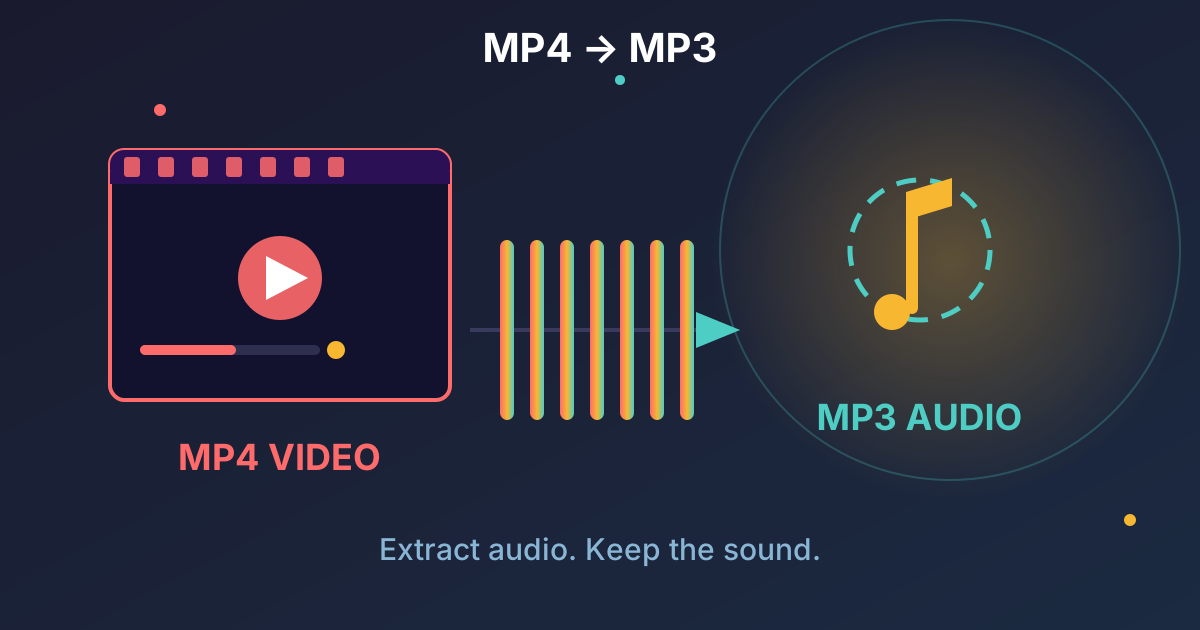
This is where converting MP4 to MP3 comes in. It's the simple process of extracting the audio track from a video file and saving it in a universally compatible format. This comprehensive guide will walk you through everything you need to know, from understanding the file formats to exploring the best methods for conversion—whether you prefer a quick online tool or powerful desktop software. Let's unlock the audio hidden within your videos.
Understanding the Formats: What Are MP4 and MP3?
Before we dive into the 'how,' let's quickly understand the 'what.' Knowing the difference between these two popular formats helps clarify why this conversion is so useful.
What is an MP4 File?
Think of an MP4 file as a multimedia container. It's not just a video file; it's a versatile package that can hold multiple types of data in one place. This typically includes:
- Video streams (often encoded with codecs like H.264/AVC or H.265/HEVC)
- Audio streams (often encoded with codecs like AAC)
- Subtitles
- Still images
- Chapter markers
This container format, officially known as MPEG-4 Part 14, is the de facto standard for web and mobile video because of its excellent balance of quality, compression, and compatibility. When you download a video or record one on your phone, it's almost always an MP4.
What is an MP3 File?
MP3 (MPEG-1 Audio Layer III) is purely an audio format. It revolutionized the music industry by using 'lossy' compression to drastically reduce the size of audio files while maintaining a quality level that is perfectly acceptable to most listeners.
Because of its small file size and widespread support across virtually every device made in the last two decades, MP3 remains the most popular and recognizable digital audio format in the world.
Why Convert MP4 to MP3? The Key Benefits
Stripping the audio from a video file isn't just a technical exercise; it offers several practical advantages that can enhance how you consume content. Here are the main reasons people convert MP4 files to MP3:
- Ultimate Portability: MP3 files can be played on any device imaginable—smartphones, dedicated music players, car stereos, smart speakers, and more. You're not tied to a screen.
- Significant Space Savings: Video data is massive. An hour-long 1080p video can be several gigabytes, while the corresponding MP3 audio track might only be 50-100 megabytes. This saves precious storage on your devices.
- Convenience for Audio-First Content: Many videos, like interviews, lectures, podcasts, and sermons, don't require you to watch the screen. Converting them to MP3 allows you to treat them like any other podcast or audiobook.
- Create Your Own Soundtracks: Extract the audio from music videos, live performances, or movie scenes to create custom playlists and soundtracks.
- Save Mobile Data: Streaming audio uses significantly less bandwidth than streaming video. Converting a video to MP3 for repeated listening can save a lot of data on your mobile plan.
- Offline Access: By converting an online video to MP3, you can listen to it anywhere, anytime, without needing an internet connection.
How to Extract Audio from MP4: Methods Explored
There are several ways to convert MP4 to MP3, each suited for different needs. We'll cover the most popular methods, from simple online tools to more advanced desktop applications.
Method 1: Using a Free Online Converter (The Easiest Way)
For quick, one-off conversions without installing any software, online tools are the perfect solution. They are incredibly user-friendly and work on any operating system through your web browser.
Practical Web Tools offers a suite of secure, privacy-focused converters. Here’s a general step-by-step guide on how these tools work:
- Navigate to the Converter: Open your web browser and go to a trusted online MP4 to MP3 converter.
- Upload Your File: Click the 'Upload' or 'Choose File' button and select the MP4 file from your computer. Most online tools have a file size limit, so this method is best for small to medium-sized videos.
- Select Output Format: Ensure that 'MP3' is selected as the target format.
- Adjust Settings (Optional): Some converters allow you to adjust the audio bitrate. For most cases, the default setting (often around 128kbps or 192kbps) is fine. We'll discuss bitrate in more detail later.
- Start the Conversion: Click the 'Convert' button. The tool will upload your file, process it on its servers, and extract the audio.
- Download Your MP3: Once the process is complete, a download link will appear. Click it to save the new MP3 file to your device.
Why use a privacy-focused tool? When you upload a file, you're sending it to a third-party server. Privacy-focused services like those at Practical Web Tools typically delete your files automatically after a short period, ensuring your data remains your own.
Method 2: Using Desktop Software (For Power Users and Offline Needs)
If you need to convert large files, process multiple videos in a batch, or prefer to work offline, desktop software is the way to go. Here are two excellent, free options.
Converting with VLC Media Player
VLC is more than just a media player; it's a powerful multimedia Swiss Army knife that can handle conversions with ease. Since many people already have it installed, it's an incredibly convenient option.
Step-by-Step Guide:
- Open VLC: Launch the VLC Media Player application.
- Access the Convert Menu: In the top menu bar, click on
Mediaand then selectConvert / Save...(or use the shortcutCtrl+R). - Add Your File: In the 'File' tab, click the
+ Add...button and locate the MP4 file you want to convert. - Proceed to Convert: Click the
Convert / Savebutton at the bottom of the window. - Choose the Profile: In the 'Convert' window, look for the 'Profile' dropdown menu. Click it and select
Audio - MP3. - Set the Destination: Click the
Browsebutton next to 'Destination file'. Choose where you want to save your new file and, importantly, give it a name that ends with.mp3(e.g.,my-audio.mp3). - Start the Process: Click the
Startbutton. The timeline scrubber in VLC will move as if it's playing the file, but it's actually processing the conversion. Once it reaches the end, your MP3 file will be ready in the destination folder.
Extracting and Editing with Audacity
Audacity is a free, open-source digital audio editor. It's a fantastic choice if you want to not only extract the audio but also trim it, remove noise, or adjust the volume before saving.
Note: Audacity needs a free library called FFmpeg to import the audio from video files. The first time you try to open a video file, Audacity will likely prompt you to download it and show you how.
Step-by-Step Guide:
- Open Your Video in Audacity: Go to
File > Open...and select your MP4 file. Audacity will take a moment to analyze the file and import only the audio track onto a new timeline. - Edit the Audio (Optional): This is where Audacity shines. You can select parts of the audio to delete, apply effects like normalization, or fade in/out.
- Export as MP3: Once you're happy with the audio, go to
File > Export > Export as MP3. - Save Your File: A standard 'Save' dialog will appear. Choose your location, name your file, and select the quality settings (bitrate).
- Add Metadata (Optional): The final step allows you to add metadata tags like Artist, Title, Album, etc. This is useful for organizing your audio library. Click
OKto finish the export.
Method 3: Using Command-Line Tools (For Developers and Automation)
For those comfortable with the command line, FFmpeg is the ultimate tool. It's a free, open-source powerhouse that underpins many online converters and desktop applications, including VLC and Audacity. It offers unparalleled control and is perfect for scripting and automation.
The Basic FFmpeg Command:
Open your terminal or command prompt and use the following command:
ffmpeg -i input_video.mp4 -vn -ab 192k output_audio.mp3
Let's break that down:
ffmpeg: Calls the FFmpeg program.-i input_video.mp4: Specifies the input file.-vn: This is the magic flag. It stands for video no, telling FFmpeg to ignore the video stream completely.-ab 192k: Sets the audio bitrate to 192 kilobits per second. You can change this value.output_audio.mp3: The name of your desired output file.
This method is lightning-fast and incredibly efficient, especially for batch-processing hundreds of files with a simple script.
Optimizing Your MP3 Audio Quality
When you convert to MP3, you'll often see an option to choose the 'bitrate.' This setting is the single most important factor determining the balance between file size and audio quality.
Understanding Bitrate: Quality vs. Size
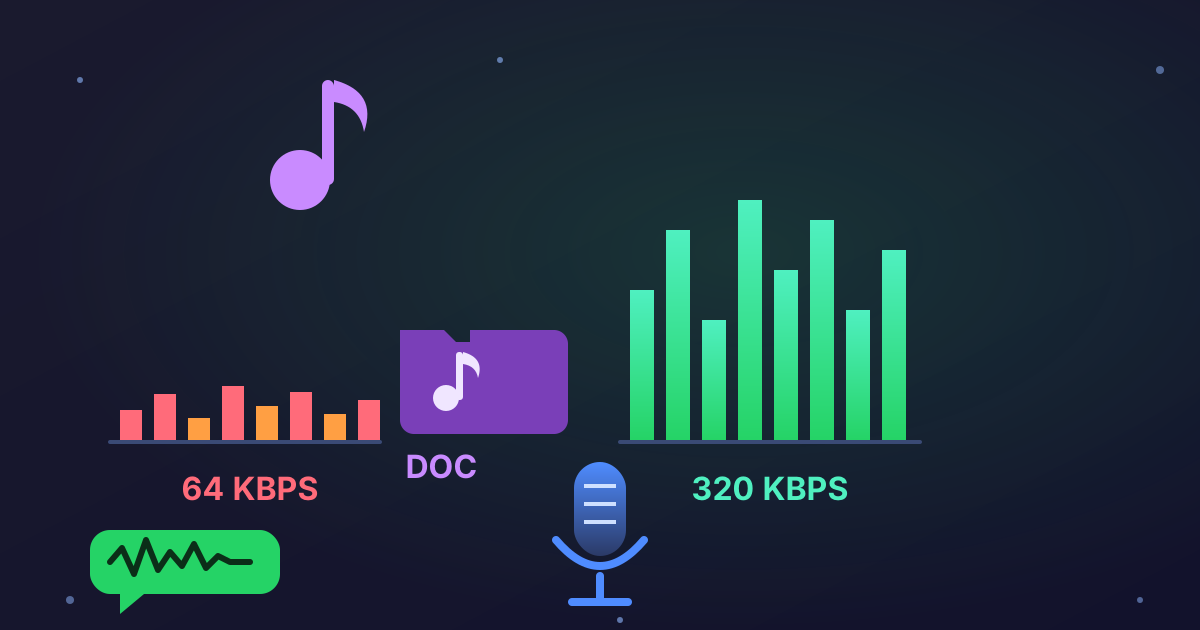
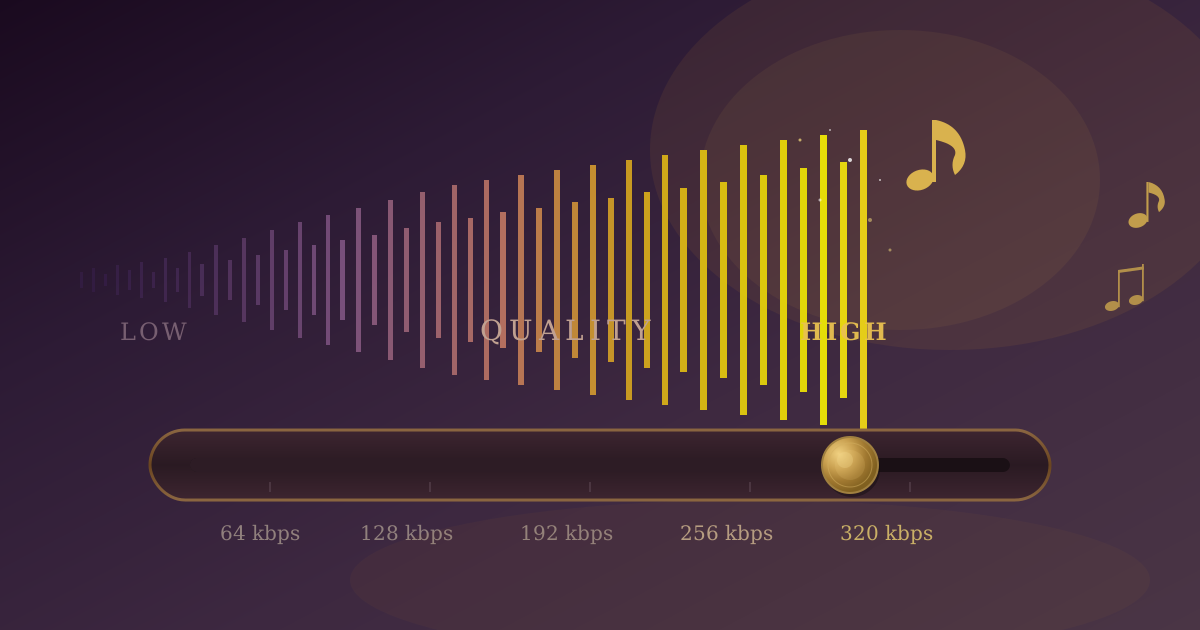
Bitrate is measured in kilobits per second (kbps) and represents the amount of data used to encode one second of audio. A higher bitrate means more data, resulting in better quality and a larger file size.
Here’s a simple guide to choosing the right bitrate:
| Bitrate | Quality Level | Best Use Case |
|---|---|---|
| 96 kbps | Good | Spoken word, podcasts, lectures, audiobooks |
| 128 kbps | Standard | Good for general listening, small file size |
| 192 kbps | High Quality | The sweet spot for most music; great balance |
| 320 kbps | Excellent | Near-CD quality; for audiophiles, large file |
CBR vs. VBR: What's the Difference?
- CBR (Constant Bitrate): Encodes the entire file at a consistent bitrate (e.g., 192kbps). It's predictable and fast.
- VBR (Variable Bitrate): Is more intelligent. It uses a lower bitrate for simpler parts of the audio (like silence) and a higher bitrate for complex sections. This often results in better quality for a slightly smaller file size. If you have the option, VBR is generally the superior choice.
Beyond MP3: Other Audio Formats to Consider
While MP3 is the most common target, your specific needs might call for a different audio format. Understanding the alternatives can help you make the best choice for your project.
For example, if you're doing audio production, you might need an uncompressed format for maximum quality. In this case, converting to WAV is ideal. Practical Web Tools offers a free MP3 to WAV converter for just this purpose.
If you're developing for the web, you might prefer an open-source format. OGG Vorbis is a popular alternative to MP3 for streaming, known for its excellent quality at lower bitrates. If you've already extracted your MP3 and need an OGG version, a dedicated MP3 to OGG tool makes it a one-click process.
Furthermore, the official successor to MP3 is AAC (Advanced Audio Coding). It's the standard format for Apple's ecosystem (iTunes, iPhones) and YouTube. AAC generally provides better audio quality than MP3 at the same bitrate. If your workflow is heavily based on Apple devices, converting to this format using an MP3 to AAC converter can be a smart move.
Your MP4 to MP3 Questions Answered (FAQ)
Is converting MP4 to MP3 legal?
This depends entirely on the source of the video and how you intend to use the audio. It is generally legal to convert content you own (like your own home videos) for personal use. It is against copyright law and the terms of service of many platforms (like YouTube) to download and convert copyrighted material without permission from the owner.
Does converting MP4 to MP3 lose quality?
Yes, but the loss is usually imperceptible. The audio within an MP4 is already compressed (usually in AAC format). When you convert it to MP3, it gets re-compressed. However, if you choose a high bitrate (192kbps or higher), the difference in audible quality will be minimal to non-existent for the vast majority of listeners and devices.
What's the best method to convert MP4 to MP3?
- For ease and convenience: Use a trusted online converter.
- For large files and batch processing: Use desktop software like VLC Media Player.
- For editing and conversion in one step: Use an audio editor like Audacity.
- For automation and control: Use the FFmpeg command-line tool.
From Video to Voice: Your Audio Journey Starts Here
Extracting audio from video is a powerful skill that opens up a new world of convenience and portability. You're no longer tethered to a screen to enjoy your favorite content. Whether you're creating a playlist of live music performances, catching up on lectures during your commute, or simply saving space on your phone, converting MP4 to MP3 is an easy and effective solution.
With the knowledge of different methods—from simple online tools to powerful desktop applications—you can now choose the perfect approach for any situation.
Now that you're an expert on audio extraction, explore the full suite of free, privacy-focused audio tools available at Practical Web Tools. Whatever your conversion or editing needs, we have a secure and simple solution waiting for you. Get started today!