MP4 to MP3: Your Complete Guide to Extracting Audio from Video
Have you ever watched a music video and wished you had the song on your playlist? Or listened to an insightful video podcast and wanted to save the audio for your daily commute? You have the video file—an MP4—but what you really want is the audio track locked inside. This is a common scenario, and the solution is simple: convert the MP4 to an MP3.
Extracting audio from video might sound technical, but it’s surprisingly straightforward. Whether you're looking to create a personal music library from concert recordings, repurpose video content into an audio podcast, or simply save storage space, converting video to audio is an essential skill. This guide will walk you through everything you need to know, from the basic concepts to step-by-step tutorials for every type of user.
Why Convert MP4 to MP3? The Core Benefits
Before we dive into the 'how,' let's explore the 'why.' The advantages of stripping audio from a video file go far beyond just having a song.
- Massive File Size Reduction: Video files are large because they contain a huge amount of visual data. An audio file contains only sound data, making it a fraction of the size. A 5-minute HD video (MP4) could be over 100 MB, while its corresponding MP3 audio might be just 5 MB. This saves precious space on your phone, computer, or cloud storage.
- Universal Portability: MP3 is arguably the most universally supported audio format on the planet. Every smartphone, computer, smart speaker, and car stereo can play an MP3 file without any issues. This makes your audio accessible anywhere, anytime.
- Offline Listening and Convenience: By converting a video from YouTube, Vimeo, or your personal collection to MP3, you can listen to it without an internet connection. This is perfect for flights, subway commutes, or areas with poor reception. You can also easily add these files to music apps and create custom playlists.
- Content Repurposing: For content creators, this is a game-changer. A single video interview can be repurposed into a podcast episode. The audio from a webinar can become a downloadable lesson. This maximizes the reach of your content with minimal extra effort.
A Quick Look at the Formats: MP4 vs. MP3
Understanding the files you're working with is key to a successful conversion. While they often get lumped together, MP4 and MP3 are fundamentally different.
What is MP4? The Digital Container
Think of an MP4 file as a shipping container. Its main job isn't to be the content, but to hold the content together. An MP4 file can contain multiple streams of data, including:
- A video track (often encoded with codecs like H.264 or H.265)
- An audio track (often encoded with a codec like AAC)
- Subtitles
- Chapter markers
- Metadata (title, artist, etc.)
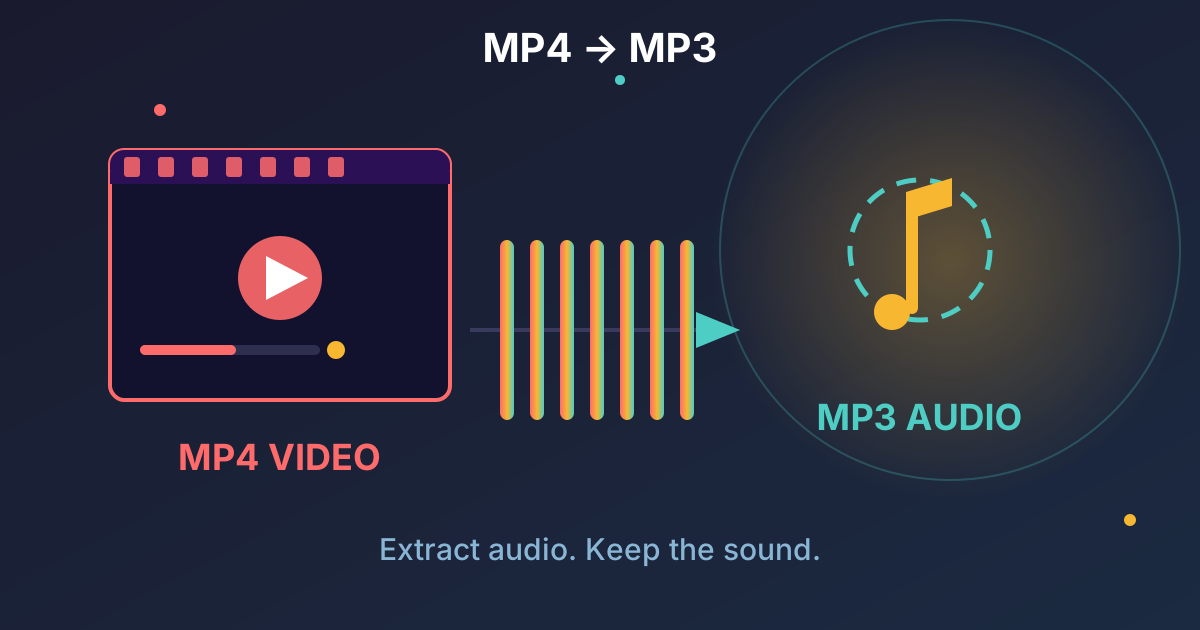
When you convert MP4 to MP3, you are essentially opening this container, throwing away the video, subtitles, and other data, and keeping only the audio stream, which you then save in the MP3 format.
What is MP3? The Audio Standard
MP3 (MPEG-1 Audio Layer III) is a specific format just for audio. It uses lossy compression, a clever technique that reduces file size by permanently removing sound data that the human ear is unlikely to notice. This is why it can achieve such a great balance between file size and acceptable sound quality, which led to its domination of digital music in the late '90s and early 2000s. It remains the go-to format for audio portability and general listening.
How to Convert MP4 to MP3: Methods Explained
There are several ways to extract audio from an MP4 file, each with its own pros and cons. We'll cover the three main methods, from the simplest online tools to powerful desktop software.
Method 1: Online Converters (The Easiest Way)
For quick, one-off conversions without installing any software, online tools are the perfect solution. They work directly in your web browser on any operating system.
- Pros: No installation needed, easy to use, works on any device with a browser.
- Cons: Requires an internet connection, often has file size limits, potential privacy concerns with sensitive files.
Step-by-Step Guide to Using an Online Converter
- Choose a Reputable Tool: Search for a free "MP4 to MP3 converter" online. Look for sites with a clean interface and clear privacy policies.
- Upload Your Video: Most sites will have a prominent "Upload File," "Choose File," or drag-and-drop area. Select the MP4 file from your computer.
- Select Output Format: Ensure that MP3 is selected as the target format.
- Adjust Quality (Optional): Some tools allow you to choose the audio bitrate. For most purposes, 192 kbps or 256 kbps is excellent. 320 kbps offers the highest quality.
- Convert and Download: Click the "Convert" button. The tool will process your file and provide a download link for your new MP3.
Method 2: Desktop Software (For Power Users)
If you need to convert files often, work with large videos, or want more control over the output, desktop software is the way to go.
- Pros: Works offline, no file size limits, batch processing (converting multiple files at once), more advanced options, better security.
- Cons: Requires installation and setup.
Using VLC Media Player (Free and Versatile)
VLC is a free, open-source media player that almost everyone has installed. What many don't know is that it contains a powerful file conversion utility.
- Open VLC: Launch the VLC Media Player application.
- Go to Convert/Save: In the top menu, click Media > Convert / Save... (or use the shortcut Ctrl+R).
- Add Your File: In the File tab, click the + Add... button and select your MP4 video file. Then, click the Convert / Save button at the bottom.
- Choose the Profile: In the Convert window, look for the Profile dropdown menu. Select Audio - MP3 from the list.
- Select Destination: Click the Browse button next to the "Destination file" field. Choose where you want to save your new file and give it a name, making sure it ends with .mp3.
- Start Conversion: Click the Start button. The timeline scrubber in VLC will move as if it's playing the file, but it's actually converting. Once it reaches the end, your MP3 file will be ready in the destination folder.
Method 3: Command-Line with FFmpeg (For Developers)
For the ultimate in speed, control, and automation, nothing beats a command-line tool like FFmpeg. It's the engine that powers many online converters and desktop apps.
- Pros: Extremely fast and efficient, fully customizable, can be scripted for automated workflows.
- Cons: No graphical user interface, requires comfort with the command line.
The Basic FFmpeg Command
After installing FFmpeg and opening your terminal or command prompt, navigate to the folder containing your video. Then, run this command:
ffmpeg -i input.mp4 -vn -q:a 0 output.mp3
Let's break that down:
ffmpeg: The command to run the program.-i input.mp4: Specifies the input file.-vn: A crucial flag that means video no—telling FFmpeg to ignore the video stream completely.-q:a 0: This sets the audio quality.-q:a 0uses a variable bitrate for the best possible quality.output.mp3: The name of your output file.
Optimizing Your MP3: Bitrate, Sample Rate, and Quality
When you convert a file, you often see settings like "bitrate." Understanding these can help you get the perfect balance of quality and file size for your needs.
What is Bitrate and Why Does It Matter?
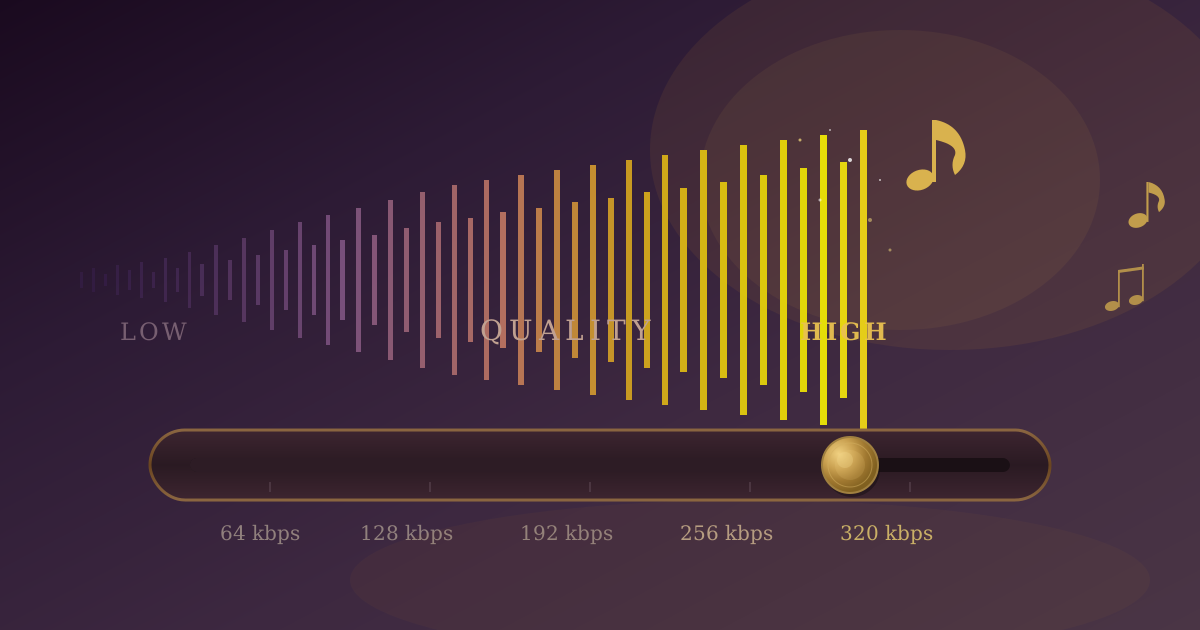
Bitrate, measured in kilobits per second (kbps), is the amount of data used to represent one second of audio. A higher bitrate means more data, which generally results in better audio quality and a larger file size.
Here's a quick guide to common MP3 bitrates:
| Bitrate | Quality | Use Case |
|---|---|---|
| 128 kbps | Standard | Good for podcasts, lectures, and general listening. |
| 192 kbps | High Quality | A great balance of quality and size for music. |
| 256 kbps | Excellent | Near-CD quality, good for most listeners. |
| 320 kbps | Maximum (MP3) | Highest possible MP3 quality, for audiophiles. |
For most people, converting at 192 kbps is the sweet spot.
Beyond MP3: Exploring Other Audio Formats
While MP3 is the king of compatibility, it's not the only audio format out there. Depending on your needs, another format might be more suitable. Once you've extracted your audio, you can easily convert it to other types.
-
Lossless vs. Lossy: Remember, MP3 is a lossy format. If you need a perfect, 1:1 copy of the source audio for professional editing or archiving, a lossless format is better.
-
WAV (Waveform Audio File Format): This is an uncompressed, lossless format, meaning it contains all the original audio data. It's the standard for professional audio editing, but the files are very large. For tasks that demand the highest fidelity, like mastering, you might need an uncompressed format. Our free MP3 to WAV tool can handle that conversion when you need top-tier quality.
-
FLAC (Free Lossless Audio Codec): FLAC is the best of both worlds: it's lossless (perfect quality) but also compressed, so files are about 50-60% the size of WAV files. If you're an audiophile looking to archive your extracted audio, you can use our MP3 to FLAC converter for archival purposes.
-
OGG (Ogg Vorbis): This is an open-source, patent-free alternative to MP3. It often provides slightly better quality at similar bitrates and is popular in video games and with open-source enthusiasts. For specific applications like web development, you might need the OGG format. Our MP3 to OGG tool provides a quick and easy way to make that switch.
Your Audio, Unleashed
Converting MP4 to MP3 is a simple yet powerful process that unlocks the audio content trapped inside your video files. Whether you choose the convenience of an online tool, the power of desktop software like VLC, or the precision of FFmpeg, you now have the knowledge to extract audio for any purpose.
You can build a workout playlist from your favorite music videos, catch up on interviews during your drive, or transform your video library into a portable audio collection. The possibilities are endless.
Now that you're an expert on extracting audio, you have the power to manage your digital media like never before. For all your other audio needs—from converting formats to editing files—explore the full suite of free and privacy-focused tools at Practical Web Tools.