Remove Image Backgrounds Free & Instantly In Your Browser

You have the perfect photo. The subject looks great, the lighting is just right, but the background... it's distracting, cluttered, or just plain wrong. For years, the solution was to fire up expensive, complicated software like Adobe Photoshop and painstakingly trace around your subject for what felt like an eternity. The learning curve was steep, the cost was high, and the process was tedious.
Thankfully, that era is over. Today, powerful AI allows you to remove image backgrounds for free, instantly, and right within your web browser. No downloads, no subscriptions, and no design degree required.
This comprehensive guide will walk you through everything you need to know about browser-based background removal. We'll explore why it's such a game-changing feature, provide a step-by-step tutorial, offer pro tips for getting the best results, and discuss the importance of using tools that respect your privacy.
Why You Might Need to Remove an Image Background
Removing the background from an image isn't just a neat trick; it's a fundamental technique in digital design and marketing that serves a wide range of practical purposes. A clean, transparent background can elevate an image from amateur to professional in seconds.
For E-commerce and Product Photography
A clean, white, or uniform background is the industry standard for product listings on platforms like Amazon, Shopify, and Etsy. Why?
- Focus: It removes all distractions, making the product the undeniable hero of the shot.
- Consistency: It creates a cohesive and professional look across your entire product catalog.
- Clarity: It allows customers to see the product's details without any visual clutter.
A transparent background gives you the flexibility to place your product on any promotional graphic or advertisement with ease.
For Graphic Design and Marketing
Marketers and designers constantly need to isolate subjects from their backgrounds to create compelling visuals. This includes:
- Social Media Posts: Creating eye-catching graphics by layering subjects over branded colors, patterns, or other images.
- Website Banners: Featuring team members or products on a website's hero image without a clunky background box.
- Advertisements: Designing clean, effective ads for digital campaigns.
- Logos: Ensuring a company logo has a transparent background so it can be placed seamlessly on any material, from a website header to a t-shirt.
For Personal Projects and Profile Pictures
The need for a clean background isn't limited to professionals. You might want to:
- Create a Professional Headshot: Replace a messy home office background with a solid neutral color or a subtle office setting.
- Design Custom Creations: Make fun family photos for holiday cards, create personalized stickers, or design memes.
- Build a Standout Profile Picture: Isolate your portrait and add a vibrant, colorful background to make your social media profile pop.
The Evolution of Background Removal
To appreciate how easy background removal is today, it's helpful to understand how difficult it used to be.
The Manual Method: Desktop Software
For decades, the go-to tool for this task was Adobe Photoshop. The process involved several tools, each with its own learning curve:
- Magic Wand Tool: Good for simple, solid-color backgrounds, but often failed with complex scenes, leaving jagged edges or selecting parts of the subject.
- Lasso Tool: Required a very steady hand to manually trace around the subject.
- Pen Tool: The most precise method, requiring you to create a vector path by clicking point-by-point around the subject. It's incredibly powerful but also famously difficult and time-consuming to master.
These methods are effective in the hands of a skilled professional, but for the average user, they represent a significant barrier of time, cost, and complexity.
The Modern Solution: AI-Powered Browser Tools
Enter the age of Artificial Intelligence. Modern background removal tools, like the one offered by Practical Web Tools, use sophisticated machine learning models. These models have been trained on millions of images to instantly identify the foreground (the subject) and the background.
This AI-driven approach offers incredible benefits:
- Speed: What took 20 minutes of manual work now takes about 5 seconds.
- Ease of Use: The process is fully automated. You just upload an image and click a button.
- Accessibility: These tools work on any device with a web browser—no powerful computer needed.
- Cost: They are completely free to use.
A Step-by-Step Guide to Using a Free Background Remover
Ready to see the magic for yourself? Let's walk through the simple process of removing a background using a free, privacy-focused online tool. We'll use our own tool for this example.
Step 1: Choose a Good Image
While AI is powerful, starting with a good source image will always yield the best results. Look for an image where:
- The subject is in sharp focus.
- There is a clear contrast between the subject and the background.
- The edges of the subject are well-defined.
Images with very fine details like wispy hair or fur against a similarly colored, complex background can be challenging for any tool, but modern AI handles them better than ever before.
Step 2: Navigate to the Tool
Open your web browser and go to the Practical Web Tools Background Remover. A key benefit of our toolset is its focus on privacy. Your images are processed directly in your browser and are never uploaded to a server, ensuring your data remains your own.
Step 3: Upload Your Image
You can either drag and drop your image file directly onto the webpage or click the upload button to select a file from your computer or phone. The tool accepts common formats like JPG, PNG, and WebP.
Step 4: Let the AI Work Its Magic
This is the best part. The moment you upload the image, the AI model gets to work. There are no settings to adjust or lines to draw. Within seconds, you will see a preview of your image with the background completely removed, replaced by a standard checkerboard pattern that indicates transparency.
Step 5: Review and Download
Examine the preview to ensure the result meets your expectations. The AI is incredibly accurate at detecting edges around people, products, and animals. Once you're happy, simply click the "Download" button. The image will be saved to your device as a PNG file with a fully transparent background, ready for your project.
What Happens After the Background is Removed?
Downloading your new image is simple, but understanding the file format is key to using it correctly. The magic of a removed background lies in a concept called transparency.
The Importance of Transparency: PNG vs. JPG
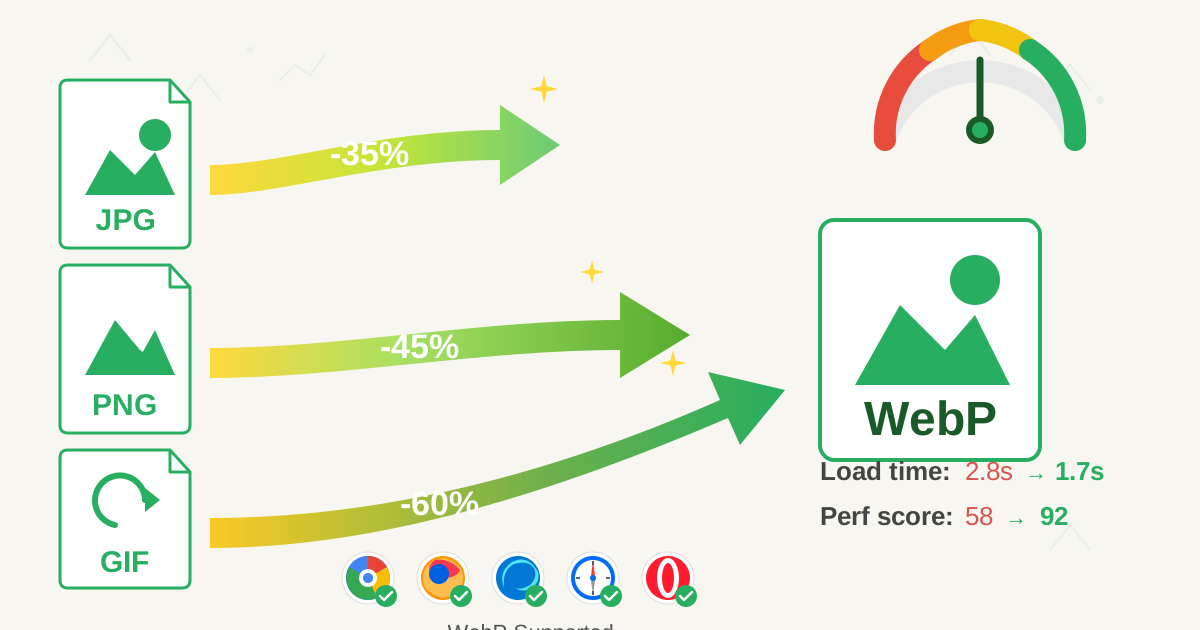
Not all image formats are created equal. The two most common formats on the web are JPG and PNG, and they have one crucial difference for this task:
-
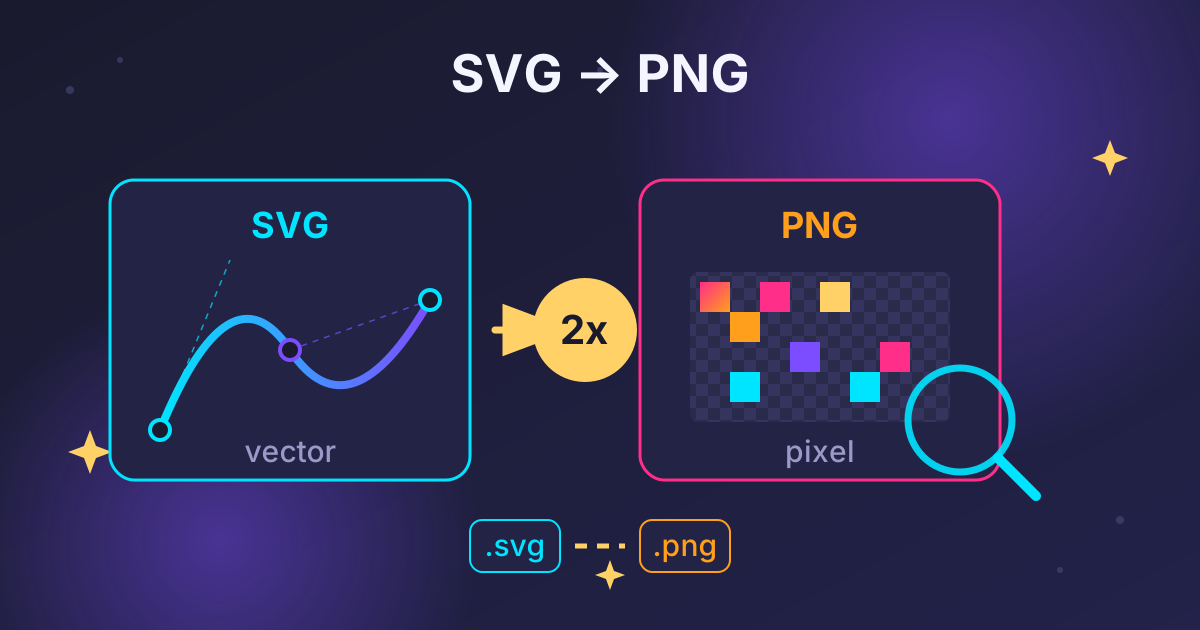
JPG (or JPEG): This format is great for photographs because it uses compression to keep file sizes small. However, it does not support transparency. If you save an image with a removed background as a JPG, the transparent area will be filled with a solid color, usually white.
-
PNG: This format is perfect for graphics, logos, and images requiring transparency. It includes an "alpha channel," which is extra information that tells each pixel how transparent it should be. This is why background remover tools always provide the final image as a PNG.
If you have an image in JPG format and need it in PNG for other reasons (even before removing the background), you can use a simple conversion tool. Our free JPG to PNG converter can handle this in seconds, right in your browser.
What About Other Formats like HEIC?
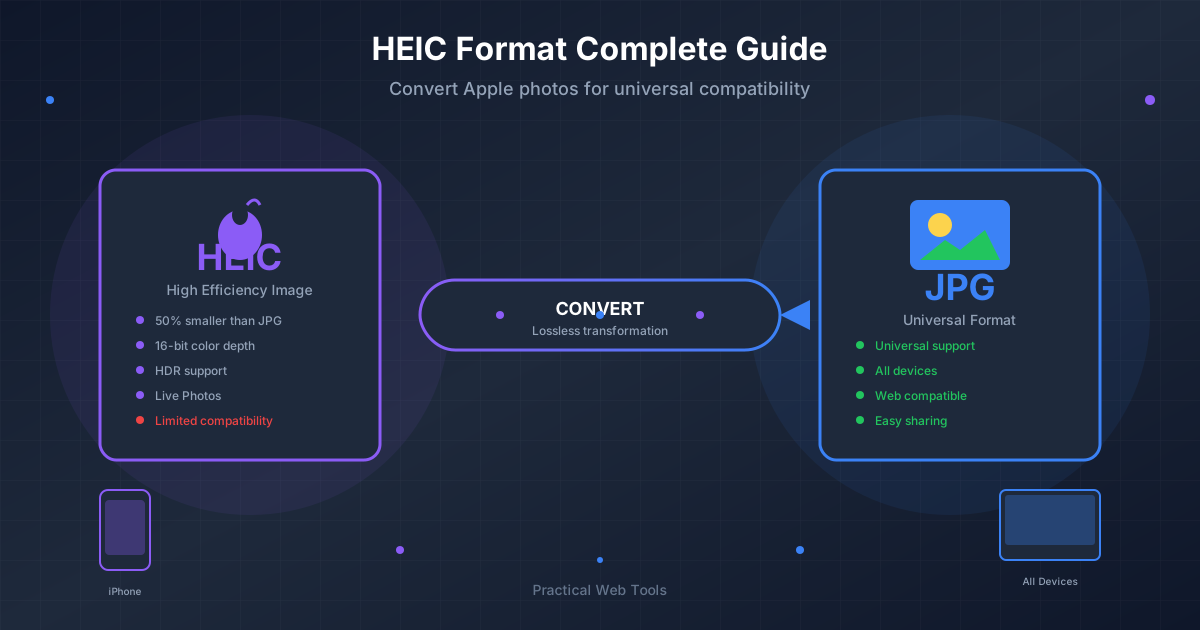
If you're an iPhone user, your photos are likely saved in the HEIC (High-Efficiency Image Container) format. While it's an efficient format, it's not as universally supported on the web as JPG. Many online tools, including some background removers, may not accept HEIC files directly.
No problem! The solution is a quick, one-step conversion. Before uploading your image to the background remover, you can use a HEIC to JPG converter to change it into a compatible format. This ensures you can edit any photo, regardless of its original format.
Pro Tips for Flawless Background Removal
While the process is automated, you can follow a few best practices to ensure you get a pixel-perfect result every time.
| Tip | Why It Matters | Action |
|---|---|---|
| Start with High Resolution | Higher resolution gives the AI more pixel data to work with, resulting in cleaner, more precise edges. | Use the original, uncompressed photo whenever possible. Avoid using low-quality screenshots or social media downloads. |
| Ensure Good Lighting | Clear, even lighting helps define the subject's edges, making it easier for the AI to distinguish from the background. | Avoid images with heavy shadows falling across the subject or very low-light conditions. |
| Check Intricate Edges | Areas like hair, fur, or semi-transparent objects (like a veil or glass) are the ultimate test for any tool. | Zoom in on the downloaded PNG to inspect these areas. Modern AI is excellent but not always perfect. |
| Consider the New Background | If you plan to place the subject on a new background, think about color and lighting consistency. | A brightly lit subject will look out of place on a dark, moody background, and vice-versa. |
Are Free Online Background Removers Safe?
When you use an online tool, it's natural to wonder, "What happens to my photos?" This is a valid concern, and the answer depends entirely on the service you use. Many websites upload your files to their servers for processing. This raises questions about data privacy, security, and how your images might be used.
This is where a privacy-first approach makes a difference. Practical Web Tools is built on the principle of client-side processing.
This means that when you use our Background Remover, your image file is never sent over the internet to our servers. All the AI processing happens securely and privately within your own web browser. The tool uses your computer's resources to perform the task, and your data never leaves your device. This is the most secure way to edit personal or sensitive images online.
Conclusion: Unleash Your Creativity
The ability to remove an image background is no longer a skill reserved for professional graphic designers with expensive software. Thanks to free, AI-powered browser-based tools, anyone can now isolate a subject from its photo in a matter of seconds.
This simple but powerful capability opens up a world of creative possibilities, whether you're a small business owner polishing product photos, a marketer designing your next campaign, or just someone looking to have fun with their personal pictures. By choosing a tool that is not only effective but also private, you can work with confidence and efficiency.
Ready to transform your images with a clean, professional look?
Give our free and completely private Background Remover a try today and see how easy it can be!