The Ultimate Guide to HEX, RGB & HSL Color Codes
Try the free tool
Color Picker →Pick colors visually and convert between HEX, RGB, and HSL. Generate complementary palettes and copy CSS values instantly.
Your Journey into the Vibrant World of Digital Color
Color is the lifeblood of the web. It evokes emotion, guides the user's eye, and defines a brand's identity. But for anyone working on a digital project—be it a website, an app, or a graphic design piece—the world of color can seem unnecessarily complex. You've found the perfect shade of blue, but the software is asking for something called a HEX code. Your developer mentions an RGBA value for transparency. A designer sends over HSL values. What does it all mean?
If you've ever felt lost in this alphabet soup of color codes, you're not alone. Understanding the difference between HEX, RGB, and HSL is a fundamental skill for web designers, developers, and digital creators. It's the key to communicating color accurately and implementing it effectively.
This comprehensive guide will demystify these color models once and for all. We'll break down how each one works, explore their unique strengths and weaknesses, and provide practical advice on which one to use for your specific needs. By the end, you'll be able to navigate any color picker with confidence and wield digital color like a pro.
What Are Digital Color Models?
Before we dive into the specifics of HEX, RGB, and HSL, let's establish a core concept: digital color models. A color model is a system for creating a full range of colors from a small set of primary colors. The screen you're reading this on right now doesn't contain millions of tiny, different-colored pixels. Instead, it contains pixels made up of elements that can produce red, green, and blue light.
By mixing these three colors of light in varying intensities, your screen can reproduce millions of different shades. This is known as an additive color model, because you start with black (the absence of light) and add light to create color. This is the foundation of the RGB model and, by extension, the HEX model.
HSL works a bit differently, attempting to represent color in a way that is more intuitive to how humans perceive it. It's less about mixing light and more about defining a color's intrinsic properties. All three models are simply different languages for describing the exact same thing: a specific color on a digital display.
The HEX Color Code: The Web's Favorite Shorthand
If you've ever looked at the source code of a website (specifically a CSS file), you've almost certainly encountered a HEX code. It's the six-character combination of letters and numbers preceded by a hash symbol (e.g., #FFFFFF for white).
How HEX Codes Work
HEX stands for hexadecimal, which is a base-16 numbering system. While our standard decimal system uses ten digits (0-9), the hexadecimal system uses sixteen: the digits 0-9 and the letters A-F.
A standard HEX color code is a representation of an RGB color. The six characters are actually three pairs, representing the intensity of Red, Green, and Blue light, respectively.
#RRGGBB
- RR: The first two characters represent the Red value.
- GG: The middle two characters represent the Green value.
- BB: The last two characters represent the Blue value.
Each two-character pair can have a value from 00 (zero intensity) to FF (full intensity). In our familiar decimal system, this range is 0 to 255.
For example:
#FF0000: Full intensity Red, zero Green, zero Blue. The result is pure red.#00FF00: Zero Red, full intensity Green, zero Blue. The result is pure green.#0000FF: Zero Red, zero Green, full intensity Blue. The result is pure blue.#000000: Zero intensity for all colors. The result is black.#FFFFFF: Full intensity for all colors. The result is white.#E34234: A specific shade of vermilion.
There is also a three-digit shorthand for HEX codes where the R, G, and B pairs have identical characters. For example, #FF66CC can be shortened to #F6C.
Pros and Cons of Using HEX
Pros:
- Universally Supported: HEX is the most widely recognized and supported color model across all web browsers and design software.
- Concise: It's a short, compact way to represent a color, making it easy to copy and paste.
- Standardized: It's the de facto standard for web colors, ensuring consistency across different platforms.
Cons:
- Not Intuitive: Looking at a code like
#4A90E2doesn't immediately tell you what kind of blue it is or how to make it slightly darker. - Limited Transparency: Standard 6-digit HEX codes do not support transparency. While an 8-digit version (
#RRGGBBAA) exists, browser support was historically inconsistent, leading developers to prefer RGBA for opacity.
The RGB & RGBA Color Model: The Building Blocks of Light
The RGB color model is the direct, foundational model for digital displays. It defines a color by specifying the intensity of its red, green, and blue components.
Understanding the RGB Additive Model
As mentioned earlier, RGB is an additive model. Think of it as mixing three colored lights in a dark room. The syntax is rgb(red, green, blue).
Each of the three values is an integer ranging from 0 (no intensity) to 255 (full intensity). This gives us 256 possible values for each channel, resulting in a total of 256 x 256 x 256 = 16,777,216 possible colors.
This is the exact same color range as standard HEX codes. In fact, they are direct translations:
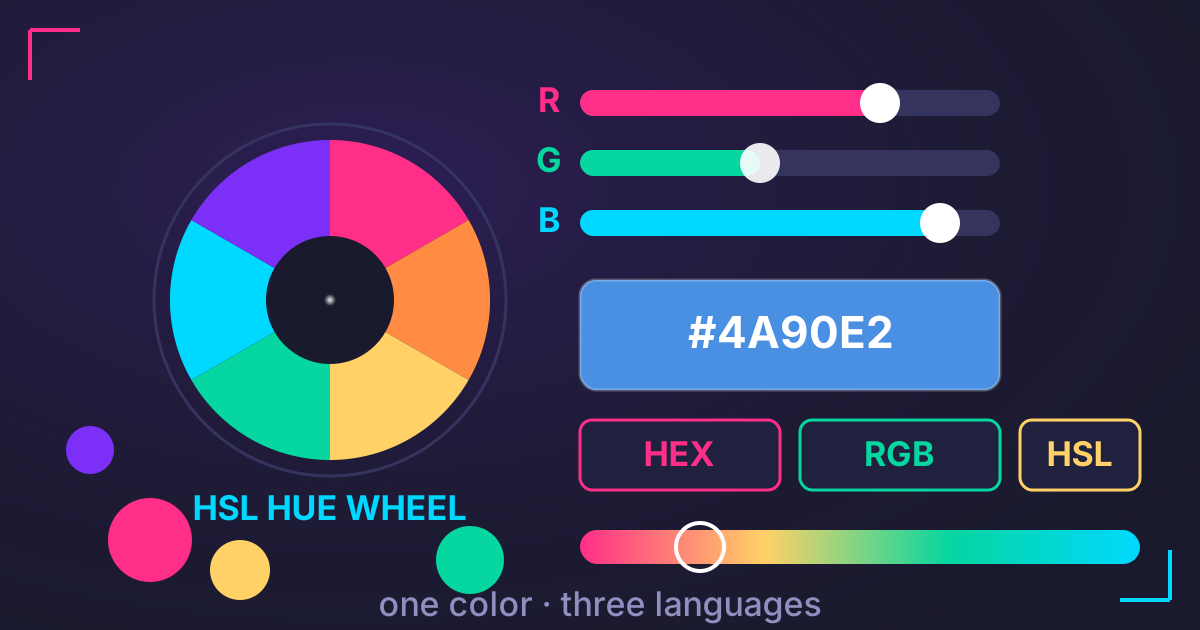
#FF0000is the same asrgb(255, 0, 0).#FFFFFFis the same asrgb(255, 255, 255).#4A90E2is the same asrgb(74, 144, 226).
Introducing Alpha: The 'A' in RGBA
One of the biggest advantages of the RGB model in CSS is its extension, RGBA. The 'A' stands for 'alpha,' which controls the opacity or transparency of the color.
The syntax is rgba(red, green, blue, alpha). The alpha value is a number between 0.0 (fully transparent) and 1.0 (fully opaque).
rgba(255, 0, 0, 1.0): A fully opaque, pure red.rgba(255, 0, 0, 0.5): A semi-transparent pure red.rgba(255, 0, 0, 0.0): A fully transparent red (it will be invisible).
This is incredibly useful for creating effects like transparent overlays, faded text, and layered backgrounds without affecting the opacity of child elements.
Pros and Cons of Using RGB/RGBA
Pros:
- Direct Representation: It's a direct representation of how screens produce color.
- Transparency Control: RGBA provides excellent and widely supported control over opacity.
- Slightly More Readable: For some,
rgb(0, 0, 255)is more immediately understandable as 'blue' than#0000FF.
Cons:
- Less Intuitive for Adjustments: Similar to HEX, it's not easy to guess how to change
rgb(74, 144, 226)to be a lighter, less saturated version of the same blue. - More Verbose: It takes up more space in a stylesheet compared to a 3- or 6-digit HEX code.
The HSL & HSLA Color Model: The Intuitive Choice
While HEX and RGB are based on the mechanics of computer hardware, HSL is designed around the way humans perceive color. It stands for Hue, Saturation, and Lightness.
Breaking Down HSL: Hue, Saturation, and Lightness
The HSL model allows you to define a color in a more descriptive, human-friendly way. The syntax is hsl(hue, saturation, lightness).
- Hue: This is the pure color itself. It's represented as an angle on the color wheel, from
0to360degrees.0is red,120is green, and240is blue. - Saturation: This is the intensity or purity of the color. It's represented as a percentage from
0%to100%.0%is grayscale (desaturated), while100%is the full, vibrant color. - Lightness: This defines the brightness of the color, also as a percentage from
0%to100%.0%is black,100%is white, and50%is the 'true' hue.
This model is incredibly powerful for creating color variations. Need a lighter version of your primary blue for a button's hover state? Simply increase the Lightness value. Need a more muted version for a disabled state? Decrease the Saturation.
For example, starting with a primary blue hsl(210, 79%, 56%):
- Lighter shade:
hsl(210, 79%, 70%)(Increased lightness) - Darker shade:
hsl(210, 79%, 40%)(Decreased lightness) - Muted version:
hsl(210, 40%, 56%)(Decreased saturation)
The Power of HSLA for Transparency
Just like RGBA, HSL has an alpha channel counterpart: HSLA. The syntax is hsla(hue, saturation, lightness, alpha). It works identically to the alpha channel in RGBA, taking a value from 0.0 to 1.0 to control opacity.
Pros and Cons of Using HSL/HSLA
Pros:
- Highly Intuitive: It's very easy to understand and adjust colors. Creating palettes, shades, and tints is straightforward.
- Human-Readable: The values directly correspond to concepts we can easily visualize.
- Great for Theming: Excellent for creating programmatic color schemes where you need to calculate variations based on a root color.
Cons:
- Less Common: While fully supported in all modern browsers, it's less prevalent than HEX and RGB in design tools and codebases.
- Abstract: It's one step removed from how a computer actually generates the color, which can feel less direct to some developers.
HEX vs. RGB vs. HSL: Which One Should You Use?
So, with three great options, which one is the best? The answer depends on the context. Here’s a quick-reference table to help you decide.
| Feature | HEX (#RRGGBB) |
RGB (rgb(R,G,B)) |
HSL (hsl(H,S,L)) |
|---|---|---|---|
| Primary Use Case | The standard for solid, opaque web colors. | When you need opacity control (RGBA). | When you need to programmatically create color variations. |
| Readability | Poor. Abstract code. | Medium. Values are numeric but don't describe the color. | High. Values describe the color in human-centric terms. |
| Transparency | No (unless using 8-digit, less common syntax). | Yes, via RGBA. Very common and reliable. | Yes, via HSLA. Also very reliable. |
| Ease of Edit | Difficult to predict results. | Difficult to predict results. | Very easy to create lighter/darker/muted shades. |
In practice, many developers use a combination:
- HEX for the main, solid brand colors in a style guide because it's short and easy to share.
- RGBA for any element that needs transparency, like modal backdrops or semi-transparent buttons.
- HSL within CSS preprocessors (like Sass) or JavaScript to dynamically generate entire color themes from a few base colors.
Managing Your Web Project's Color Assets
Once you've settled on your color scheme, the next step is implementation. This involves creating CSS stylesheets, exporting image assets, and preparing design files. Proper management of these assets is crucial for project consistency and efficiency. Often, you'll need to package all these related files together to share with a client, hand off to a developer, or simply create a backup.
This is where understanding basic file management becomes essential. After finalizing your assets, you'll want to group them into a single, portable archive. A great first step is to use a free online tool to Compress Files. This bundles everything into a ZIP file, reducing the total size and making it easy to send via email or upload to a server. If you receive a project from a collaborator, you'll similarly need to Decompress Files to access the contents.
Different teams and systems sometimes have different standards for file archives. While ZIP is common, other formats like 7Z offer even better compression. If you need to meet a specific requirement, you can easily use a converter to change your archive from ZIP to 7Z, ensuring your project assets are delivered in the correct format.
Conclusion: Paint Your Web with Confidence
Understanding digital color models is no longer a dark art. By grasping the core concepts behind HEX, RGB, and HSL, you've unlocked the ability to speak the language of color fluently.
Let's recap the key takeaways:
- HEX: The compact, universal standard for solid web colors.
- RGB/RGBA: The foundational model for how screens work, and the go-to choice for adding transparency.
- HSL/HSLA: The most intuitive model for human understanding, perfect for creating dynamic color variations.
There is no single "best" color model—only the right tool for the job. Your choice will depend on whether you prioritize conciseness, opacity control, or intuitive editing. By using them in combination, you can build beautiful, consistent, and maintainable web projects.
Now that you've mastered the theory behind the color picker, put it into practice. And as you build your next project, remember that Practical Web Tools offers a full suite of free, privacy-focused utilities to help streamline every part of your workflow.