WebP vs JPG vs PNG: Which Image Format Is Best for the Web?

Choosing the right image format for your website can feel like a small detail, but it has a massive impact on your site's performance, user experience, and even your SEO rankings. A fraction of a second in loading time can be the difference between a new customer and a lost one. So, which format reigns supreme in the battle for web dominance: the classic JPG, the versatile PNG, or the modern WebP?
This comprehensive guide will demystify these image formats. We'll explore the technical details, compare them head-to-head, and provide actionable advice on when to use each one. By the end, you'll be equipped to make informed decisions that make your website faster, more efficient, and more visually appealing.
What is JPG (JPEG)? The Veteran of Photography
JPG, or more accurately JPEG (Joint Photographic Experts Group), is the most common image format you'll encounter online and offline. Developed in 1992, its primary goal was to make large photographic files smaller, making them easier to share and store.
JPG uses a method called lossy compression. This means that when you save an image as a JPG, some of the image data is permanently discarded to reduce the file size. While this sounds dramatic, the algorithm is incredibly clever, primarily removing information that the human eye is least likely to notice. You can control the level of compression, creating a trade-off between file size and image quality. A higher compression level results in a smaller file but more visible artifacts and a loss of detail.
Key Characteristics of JPG
- Compression: Lossy
- Color Depth: Supports 24-bit color (16.7 million colors), making it ideal for displaying complex color gradients and subtle variations in tone.
- Transparency: Does not support transparency. Any transparent areas in an original image will be filled with a solid color (usually white) when saved as a JPG.
- Best For: Photographs, complex images with many colors, gradients, and realistic scenes.
Pros and Cons of JPG
| Pros | Cons |
|---|---|
| Excellent for photographs and realistic images. | Lossy compression means quality degrades with each save. |
| Can achieve very small file sizes. | Does not support transparency. |
| Widely supported by all browsers, devices, and software. | Not suitable for images with sharp lines or text (e.g., logos, screenshots), as compression can create fuzzy artifacts. |
| Adjustable compression levels give you control. | Quality loss can be significant at high compression ratios. |
What is PNG? The Master of Transparency and Detail
PNG (Portable Network Graphics) was developed in the mid-1990s as a superior, patent-free replacement for the GIF format. Unlike JPG, PNG uses lossless compression. This means that no image data is lost when the file is compressed. Every single pixel is preserved, so the image quality remains identical to the original, no matter how many times you save it.
This lossless approach makes PNG the go-to format for images where clarity and precision are paramount, such as logos, icons, illustrations, and screenshots with text. Its standout feature is its support for transparency. PNGs can have an alpha channel, which allows for varying levels of opacity, from fully transparent to fully opaque. This is crucial for web design, allowing you to place logos or icons over different colored backgrounds seamlessly.
Key Characteristics of PNG
- Compression: Lossless
- Color Depth: Supports PNG-8 (256 colors) and PNG-24 (16.7 million colors).
- Transparency: Full alpha channel support, allowing for partial transparency.
- Best For: Logos, icons, text-based images, illustrations, and any image that requires a transparent background.
Pros and Cons of PNG
| Pros | Cons |
|---|---|
| Lossless compression preserves all image detail. | File sizes are significantly larger than JPGs, especially for photographs. |
| Supports full alpha channel transparency. | Not the ideal choice for large, complex photographic images. |
| Excellent for images with sharp edges, text, and solid colors. | Can slow down page load times if used excessively or incorrectly. |
| Universal browser and software support. | Does not support CMYK color space for print. |
If you have a photograph as a JPG but need it to have a transparent background for a design project, you'll need to convert it. This typically involves two steps: first, using a tool to isolate the subject, like our free Background Remover, and then saving the resulting image as a PNG to preserve the transparency.
What is WebP? The Modern Contender for the Web
WebP is a modern image format developed by Google in 2010 with a single, clear mission: to create smaller, better-looking images to help make the web faster. It's the ultimate hybrid, offering the best of both worlds—and then some.
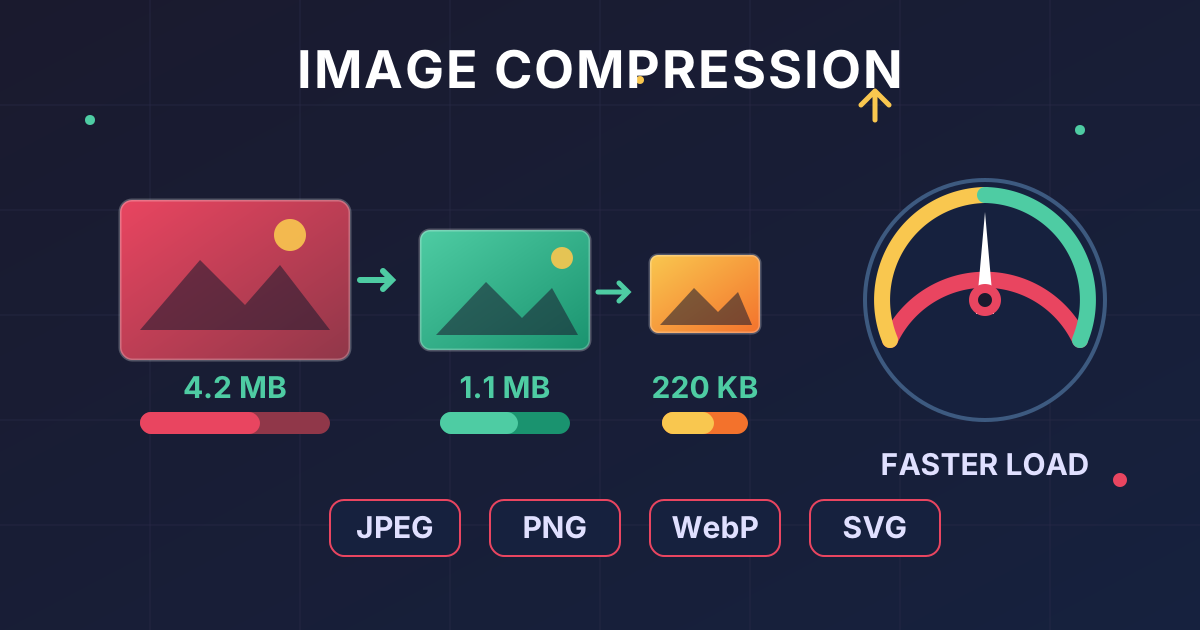
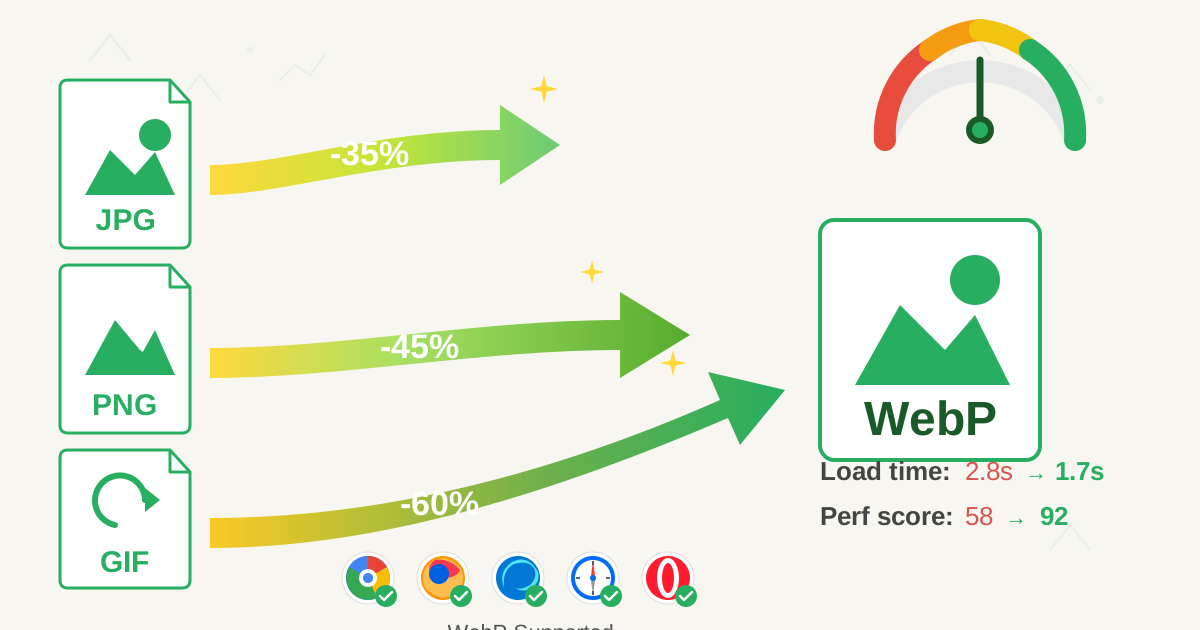
WebP is uniquely versatile because it supports both lossy and lossless compression. A lossy WebP image is, on average, 25-34% smaller than a comparable JPG image at the same quality index. A lossless WebP image is typically 26% smaller than a comparable PNG. This incredible efficiency means faster load times and less bandwidth consumption without a noticeable drop in quality.
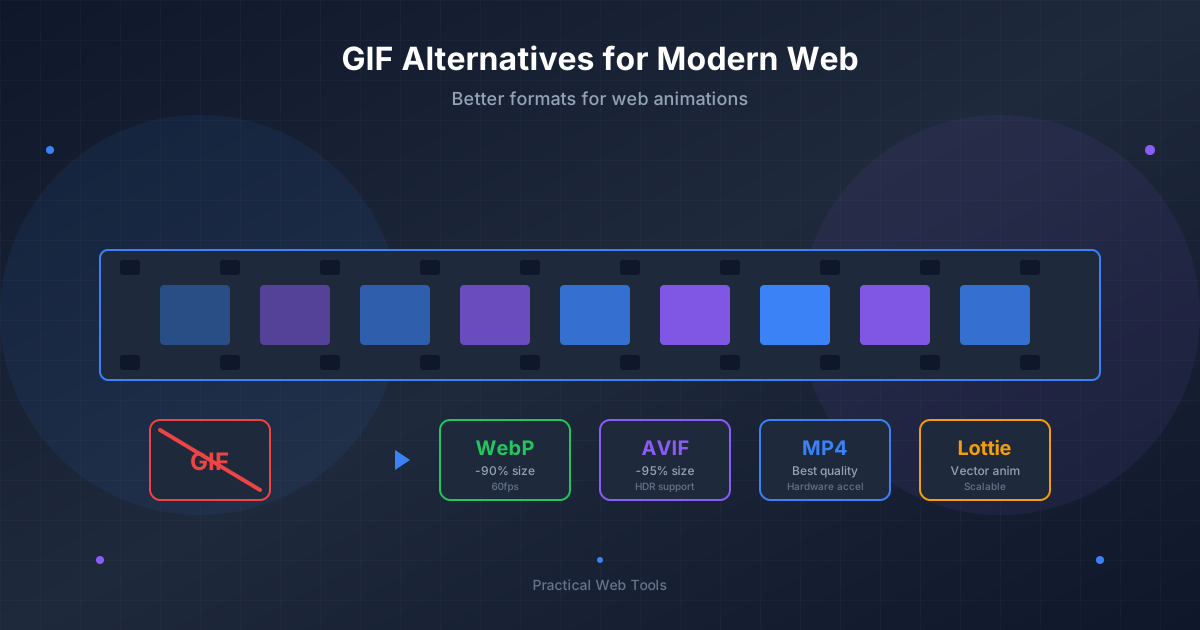
Furthermore, WebP supports transparency (like PNG) even in its lossy mode, and it also supports animation (like GIF), making it a potential one-format-fits-all solution for the modern web.
Key Characteristics of WebP
- Compression: Both lossy and lossless options are available.
- Color Depth: Supports 24-bit RGB color and an 8-bit alpha channel.
- Transparency: Supports transparency with both lossless and lossy compression.
- Best For: Almost everything on the web. It's an excellent replacement for both JPGs and PNGs, offering smaller file sizes for photographs, logos, and icons.
Pros and Cons of WebP
| Pros | Cons |
|---|---|
| Significantly smaller file sizes than JPG and PNG at similar quality. | Not yet universally supported by all legacy browser versions (though modern support is excellent). |
| Supports both lossy and lossless compression. | Some older image editing software may not support WebP natively. |
| Supports transparency and animation in a single format. | Can require fallback images (e.g., JPG or PNG) for older browsers. |
| Backed by Google and increasingly becoming the web standard. |
WebP vs JPG vs PNG: The Ultimate Showdown
To make the decision easier, let's compare these three formats side-by-side across the most important features for web use.
| Feature | JPG (JPEG) | PNG | WebP |
|---|---|---|---|
| Compression | Lossy | Lossless | Lossy & Lossless |
| Transparency | No | Yes (Full Alpha Channel) | Yes (Full Alpha Channel) |
| Animation | No | No (APNG exists but is less common) | Yes |
| File Size | Smallest for photos | Large (especially for photos) | Smallest overall |
| Best Use Case | Photographs, complex images | Logos, icons, line art, transparency | A superior alternative for almost all web images |
| Browser Support | Universal | Universal | 97%+ of modern browsers |
| Color Depth | 16.7 million colors | Up to 16.7 million colors | 16.7 million colors + alpha |
When to Use Which Format: A Practical Guide
Theory is great, but how do you apply this in the real world? Here are clear recommendations for your website.
### Use JPG For:
- Photographs: For any complex, realistic image with millions of colors, like product photos, hero images, or blog post pictures, JPG offers the best balance of quality and file size.
- No Transparency Needed: When the image is rectangular and doesn't need to blend into a background, JPG is a reliable and efficient choice.
### Use PNG For:
- Logos & Icons: The lossless compression of PNG ensures your brand assets are always crisp and sharp, with no compression artifacts.
- Transparent Backgrounds: This is the primary reason to choose PNG. If you need to place an image on top of a varied or colored background, PNG is your best bet.
- Screenshots & Text-Heavy Graphics: For any image where text clarity is crucial, PNG's lossless nature will keep the text perfectly readable.
### Use WebP For (Almost) Everything:
For a modern website focused on performance, WebP should be your default choice.
- Replacing JPGs: Convert your photographs to lossy WebP to achieve significant file size reductions with little to no perceptible loss in quality.
- Replacing PNGs: Use lossless WebP for your logos and icons. You'll get the same pixel-perfect quality and transparency support but with a smaller file size.
Browser support for WebP is now excellent, covering over 97% of global users. For the remaining few on outdated browsers, you can implement a simple fallback using the HTML <picture> element:
<picture>
  <source srcset="image.webp" type="image/webp">
  <source srcset="image.jpg" type="image/jpeg">
  <img src="image.jpg" alt="Description of image">
</picture>
This code tells the browser to try loading the WebP version first. If it can't, it will load the JPG version instead, ensuring everyone can see your images.
How to Optimize and Convert Your Images
Understanding the formats is the first step. The next is implementation. This often involves converting images from one format to another to best suit the context.
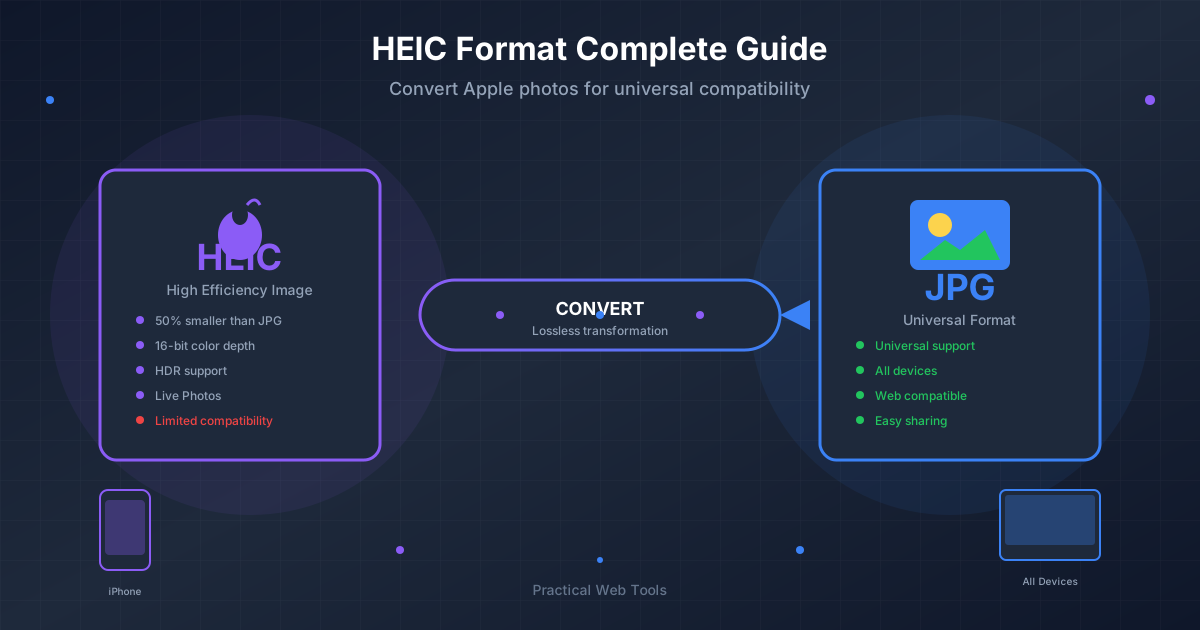
For instance, many modern smartphones, particularly iPhones, now take pictures in the HEIC (High-Efficiency Image Container) format. While efficient, HEIC is not widely supported on the web. Before using these photos on your site, you must convert them to a web-friendly format using a HEIC to JPG converter.
From there, you can further optimize:
- For Performance: The single biggest performance boost you can give your website's images is converting them to WebP. You can easily take your standard JPGs and process them with a JPG to WebP converter to slash their file size.
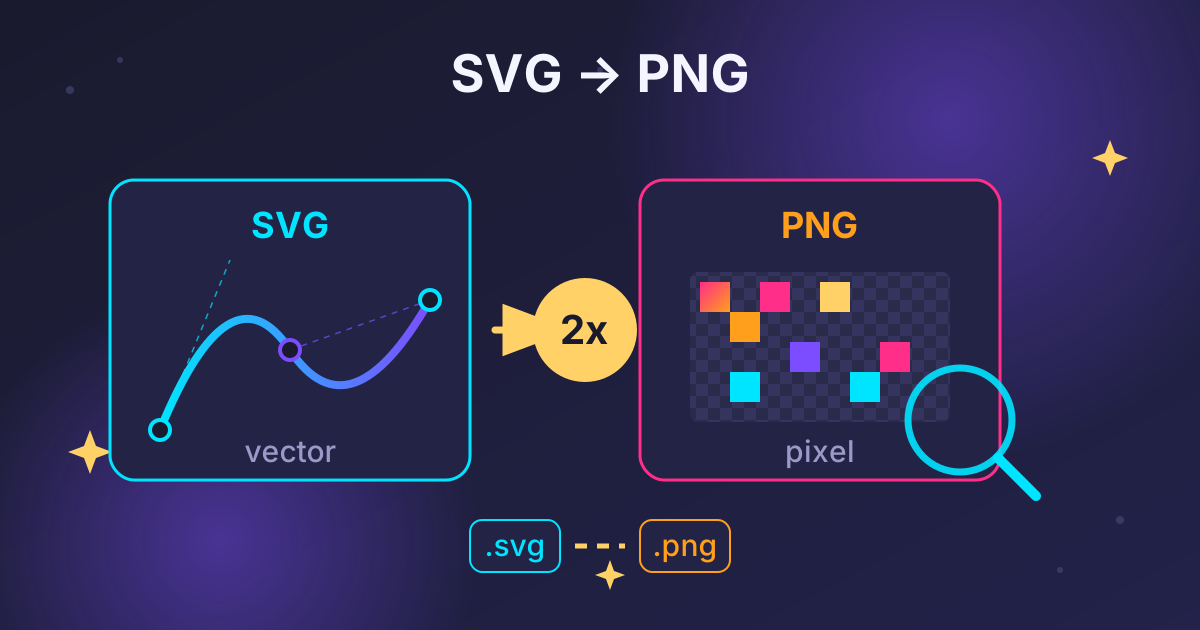
- For Transparency: If you have a product shot or a logo saved as a JPG and need to place it on your website's colored background, you'll need to convert it. A JPG to PNG converter is the perfect tool for this, as PNG is the ideal format for preserving transparency.
The Final Verdict: WebP is the Future, but JPG and PNG Aren't Gone
So, which image format is the absolute best for the web? For most use cases, WebP is the clear winner. It offers superior compression, versatility, and the modern features needed to build fast, high-quality websites.
However, this doesn't make JPG and PNG obsolete. They are universally supported and still serve specific purposes perfectly.
Here’s your ultimate cheat sheet:
- Use WebP as your default for all web images to maximize performance.
- Use JPG as a reliable fallback for photographs for older browsers.
- Use PNG when you absolutely need lossless quality with transparency and WebP is not an option.
The key to a fast and beautiful website lies in using the right tool for the job. By understanding the strengths and weaknesses of WebP, JPG, and PNG, you can optimize every image, improve your Core Web Vitals, and provide a better experience for your users.
Ready to put this knowledge into action and speed up your website? Start by optimizing your existing images. Use our collection of free, privacy-focused image converters at Practical Web Tools to convert your files to the most efficient formats today!