AVIF Images: The Ultimate Guide to Convert & Optimize for Web

In the relentless pursuit of faster, more efficient websites, every kilobyte counts. Images are often the heaviest assets on a webpage, significantly impacting loading times and user experience. For years, we've relied on JPEG, PNG, and more recently, WebP to strike a balance between quality and file size. But a new contender has emerged, promising a revolutionary leap forward: AVIF.
AVIF (AV1 Image File Format) isn't just an incremental improvement; it's a game-changer for web performance. It delivers significantly smaller file sizes than its predecessors at comparable or even superior visual quality. If you're a web developer, content creator, or SEO specialist, understanding and implementing AVIF is no longer optional—it's a critical step toward building next-generation web experiences. This comprehensive guide will walk you through everything you need to know, from what AVIF is to how to convert, optimize, and deploy it on your website.
What Exactly is the AVIF Image Format?
AVIF stands for AV1 Image File Format. It's an open, royalty-free image format developed by the Alliance for Open Media (AOMedia), a consortium of tech giants including Google, Apple, Microsoft, Amazon, and Netflix. This powerful backing is a key reason for its rapid development and adoption.
The secret to AVIF's power lies in its foundation: it uses the same compression algorithms as the AV1 video codec. Video codecs are designed to be incredibly efficient at compressing visual data between frames. By applying this technology to still images, AVIF can achieve compression levels that were previously unimaginable for static pictures.
In essence, AVIF was designed from the ground up to be the successor to all existing image formats, combining the best features into one powerful package:
- Lossy Compression: Like JPEG, it can drastically reduce file sizes for photographs.
- Lossless Compression: Like PNG, it can perfectly preserve every pixel for graphics and logos.
- Transparency: It supports an alpha channel for transparent backgrounds, just like PNG and WebP.
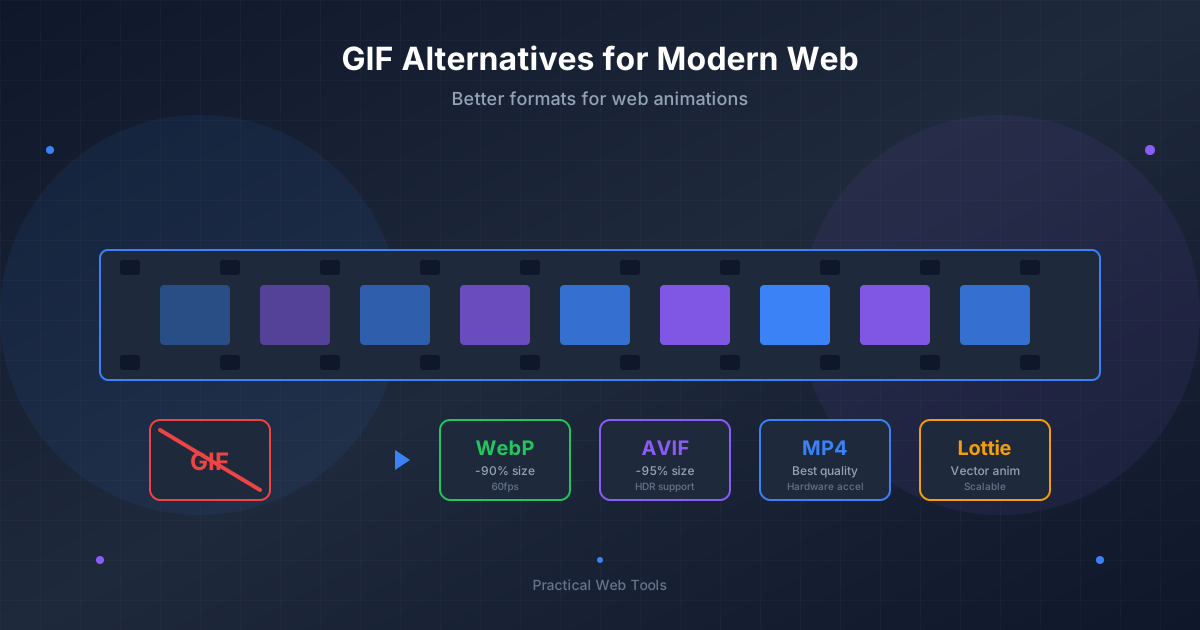
- Animation: It can replace animated GIFs with high-quality, lightweight animated AVIFs.
- Advanced Color: It supports modern color features like High Dynamic Range (HDR) and wide color gamuts (WCG), allowing for more vibrant and lifelike images.
The Advantages of AVIF: Why It's a Game-Changer
Why should you switch from formats you've used for years? The benefits of AVIF are tangible and directly impact your website's performance, SEO, and user experience.
1. Superior Compression & Smaller File Sizes
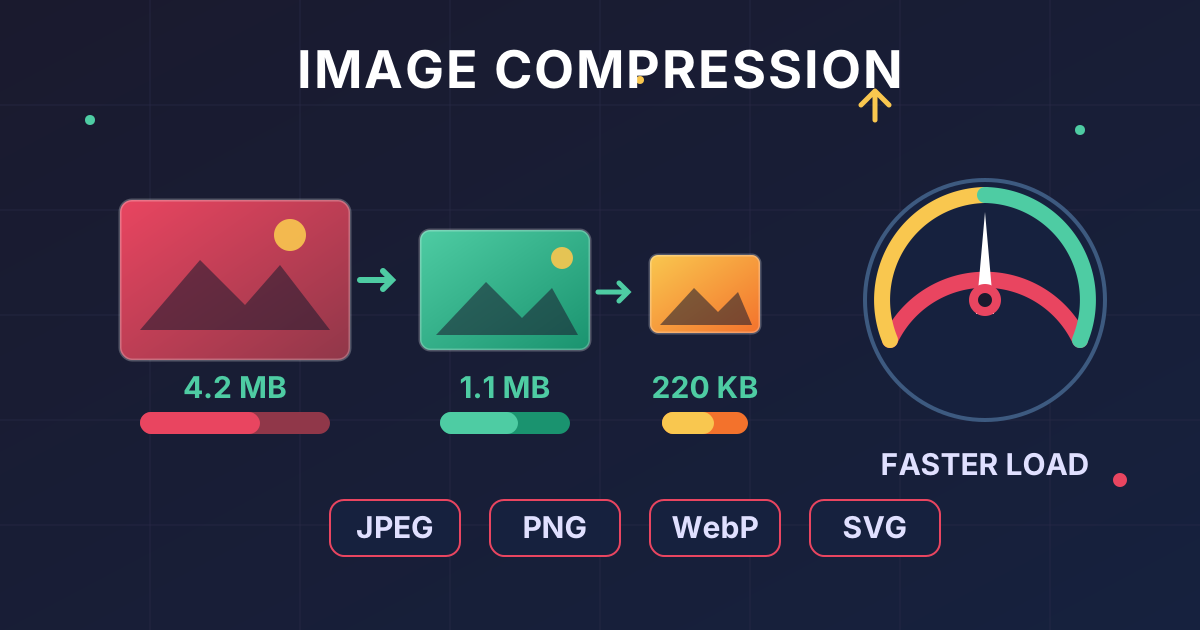
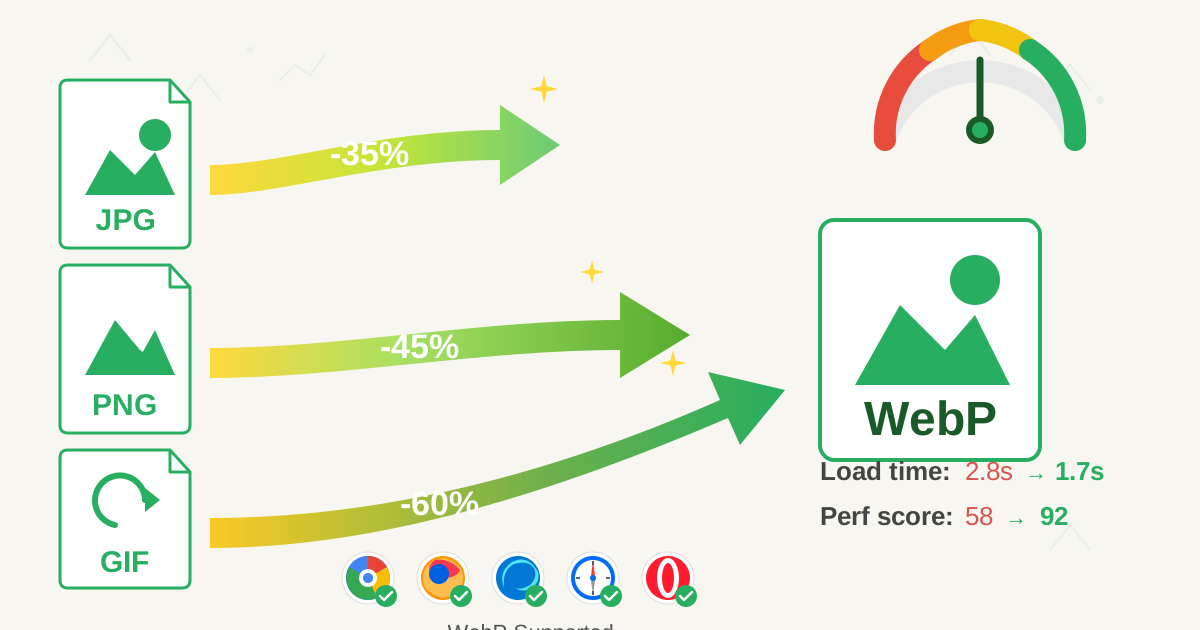
This is AVIF's headline feature. Compared to JPEG, AVIF files can be up to 50% smaller at a similar visual quality. It also consistently outperforms Google's own WebP format, often producing files that are 20-30% smaller.
What does this mean in practice?
- Faster Page Load Times: Smaller images download faster, especially on mobile devices or slow connections. This directly improves Core Web Vitals like Largest Contentful Paint (LCP).
- Reduced Bandwidth Usage: Serving smaller files saves bandwidth for both you and your users, which can lead to lower hosting costs.
- Better SEO Rankings: Search engines like Google use page speed as a key ranking factor. A faster site is a higher-ranking site.
2. Higher Visual Fidelity and Modern Features
AVIF isn't just about making files smaller; it's also about making them look better. It supports features that are crucial for modern displays:
- 10-bit and 12-bit Color Depth: While JPEG is limited to 8-bit color (16.7 million colors), AVIF can handle up to 12-bit color (68.7 billion colors). This prevents color banding in gradients and allows for far more nuanced, lifelike images.
- High Dynamic Range (HDR): AVIF can store HDR data, enabling images with brighter highlights, deeper shadows, and a wider range of detail, creating a stunningly realistic look on compatible screens.
- Lossless and Lossy Options: This versatility means you can use a single format for both your detailed photographs (lossy) and your crisp logos with transparency (lossless).
3. Royalty-Free and Open Source
Being developed by AOMedia, AVIF is completely open and royalty-free. This encourages widespread adoption without the fear of licensing fees, ensuring it can be freely integrated into browsers, software, and platforms across the web.
AVIF vs. WebP vs. JPEG: A Head-to-Head Comparison
To truly understand AVIF's impact, let's compare it directly with the formats we use every day.
| Feature | JPEG | WebP | AVIF |
|---|---|---|---|
| Compression | Good (Lossy only) | Very Good (Lossy & Lossless) | Excellent (Lossy & Lossless) |
| Typical File Size | Baseline | ~30% smaller than JPEG | ~50% smaller than JPEG, ~20% smaller than WebP |
| Transparency | No | Yes | Yes |
| Animation | No | Yes | Yes |
| Color Depth | 8-bit | 8-bit | Up to 12-bit |
| HDR Support | No | No | Yes |
| Royalty-Free | Yes | Yes | Yes |
| Browser Support | Universal | Very good (~97%) | Good and growing (~84%) |
As you can see, AVIF takes the strengths of WebP (versatility, good compression) and elevates them with superior compression efficiency and modern color features.
Current State of AVIF Support
As of late 2023, AVIF is supported by a majority of modern web browsers, covering over 84% of global users:
- Google Chrome: Supported since version 85.
- Mozilla Firefox: Supported since version 93.
- Safari: Supported on macOS Ventura and iOS 16 and newer.
- Opera: Supported since version 71.
While support is strong, it's not yet universal (Microsoft Edge support is pending). This is why implementing AVIF requires using fallbacks for older browsers, which we'll cover later.
Major platforms are also embracing AVIF. Shopify automatically converts images to AVIF and serves them to compatible browsers, and WordPress can support it via plugins like Perfmatters or EWWW Image Optimizer.
How to Convert Your Images to AVIF: A Practical Guide
Creating AVIF images is straightforward once you have the right tools. Here are three common methods, from simple online converters to more advanced command-line options.
Method 1: Online Converters
For converting a few images quickly, online tools are the easiest option. Websites like Squoosh.app, avif.io, and Convertio allow you to upload your JPEGs or PNGs and convert them to AVIF with simple quality sliders. They are great for experimenting with settings and seeing the results in real-time.
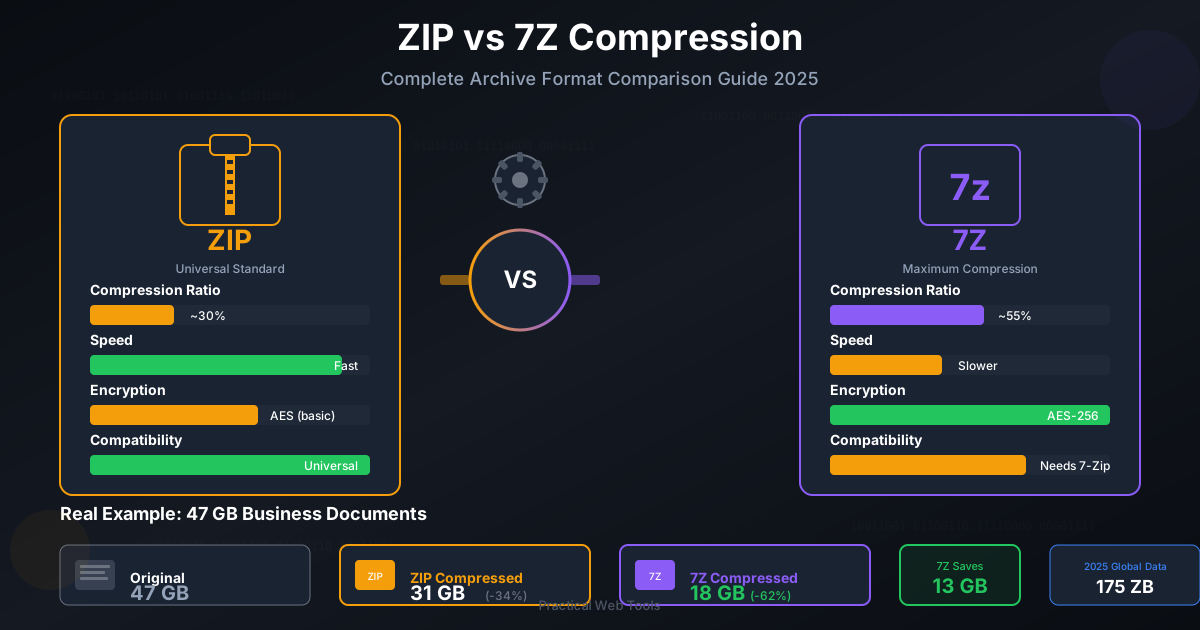
When working with a large batch of images for a project, managing your assets efficiently is key. If you have hundreds of photos to convert, you might receive them in an archive. Our free Decompress Files tool can instantly unpack ZIP, RAR, or 7Z files right in your browser. After conversion, you can use the Compress Files tool to package your new AVIF and fallback images into a neat ZIP archive for deployment or backup.
Method 2: Command-Line Tools (For Developers)
For batch processing and integration into automated workflows, command-line tools are the most powerful solution. The official reference encoder is avifenc, part of the libavif library.
Step-by-Step using avifenc:
- Install
libavif: Installation methods vary by OS. On macOS, you can use Homebrew:brew install libavif. - Navigate to your image directory: Open your terminal and
cdto the folder containing your image. - Run the conversion command: The simplest command is:
avifenc your_image.png your_image.avif - Add optimization flags: To control quality, you can use the
--minand--maxquality flags (0-63, lower is higher quality) and the speed flag-s(0-10, slower is better compression).# A good starting point for high-quality photos avifenc your_image.jpg -o your_image.avif -s 4 --min 20 --max 25
Method 3: Image Editing Software
Your favorite image editor might already support AVIF, either natively or through a plugin.
- GIMP: Natively supports AVIF export since version 2.10.22. Just go to
File > Export As...and selectAVIF image (*.avif)as the format. - Photoshop: Does not have native support yet, but you can add it with free plugins like
Avif.io. - Paint.NET: Supports AVIF with a plugin.
Best Practices for AVIF Optimization
Converting to AVIF is just the first step. To get the most out of the format, you need to optimize your settings.
- Find the Right Quality Level (CQ): Instead of a 0-100 scale like JPEG, AVIF encoders often use a
Constrained Quality (CQ)level, typically from 0 (lossless) to 63 (lowest quality). For most photos, a CQ level between 25 and 35 provides an excellent balance of quality and file size. Always test to see what looks best for your specific image. - Use Lossy for Photos, Lossless for Graphics: For photographic content, always use lossy compression. For logos, icons, or diagrams with sharp lines and flat colors, use the lossless setting (
--losslessor CQ 0 inavifenc) to preserve every detail perfectly. - Leverage Chroma Subsampling: This technique reduces color information in a way that is barely perceptible to the human eye, saving significant space. For most web images,
4:2:0subsampling is the best choice. Use4:4:4only when color precision is absolutely critical (e.g., medical imaging). - Balance Speed vs. Effort: The
speedoreffortsetting in your encoder controls how hard it works to find compression opportunities. A slower speed (e.g.,2-4inavifenc) will take longer but result in a smaller file. For a build process, this is ideal. For quick, on-the-fly conversions, a faster setting is acceptable.
Some development pipelines require assets to be packaged in specific archive formats. If you need to manage project files across different systems, knowing how to handle formats like 7Z or TAR is useful. Our tools like the 7Z to ZIP converter can help you easily switch between archive types to fit your workflow.
How to Use AVIF on Your Website (With Fallbacks)
Because not all browsers support AVIF, you can't simply replace all your <img> tags. The correct way to implement AVIF is with the <picture> element, which allows you to provide multiple sources for a single image.
The browser will check each <source> tag from top to bottom and use the first format it supports. If it supports none, it will fall back to the standard <img> tag.
Here is the best-practice HTML structure:
<picture>
  <!-- The AVIF source for modern browsers -->
  <source srcset="/images/your-photo.avif" type="image/avif">

  <!-- The WebP source as a secondary fallback -->
  <source srcset="/images/your-photo.webp" type="image/webp">

  <!-- The original JPEG for maximum compatibility -->
  <img src="/images/your-photo.jpg" alt="A descriptive alt text for accessibility." width="800" height="600">
</picture>
This approach is bulletproof:
- AVIF-compatible browsers get the smallest, highest-quality image.
- Browsers that support WebP but not AVIF get the next best option.
- The oldest browsers are still served the original JPEG or PNG.
This ensures a fast experience for most users while maintaining 100% compatibility.
Conclusion: The Future is AVIF
AVIF is more than just a new file type; it represents a significant leap forward in web media technology. By offering superior compression, higher visual fidelity, and a modern feature set, it empowers developers and creators to build websites that are faster, more beautiful, and more efficient than ever before.
The transition is already underway, with browser and platform support growing daily. By learning how to convert, optimize, and implement AVIF images today, you are future-proofing your website and gaining a competitive edge in performance and user experience.
Start by experimenting with a few key images on your site. Use the <picture> element to serve AVIF with proper fallbacks, and measure the impact on your page load times. The results will speak for themselves.
Ready to streamline your entire web asset workflow? Explore the full suite of free and private file management tools at Practical Web Tools to compress, decompress, and manage all your project files with ease.