Convert 7z to ZIP: The Ultimate Compatibility & How-To Guide

Have you ever downloaded a file, ready to dive in, only to be stopped by a strange .7z extension? You're not alone. While the 7z format is a powerhouse of compression, its Achilles' heel is compatibility. In a world where seamless file sharing is paramount, the universally recognized ZIP format reigns supreme.
This comprehensive guide will demystify the 7z format, compare it head-to-head with ZIP, and walk you through the simple process of converting your 7z files to ZIP. Whether you're a tech novice or a command-line pro, you'll find a method here that works for you, ensuring your files are accessible to anyone, on any device, anytime.
What is a 7z File? The Powerhouse of Compression
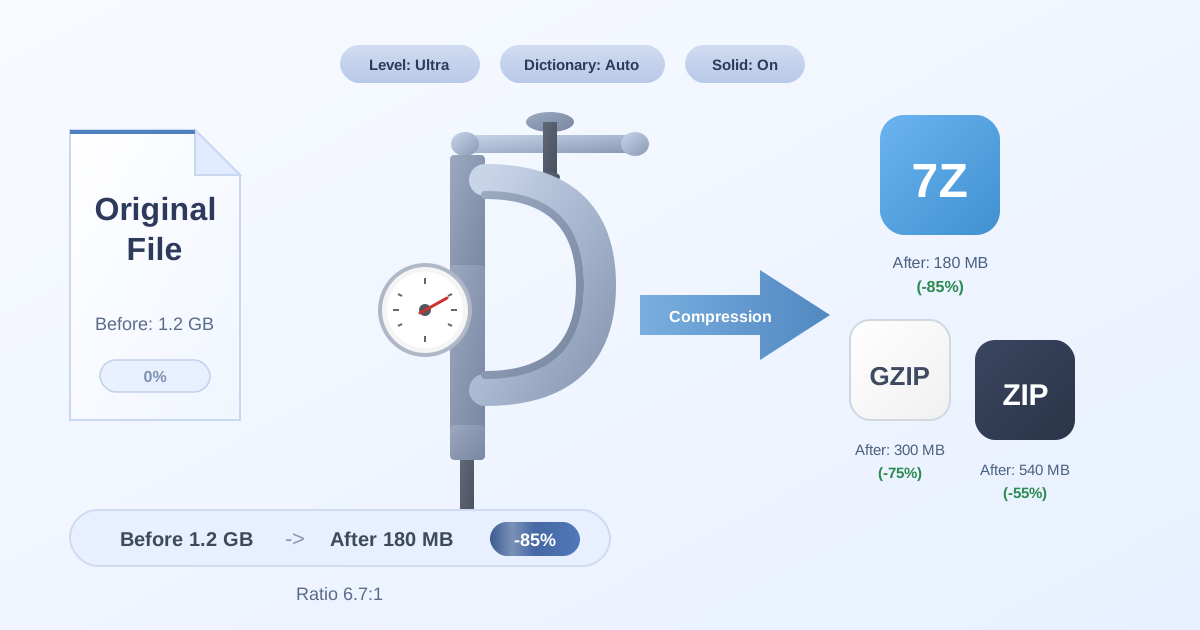
A .7z file is an archived file created using the 7-Zip archiver. Developed by Igor Pavlov in 1999, the 7z format is open-source and renowned for its exceptionally high compression ratio. This means it can shrink files down to a significantly smaller size than many other formats, making it a favorite for archiving large amounts of data or transferring big files over the internet.
Key Features of 7z
- Superior Compression: The magic behind 7z's small file sizes is primarily the LZMA (Lempel–Ziv–Markov chain algorithm) and LZMA2 compression methods. These advanced algorithms are highly effective at finding and eliminating redundancy in data, resulting in smaller archives compared to the traditional Deflate algorithm used by ZIP.
- Strong Encryption: Security is a major advantage of the 7z format. It supports robust AES-256 encryption, a standard used by governments and security agencies worldwide. You can encrypt not only the file data but also the file structure itself, making it impossible for unauthorized users to even see the names of the files within the archive without the password.
- Open Architecture: Being open-source means its design is public, allowing developers to integrate 7z support into their own applications. This has led to its adoption in various software, although it still lacks the native, out-of-the-box support that ZIP enjoys.
- Versatility: A single 7z archive can contain multiple directories and files, preserving the original folder structure. It also supports large file sizes—theoretically up to 16 exbibytes, which is practically limitless for today's needs.
Despite these powerful features, the main drawback remains its limited native support. Windows and macOS do not come with built-in tools to create or extract 7z archives, requiring users to install third-party software like 7-Zip, PeaZip, or The Unarchiver.
What is a ZIP File? The Gold Standard of Compatibility
The .zip format is the most widely used and recognized archive format in the world. First created by Phil Katz in 1989, it has become the de facto standard for file compression and sharing. Its biggest strength is its ubiquity.
Virtually every modern operating system—including Windows, macOS, and most Linux distributions—has built-in functionality to handle ZIP files. Users can create, open, and extract ZIP archives without needing to install any additional software. This seamless integration makes it the go-to choice for sharing files with a broad audience.
Key Features of ZIP
- Universal Compatibility: This is the ZIP format's defining feature. You can send a ZIP file to a colleague, client, or friend and be almost 100% certain they can open it with a simple double-click.
- Good Compression: While typically not as efficient as 7z, the Deflate algorithm used by ZIP still provides a solid level of compression, significantly reducing file sizes for easier storage and transfer.
- Widespread Support: Beyond operating systems, countless applications, web services, and content management systems are designed to work with ZIP files, from uploading website assets to submitting project files.
- Speed: ZIP creation and extraction are generally faster than 7z. The Deflate algorithm is less computationally intensive than LZMA, making it quicker to process, especially on older hardware.
While ZIP is the king of convenience, it falls short of 7z in terms of raw compression efficiency and encryption strength (though it does offer password protection, it's generally considered less secure than 7z's AES-256).
7z vs. ZIP: A Head-to-Head Comparison
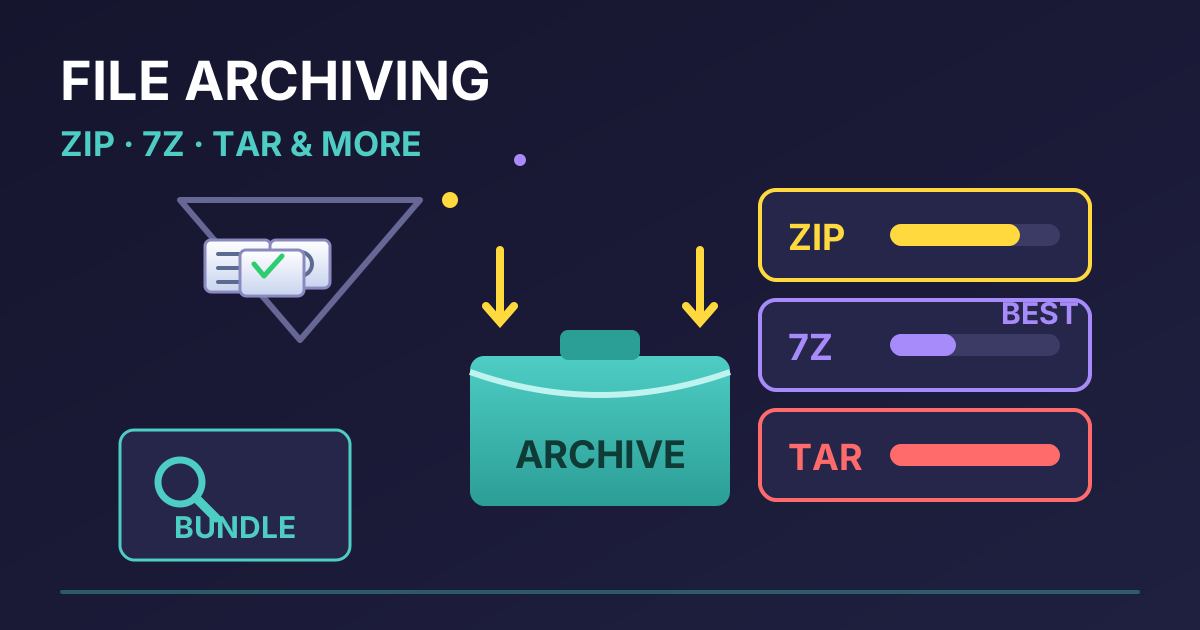
Choosing between 7z and ZIP often comes down to a trade-off between compression efficiency and universal compatibility. Let's break down their differences in a clear, side-by-side comparison.
| Feature | 7z (7-Zip) | ZIP |
|---|---|---|
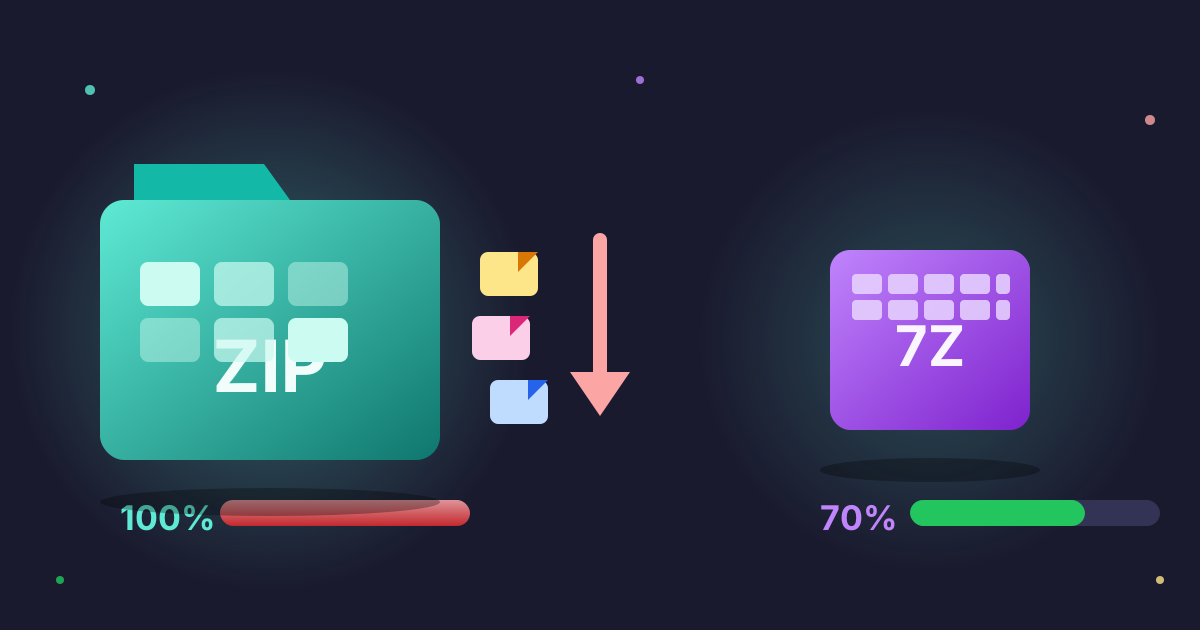
| Compression Ratio | Excellent (often 30-70% smaller than ZIP) | Good (less efficient than 7z) |
| Compatibility | Limited (requires third-party software) | Universal (natively supported by most OS) |
| Default Algorithm | LZMA / LZMA2 | Deflate |
| Encryption | Strong (AES-256) | Standard (ZipCrypto, with AES-256 available) |
| Speed | Slower (more computationally intensive) | Faster (less computationally intensive) |
| Best For | Personal backups, archiving large data, security | Emailing attachments, public file sharing |
Deeper Dive into the Differences
- Compression Ratio: For large projects, software distributions, or personal backups where every megabyte counts, 7z is the clear winner. The LZMA algorithm is simply more advanced and can produce significantly smaller files.
- Compatibility: This is where ZIP is untouchable. If you're sending files to anyone outside your organization, or to a non-technical user, ZIP is the only format that guarantees they can open it without hassle. This is the primary reason to convert 7z to ZIP.
- Security: While standard ZIP encryption is weak, modern archivers can create AES-256 encrypted ZIP files. However, 7z offers this powerful encryption as a core feature, making it a more reliable choice when security is the top priority.
Why Convert from 7z to ZIP?
Given the comparison, the reasons for converting from 7z to the more accessible ZIP format become clear. It's all about removing barriers and ensuring a smooth user experience for the recipient.
- Guaranteed Accessibility: The number one reason is to ensure the person receiving the file can open it. You can't assume everyone has 7-Zip installed. By converting to ZIP, you eliminate the need for them to download and install new software, preventing confusion and frustration.
- Platform & Application Requirements: Many online platforms, from government portals to contest submission forms, have strict file upload requirements. Often, they will only accept
.zipfiles. Converting your 7z archive ensures you meet these requirements. - Collaborating with Teams: In a professional environment, using standard formats is crucial for workflow efficiency. Sticking to ZIP for shared files ensures that every team member, regardless of their OS or technical skill, can access the data without interruption.
- Legacy System Support: When dealing with older computers or enterprise systems, ZIP is far more likely to be supported than the more modern 7z format.
How to Convert 7z to ZIP: 3 Easy Methods
Now for the practical part. Converting a 7z file to ZIP is a straightforward process, and you have several options depending on your preference and operating system.
Method 1: The Easiest Way - Using an Online Converter
For a quick, hassle-free conversion without installing any software, an online tool is your best bet. The Practical Web Tools 7Z to ZIP converter is designed for speed, privacy, and simplicity.
Why use an online converter?
- No Installation: Nothing to download or install.
- Cross-Platform: Works on any device with a web browser (Windows, Mac, Linux, ChromeOS).
- Privacy-Focused: Your files are processed securely and are not stored on our servers.
- Incredibly Simple: A few clicks are all it takes.
Step-by-Step Guide:
- Navigate to the Tool: Open your web browser and go to the 7Z to ZIP Converter.
- Upload Your File: Click the 'Choose File' button and select the
.7zfile from your computer you wish to convert. - Start the Conversion: The tool will automatically begin the conversion process as soon as the file is uploaded. You'll see a progress indicator.
- Download Your ZIP File: Once complete, a 'Download' button will appear. Click it to save your newly created
.zipfile to your computer.
That's it! In less than a minute, you've transformed an inaccessible 7z archive into a universally compatible ZIP file.
Method 2: Using Desktop Software (The Two-Step Process)
If you already have an archive manager like 7-Zip (for Windows) or Keka (for macOS) installed, you can perform the conversion manually. This is essentially a two-step process: first you decompress the 7z file, then you compress the contents into a new ZIP file.
Step-by-Step Guide (using 7-Zip on Windows):
- Extract the 7z Archive: Right-click on your
.7zfile. Hover over the '7-Zip' menu and select 'Extract Here' or 'Extract to [folder name]/'. This will create a new folder containing all the files from the archive. Pro-Tip: You can perform this first step online using a Decompress Files tool if you don't have desktop software. - Create a New ZIP Archive: Now, right-click on the folder you just extracted. Hover over the '7-Zip' menu (or 'Send to' > 'Compressed (zipped) folder' for Windows' built-in tool) and select 'Add to archive...'.
- Set the Archive Format: In the 'Add to Archive' window, find the 'Archive format:' dropdown menu and make sure to select 'zip'.
- Compress the Files: Click 'OK'. Your new ZIP file containing all the original content will be created in the same location. Pro-Tip: You can also use an online tool to Compress Files into a ZIP archive after extracting them.
This method gives you more control over compression settings but requires software installation and a few more steps.
Method 3: Using the Command Line (For Advanced Users)
For those comfortable working in the terminal or command prompt, you can use command-line utilities to perform the conversion quickly.
For Linux/macOS users (with p7zip and zip installed):
-
Install the tools (if needed):
- On Debian/Ubuntu:
sudo apt-get install p7zip-full zip - On macOS (using Homebrew):
brew install p7zip zip
- On Debian/Ubuntu:
-
Run the commands:
# First, extract the 7z archive
7z x yourfile.7z -oextracted_content

# Then, navigate into the directory and create the ZIP archive
cd extracted_content
zip -r ../newfile.zip .
This creates a new file named newfile.zip in the original directory, containing all the extracted content.
Frequently Asked Questions (FAQ)
Q: Will I lose file quality when converting from 7z to ZIP?
A: No. Both 7z and ZIP use lossless compression, which means no data or quality is lost during the compression or decompression process. The files inside your new ZIP archive will be identical to the ones in the original 7z archive.
Q: Will my new ZIP file be larger than the original 7z file?
A: Yes, almost certainly. Due to the less efficient Deflate compression algorithm used by ZIP compared to 7z's LZMA, the resulting ZIP file will be larger. The trade-off is moving from maximum compression to maximum compatibility.
Q: Can I convert a password-protected 7z file to ZIP?
A: Most online converters cannot handle encrypted files for security and privacy reasons. To convert a password-protected 7z file, you must use a desktop application (Method 2). You will need the password to extract the files before you can re-compress them into a ZIP archive.
Q: What is the best 7z to ZIP converter?
A: The 'best' converter depends on your needs. For speed, convenience, and privacy without software installation, an online tool like the Practical Web Tools 7Z to ZIP converter is the ideal choice. For offline use or batch processing, desktop software like 7-Zip is more suitable.
Conclusion: Choose Compatibility Without Compromise
While 7z offers undeniable advantages in compression efficiency and security, its lack of native support makes it a poor choice for widespread file sharing. The humble ZIP file, with its universal compatibility, remains the undisputed champion for sending and receiving files with ease.
Understanding when and how to convert your 7z archives to ZIP is a crucial skill for smooth digital collaboration. By using the right tool for the job, you can ensure your files are always accessible to your intended audience, eliminating technical hurdles and keeping your projects moving forward.
Ready to make your files universally compatible? Give our free, secure, and lightning-fast 7Z to ZIP converter a try today and experience the easiest way to bridge the format gap.