Convert 7z to ZIP: A Comprehensive Guide for All Users

You've just downloaded an important file, eager to open it, but your computer greets you with a cryptic message: "Windows can't open this file." You look closer and see the extension: .7z. It's a common scenario that leaves many users confused. While the 7z format is powerful, it lacks the universal support of its more famous cousin, the ZIP file.
Fear not. Converting a 7z file to the universally compatible ZIP format is straightforward, and this guide will walk you through every step. Whether you prefer a quick online solution, a powerful desktop application, or even the command line, we've got you covered. We'll explore why you'd want to make this switch and provide detailed, actionable instructions for every method.
Why Convert from 7z to ZIP? The Compatibility Factor
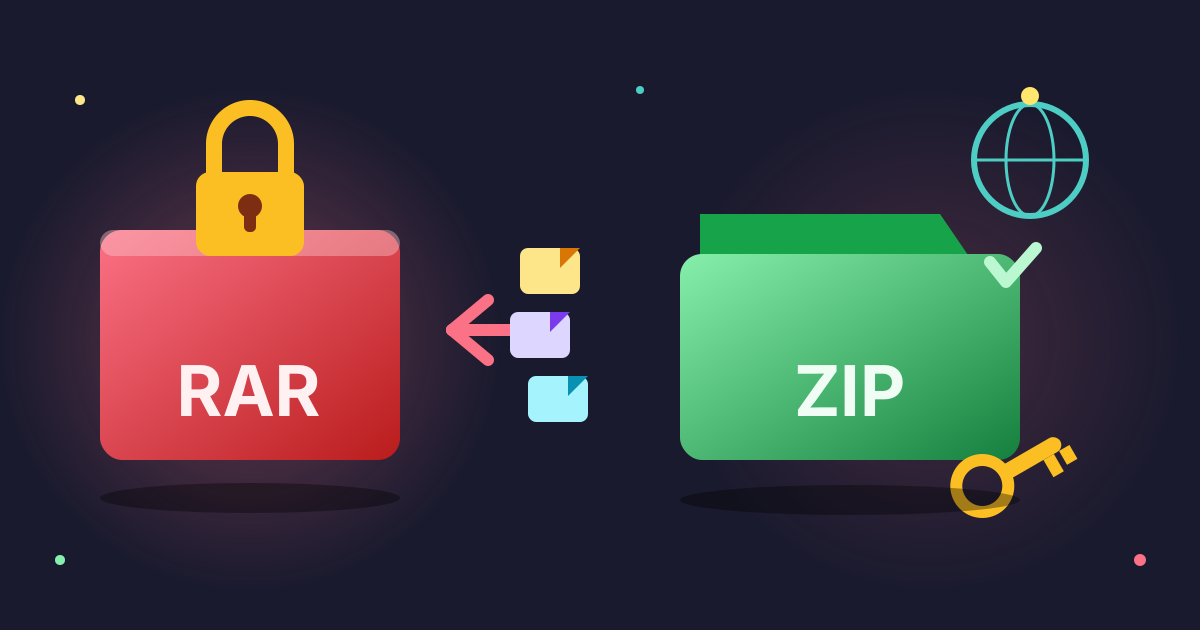
Both .7z and .zip are archive file formats, meaning they are containers that hold one or more files and folders, compressing them to save space. The primary difference between them lies in the balance between compression efficiency and native support.
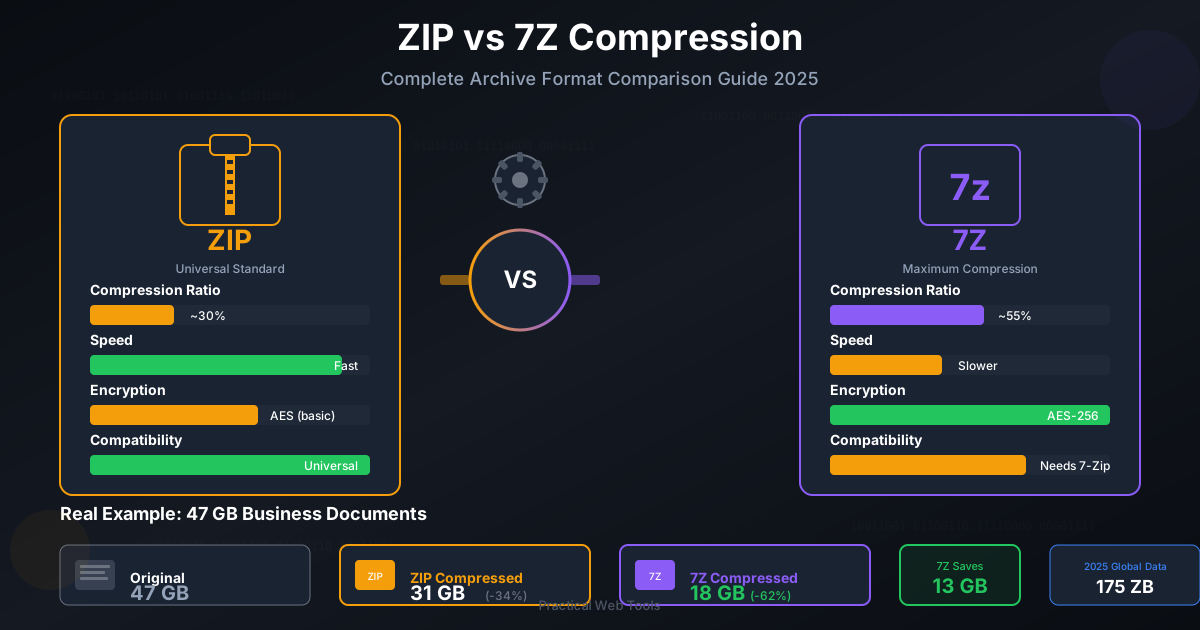
7z (7-Zip): Developed by Igor Pavlov for his 7-Zip archiver, the .7z format is renowned for its superior compression ratio. Using its default LZMA/LZMA2 algorithms, it can often create significantly smaller files than ZIP. This makes it ideal for archiving large amounts of data or for transferring files over slow internet connections. However, its main drawback is that it is not natively supported by most operating systems. You need to install third-party software like 7-Zip, Keka, or The Unarchiver to open these files.
ZIP: The ZIP format has been around since 1989 and is the most widely supported archive format in the world. Modern versions of Windows, macOS, and most Linux distributions can create and extract ZIP files right out of the box, without any extra software. This universal compatibility is its greatest strength. While its standard Deflate compression algorithm is generally less efficient than 7z's LZMA2, the convenience it offers is often worth the slightly larger file size.
Here’s a quick comparison:
| Feature | 7-Zip (.7z) | ZIP (.zip) |
|---|---|---|
| Compression Ratio | Excellent | Good to Very Good |
| Native OS Support | Limited (requires third-party software) | Universal (Windows, macOS, Linux) |
| Encryption | Strong (AES-256) | Weaker (ZipCrypto), but AES-256 is supported |
| Open Source | Yes (LGPL) | Open Standard |
| Best Use Case | Maximum file size reduction, personal backups | Universal sharing, email attachments, software distribution |
The bottom line: you convert from 7z to ZIP when compatibility is more important than compression. If you need to send a file to someone and you're not sure what software they have, ZIP is always the safest bet.
Method 1: The Easiest Way - Using an Online Converter
For quick, one-off conversions without the hassle of installing software, an online tool is your best friend. This method is platform-independent—it works the same on Windows, Mac, Linux, or even a Chromebook—as long as you have a web browser.
Pros of using an online converter:
- No installation required: Saves time and disk space.
- Extremely simple: Usually just a few clicks.
- Accessible from anywhere: Convert files on any device with an internet connection.
At Practical Web Tools, we offer a free, secure, and private tool specifically for this purpose.
Step-by-Step Guide: Using the Practical Web Tools 7z to ZIP Converter
Our tool is designed for simplicity and privacy. We process your files on the fly and do not upload or store them on our servers, ensuring your data remains yours.
- Navigate to the Tool: Open your web browser and go to our 7Z to ZIP Converter.
- Select Your File: Click the "Choose File" button and locate the .7z file on your computer that you wish to convert.
- Start the Conversion: The tool will automatically begin the conversion process as soon as the file is selected. You'll see a progress indicator.
- Download Your ZIP File: Once the conversion is complete, a "Download" button will appear. Click it to save the newly created .zip file to your computer.
That's it! In under a minute, you have a universally compatible ZIP file ready to be opened, used, or shared.
Method 2: Using Desktop Software for Power and Privacy
If you frequently work with archive files, need to convert large or multiple files at once (batch conversion), or prefer to handle everything offline on your own machine, desktop software is the way to go.
The process on a desktop typically involves two stages:
- Decompressing the original .7z archive.
- Re-compressing the extracted contents into a new .zip archive.
For Windows Users: 7-Zip
The most logical tool to use on Windows is 7-Zip itself, the free and open-source application from the creator of the format.
- Download and Install: If you don't already have it, download 7-Zip from the official website (7-zip.org) and install it. It's lightweight and integrates with the Windows context menu.
- Extract the 7z Archive: Find your .7z file, right-click on it, hover over the "7-Zip" menu item, and select "Extract Here" (to place files in the current folder) or "Extract to [folder_name]/" (to create a new folder for the files).
- Create the ZIP Archive: Now, select all the files and folders that were just extracted. Right-click on the selected items, hover over "Send to", and click on "Compressed (zipped) folder".
- Rename (Optional): Windows will create a new .zip file. You can now rename it to whatever you like.
For macOS Users: Keka
While macOS can handle ZIP files natively, it needs help with 7z. Keka is a fantastic, lightweight, and free (or pay-what-you-want on the App Store) archive manager that is perfect for this task.
- Download and Install: Get Keka from its official website (keka.io) or the Mac App Store.
- Set ZIP as Default: Open Keka. In the main window, set the default compression format to "ZIP". You can also adjust the compression level.
- Extract the 7z File: Find your .7z file and simply double-click it. If Keka is your default unarchiver, it will automatically extract the contents into a new folder in the same location.
- Create the ZIP Archive: Open the folder with the extracted contents. Select all the files, right-click, and choose "Compress [X] items". Alternatively, you can drag the folder directly onto the Keka icon in your Dock to create a ZIP file of that folder.
For Linux Users: Command Line Power
For Linux users comfortable with the terminal, converting is fast and efficient. You'll need the p7zip package (for handling 7z) and zip (for creating zip files), which are standard in most repositories.
- Install Utilities: If you don't have them, open your terminal and run:
# For Debian/Ubuntu-based systems sudo apt update && sudo apt install p7zip-full zip # For Fedora/CentOS-based systems sudo dnf install p7zip p7zip-plugins zip - Extract the 7z Archive: Navigate to the directory containing your file and use the
7zcommand to extract it:
This will extract the contents into the current directory.7z x yourfile.7z - Create the ZIP Archive: Now, use the
zipcommand to re-compress the extracted files. The-rflag is important as it recursively includes all files and subdirectories.# If you extracted into a folder named 'extracted_folder' zip -r new_archive_name.zip extracted_folder/ # If you extracted files directly into the current directory zip -r new_archive_name.zip file1 file2 directory1
Beyond Conversion: Understanding File Compression
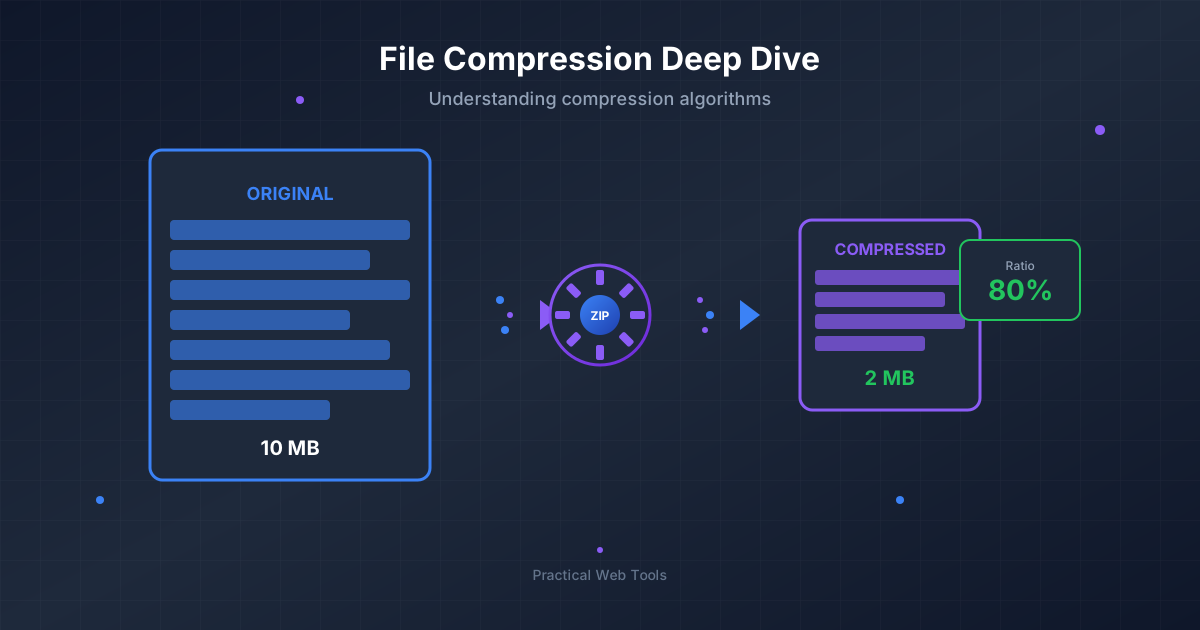
Understanding the basics of file compression can help you choose the right format for any task. The core idea is to use algorithms to represent data more efficiently, reducing the overall file size without losing any information (a process called lossless compression).
This is incredibly useful for:
- Saving disk space: Storing more data in the same amount of space.
- Faster file transfers: Smaller files take less time to upload, download, or send as email attachments.
- Organizing files: Bundling many related files and folders into a single, neat package.
While we've focused on 7z and ZIP, many other formats exist, such as RAR, TAR, and GZ. Our general-purpose Compress Files tool can help you create ZIP archives from any set of files, providing a simple interface for your everyday compression needs. You may also find that you need to convert between other archive formats. For instance, if you're a developer moving from Windows to Linux, you might need to convert a ZIP to a TAR file, or if you want maximum compression, you might convert a ZIP back to a 7z. Tools like our ZIP to 7Z or 7Z to TAR converters make these tasks just as simple.
Common 7z to ZIP Conversion Issues and FAQs
Even with the best tools, you might run into a few questions. Here are some common ones.
Why is my new ZIP file larger than the original 7z file?
This is completely normal and expected. The 7z format's compression algorithms (LZMA/LZMA2) are more advanced and efficient than the ZIP format's default Deflate algorithm. You are trading the smaller file size of 7z for the wider compatibility of ZIP.
Is it safe to use online 7z to ZIP converters?
It depends on the provider. You should only use trusted websites that prioritize user privacy. Reputable services like Practical Web Tools perform all conversions in your browser or process files without storing them, meaning your data never rests on a server and is not seen by anyone.
Can I convert a password-protected 7z file?
Most online converters cannot handle encrypted or password-protected archives. For these files, you must use a desktop application like 7-Zip or Keka. You will need to enter the password to extract the files first, after which you can re-compress them into a new (and optionally password-protected) ZIP file.
What if my 7z file is corrupted?
A corrupted archive will likely cause any conversion method to fail. Desktop tools like 7-Zip have a "Test archive" feature that can check the integrity of the file. If it's corrupted, you may need to re-download it from the original source.
Do I have to decompress the 7z file first?
- Online Tools: No. A good online converter handles both the decompression of the 7z and the re-compression to ZIP in a single, seamless step for you.
- Desktop Software: Yes. Almost all desktop methods require this two-step process. You first use a tool to extract the contents. If you just need to get the files out, our simple Decompress Files tool can help with that initial step for a variety of formats.
Conclusion: Choosing the Right Method for You
Navigating the world of file archives doesn't have to be complicated. While 7z offers superior compression, ZIP remains the undisputed king of compatibility. Knowing how to convert between them empowers you to handle any file you encounter and share your own files without worry.
To recap:
- For quick, easy, single-file conversions on any device, an online converter is the perfect solution.
- For batch processing, very large files, or offline work, a dedicated desktop application is the more powerful choice.
By understanding the strengths of each format and each method, you can choose the perfect tool for your specific needs, ensuring your files are always accessible, portable, and ready to share.
Ready to get started? For an effortless, secure, and installation-free conversion, give our free 7Z to ZIP converter a try today!