Convert AZW3 to PDF: The Ultimate Guide for Your eBooks
The Freedom to Read Anywhere: Why Convert AZW3 to PDF?
You've just bought the latest bestseller on your Kindle. The reading experience is fantastic—crisp text, easy navigation, and it's all synced perfectly to your Amazon account. But what happens when you want to read a chapter on your work computer where you can't install the Kindle app? Or perhaps you need to print a few pages for a book club discussion, or annotate a textbook with a powerful PDF editor that you love. Suddenly, you hit a wall.
The file format at the heart of this issue is AZW3, Amazon's proprietary ebook format. While it's excellent within the Kindle ecosystem, it's designed to keep you there. This is where the universal, ubiquitous PDF (Portable Document Format) comes in. Converting your AZW3 files to PDF unlocks your legally purchased library, giving you the freedom to read, print, and archive your books on your own terms.
This comprehensive guide will walk you through everything you need to know about the AZW3 to PDF conversion process. We'll explore the technical challenges (like DRM), break down the most reliable methods step-by-step, and show you how to manage your newly converted files effectively.
Understanding the File Formats: AZW3 vs. PDF
Before we dive into the conversion methods, it's helpful to understand what these two file types are and why they behave so differently.
What is an AZW3 File?
AZW3, also known as Kindle Format 8 (KF8), is Amazon's modern ebook format. It was introduced with the Kindle Fire tablet and is a significant upgrade over the older MOBI format. Its key features include:
- Advanced Formatting: It supports HTML5 and CSS3, allowing for complex layouts, embedded fonts, and rich formatting that you see in modern ebooks.
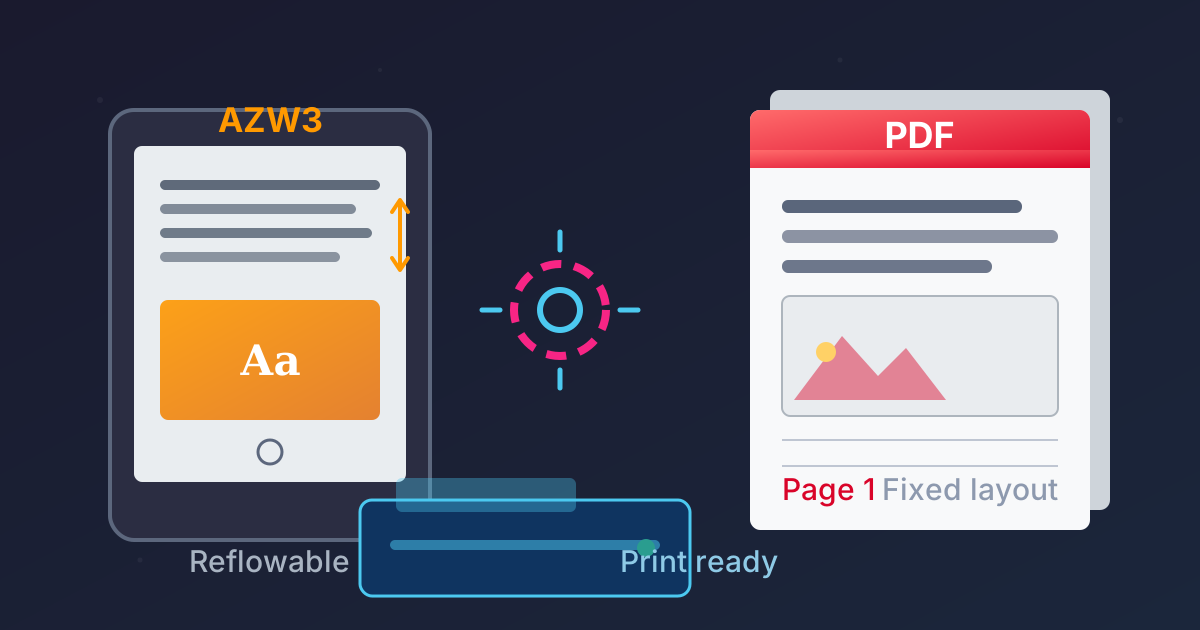
- Reflowable Text: Like most ebook formats, the text can 'reflow' to fit any screen size, whether it's a small phone or a large tablet. You can change font sizes, margins, and line spacing on the fly.
- Proprietary Nature: It's a format created by and for Amazon. This means it's primarily designed to work only on Kindle devices and apps.
- DRM Protection: Most AZW3 files purchased from the Amazon store are encrypted with Digital Rights Management (DRM). This technology ties the book to your specific Amazon account to prevent unauthorized copying and distribution.
Why is PDF the Go-To Alternative?
PDF is the global standard for fixed-layout document sharing. Created by Adobe in the 1990s, its goal was to present documents consistently, regardless of the software, hardware, or operating system being used.
- Universal Compatibility: A PDF file will look the same on a Windows PC, a Mac, a Linux machine, or a smartphone. Virtually every device has a built-in or easily downloadable PDF reader.
- Fixed Layout: Unlike AZW3's reflowable text, a PDF is like a digital snapshot of a printed page. The layout, fonts, and images are fixed, which is ideal for printing, archiving, and documents where the layout is critical (like textbooks, manuals, and forms).
- Annotation and Editing: The PDF format has robust support for comments, highlights, digital signatures, and advanced editing, making it perfect for academic and professional use.
The Core Challenge: Digital Rights Management (DRM)
The biggest hurdle in converting AZW3 to PDF is DRM. It's the digital lock Amazon puts on its ebooks. If you try to use a standard file converter on a DRM-protected AZW3 file, it will fail because it cannot read the encrypted content.
A Quick Disclaimer: Removing DRM from your ebooks falls into a legal and ethical gray area. This guide is intended for educational purposes and to help you create personal, archival backups of books you have legally purchased. We do not condone or encourage piracy. Always respect copyright laws and the hard work of authors and publishers. The methods described below should only be used for your personal, non-commercial use.
How to Convert AZW3 to PDF: The Definitive Methods
We'll cover the most effective methods, from the most powerful and reliable to simpler workarounds. For most users with DRM-protected books, the first method is the gold standard.
Method 1: Calibre + DeDRM Plugin (The Most Powerful Solution)
Calibre is a free, open-source, and incredibly powerful ebook management software. Think of it as iTunes for your entire ebook library. By itself, Calibre can convert unprotected AZW3 files to PDF, but its true power is unlocked with a third-party plugin that can handle DRM.
What You'll Need:
- The Calibre software.
- The DeDRM plugin for Calibre.
- The Kindle for PC/Mac desktop application (an older version is often recommended).
- Your AZW3 files downloaded via the Kindle desktop app.
Step-by-Step Guide:
Step 1: Install Calibre and the Kindle Desktop App
- Download and install Calibre from its official website. It's available for Windows, macOS, and Linux.
- Download and install the Kindle for PC or Mac application from Amazon. It's crucial to use this application to download your books, as it stores them on your computer in a way the plugin can access.
Step 2: Get the DeDRM Plugin
- The DeDRM plugin is not affiliated with Calibre and must be downloaded separately. A quick search for "DeDRM_tools GitHub" will lead you to the official repository where you can download the latest release as a ZIP file.
- Do not unzip the file. Calibre installs plugins directly from the ZIP archive.
Step 3: Install the Plugin in Calibre
- Open Calibre.
- Go to
Preferences(you may need to click the advanced button in some versions). - Under the
Advancedsection, click onPlugins. - In the new window, click the
Load plugin from filebutton at the bottom. - Navigate to and select the DeDRM_tools ZIP file you downloaded. Click
Open. - You'll see a security warning. Click
Yesto proceed. - A success message will show that the plugin has been installed. Click
OKand thenApplyat the top of the Preferences window. - Restart Calibre. This is a critical step for the plugin to be activated.
Step 4: Add Your Kindle Books to Calibre
- Open the Kindle desktop app and make sure all the books you want to convert are downloaded to your computer.
- In Calibre, click the
Add booksbutton. - Navigate to your Kindle content folder. On Windows, it's typically in
Documents\My Kindle Content. On a Mac, you can find it in your user'sLibrary/Application Support/Kindle/My Kindle Contentfolder. - Select the AZW3 files you wish to add. When you add a DRM-protected book, the DeDRM plugin will work automatically in the background to remove the protection, creating a clean copy in your Calibre library.
Step 5: Convert to PDF
- In your Calibre library, select the book (or multiple books) you want to convert.
- Click the
Convert booksbutton in the top toolbar. - In the conversion window, select
PDFas theOutput formatfrom the dropdown menu in the top-right corner. - Crucially, review the settings on the left.
- Page Setup: You can set the output profile to match a specific device (like a tablet) or standard paper sizes (like A4 or Letter), which is perfect for printing.
- Look & Feel: Here you can adjust fonts, text size, and justification.
- PDF Output: You can add custom headers, footers, and page numbers.
- Once you are happy with the settings, click
OK. The conversion process will begin. A spinning wheel in the bottom-right corner of Calibre will show the jobs in progress. - When it's finished, you can click on the
PDFformat link next to the book title in your library to open your newly created file.
Method 2: Online Conversion Tools (For DRM-Free Files Only)
If you have AZW3 files that are not protected by DRM (e.g., public domain books or files from publishers who don't use DRM), online converters are a quick and easy option.
Pros:
- No software installation required.
- Simple drag-and-drop interface.
- Fast for single, small files.
Cons:
- Will not work for DRM-protected books.
- Privacy and Security Risks: You are uploading your file to a third-party server. Avoid using these for sensitive documents.
- File size and daily conversion limits are common.
- Less control over the output formatting compared to Calibre.
How to Use:
- Search for "free online AZW3 to PDF converter."
- Choose a reputable site.
- Upload your DRM-free AZW3 file.
- Select PDF as the output format.
- Click convert and download the resulting file.
Method 3: The 'Print to PDF' Workaround
Some desktop operating systems have a built-in feature to "print" any document to a PDF file. You can sometimes use this with the Kindle desktop app as a workaround.
How to Use:
- Open your book in the Kindle for PC/Mac application.
- Go to
File>Print. - In the printer selection dialog, choose
Microsoft Print to PDF(on Windows) orSave as PDF(on Mac). - Select the page range you want to convert.
- Click
PrintorSaveand choose a location to save your new PDF file.
Limitations: This method is often blocked by Amazon for newer books and can be incredibly tedious for an entire book, as you may have to print it in small chunks. The quality can also be lower than a direct conversion.
Comparison of Conversion Methods
| Feature | Calibre + DeDRM | Online Converters | Print to PDF |
|---|---|---|---|
| DRM Support | Yes | No | Sometimes (often blocked) |
| Ease of Use | Moderate (initial setup) | Very Easy | Easy |
| Conversion Quality | Excellent (highly customizable) | Variable | Good to Fair |
| Batch Conversion | Yes, excellent | No (usually one by one) | No, very tedious |
| Privacy & Security | Excellent (all local) | Poor (uploads to server) | Excellent (all local) |
| Cost | Free | Free (with limits) | Free |
Post-Conversion: Making the Most of Your New PDFs
Congratulations! You've successfully converted your ebooks. Now you can manage them just like any other document. Practical Web Tools offers a suite of free tools to help you out.
-
Combining Chapters: If your conversion resulted in multiple PDF files (e.g., one per chapter), you can easily combine them into a single, seamless book using our free Merge PDFs tool.
-
Extracting Sections: Need to share just a single chapter with your book club or isolate a section for research? Our Split PDF tool lets you do just that without any hassle.
-
Getting Raw Text: For academic purposes, you might want to pull all the raw text from your new PDF to create flashcards or study guides. The PDF to Text converter is perfect for this task, giving you a clean text file to work with.
Conclusion: Your Books, Your Rules
While Amazon's Kindle ecosystem offers a seamless reading experience, its proprietary nature can feel restrictive. Learning how to convert AZW3 files to the universally accessible PDF format puts you back in control of the books you own.
For anyone with a library of Kindle books, the Calibre and DeDRM plugin method is the undisputed champion. It's a one-time setup that provides a reliable, high-quality, and private way to back up and convert your entire library for use on any device. While simpler methods exist, they can't match its power and versatility.
By converting your ebooks, you ensure long-term access, compatibility, and the freedom to enjoy your digital library in the way that works best for you.
Ready to take full control of your documents? Explore the full range of free, secure, and easy-to-use PDF tools available at Practical Web Tools today!