Convert DOC to PDF: The Ultimate Free & Easy Guide
You've just finished crafting the perfect document. It could be a resume, a critical business report, a college essay, or an invoice. The formatting is pristine, the fonts are perfect, and everything is aligned just right. But when you send it to someone else, it looks like a mess. Fonts are missing, images have shifted, and the layout is completely broken. Sound familiar?
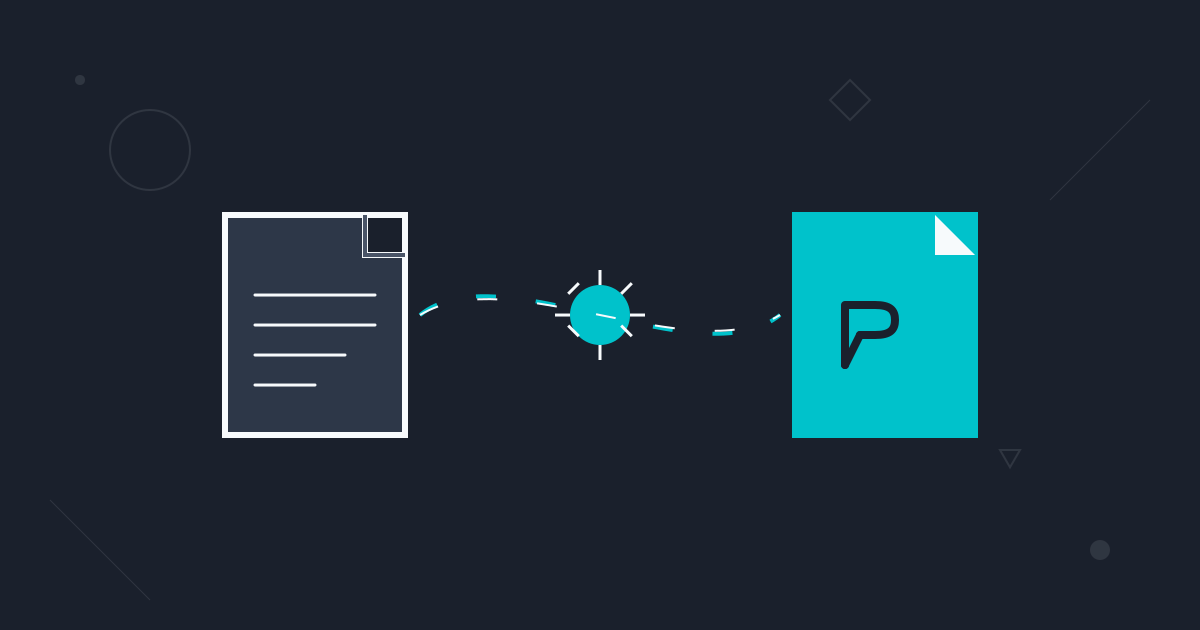
This is a common and frustrating problem that has a simple, powerful solution: converting your DOC file to a PDF. The Portable Document Format (PDF) is the universal standard for sharing documents precisely as you intended them to be seen. In this comprehensive guide, we'll explore why you should convert your documents to PDF and walk you through the easiest methods to do it, both online and offline.
Why Convert from DOC to PDF?
Before we dive into the how, let's quickly cover the why. Understanding the benefits of PDF will help you know when it's the right choice for your documents.
- Universal Compatibility: PDFs look the same on every device and operating system, whether it's a Windows PC, a Mac, a smartphone, or a tablet. You never have to worry about whether the recipient has Microsoft Word installed.
- Formatting Preservation: A PDF is like a snapshot of your original document. It locks in all your fonts, images, and layout elements, ensuring your hard work isn't undone by someone else's computer settings.
- Enhanced Security: PDFs offer robust security options. You can add password protection to prevent unauthorized access, restrict printing or copying, and add watermarks to protect your intellectual property.
- Smaller File Size: Often, a PDF file is smaller than its original Word document, especially if the document contains many images. This makes it easier and faster to send via email or upload to the web.
- Professional Appearance: Sending a PDF is standard practice in the professional world. It shows that you've finalized the document and are presenting it in a clean, read-only format.
Method 1: Using an Online DOC to PDF Converter
For speed and convenience, nothing beats a dedicated online tool. If you need a quick, one-off conversion without installing any software, this is the perfect method.
Online converters are browser-based, meaning they work on any device with an internet connection. At Practical Web Tools, we prioritize your privacy, so you can be confident that your files are handled securely and deleted from servers after processing.
How to Convert DOC to PDF Online (Step-by-Step)
- Navigate to the Converter: Open your web browser and find a reputable DOC to PDF online converter.
- Upload Your File: Click the 'Select File' or 'Upload' button. A dialog box will open, allowing you to browse your computer and select the DOC or DOCX file you wish to convert.
- Start the Conversion: Once your file is uploaded, the tool will often start the conversion process automatically. If not, click a 'Convert' or 'Start' button.
- Download Your PDF: In just a few seconds, the process will be complete. A download link for your new PDF file will appear. Click it to save the PDF to your device.
Pros:
- Extremely fast and easy.
- No software installation required.
- Accessible from any device.
Cons:
- Requires an internet connection.
- Potential privacy concerns on non-reputable sites.
Method 2: Using Microsoft Word's Built-in Features
If you have Microsoft Word installed, you already have a powerful, high-fidelity DOC to PDF converter at your fingertips. This method is ideal for sensitive documents as the entire process happens locally on your computer.
For Modern Versions of Word (Office 2010 and Newer)
Microsoft has made this process incredibly simple in recent versions with the 'Save As' and 'Export' functions.
Using 'Save As':
- Open Your Document: Launch Microsoft Word and open the DOC or DOCX file you want to convert.
- Go to 'Save As': Click on the
Filetab in the top-left corner. SelectSave Asfrom the menu. - Choose a Location: Browse to the folder where you want to save your new PDF.
- Select PDF Format: In the 'Save As' dialog box, click the dropdown menu next to 'Save as type:'. Select
PDF (*.pdf)from the list. - Optimize (Optional): Before saving, you'll see an 'Optimize for' option. You can choose
Standardfor high-quality printing orMinimum sizefor publishing online and sending via email. For most uses, 'Standard' is the best choice. - Save: Click the
Savebutton. Word will generate the PDF and save it in your chosen location.
Using 'Export':
- Open Your Document: Have your document open in Word.
- Go to 'Export': Click on the
Filetab and selectExport. - Create PDF/XPS: Click the
Create PDF/XPS Documentbutton, and then click theCreate PDF/XPSicon. - Save the File: This will open a dialog box similar to the 'Save As' window. Choose your location, name the file, and click
Publish.
For Older Versions of Word (2007)
Word 2007 required a free add-in from Microsoft to enable this functionality. If you're still using this version, you would first need to search for and install the 'Microsoft Save as PDF or XPS Add-in'. Once installed, the option to save as PDF will appear in your 'Save As' menu.
Method 3: Using Google Docs
For those who live and work in the cloud, Google Docs provides a seamless way to convert DOC files to PDF for free.
How to Convert with Google Docs (Step-by-Step)
- Upload to Google Drive: Log in to your Google account and navigate to Google Drive. Click
New>File uploadand select your DOC file. - Open with Google Docs: Once uploaded, right-click the file in Google Drive and select
Open with>Google Docs. The document will open in a new browser tab, automatically converted to the Google Docs format. - Check Formatting: Briefly review the document. Google Docs does a great job of preserving formatting, but it's always wise to give it a quick check for any minor shifts.
- Download as PDF: In the Google Docs menu, go to
File>Download>PDF Document (.pdf). Your browser will then download the converted PDF file to your computer.
This method is also excellent for collaboration, as you can edit the document with colleagues in Google Docs before downloading the final version as a PDF.
Method 4: Using Built-in Tools on macOS
Apple users have a powerful PDF engine built directly into the macOS operating system. The universal 'Print to PDF' function works in almost any application that can open a document, including Microsoft Word for Mac, Apple Pages, and even TextEdit.
How to 'Print to PDF' on a Mac
- Open the Document: Open your DOC file in any compatible application (like Pages, Word for Mac, or LibreOffice).
- Open the Print Menu: Go to
File>Printin the menu bar, or simply pressCommand + P. - Select the PDF Option: In the bottom-left corner of the Print dialog box, you'll see a small dropdown menu labeled
PDF. - Save as PDF: Click this dropdown and select
Save as PDF. - Name and Save: Choose a name and location for your new file, then click
Save. Your document is now a PDF.
Common Problems When Converting and How to Fix Them
Sometimes, conversions don't go as planned. Here's a quick troubleshooting guide for common issues.
| Problem | Common Cause | Solution |
|---|---|---|
| Formatting is messed up | The converter couldn't interpret complex layouts, tables, or columns correctly. | Use a higher-fidelity converter like Microsoft Word's built-in 'Save As' feature. Double-check your original document for any invisible formatting errors before converting. |
| Fonts look different | The fonts used in your DOC file were not standard and couldn't be embedded. | When using Word's 'Save As' or 'Export' function, look for 'Options' and ensure the 'Embed fonts in the file' checkbox is ticked. This packages the fonts with the PDF. |
| Hyperlinks are not clickable | The conversion method did not preserve active hyperlinks. | Most modern methods (Word's 'Save As', Google Docs download) retain hyperlinks. If yours are lost, check the settings in your conversion tool to ensure link preservation is enabled. |
| The final PDF is too large | The document contains high-resolution images that were not compressed. | In Word's 'Save As' PDF options, select 'Minimum size'. Alternatively, use an online PDF compressor tool after you've created the file to reduce its size. |
What Happens After Conversion? Managing Your New PDF
Creating your PDF is often just the first step. Once you have it, you may need to perform other actions. For example, you might need to combine a converted report with a cover page or an appendix.
This is where a suite of tools becomes essential. If you need to combine multiple documents into a single report, our free Merge PDFs tool lets you do it in seconds. On the other hand, if you only need to send a specific section of a large converted document, the Split PDF tool can extract just the pages you need.
And remember, conversion is a two-way street. If you ever receive a PDF that you need to edit but don't have the source file for, our PDF to Word converter can help you reverse the process, turning the PDF back into an editable DOCX file.
Conclusion: Choose the Right Method for Your Needs
Converting a DOC file to a PDF is a fundamental digital skill for students, professionals, and anyone who needs to share documents reliably. As we've seen, you have multiple free and effective methods at your disposal.
- For quick, one-off conversions on any device, an online tool is your best bet.
- For the highest fidelity and security, use the built-in 'Save As' or 'Export' feature in Microsoft Word.
- For cloud-based workflows and collaboration, Google Docs is a fantastic choice.
- For Mac users, the universal 'Print to PDF' function is a simple and powerful built-in utility.
No matter which method you choose, you can ensure your documents arrive exactly as you intended. We encourage you to explore the full range of free and privacy-focused PDF tools here at Practical Web Tools to help you manage your digital documents more effectively.