Convert ZIP to 7Z: The Ultimate Guide to Smaller Files
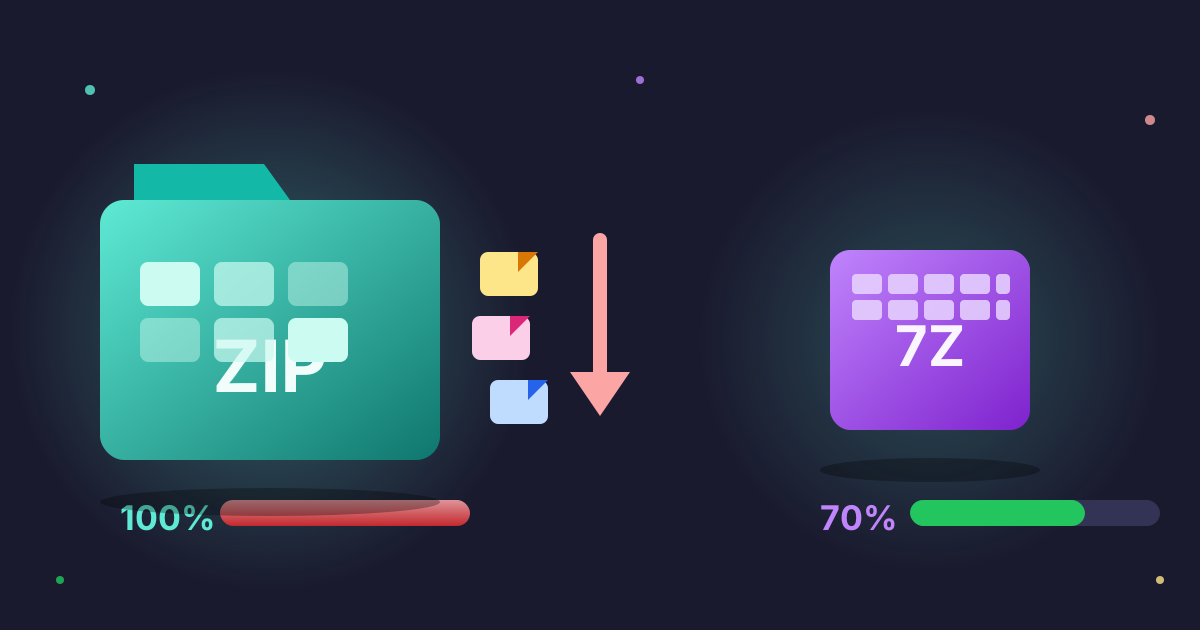
In the world of digital files, space is always at a premium. Whether you're archiving old projects, sending large attachments via email, or backing up important documents to the cloud, every megabyte counts. For decades, the humble .zip file has been the go-to solution for bundling and compressing files. It's universal, reliable, and understood by virtually every operating system. But what if there was a better way? A way to shrink your files even further, bolster their security, and manage your data more efficiently?
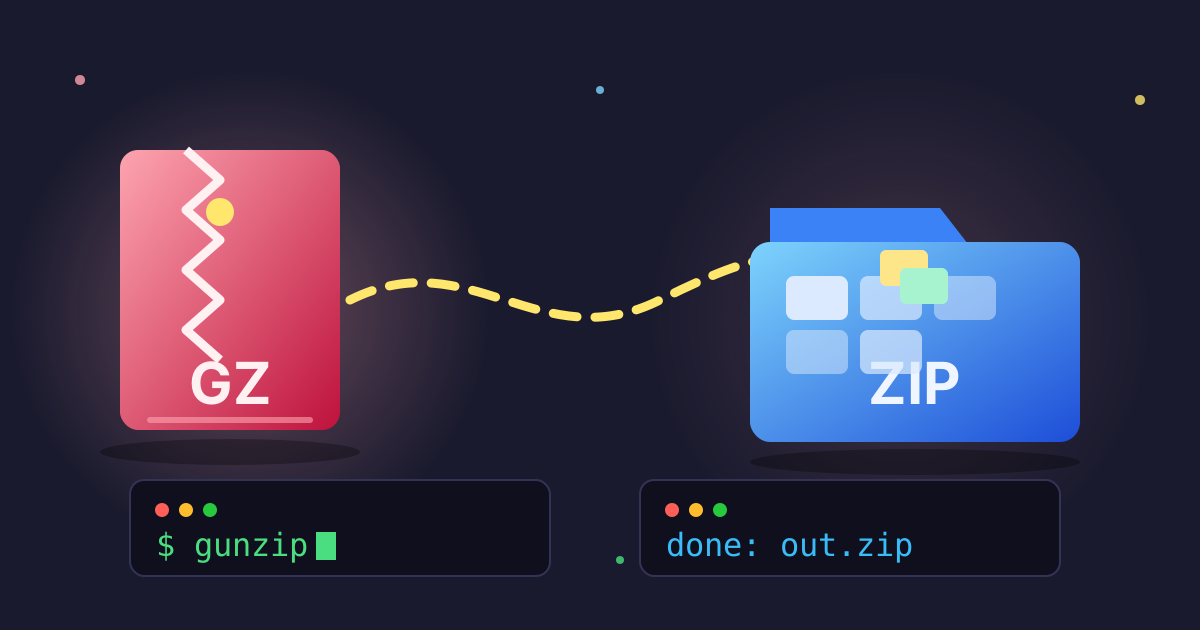
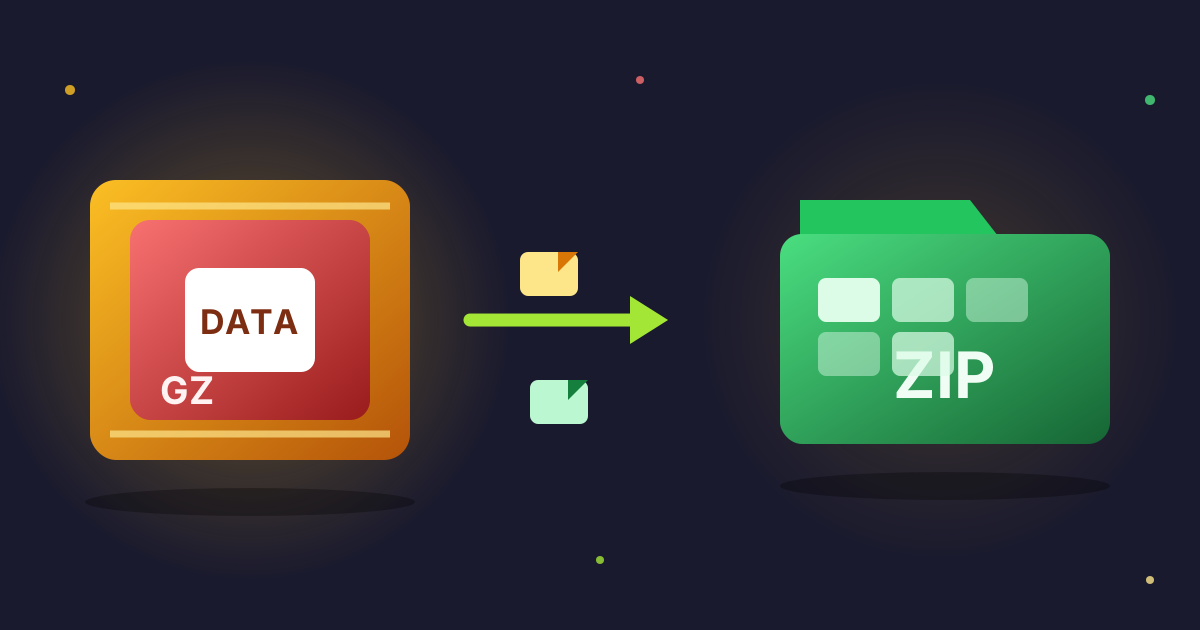
Enter the .7z format. While not as universally known as ZIP, 7Z offers significant advantages that make it a superior choice for many applications. This comprehensive guide will explore everything you need to know about converting from ZIP to 7Z, from the underlying technology to step-by-step tutorials. Let's dive in and unlock the power of modern file compression.
First, What is a ZIP file?
The ZIP file format has been a cornerstone of computing since its creation in 1989. It's an archive file format that supports lossless data compression. In simple terms, it takes one or more files and packages them into a single, smaller container file with a .zip extension.
The Pros of ZIP
- Universal Compatibility: This is ZIP's biggest strength. Windows, macOS, and Linux all have built-in support for creating and extracting ZIP files without needing any third-party software. This makes it the perfect format for sharing files with anyone, regardless of their technical expertise.
- Simplicity: Creating a ZIP file is often just a right-click away. The process is straightforward and familiar to most computer users.
The Cons of ZIP
- Inefficient Compression: ZIP primarily uses the DEFLATE compression algorithm, which, while effective for its time, has been surpassed by more modern algorithms. This means ZIP files are often larger than they need to be.
- Weaker Encryption: Standard ZIP encryption (ZipCrypto) is considered weak and vulnerable by modern standards. While newer versions support AES-256, it's not always the default or universally supported.
Introducing the 7Z Format
The .7z format is the native format of the 7-Zip archiver, a free and open-source file archiver. It was designed from the ground up to be a more efficient and powerful alternative to older formats like ZIP.
Key Features of 7Z
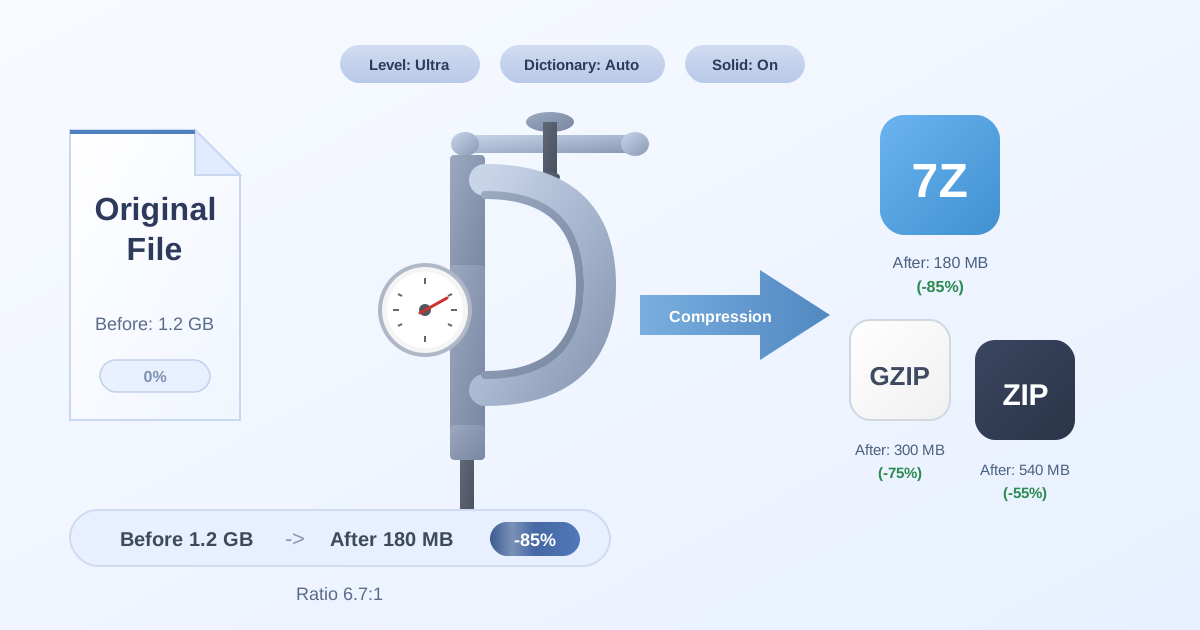
- High Compression Ratio: 7Z's main claim to fame is its exceptional compression. It primarily uses the LZMA and LZMA2 algorithms, which are significantly more effective at reducing file size than ZIP's DEFLATE. This means a 7Z file will almost always be smaller than a ZIP file containing the same data.
- Strong Encryption: Security is a core feature. 7Z supports robust AES-256 encryption for both the file data and the archive's directory structure, making it a highly secure option for sensitive information.
- Open-Source: The format is open-source, which encourages wide adoption and development by the community.
- Support for Large Files: 7Z can handle astronomically large files, up to 16 exabytes, making it suitable for even the most demanding archival needs.
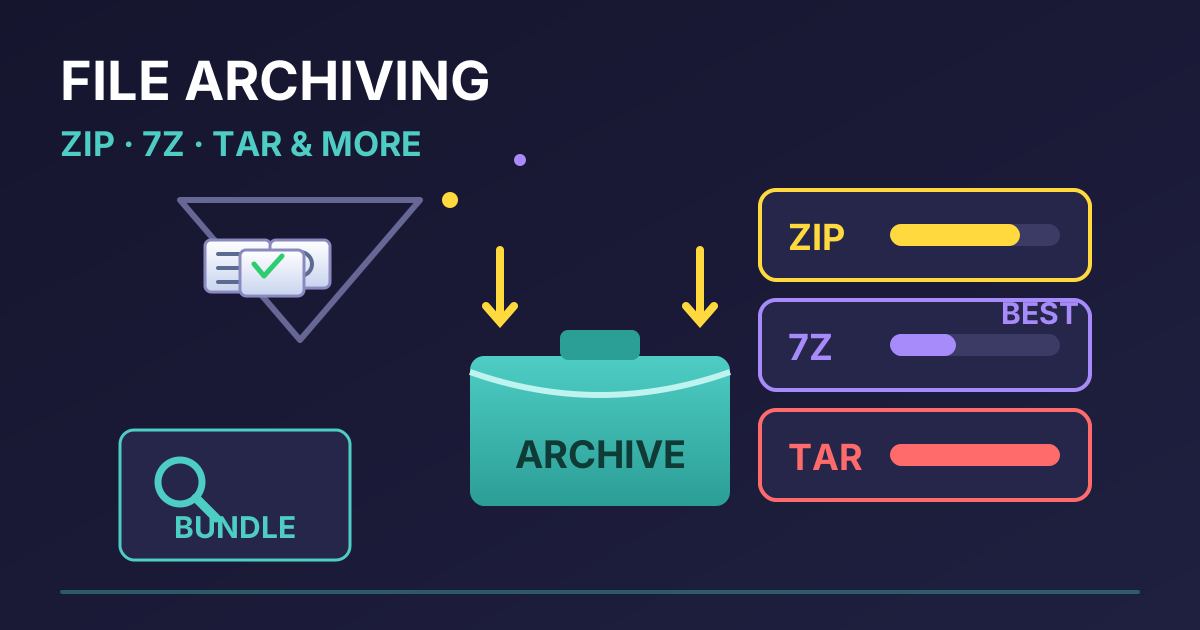
ZIP vs. 7Z: A Head-to-Head Comparison
To understand the practical differences, let's compare the two formats across several key metrics. This breakdown will make it clear why converting from ZIP to 7Z is often a smart move.
| Feature | ZIP | 7Z |
|---|---|---|
| Compression Ratio | Good | Excellent (Typically 30-70% better than ZIP) |
| Primary Algorithm | DEFLATE | LZMA / LZMA2 |
| Encryption | Weak (ZipCrypto), optional AES-256 | Strong AES-256 (Standard) |
| Compatibility | Universal (Built-in on all major OS) | Requires third-party software (e.g., 7-Zip) or an online tool |
| File Size Limit | 4 GB (Legacy), larger in ZIP64 | 16 Exabytes (Effectively unlimited) |
| Format Type | Proprietary elements, widely supported | Open-Source |
As the table shows, 7Z wins in almost every technical category, with ZIP's only major advantage being its out-of-the-box universal compatibility.
Why Convert from ZIP to 7Z? The Key Benefits
Now that we understand the technical differences, let's translate them into real-world benefits. Why should you take the extra step to convert your archives?
-
Save Significant Disk Space: This is the number one reason. By converting your ZIP archives to 7Z, you can reclaim a substantial amount of storage space. This is especially impactful for large collections of photos, documents, or software backups. A 10-20% reduction in size across hundreds of gigabytes can free up valuable space on your hard drive or in your cloud storage account.
-
Faster File Transfers: Smaller files mean faster transfers. Whether you're uploading a project to a server, downloading backups, or emailing an attachment, a smaller 7Z file will complete the task more quickly, saving you time and bandwidth.
-
Enhanced Security for Your Data: If your archives contain sensitive information—financial records, personal documents, or private contracts—using 7Z's built-in AES-256 encryption provides peace of mind. It's a much more robust security standard than the legacy encryption found in many ZIP files.
-
Efficiently Archive Large Projects: For developers, video editors, or data scientists working with massive files and complex directory structures, 7Z is the superior choice. Its ability to handle huge file sizes and its use of solid compression (compressing files as a single block) make it ideal for archiving large-scale projects.
How to Convert ZIP to 7Z: Step-by-Step Guide
Converting your files is a simple process, and you have several options depending on your needs. We'll cover the easiest online method and the most popular desktop software method.
Method 1: Using an Online Converter (The Quickest Way)
For fast, single-file conversions without installing any software, an online tool is the perfect solution. This method is ideal when you're on a computer that isn't yours or you just need a one-time conversion.
Our tool at Practical Web Tools is designed for privacy and ease of use. All processing happens directly in your browser, so your files are never uploaded to a server.
Here’s how to do it:
- Open the Converter: Navigate to the Practical Web Tools ZIP to 7Z converter.
- Select Your File: Click the "Choose File" button and locate the ZIP archive on your computer that you wish to convert.
- Automatic Conversion: The tool will instantly begin processing the file right in your browser. There are no complex settings to configure.
- Download Your 7Z File: Once the conversion is complete, a "Download" button will appear. Click it to save the newly created .7z file to your computer.
This entire process takes just a few clicks and is the most user-friendly way to get the job done.
Method 2: Using Desktop Software (For Power Users)
If you frequently work with archives, installing free desktop software is a great long-term solution. It gives you more control over compression settings and integrates directly into your operating system.
For Windows Users: 7-Zip
7-Zip is the official, free tool for creating and managing 7Z files.
- Download and Install: Go to the official 7-Zip website (7-zip.org), download the correct version for your system (32-bit or 64-bit), and run the installer.
- Locate Your ZIP File: Find the .zip file you want to convert in Windows Explorer.
- Use the Context Menu: Right-click on the file. You will see a new "7-Zip" option in the context menu.
- Add to Archive: Hover over "7-Zip" and select "Add to archive...".
- Configure Settings: A new window will open. In the top-left corner, under "Archive format:", select "7z". You can also adjust the compression level (Ultra offers the smallest size but is slower) and set a password for encryption.
- Create the Archive: Click "OK". 7-Zip will create a new .7z file in the same folder.
For macOS Users: Keka
Keka is a popular, free, and powerful file archiver for macOS that fully supports 7Z.
- Download and Install: Get Keka from the official website (keka.io) or the Mac App Store and install it.
- Set as Default (Optional but Recommended): The first time you run Keka, it may ask to be your default archiver. In the Keka preferences window, you can set the default format for compression to 7Z.
- Drag and Drop: The easiest way to use Keka is to simply drag your .zip file and drop it onto the Keka icon in your Dock or in the Applications folder.
- Conversion Complete: Keka will automatically decompress the ZIP and then re-compress its contents into a new .7z archive in the same location.
Beyond Conversion: Effective Archive Management
Understanding how to convert files is only part of the story. Knowing when to use which format and tool is key to efficient file management.
When to Compress vs. Decompress
You compress files to make them smaller for storage or sending. You decompress them to access and use the contents. Our suite of tools can help with both.
- Creating new archives: If you have a folder of files you want to bundle up, our Compress Files tool lets you create ZIP or other archive formats directly in your browser.
- Accessing contents: When someone sends you an archive, our Decompress Files tool can quickly extract the contents of ZIP, 7Z, RAR, and other formats without any software installation.
Choosing the Right Archive Format for the Job
While this article champions 7Z, it's not always the best choice. The right format depends on your audience and purpose.
- Use ZIP when: You need maximum compatibility. If you're sending files to a client, colleague, or family member who may not be tech-savvy, ZIP is the safest bet because they are guaranteed to be able to open it.
- Use 7Z when: Efficiency and security are your top priorities. Use it for personal backups, long-term storage, and sending large files to recipients who you know can handle the .7z format.
- Need to switch back? Sometimes you might need to convert a 7Z archive back to ZIP for compatibility reasons. For that, you can use a 7Z to ZIP converter to easily reverse the process.
Frequently Asked Questions (FAQ)
Q: Will I lose any data quality when converting from ZIP to 7Z?
A: No, absolutely not. Both ZIP and 7Z use lossless compression, which means no data is lost during the compression or decompression process. The original files can be restored perfectly. The process is like taking items out of one box and putting them into a smaller, more efficient box.
Q: Is 7Z better than RAR?
A: They are very close competitors. 7Z is open-source and often achieves a slightly higher compression ratio, making it a favorite among tech enthusiasts. RAR is proprietary software (WinRAR) but is also extremely popular and offers excellent compression and features. For most users, both are a massive step up from ZIP.
Q: Can other programs open 7Z files?
A: Yes. While 7-Zip is the native application, most modern file archivers can extract 7Z files, including WinRAR, PeaZip, and The Unarchiver for macOS. And for a software-free option, you can always use an online tool like our Decompress Files utility.
Q: What do the compression levels in 7-Zip (like 'Normal', 'Maximum', 'Ultra') mean?
A: These settings control the trade-off between compression speed and file size. 'Store' is fastest but does no compression. 'Normal' offers a good balance. 'Ultra' produces the smallest possible file but can be very slow and use a lot of RAM, especially on large files. For most purposes, 'Normal' or 'Maximum' is perfectly fine.
Conclusion: Make the Smart Switch
While the ZIP format isn't going away anytime soon thanks to its universal convenience, the advantages of 7Z are too significant to ignore. By offering superior compression, smaller file sizes, and stronger security, the 7Z format is the clear winner for anyone serious about efficient data storage and management.
Whether you need to free up space on your hard drive, speed up cloud backups, or secure sensitive archives, converting from ZIP to 7Z is a simple step with powerful benefits. The tools and knowledge are readily available, allowing you to choose the right format for the right job.
Ready to see the difference for yourself? Give your archives an upgrade. Try our free, private, and easy-to-use ZIP to 7Z converter today and start making your files smaller and more secure.