WMV to MP4: The Ultimate Guide to Converting Video Files
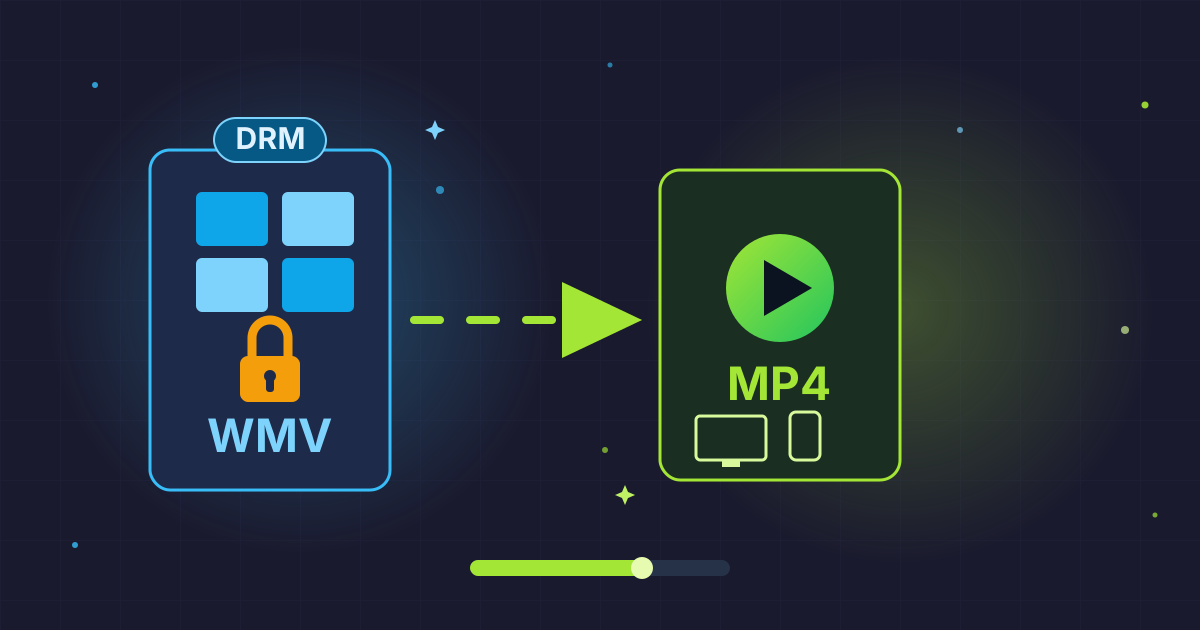
Have you ever found the perfect video clip, downloaded it, and then discovered it’s a .wmv file that refuses to play on your Mac, iPhone, or Android device? It's a frustratingly common problem. The WMV format, a relic of a more Windows-centric internet, often feels like a digital wall, blocking you from easily editing, sharing, or simply watching your content.
But what if you could break down that wall in just a few clicks? The solution is simple and powerful: convert your WMV file to the universally beloved MP4 format. This guide is your complete roadmap to understanding why this conversion is so essential and how to do it effectively using free, accessible methods. We'll explore everything from quick online tools to powerful desktop software, ensuring you can make your videos playable on any device, anytime.
Understanding the File Formats: WMV vs. MP4
Before we dive into the 'how,' let's understand the 'what' and 'why.' Knowing the difference between these two video formats is key to appreciating why converting is almost always the right move.
What is a WMV File?
WMV stands for Windows Media Video. Developed by Microsoft, it was designed to be the go-to format for video streaming and playback within the Windows ecosystem. For a time, it was quite popular, especially due to its integration with Windows Media Player and its relatively good compression, which worked well with the slower internet speeds of the early 2000s. WMV files often contain digital rights management (DRM) protection, which was another reason for its adoption by content creators.
- Pros: Good compression for its era, streams well on low bandwidth, deeply integrated into Windows.
- Cons: Poor cross-platform compatibility (especially on Apple and Linux), an aging technology, often locked down by DRM.
What is an MP4 File?
MP4, technically MPEG-4 Part 14, is not just a video format; it's a digital multimedia container format. Think of it as a versatile box that can hold video, audio, subtitles, and even images all in one file. Its true power lies in its standardization and the use of modern, highly efficient codecs like H.264 (AVC) and H.265 (HEVC).
- Pros: Universal compatibility on virtually every device, excellent balance of high quality and small file size, the standard for web streaming (YouTube, Netflix), widely supported by editing software.
- Cons: Can occasionally be complex under the hood due to various possible codecs, but this rarely affects the average user.
At a Glance: WMV vs. MP4 Comparison
For a quick overview, here’s a direct comparison of the key attributes of each format:
| Feature | WMV (Windows Media Video) | MP4 (MPEG-4 Part 14) |
|---|---|---|
| Developer | Microsoft | Moving Picture Experts Group (MPEG) |
| Compatibility | Primarily Windows-based; poor support on Apple/Linux devices. | Universal; native support on nearly all devices and platforms. |
| Compression | Generally good but uses older, less efficient codecs. | Excellent; uses modern codecs (H.264, H.265) for better quality at smaller sizes. |
| Primary Use Case | Legacy web streaming and Windows media. | Web streaming, video sharing, mobile video, digital storage. |
| File Extension | .wmv, .asf | .mp4, .m4v |
| Flexibility | Limited to video and audio. | Highly flexible container for video, audio, subtitles, and images. |
Why Convert WMV to MP4? The Top 5 Reasons
Understanding the technical differences makes it clear why MP4 is the superior choice for modern use. Here are the top practical reasons to make the switch.
-
Universal Compatibility: This is the number one reason. An MP4 file will play seamlessly on your Windows PC, MacBook, iPhone, Android tablet, PlayStation, and Smart TV. No more error messages or hunts for special codecs. You convert it once, and it works everywhere.
-
Easier Editing: Nearly all modern video editing software—from professional suites like Adobe Premiere Pro and Final Cut Pro to free options like DaVinci Resolve and iMovie—is optimized to work with MP4 files. Importing a WMV can often lead to glitches, poor performance, or the need for a pre-conversion step anyway.
-
Web Streaming and Sharing: If you plan to upload your video to YouTube, Vimeo, Instagram, or any other social media platform, MP4 is the required or highly recommended format. It's the undisputed king of the internet for a reason: it streams efficiently and maintains quality.
-
Better Quality-to-Size Ratio: Thanks to advanced codecs like H.264, an MP4 file can offer the same or even better visual quality than a WMV file while taking up significantly less disk space. This is crucial for saving storage on your devices and for faster uploads and downloads.
-
Future-Proofing Your Media: WMV is a legacy format. While it won't disappear overnight, its relevance is rapidly declining. Converting your video archive to MP4 ensures your media remains accessible and usable for years to come, without worrying about future software dropping support for older formats.
How to Convert WMV to MP4: 3 Proven Methods
Now for the practical part. We'll walk through three reliable methods for converting your files, each suited for different needs.
Method 1: Using Online Video Converters (The Quick & Easy Way)
For converting a single, non-sensitive file quickly, an online converter is your best bet. These web-based tools require no software installation and have a simple drag-and-drop interface.
- Pros: No installation needed, extremely user-friendly, works on any OS with a browser, fast for small files.
- Cons: Often have file size limits, requires a stable internet connection for uploads/downloads, potential privacy risks with sensitive content.
Step-by-Step Guide for an Online Converter:
- Choose a Reputable Tool: Search for a "free online WMV to MP4 converter." Prioritize sites that are transparent about their privacy policies, stating that they delete your files from their servers after a short period. The ethos behind Practical Web Tools is privacy-first, which is a great principle to apply when choosing any online service.
- Upload Your WMV File: Look for a button that says "Choose File," "Upload," or a designated area to drag and drop your video.
- Select MP4 as the Output Format: The interface will almost always have a dropdown menu or list of icons. Select "MP4" as your target format.
- (Optional) Adjust Settings: Some advanced online converters allow you to change the resolution, video codec, or quality settings. For most users, the default settings are perfectly fine.
- Start the Conversion: Click the "Convert" or "Start" button. The tool will upload your file, process it on its servers, and prepare the download.
- Download Your New MP4: Once the conversion is complete, a download link will appear. Click it to save your brand new, universally compatible MP4 file.
Method 2: Using Desktop Software (The Power User's Choice)
If you need to convert large files, multiple files at once (batch conversion), or want complete control over the output, dedicated desktop software is the way to go. HandBrake is a fantastic, free, and open-source option available for Windows, Mac, and Linux.
- Pros: No file size or number limits, works completely offline, offers extensive customization (bitrate, codecs, filters), supports batch processing.
- Cons: Requires software installation and setup, can have a steeper learning curve for advanced features.
Step-by-Step Guide Using HandBrake:
- Download and Install HandBrake: Go to the official HandBrake website (handbrake.fr) and download the version for your operating system. Follow the installation instructions.
- Open HandBrake and Import Your File: Launch the application. You can either drag your WMV file directly onto the main window or click the "File" or "Open Source" button to browse for it.
- Set the Output Format: In the "Summary" tab, make sure the "Format" dropdown is set to "MP4 File."
- Choose a Preset: The easiest way to get a great result is to use HandBrake's built-in presets. On the right side of the window (or from the "Presets" dropdown), choose one that matches your needs. "Fast 1080p30" is an excellent starting point for high-definition video.
- Set the Destination: At the bottom of the window, under "Save As," click "Browse..." to choose where you want to save your converted MP4 file and what to name it.
- Start the Conversion: Click the green "Start Encode" button at the top of the window. HandBrake will begin processing the file. You can monitor the progress at the bottom. The time it takes will depend on the file size and your computer's speed.
Method 3: Using VLC Media Player (The Hidden Gem)
Many people already have VLC Media Player installed for watching videos, but they don't realize it has a powerful, built-in conversion tool. If you have VLC, you already have a converter ready to go.
- Pros: You likely already have it installed, it's free and cross-platform, straightforward for basic conversions.
- Cons: The interface for converting is less intuitive than dedicated tools, fewer advanced options than HandBrake.
Step-by-Step Guide Using VLC:
- Open VLC Media Player.
- Navigate to the Convert Menu:
- On Windows: Click
Mediain the top menu bar, then selectConvert / Save.... - On Mac: Click
Filein the top menu bar, then selectConvert / Stream....
- On Windows: Click
- Add Your WMV File: In the new window, click the
+ Add...button to select your WMV file. After adding it, click theConvert / Save(orConvert / Stream) button at the bottom. - Choose the Output Profile: In the next window, look for the "Profile" section. Click the dropdown menu and select
Video - H.264 + MP3 (MP4). This is the most common and compatible choice. - Choose the Destination: Click the
Browse(orSave as File) button to select a folder and name for your new MP4 file. Make sure you manually add the.mp4extension to the filename. - Start the Conversion: Click the "Start" button. VLC's timeline will look like it's "playing" the file, but it's actually processing the conversion. Once the progress bar reaches the end, your new MP4 file will be ready in the destination folder you chose.
Post-Conversion: Managing Your New MP4 Files
Once you've successfully converted your videos, you might have a new set of files to manage. MP4s are efficient, but high-definition videos can still be large. If you need to share them, especially multiple files at once, proper management is key.
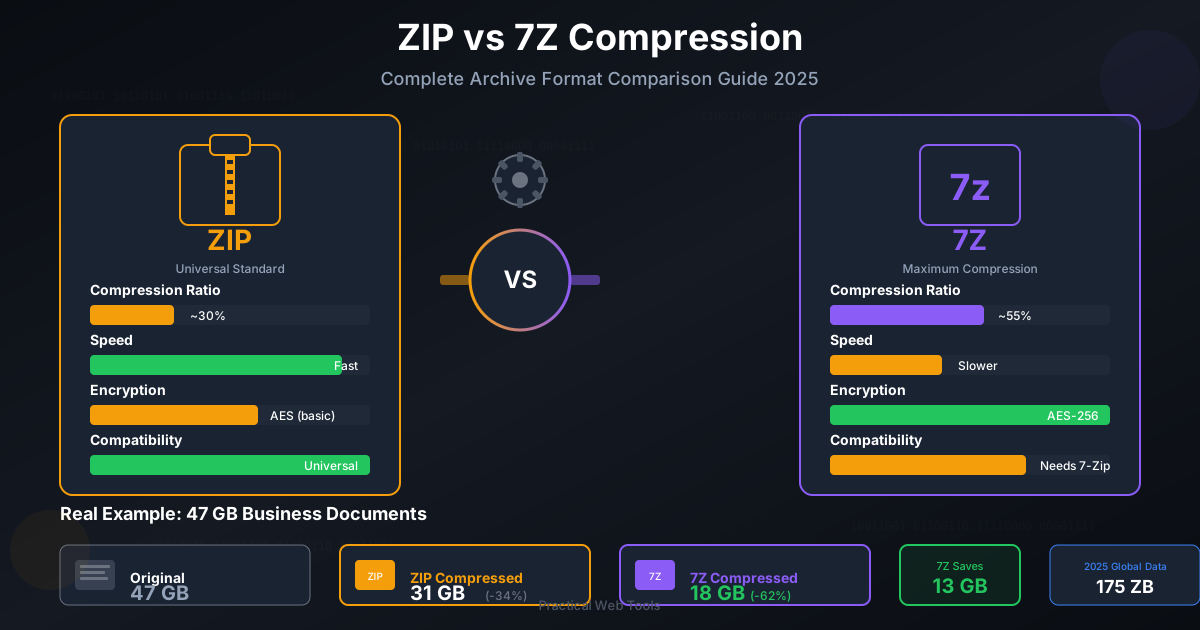
This is where archiving and compression come in handy. For example, if you've converted a batch of ten WMV files for a project and need to send them to a colleague, sending ten separate attachments is inefficient. A much better solution is to bundle them into a single archive file, like a ZIP.
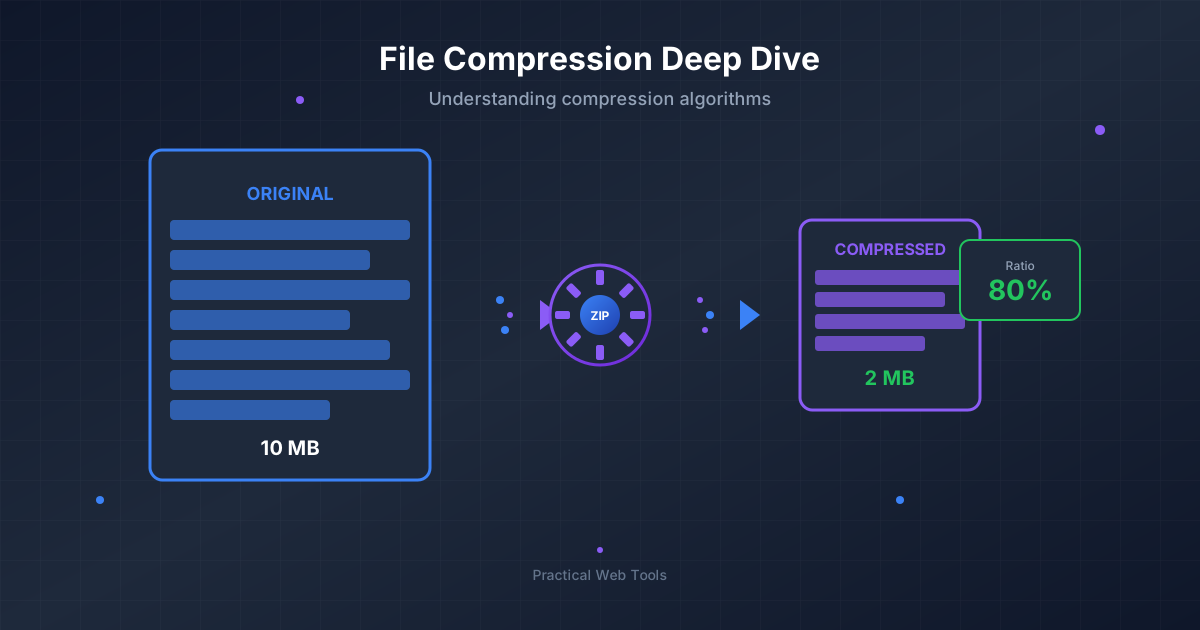
If your final collection of MP4s is still too large for emailing, you can use a file compression tool. Our free Compress Files tool can help you create a ZIP archive to reduce the overall size, making it easier to share.
Furthermore, different situations call for different archive types. While ZIP is common, formats like 7Z offer even better compression rates. If you have a ZIP archive but need to squeeze it down even further, using a ZIP to 7Z converter can save you valuable space.
Frequently Asked Questions (FAQ)
Can I convert WMV to MP4 without losing quality?
Technically, any conversion between two "lossy" formats (like WMV and MP4) involves re-encoding the video, which results in some data loss. However, if you use high-quality settings (like a high bitrate or a quality-based preset in HandBrake), the difference in visual quality will be completely imperceptible to the human eye. The goal is a visually lossless conversion, not a mathematically lossless one.
Is it safe to use online WMV to MP4 converters?
It depends on the service and the content. For non-sensitive videos, most reputable online converters are safe. Look for services that use HTTPS and have a clear privacy policy stating they delete your files after a few hours. For personal, private, or confidential videos, it is always safer to use an offline desktop application like HandBrake or VLC.
Can Windows Media Player convert WMV to MP4?
No. This is a common misconception. Windows Media Player is a player, not a video transcoder. It can play WMV files and perform simple tasks like burning files to a CD or DVD, but it lacks the built-in codecs and functionality to convert a video file from one format to another like WMV to MP4.
What is the best free WMV to MP4 converter?
The "best" converter depends entirely on your needs:
- For speed and convenience (single, small files): A reputable online converter.
- For power, quality control, and batch conversion: HandBrake is the undisputed champion.
- For a quick conversion with software you already have: VLC Media Player is a fantastic option.
Conclusion
Navigating the world of video formats doesn't have to be complicated. The incompatibility of WMV files is a common hurdle, but it's one you can easily overcome. By converting your videos to the universally supported MP4 format, you unlock the freedom to watch, edit, and share your content on any platform without a second thought.
Whether you choose the simplicity of an online tool, the power of HandBrake, or the convenience of VLC, you now have the knowledge to handle any WMV file that comes your way.
Now that you've mastered video conversion, why stop there? Explore our full suite of 455+ free and privacy-focused tools at Practical Web Tools to handle all your file management, editing, and conversion needs.