Convert MKV to MP4: The Ultimate Guide for Any Device

You've just downloaded an anticipated movie or recorded a long video, but it won't play on your TV, phone, or tablet. You check the file extension and see that familiar but often frustrating suffix: .mkv. It’s a common scenario that leaves many people searching for a solution. Why does this powerful video file format cause so many headaches, and what’s the best way to fix it?
The answer, in most cases, is to convert it to the universally accepted MP4 format. While it might sound technical, converting from MKV to MP4 is surprisingly straightforward with the right knowledge and tools. This comprehensive guide will walk you through everything you need to know, from understanding the difference between the formats to step-by-step instructions using free, powerful software. Get ready to make your video library compatible with any device you own.
Understanding the File Formats: What Are MKV and MP4?
Before we dive into the conversion process, it’s essential to understand what these file types actually are. Many people mistakenly think of them as video formats, but they are actually 'containers.' Think of a container file like a digital box. The box itself doesn't determine the quality of what's inside; it just holds all the different pieces together.
The Matroska Container (MKV)
The Matroska Multimedia Container, or MKV, is a free, open-standard container format. Its biggest strength is its incredible flexibility. An MKV file can hold a virtually unlimited number of video, audio, picture, and subtitle tracks in one file. This is why it's a favorite in the video enthusiast community.
Key Features of MKV:
- Versatile: Can store multiple audio languages, various subtitle formats (like SRT, SSA/ASS), chapter points, and menus.
- Open Source: It's not owned by any single company, which encourages its adoption and development without licensing fees.
- High Quality: Often used for high-definition (1080p) and ultra-high-definition (4K) video content because it can package high-quality video and audio codecs like H.264, H.265 (HEVC), and lossless audio formats like FLAC.
The main drawback? This flexibility comes at the cost of widespread native support. Many older devices, smart TVs, and mobile phones can't decode all the elements inside an MKV container, leading to playback issues.
The MPEG-4 Part 14 Container (MP4)
MP4 is the industry standard. Developed by the Moving Picture Experts Group (MPEG), this container format is recognized and supported by virtually every modern device, platform, and software application. From your iPhone and Android device to your PlayStation, Xbox, and smart TV, MP4 is the format that just works.
Key Features of MP4:
- Universal Compatibility: Its primary advantage. If you want a video to play anywhere, MP4 is the safest bet.
- Good Compression: It provides excellent video quality at relatively small file sizes, making it ideal for streaming and sharing online.
- Standardized: MP4 files typically use common video codecs like H.264 or H.265 and audio codecs like AAC, which are broadly supported.
While not as flexible as MKV in terms of holding diverse tracks, its reliability and compatibility make it the go-to format for most consumer needs.
MKV vs. MP4: A Head-to-Head Comparison
To make the differences clear, here's a direct comparison of the two container formats. This can help you decide when to use each one.
| Feature | MKV (Matroska) | MP4 (MPEG-4) |
|---|---|---|
| Compatibility | Moderate. Not supported by all devices natively. | Excellent. Supported by virtually all devices. |
| Video Codec Support | Very broad. Supports almost any codec. | More limited. Primarily H.264, H.265, MPEG-4 ASP. |
| Audio Codec Support | Very broad. Supports AAC, MP3, AC3, DTS, FLAC, etc. | More limited. Primarily AAC, MP3. |
| Subtitle Support | Excellent. Supports multiple, switchable soft subtitles (SRT, ASS). | Good. Can embed subtitles, but support is less flexible. |
| Open Standard | Yes, completely open and royalty-free. | Yes, but based on Apple's MOV format and has associated patents. |
| Primary Use Case | Archiving high-quality video with multiple audio/subtitle tracks. | Streaming, sharing, and playback on consumer devices. |
Why Should You Convert from MKV to MP4?
Given the comparison, the reasons for converting become clear. Here are the three main drivers:
- Universal Playback: This is the number one reason. If you want to watch your video on a smart TV, gaming console (PS5, Xbox), smartphone, or tablet, converting to MP4 guarantees it will play without issues.
- Easier Editing: Most consumer and prosumer video editing software, like Adobe Premiere Pro, Final Cut Pro, and iMovie, have more stable and optimized workflows for MP4 files. Importing MKV files can sometimes lead to errors or unsupported audio tracks.
- Optimized for Streaming: Platforms like YouTube and Vimeo, as well as personal media servers like Plex, often handle the MP4 container more efficiently for streaming over a network.
How to Convert MKV to MP4: 3 Free & Powerful Methods
Now for the practical part. We'll cover three distinct methods using free, trusted software. Each has its own advantages depending on your needs.
Method 1: The Quick and Easy Way with VLC Media Player
Many people don't realize that the popular VLC Media Player is also a powerful video converter. If you already have it installed, you're just a few clicks away from converting your file.
Step-by-Step Guide:
- Open VLC: Launch the VLC Media Player application.
- Go to Convert/Save: In the top menu, click on
Mediaand then selectConvert / Save...(or use the shortcut Ctrl+R). - Add Your File: In the File tab, click the
+ Add...button and navigate to the MKV file you want to convert. ClickOpen. - Initiate Conversion: Click the
Convert / Savebutton at the bottom of the window. - Choose a Profile: In the new window, look for the
Profiledropdown menu. SelectVideo - H.264 + MP3 (MP4). This is the most compatible option. - Select Destination: Click the
Browsebutton next to theDestination filefield. Choose where you want to save your new file and give it a name, making sure it ends with.mp4. ClickSave. - Start Converting: Click the
Startbutton. The timeline scrubber in VLC will move as it processes the file. Once it reaches the end, your conversion is complete.
Best for: Quick, simple conversions of one or two files without needing to install new software.
Method 2: For Advanced Control with HandBrake
HandBrake is a free, open-source video transcoder built specifically for converting video files. It offers far more control over quality, codecs, and features like subtitles and chapters.
Step-by-Step Guide:
- Install and Open HandBrake: Download it from the official website and install it.
- Open Source: Drag and drop your MKV file into the HandBrake window, or click
Fileto open a single video. - Choose a Preset: On the right side, HandBrake offers a list of presets. For general use, a good choice is under
General>Fast 1080p30orVery Fast 1080p30. This will automatically set up the conversion for good quality and compatibility. - Confirm Format: Under the
Summarytab, make sure theFormatis set toMP4. - Adjust Settings (Optional): You can go to the
Video,Audio, andSubtitlestabs to fine-tune your conversion. For example, in theVideotab, you can adjust the quality using the Constant Quality slider (a lower RF number means higher quality and larger file size). - Set Destination: At the bottom, click
Browsenext toSave Asto choose a location and name for your output file. - Start Encode: Click the green
Start Encodebutton at the top. HandBrake will show you the progress at the bottom of the window.
Best for: Users who want more control over video quality, need to handle subtitles properly, or are converting multiple files (HandBrake has a queue feature).
Method 3: The 'Lossless' Conversion (Remuxing) with FFmpeg
This is the most efficient method, but it's for more advanced users comfortable with the command line. It involves remuxing, not re-encoding.
- Re-encoding (what VLC and HandBrake do by default) decodes the video and audio and then re-encodes it into a new format. This always results in some quality loss.
- Remuxing simply takes the existing video and audio streams from the MKV container and places them into a new MP4 container. It's incredibly fast and results in zero quality loss.
This only works if the codecs inside the MKV are already compatible with the MP4 container (e.g., H.264 video and AAC audio). Fortunately, this is very common.
Step-by-Step Guide:
-
Install FFmpeg: Download it from the official FFmpeg website and add it to your system's PATH.
-
Open Command Prompt/Terminal: Navigate to the folder containing your MKV file.
-
Run the Command: Type the following command and press Enter:
ffmpeg -i your_video_name.mkv -c copy output_video_name.mp4- Replace
your_video_name.mkvwith the name of your source file. - Replace
output_video_name.mp4with your desired output filename.
- Replace
In seconds, you'll have a new MP4 file with the exact same quality as the original MKV.
Best for: Advanced users who want the fastest conversion with absolutely no quality loss.
Optimizing and Managing Your New MP4 Files
After converting your videos, you might find yourself with a large collection of MP4 files. Managing this digital library effectively is the next step.
Dealing with Large File Sizes
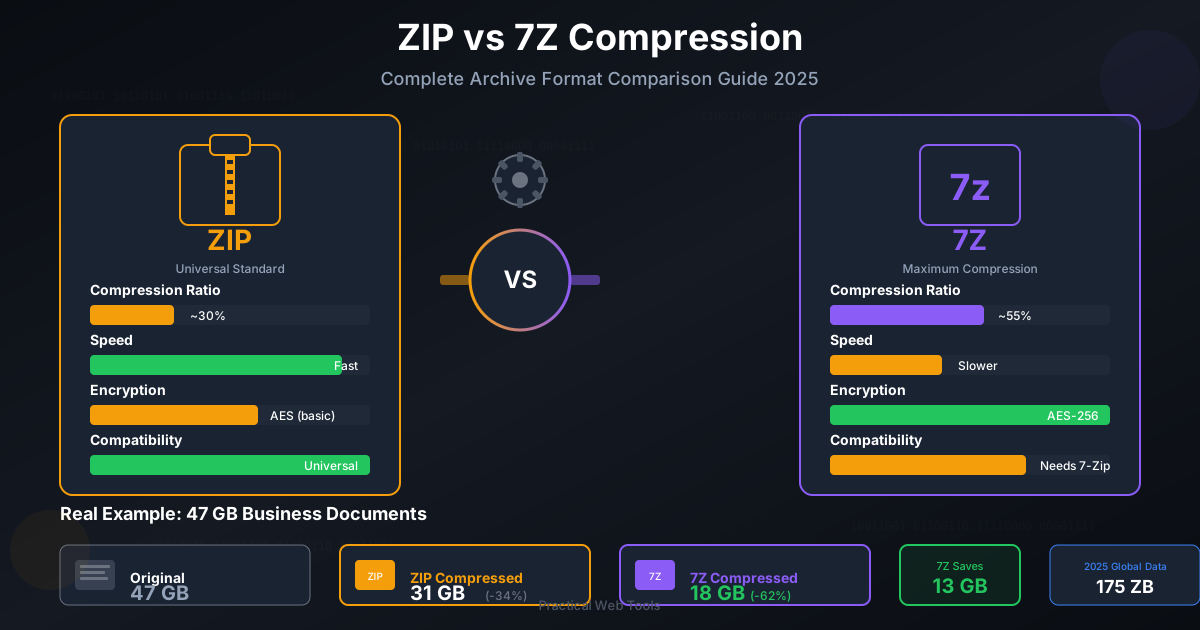
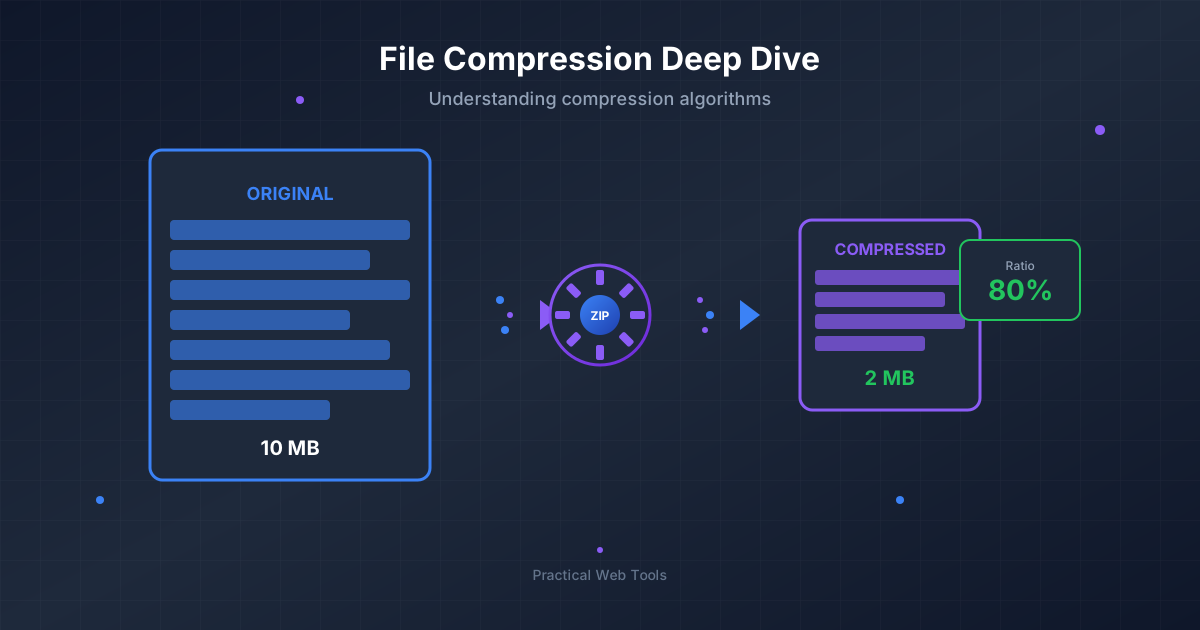
High-definition video files are notoriously large. A single 1080p movie can easily exceed several gigabytes. If you need to archive a collection of these videos or send them over the internet, handling these large files can be a challenge. Using a tool to Compress Files into a single archive is an excellent solution. You can package one or multiple MP4s into a ZIP or 7Z archive, which can sometimes reduce the overall size and make the files much easier to manage and transfer.
Archiving and Accessing Your Video Library
Creating compressed archives is also a great strategy for long-term storage and backups. Once your videos are safely tucked away in a ZIP or 7Z file, you'll eventually need to access them again. For a quick and private way to get to your files, you can use an online tool like Practical Web Tools' Decompress Files. It allows you to extract files from common archive formats directly in your browser, without needing to install any software and with the assurance that your files are not being uploaded to a server.
Troubleshooting Common Conversion Problems
Sometimes, conversions don't go as planned. Here are a few common issues and how to fix them.
-
Problem: The output MP4 has no audio.
- Cause: The MKV file may contain an audio format like DTS or TrueHD, which isn't widely supported by the MP4 container.
- Solution: Use HandBrake. Go to the
Audiotab, where it will show you the source audio track. If it's an unsupported format, you can select a codec likeAAC (avcodec)from the dropdown menu to convert the audio to a compatible format.
-
Problem: The subtitles are missing.
- Cause: MKV files often contain 'soft' subtitles, which are separate tracks that can be turned on or off. A simple remux might not carry them over correctly.
- Solution: Again, HandBrake is your best friend here. In the
Subtitlestab, you can scan for available tracks. You can eitherburna track directly into the video (permanently visible) or add it as a selectable track in the final MP4.
-
Problem: The output quality is worse than the original.
- Cause: This is an unavoidable consequence of re-encoding. You are compressing an already compressed file.
- Solution: First, try the FFmpeg remuxing method to see if you can avoid re-encoding. If you must re-encode (e.g., to change a codec), increase the quality settings. In HandBrake, use the Constant Quality slider in the
Videotab. A lower RF number (e.g., 18-20 for 1080p) will result in higher quality and a larger file size.
Conclusion: The Right Format for the Right Job
While MKV remains a superior container for archiving high-quality video with all its accompanying data, MP4 holds the undisputed title as the king of compatibility. Understanding the strengths and weaknesses of each format allows you to make the best choice for your needs.
Converting from MKV to MP4 is a simple process that unlocks your media library for playback on any device. Whether you choose the convenience of VLC, the power of HandBrake, or the speed of FFmpeg, you now have the knowledge to solve any playback problem that comes your way.
Now that you've mastered video format conversion, why not explore the other productivity-boosting tools available on Practical Web Tools? We have a suite of over 455 free, privacy-focused online utilities to help you with all your digital tasks.