How to Convert MOV to MP4: The Ultimate 2024 Guide

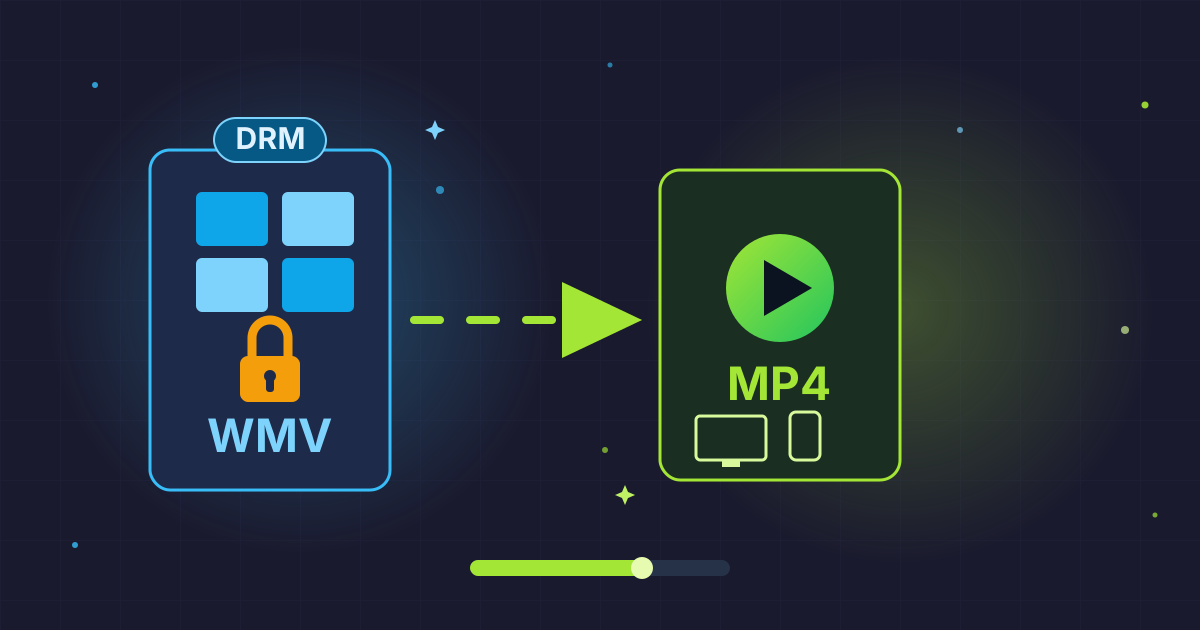
You've just captured the perfect video on your iPhone or edited a masterpiece on your Mac. You send it to a friend or try to play it on your Windows PC, and... nothing. It won't open, or you get an error message about an unsupported format. This common frustration almost always boils down to one thing: you have a MOV file, and you need an MP4.
While MOV is a fantastic high-quality format developed by Apple, its compatibility can be limited outside the Apple ecosystem. MP4, on the other hand, is the universal language of video, playable on virtually any device or platform.
This comprehensive guide will walk you through everything you need to know. We'll demystify the difference between these two formats, explore the best reasons to convert, and provide step-by-step instructions using free, accessible tools. By the end, you'll be able to convert MOV to MP4 like a pro, ensuring your videos can be shared and enjoyed anywhere, by anyone.
What's the Difference: MOV vs. MP4?
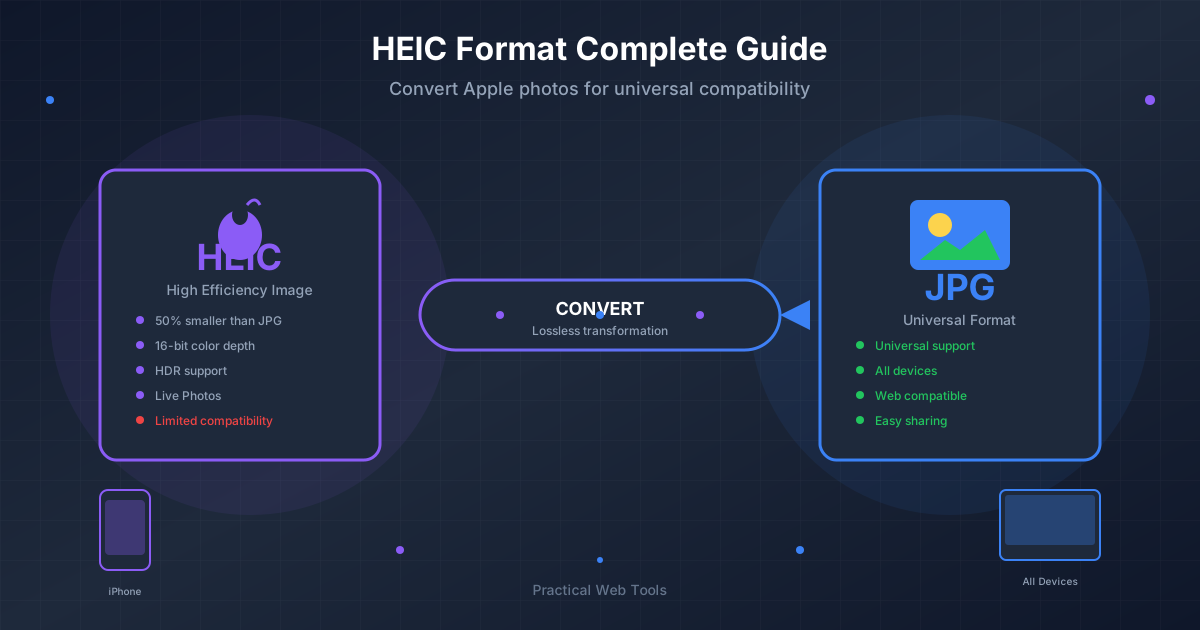
At a glance, MOV and MP4 files can seem identical. They are both 'container' formats, which means they act like a box holding various digital data, including video, audio, subtitles, and metadata. Often, they can even contain the exact same video codec (like H.264). So, what's the real difference, and why does it matter?
The MOV File Format
Developed by Apple in the late 90s, the MOV format, also known as the QuickTime File Format (QTFF), was designed to be the native video format for macOS and iOS. It's renowned for its ability to store high-quality video, audio, and effects in separate tracks, making it a favorite among professional video editors working on Macs. Its structure is excellent for post-production, as it preserves rich data without significant quality loss.
Key Characteristics of MOV:
- Quality: Excellent for professional editing and archiving original footage.
- Compatibility: Primarily works best within the Apple ecosystem (Mac, iPhone, iPad).
- File Size: Tends to be larger than MP4 due to less aggressive compression and its focus on preserving quality.
The MP4 File Format
MP4, short for MPEG-4 Part 14, is an international standard that grew out of Apple's MOV format. Think of it as the more worldly, adaptable sibling. Its primary design goal was to create a highly efficient format for streaming and sharing video over the internet. It achieves a fantastic balance between video quality and file size, making it the most widely used video format today.
Key Characteristics of MP4:
- Quality: Very good, with excellent compression that produces smaller files.
- Compatibility: Universal. It plays on Windows, macOS, Linux, Android, iOS, smart TVs, game consoles, and nearly every web browser and social media platform.
- File Size: Generally smaller than MOV, making it ideal for streaming, uploading, and sharing.
MOV vs. MP4: At a Glance
To make it even clearer, here's a side-by-side comparison:
| Feature | MOV (QuickTime File Format) | MP4 (MPEG-4 Part 14) |
|---|---|---|
| Developer | Apple Inc. | MPEG (Moving Picture Experts Group) |
| Primary Use Case | High-quality video editing, especially on Mac | Streaming, sharing, and universal playback |
| Compatibility | Best within Apple ecosystem; limited on other platforms | Universal; works on virtually all devices and platforms |
| Compression | Good, but often results in larger file sizes | Excellent, optimized for a balance of quality and small size |
| Industry Standard | De facto standard for Apple devices | The global industry standard for web video |
Top Reasons to Convert MOV to MP4
Now that you understand the differences, the benefits of converting your MOV files become clear. It’s not about which format is inherently 'better,' but which is right for the job. For sharing and playback, MP4 is almost always the answer.
-
Universal Compatibility: This is the number one reason. An MP4 file will play on your friend's Android phone, your parents' Windows laptop, and your smart TV without any special software. You eliminate the guesswork and ensure a smooth viewing experience for everyone.
-
Smaller File Sizes: MP4's superior compression algorithms mean you get a significantly smaller file with little to no perceptible loss in quality. This saves precious storage space on your devices and in the cloud.
-
Faster Uploads and Downloads: A smaller file size directly translates to quicker upload times to platforms like YouTube, Instagram, and Facebook. It also means your friends and colleagues can download the video much faster.
-
Web and Social Media Optimization: Virtually every online video platform recommends or requires the MP4 format. Converting to MP4 ensures your video meets their technical specifications for smooth processing and optimal playback quality.
-
Easier Sharing: Attaching a massive MOV file to an email is often impossible due to size limits. A compact MP4 is much easier to share via email, messaging apps, or cloud services like Google Drive and Dropbox.
Step-by-Step Conversion Methods
Converting MOV to MP4 is straightforward, and you don't need expensive software. Here are some of the best free methods available, from simple online tools to powerful desktop applications.
Method 1: Using Desktop Software (VLC Media Player)
VLC is more than just a media player; it's a powerful, free, and open-source utility that can handle video conversions. Since it's an offline tool, it's an excellent choice for large files and for users concerned about privacy.
Pros:
- Completely free with no ads or watermarks.
- Works on Windows, macOS, and Linux.
- Excellent for large files.
- Private and secure, as your files never leave your computer.
Cons:
- The interface can be slightly intimidating for beginners.
- Conversion options are powerful but can be complex.
How to Convert MOV to MP4 with VLC:
- Download and Install VLC: If you don't already have it, download it from the official VideoLAN website.
- Open the Convert/Save Menu: Launch VLC. In the top menu bar, click on
Mediaand then selectConvert / Save.... - Add Your MOV File: In the Open Media window, click the
+ Add...button. Navigate to your MOV file, select it, and clickOpen. Then, click theConvert / Savebutton at the bottom. - Choose the MP4 Profile: In the Convert window, you'll see a 'Profile' dropdown menu. Click it and select
Video - H.264 + MP3 (MP4). This is the most common and compatible choice. - Select a Destination: Click the
Browsebutton next to the 'Destination file' field. Choose the folder where you want to save your new file, give it a name (make sure it ends with.mp4), and clickSave. - Start the Conversion: Click the
Startbutton. You'll see the timeline on VLC's main interface move as if it's playing the video. This indicates the conversion progress. Once it reaches the end, your new MP4 file will be ready in the destination folder you chose.
Method 2: Using Built-in Tools (QuickTime Player on Mac)
If you're a Mac user, you might not need any extra software at all. Apple's own QuickTime Player can export videos in a highly compatible format.
Pros:
- Already installed on every Mac.
- Extremely simple and user-friendly.
- Fast and reliable.
Cons:
- Limited to macOS.
- Fewer customization options compared to other software.
How to Export to MP4 with QuickTime:
- Open Your Video: Open your MOV file in QuickTime Player.
- Go to Export: In the menu bar at the top of the screen, click
File>Export As. - Choose a Resolution: You'll see options like 1080p, 720p, 480p. Selecting one of these options will create a highly compatible H.264 video.
- Save the File: A save dialog box will appear. Name your file and choose where to save it. You'll notice the format will be an MPEG-4 movie (
.mp4). ClickSave, and QuickTime will create the new file.
Method 3: Using Online Converters
For quick, one-off conversions of smaller files, online tools can be very convenient. You simply upload your MOV, and the server converts it for you to download as an MP4.
Pros:
- No software installation required.
- Accessible from any device with a web browser.
- Usually very easy to use.
Cons:
- Privacy Risks: You are uploading your file to a third-party server.
- File Size Limits: Most free services have strict limits on file size.
- Slower Speeds: Dependent on your internet connection for both upload and download.
- Ads and Watermarks: Some free tools may place a watermark on your video.
While Practical Web Tools doesn't offer a video converter, our philosophy is to prioritize user privacy. If you choose an online tool, be sure to select a reputable service and avoid uploading sensitive or personal videos.
Packaging and Sharing Your Converted Files
Once you've converted your videos to the universally friendly MP4 format, you might have a collection of files you want to share or archive. Managing multiple video files can be cumbersome, especially when sending them to others. This is where file compression comes in handy.
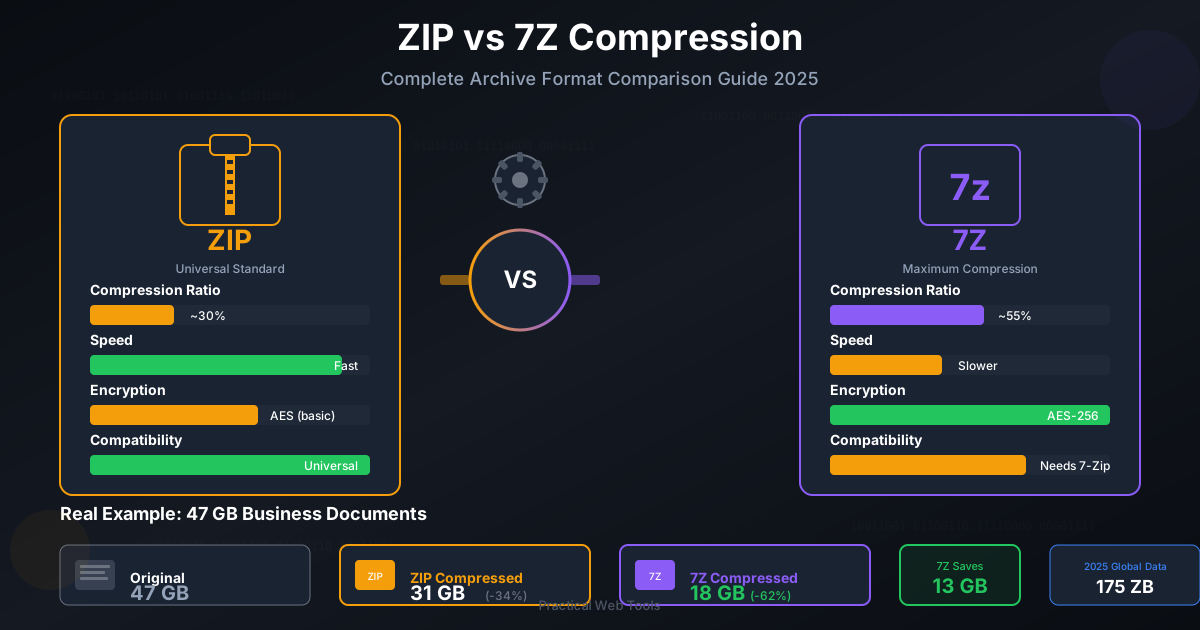
Let's say you've converted a whole folder of vacation videos. To send them all in one go via a service like WeTransfer or to upload them as a single item to a cloud drive, you can package them into an archive. Our free Compress Files tool allows you to do just that. You can bundle all your new MP4s into a single, tidy ZIP or 7Z file, making them easier to manage and transfer.
On the receiving end, if someone sends you a compressed archive of videos, you can use our simple Decompress Files tool to quickly extract them without needing to install any software. And if you have archives in different formats, say from different projects, and need to standardize them, a tool that can convert ZIP to 7Z can be incredibly useful for maintaining consistency in your archives.
MOV to MP4 FAQ
Here are answers to some of the most common questions about converting MOV to MP4.
Does converting MOV to MP4 lose quality?
Not necessarily. Quality loss in video conversion is tied to the process of re-encoding. If you choose high-quality settings (like a sufficient bitrate) for your MP4 output, the difference in visual quality will be imperceptible to the human eye. The goal is to match the quality of the source file. Using a tool like VLC allows you to control these settings to preserve as much quality as possible.
Can I just rename a .mov file to .mp4?
No, you should never do this. Renaming the file extension only changes the label, not the underlying data structure or 'container' format. This will likely confuse media players and can result in a file that won't open at all, effectively corrupting it. You must use a proper conversion tool to re-package the video and audio streams into the correct MP4 container.
Is MOV or MP4 better for YouTube?
MP4 is the clear winner. While YouTube accepts MOV files, their official recommendation is to upload MP4 files with an H.264 video codec and AAC audio codec. This ensures the fastest processing times and the most predictable results on their platform.
What is the safest way to convert my videos?
For privacy, security, and reliability, using reputable offline desktop software like VLC Media Player or HandBrake is the safest method. Your files are processed locally on your machine and are never uploaded to the internet. This is especially important for personal, sensitive, or professional videos.
Final Thoughts: Embrace the Universal MP4
Navigating the world of video formats doesn't have to be complicated. While MOV serves an important purpose as a high-quality format within the Apple ecosystem, MP4 stands as the undisputed champion of compatibility.
By converting your MOV files to MP4, you are breaking down barriers, ensuring your creative work can be viewed by anyone, on any device, anywhere in the world. With free and powerful tools like VLC Media Player at your fingertips, the conversion process is both accessible and straightforward.
Now that you're an expert in video conversion, explore our full suite of free, privacy-focused tools at Practical Web Tools to manage all your digital files with ease!