AVI to MP4: The Ultimate Guide to Flawless Video Conversion
You've just found an old video file on a hard drive—a classic home movie, a downloaded clip, or a project from years ago. You double-click it, and... nothing. Or maybe it plays, but only on your old desktop PC, refusing to open on your phone, tablet, or smart TV. The culprit? It's likely an AVI file. While once a dominant video format, AVI's compatibility in our modern, multi-device world has waned significantly.
The solution is simple and effective: convert it to MP4. This isn't just a technical task for video editors; it's a practical step for anyone who wants their videos to be playable, shareable, and future-proof. In this comprehensive guide, we'll dive deep into why and how you should convert your AVI files to MP4, exploring free tools and best practices to ensure a flawless conversion every time.
Understanding the Formats: AVI vs. MP4
Before we jump into the conversion process, it's helpful to understand what these file types actually are. Both AVI and MP4 are container formats, which means they are like digital boxes that can hold various types of data, including video streams, audio streams, and metadata (like subtitles or chapter markers). The key difference lies in the types of data they can hold, how they compress it, and how widely they are supported.
What is an AVI File? (Audio Video Interleave)
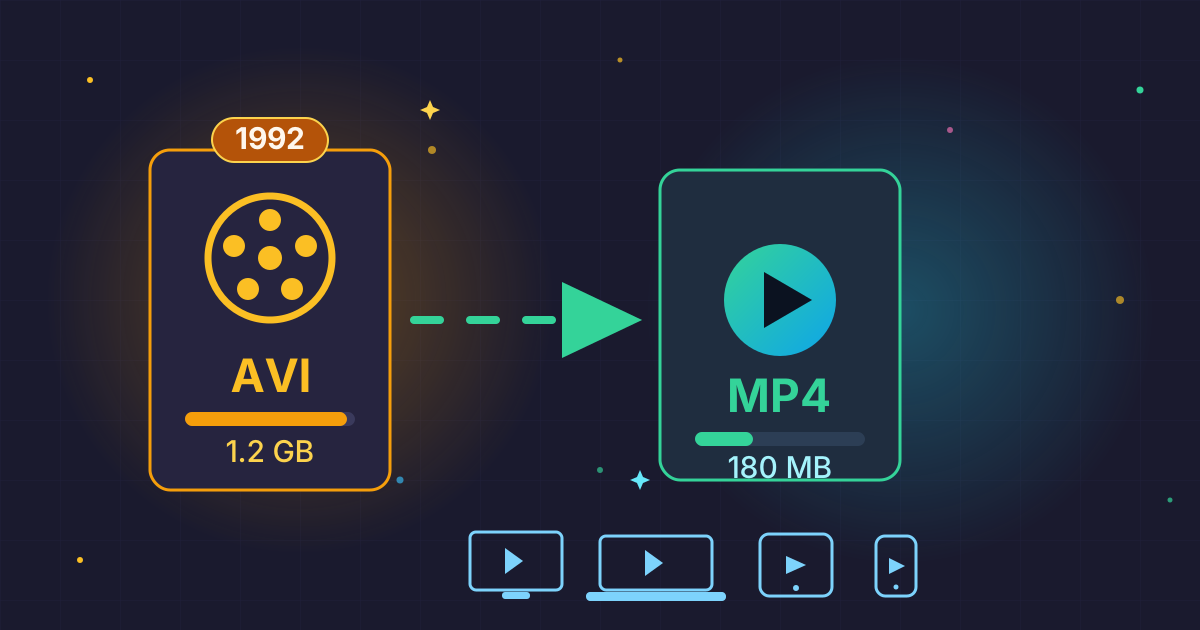
Introduced by Microsoft in 1992, AVI is one of the oldest container formats. It was designed for Windows and became a de facto standard for standard-definition video for many years.
- Pros: AVI files often use less compression (or even none at all), which can result in very high quality. They were also simple and widely supported by early video editing software.
- Cons: This lack of compression leads to massive file sizes. Furthermore, AVI has poor support for modern video compression standards (codecs) like H.264/H.265, lacks features like chapter support, and is not well-suited for streaming over the internet.
What is an MP4 File? (MPEG-4 Part 14)
MP4 is a much more modern and versatile container format. It was developed by the Moving Picture Experts Group (MPEG) and has become the undisputed standard for online video, mobile devices, and digital broadcasting.
- Pros: MP4 offers excellent compression, resulting in significantly smaller file sizes with minimal loss in quality. It's universally compatible across virtually all devices and platforms, supports modern codecs, and is optimized for streaming.
- Cons: The conversion process itself can be slightly lossy if not configured correctly, but for all practical purposes, a well-converted MP4 is visually indistinguishable from the AVI source.
Quick Comparison: AVI vs. MP4
For a quick overview, here's a table comparing the key aspects of each format. This is a great reference for deciding which format suits your needs.
| Feature | AVI (Audio Video Interleave) | MP4 (MPEG-4 Part 14) |
|---|---|---|
| Compatibility | Limited, primarily on Windows-based PCs. Poor mobile support. | Universal. Plays on virtually all devices and platforms. |
| Compression | Low to none. Can use older codecs like DivX/XviD. | High and efficient. Uses modern codecs like H.264, H.265 (HEVC). |
| File Size | Very large. | Relatively small. |
| Streaming | Not suitable for web streaming. | The standard for web streaming (YouTube, Netflix, etc.). |
| Advanced Features | Lacks support for chapters, subtitles, and multiple audio tracks. | Supports chapters, subtitles, 3D content, and multiple streams. |
| Year Introduced | 1992 | 2001 |
Why Convert AVI to MP4? The Key Benefits
Now that you understand the differences, the reasons for converting become clear. Moving from AVI to MP4 isn't just about changing a file extension; it's about unlocking a world of convenience and compatibility.
- Universal Compatibility: This is the number one reason. An MP4 file will play on your iPhone, Android device, Mac, PC, Smart TV, PlayStation, and Xbox without any special software. No more error messages or searching for obscure media players.
- Significant Space Savings: MP4's superior compression algorithms mean you can drastically reduce file size without a noticeable drop in quality. A 1GB AVI file could easily become a 100-200MB MP4 file, freeing up valuable space on your hard drive or cloud storage.
- Easy Sharing and Uploading: Smaller file sizes make MP4s much faster and easier to share via email, messaging apps, or upload to social media and video platforms like YouTube and Vimeo.
- Future-Proofing Your Media: As technology evolves, support for older formats like AVI will continue to decline. Converting your video library to MP4 ensures your precious memories and media will remain accessible for years to come.
How to Convert AVI to MP4: A Step-by-Step Guide
Converting video files is easier than ever, with several excellent and free tools available. We'll walk you through two of the most popular and reliable methods: using the versatile VLC Media Player and the powerful HandBrake software.
Method 1: Using VLC Media Player
Many people already have VLC installed as their go-to media player, but they don't realize it has a powerful, built-in video converter. It's perfect for quick, single-file conversions.
Step 1: Open the Convert / Save Menu
- Launch VLC Media Player.
- In the top menu bar, click on Media, then select Convert / Save... (or use the shortcut Ctrl+R).
Step 2: Add Your AVI File
- In the 'Open Media' window that appears, under the 'File' tab, click the + Add... button.
- Navigate to your AVI file, select it, and click Open.
- The file path will now appear in the box. Click the Convert / Save button at the bottom.
Step 3: Choose the MP4 Profile
- You'll now see the 'Convert' window. The most important setting here is the Profile.
- Click the dropdown menu and select Video - H.264 + MP3 (MP4). This is the most compatible and widely used option.
Step 4: Select a Destination
- Under the 'Destination' section, click the Browse button.
- Choose where you want to save your new file, give it a name (make sure it ends with
.mp4), and click Save.
Step 5: Start the Conversion
- Simply click the Start button.
- The timeline slider in VLC's main window will move as it processes the file. Do not close VLC until the slider has finished. Once it's done, your new MP4 file will be ready in the destination folder you chose.
Method 2: Using HandBrake for More Control
HandBrake is a free, open-source video transcoder dedicated to converting video from nearly any format to a selection of modern, widely supported codecs. It's the best choice if you need more control over quality, want to convert multiple files at once (batch conversion), or need to add subtitles.
Step 1: Open Your Source File
- Download and install HandBrake from its official website.
- Open HandBrake. You'll be prompted to select a source file. You can either drag and drop your AVI file into the window or click File to browse for it.
Step 2: Choose a Preset
- HandBrake's greatest strength is its presets. On the right side of the window, you'll see a list of presets optimized for web, devices (like Roku, Apple TV, Android), and general use.
- For most cases, a preset from the General category like Fast 1080p30 or HQ 1080p30 Surround is a great starting point. Choose one that matches your source video's resolution.
Step 3: Confirm Output Settings
- Under the Summary tab, make sure the Format is set to MP4.
- You can explore the other tabs (Dimensions, Video, Audio) to fine-tune settings like bitrate or codecs, but for most users, the preset will handle this perfectly.
Step 4: Set the Destination
- At the bottom of the window, next to Save As, click Browse.
- Choose a location and name for your converted MP4 file and click Save.
Step 5: Start the Encode
- Click the green Start Encode button at the top of the window.
- HandBrake will show a progress bar at the bottom. This can take some time depending on the file size and your computer's power. Once it's finished, your MP4 will be ready to go.
Advanced Considerations and Best Practices
To get the most out of your conversions, here are a few extra tips.
Managing Large Files and Batches
Video files, even after conversion, can be large. If you're dealing with a large collection of videos that you need to share or archive, bundling them together is a good practice.
Before uploading a batch of AVI files or after converting a project into multiple MP4s, you can use a tool to Compress Files into a single ZIP archive. This doesn't shrink the videos much further, but it makes managing and transferring dozens of files significantly easier. When you receive a zipped collection, you can use an in-browser tool to quickly Decompress Files without needing any special software. For cross-platform compatibility, especially when working with Linux or macOS systems, you might even need to convert archive formats, for instance, from a ZIP to TAR archive, which can also be done with simple online tools.
Maintaining Video Quality
Conversion is always a re-encoding process. To maintain the best possible quality:
- Start with a High-Quality Source: You can't add quality that isn't there. The better your original AVI file, the better the final MP4 will be.
- Use Constant Quality: In HandBrake's 'Video' tab, using the 'Constant Quality' (RF) setting is often better than setting a specific average bitrate. A lower RF number (e.g., 18-22 for HD video) means higher quality and a larger file size.
- Don't Upscale: Keep the resolution the same as the source file. Increasing it won't add detail and will only bloat the file size.
Troubleshooting Common Conversion Issues
Sometimes things don't go as planned. Here are a few common problems and their solutions:
-
Problem: There's no audio in my converted MP4.
- Solution: This usually happens when the audio codec in the AVI is unusual. In HandBrake, go to the 'Audio' tab and ensure the codec is set to AAC (avcodec), which is the standard for MP4. You may need to add a new audio track and select the correct source.
-
Problem: The final video looks pixelated or blurry.
- Solution: Your quality setting was too low. In VLC, try a different profile. In HandBrake, choose a higher-quality preset (e.g., switch from 'Fast' to 'HQ') or lower the RF value in the 'Video' tab.
-
Problem: The conversion failed halfway through.
- Solution: This can be caused by a corrupted AVI source file. Try playing the original file to see if it glitches at the point where the conversion failed. You may also be running out of disk space on your destination drive.
Conclusion: Embrace the Modern Standard
Converting AVI to MP4 is an essential skill for managing a modern media library. It bridges the gap between older file formats and the demands of today's devices, ensuring your videos are accessible, shareable, and preserved for the future.
By using powerful and free tools like VLC Media Player and HandBrake, you can take control of your video files with confidence. The process is straightforward, and the benefits—universal compatibility, smaller file sizes, and easy sharing—are undeniable.
Now that you've mastered video conversion, why not explore other ways to manage your digital files? Check out the full suite of free and privacy-focused utilities at Practical Web Tools to handle all your file management needs right from your browser.