Convert 3GP to MP4: Your Ultimate Step-by-Step Guide

Have you ever stumbled upon an old video file from a phone you owned a decade ago, only to find that your new computer or smartphone refuses to play it? You click, you double-click, and you're met with an error message. More often than not, that stubborn file has a ".3gp" extension. It’s a digital time capsule that you can't seem to open.
In the early days of camera phones, 3GP was the go-to format, designed for a world of slow 3G internet and limited storage. Today, it’s a relic. The modern digital world runs on MP4, a versatile and universally accepted format. The good news is that you don't have to leave those memories locked away. Converting your 3GP files to MP4 is not only possible but also surprisingly easy.
This comprehensive guide will walk you through everything you need to know. We'll explore why you should convert your files, compare the formats, and provide detailed, step-by-step instructions for several free and powerful methods. Let's unlock those memories and bring them into the modern era.
Understanding the 3GP Format: A Trip Down Memory Lane
Before we dive into the conversion process, it's helpful to understand what a 3GP file actually is. The name stands for the 3rd Generation Partnership Project (3GPP), the organization that created it. It was developed specifically for 3G mobile phones to capture and share video over networks with limited bandwidth.
To achieve this, 3GP files were designed to be incredibly small. They used video codecs like H.263 and audio codecs like AMR (Adaptive Multi-Rate), which prioritized low data rates over high fidelity. This was a necessary trade-off for the technology of the time, allowing users to send short video messages (MMS) without waiting for hours.
However, these advantages from the past are the format's biggest weaknesses today:
- Low Quality: The compression techniques resulted in pixelated video and muffled audio by modern standards.
- Limited Compatibility: Most modern media players, editing software, and social media platforms have dropped support for 3GP in favor of more advanced formats.
- Lack of Features: The format is barebones, lacking support for features like subtitles, multiple audio tracks, or high-definition resolutions.
This is where MP4 comes in as the hero of our story.
The Case for Conversion: Why MP4 is King
MP4, short for MPEG-4 Part 14, is the global standard for digital video. Converting your 3GP files to MP4 isn't just about making them playable; it's about future-proofing them and unlocking a world of possibilities. Here are the key benefits:
- Universal Compatibility: An MP4 file will play on virtually any device you own—your iPhone, Android device, Windows PC, Mac, smart TV, and gaming console. It's also the standard format for web platforms like YouTube, Vimeo, Instagram, and Facebook.
- Higher Quality Potential: While converting won't magically improve your source video's quality, MP4 is a superior container. It uses advanced codecs like H.264 (AVC) and H.265 (HEVC) that provide excellent quality at efficient file sizes.
- Editing Flexibility: Nearly all video editing software, from professional suites like Adobe Premiere Pro to free tools like DaVinci Resolve, works natively with MP4 files.
- Archival and Future-Proofing: By converting to MP4, you ensure that your precious memories remain accessible and usable for decades to come, long after the last device that supports 3GP has been retired.
To put it simply, here’s a head-to-head comparison:
| Feature | 3GP | MP4 (MPEG-4 Part 14) |
|---|---|---|
| Primary Use | Early 2000s 3G mobile phones | Universal digital video standard |
| Compatibility | Very limited | Extremely high (all modern devices) |
| Video Quality | Low to Standard Definition | Standard to 8K Ultra HD |
| Audio Quality | Lower (AMR codec) | Higher (AAC, MP3 codecs) |
| File Size | Very small | Efficient and scalable |
| Supported Features | Basic video and audio | Subtitles, chapters, 3D, metadata |
Step-by-Step Guide: How to Convert 3GP to MP4
Now for the practical part. There are several ways to convert 3GP to MP4, each with its own pros and cons. We'll cover the best free methods, from simple online tools to powerful desktop software.
Method 1: Using Free Online Video Converters
For a quick, one-off conversion without installing any software, online converters are a great option.
- Pros: No installation needed, easy to use, works on any OS with a browser.
- Cons: Requires an internet connection, often has file size limits, potential privacy risks (your file is uploaded to a server), and may include watermarks.
Generic Steps for Online Converters:
- Find a Reputable Converter: Search for "free online 3gp to mp4 converter."
- Upload Your File: Click the "Choose File" or "Upload" button and select the 3GP file from your computer.
- Select the Output Format: Make sure "MP4" is selected as the target format.
- Start the Conversion: Click the "Convert" or "Start" button.
- Download Your File: Once the process is complete, a download link for your new MP4 file will appear.
A Note on Privacy: While convenient, be cautious when uploading personal or sensitive videos to online converters. Here at Practical Web Tools, we build privacy-focused tools, and we recommend using offline methods for any videos you wouldn't want a third party to see.
Method 2: Using VLC Media Player (A Free & Powerful Option)
VLC is more than just the media player that can play anything; it's also a powerful conversion tool hiding in plain sight. It's free, open-source, and available for Windows, macOS, and Linux.
- Pros: Completely free, no watermarks or limits, secure (files stay on your PC), reliable.
- Cons: The interface isn't immediately obvious for conversion.
Here’s how to convert with VLC:
- Open VLC: If you don't have it, download it from the official VideoLAN website.
- Go to Convert / Save: In the top menu, click
Mediaand then selectConvert / Save...(or use the shortcutCtrl+R). - Add Your File: In the
Filetab, click the+ Add...button and locate the 3GP file you want to convert. Then, click theConvert / Savebutton at the bottom. - Choose Your Profile: A new window will appear. In the
Profiledropdown menu, selectVideo - H.264 + MP3 (MP4). This is the most compatible option for modern devices. - Select a Destination: Click the
Browsebutton next to theDestination filefield. Choose where you want to save your new file, and importantly, give it a name that ends in .mp4 (e.g.,my_video.mp4). - Start the Conversion: Click the
Startbutton. You'll see the timeline on the main VLC window start to move as if it's playing the video. This indicates the conversion process. Once it reaches the end, your new MP4 file will be ready in the destination folder you chose.
Method 3: Using HandBrake for Advanced Control
For those who want more control over the output quality and size, HandBrake is the gold standard of free video transcoders. It's perfect for batch converting multiple files at once.
- Pros: Excellent quality control, great presets for specific devices, batch processing, open-source and free.
- Cons: Can be intimidating for absolute beginners due to its many options.
Here's the HandBrake workflow:
- Open HandBrake: Download and install it from the official HandBrake website.
- Import Your Video: Drag and drop your 3GP file (or a folder of them) into the HandBrake window, or click
Fileto open a single video. - Choose a Preset: The easiest way to start is by selecting a preset. On the right side, under the
Presetpanel, choose something from theGeneralcategory likeFast 1080p30orFast 720p30. This will automatically configure the best settings. - Confirm the Format: On the
Summarytab, make sure theFormatis set toMP4. - Set the Destination: At the bottom, under
Save As, clickBrowseto choose a location and name for your converted file. - Start Encoding: Click the green
Start Encodebutton at the top. If you have multiple files, you canAdd to Queueand then start the queue to convert them all in one go.
Method 4: For the Power Users - FFmpeg Command Line
If you're comfortable with the command line, FFmpeg is the most powerful video processing tool on the planet. It's the engine that powers many of the other converters, including HandBrake and some online tools.
- Pros: Extremely fast, lightweight, fully customizable, scriptable for automated workflows.
- Cons: No graphical interface; requires comfort with command-line syntax.
Here's how to use FFmpeg:
-
Install FFmpeg: Follow the installation guide for your operating system (Windows, macOS, or Linux).
-
Open Your Terminal: Open Command Prompt, PowerShell, or Terminal.
-
Navigate to Your File: Use the
cdcommand to navigate to the directory where your 3GP file is located. -
Run the Conversion Command:
- The Simplest Command: This command re-wraps the video and audio streams into an MP4 container without re-encoding, which is incredibly fast if the codecs are compatible.
ffmpeg -i input_video.3gp -c copy output_video.mp4- A More Robust Command (with Re-encoding): This command ensures maximum compatibility by re-encoding the video to H.264 and the audio to AAC.
ffmpeg -i input_video.3gp -c:v libx264 -preset medium -crf 23 -c:a aac -b:a 128k output_video.mp4-i input_video.3gp: Specifies the input file.-c:v libx264: Sets the video codec to the highly compatible H.264.-crf 23: Sets the quality level (lower is better, 18-28 is a sane range).-c:a aac: Sets the audio codec to AAC.-b:a 128k: Sets the audio bitrate to 128 kbps, a good standard.
After the Conversion: Managing Your New MP4 Files
Once your videos are in the modern MP4 format, a little organization goes a long way.
- Verify the Output: Always play your new MP4 file to ensure the conversion was successful, the audio is in sync, and there are no glitches.
- Organize and Rename: Create folders for your newly converted videos and give them descriptive names.
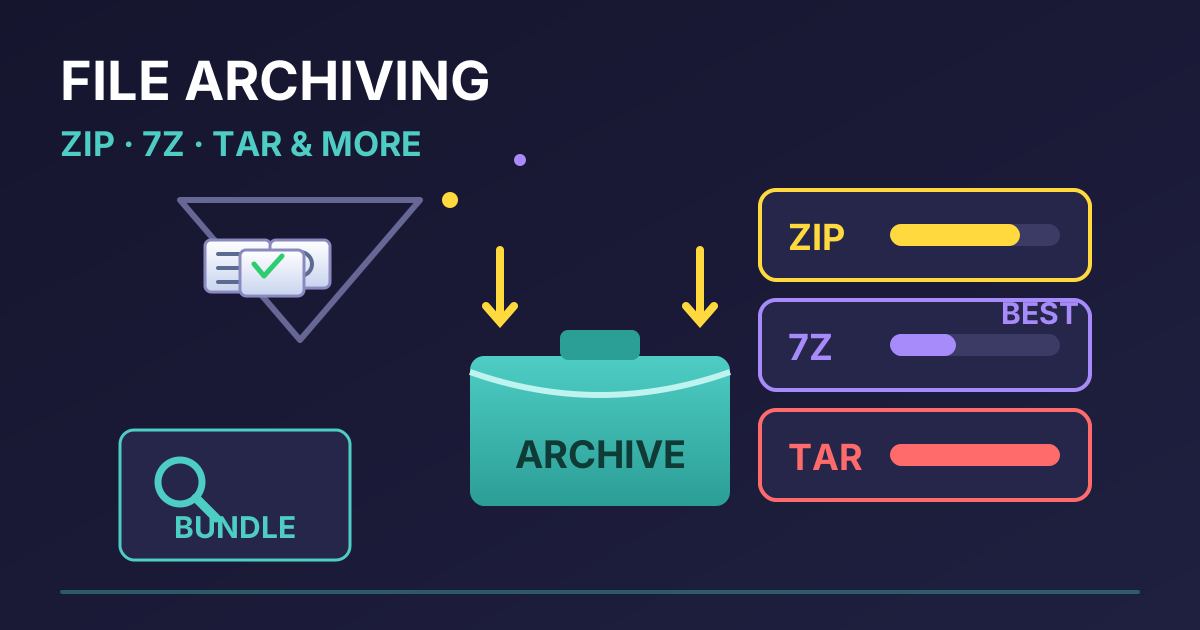
- Share and Store: Now that your videos are in a universal format, they're ready to be shared or archived. If you have a large collection of converted videos to send to family or back up to cloud storage, it's inefficient to upload them one by one. A better approach is to group them into a single, compressed archive.
For this, you can use a simple, privacy-first online tool. You can easily Compress Files into a ZIP archive right in your browser. This makes them easier to manage and faster to upload. Later, the recipient can just as easily Decompress Files without needing any special software. It's a simple step that streamlines the entire process of sharing your preserved memories.
Frequently Asked Questions (FAQ)
Will converting 3GP to MP4 improve the video quality?
No. The conversion process cannot create visual information that wasn't in the original file. The primary goal is to preserve the original quality within a more compatible and modern format. Using high-quality settings will prevent further quality loss, but the result will never look better than the source 3GP file.
Is it safe to use online 3GP to MP4 converters?
For non-sensitive videos like a clip of a landscape, online converters are generally safe and convenient. However, for personal or private videos (e.g., of family and friends), using offline software like VLC or HandBrake is the most secure option because your files never leave your computer.
How long does the conversion take?
This depends on three factors: the length and size of the 3GP file, the power of your computer's CPU, and the method you choose. A short, 30-second clip might convert in seconds, while a longer video could take several minutes.
Can I convert 3GP to MP4 on my mobile phone?
Yes. Both the Apple App Store and Google Play Store have numerous video converter apps that can handle this conversion directly on your device. Just search for "video converter" and check the reviews to find a reliable one.
Conclusion: Unlocking Your Old Memories
Don't let an outdated file format keep your memories hostage. Converting your old 3GP videos to the universal MP4 format is a straightforward process that breathes new life into them. Whether you choose a quick online tool for a single file or a powerful desktop application like VLC or HandBrake for your entire collection, you're taking an important step to preserve and enjoy your digital history.
Now that you have the knowledge and the tools, it's time to dig through those old folders, find those forgotten clips, and bring them into the present. And while you're busy managing your newly converted files, explore the wide range of other free and privacy-conscious utilities available on Practical Web Tools to help you master your digital world.