M4V to MP4: The Ultimate Guide to Converting Your Videos

Have you ever downloaded a movie from the iTunes Store, only to find it won't play on your Android tablet, Windows PC, or smart TV? If so, you've likely encountered the M4V file format. While it's a high-quality video format, its limitations can be frustrating, especially when you want to enjoy your purchased media on non-Apple devices.
The solution is simple and effective: convert your M4V files to the universally compatible MP4 format. This process unlocks your video library, making it accessible on virtually any device you own.
This comprehensive guide will walk you through everything you need to know. We'll demystify the technical differences between M4V and MP4, explore the compelling reasons to convert, and provide step-by-step instructions using free and reliable methods. By the end, you'll be a pro at handling these video files, ensuring your media plays wherever and whenever you want.
Understanding the File Formats: M4V vs. MP4
Before we dive into the conversion process, it's essential to understand what these file formats are and what makes them different. At their core, they are more similar than you might think, but one key distinction makes all the difference.
What is an M4V File?
The M4V file format was developed by Apple and is used to store video content in its iTunes Store. This includes movies, TV shows, and music videos. Structurally, it is a container format based on the industry-standard MPEG-4 Part 14, which is the same foundation as the MP4 format.
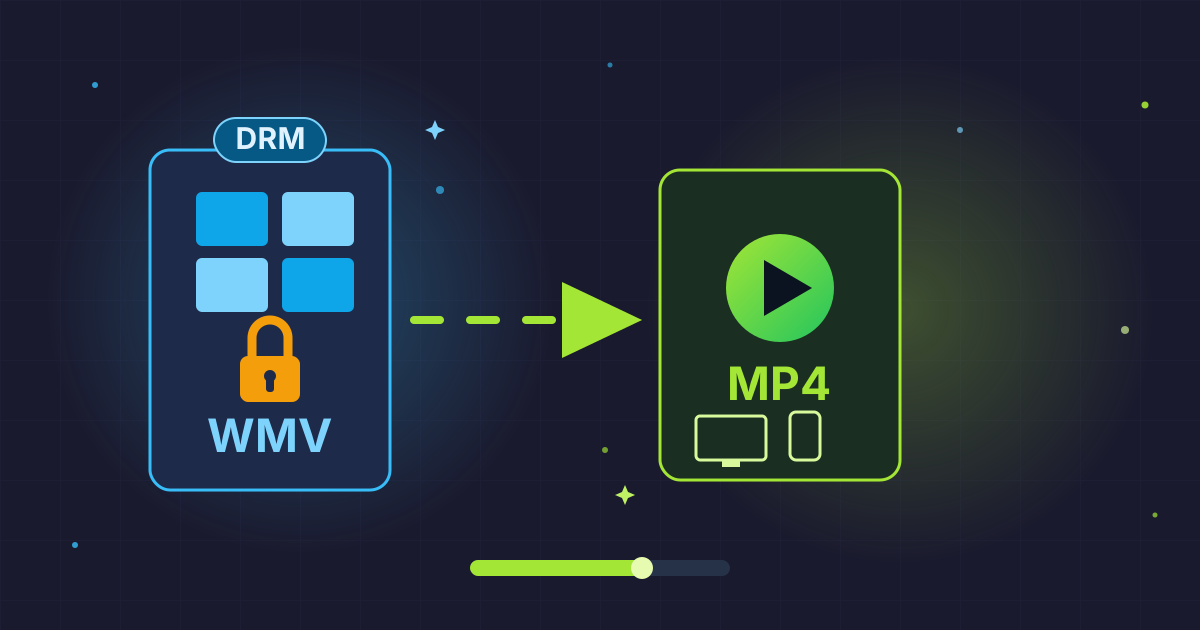
The defining feature of M4V is its ability to support Apple's FairPlay Digital Rights Management (DRM) copy protection. This is the crucial element that creates compatibility issues. A DRM-protected M4V file is locked to the Apple ecosystem and can only be played on devices—like iPhones, iPads, and Macs—that are authorized with the Apple ID used to purchase the content.
However, not all M4V files are DRM-protected. M4V files you create or export from some software may be unprotected and behave almost identically to an MP4 file.
What is an MP4 File?
MP4, which stands for MPEG-4 Part 14, is the most common and widely supported video format on the planet. Like M4V, it's a container format, meaning it can bundle video, audio, subtitles, and still images into a single file. Its incredible versatility and high-quality compression have made it the de facto standard for web video, streaming, and personal media libraries.
Because of its open-standard nature, the MP4 format is compatible with nearly every device, operating system, and media player in existence, from Windows and Android to game consoles and smart TVs. This universal compatibility is its greatest strength.
M4V vs. MP4: A Head-to-Head Comparison
To make the differences crystal clear, here’s a simple table summarizing the key characteristics of each format. This is a great way to quickly see why MP4 is often the preferred choice for flexibility.
| Feature | M4V | MP4 (MPEG-4 Part 14) |
|---|---|---|
| Developer | Apple Inc. | Moving Picture Experts Group (MPEG) |
| Compatibility | Primarily Apple devices; limited on others | Universal; plays on virtually all devices |
| DRM Protection | Can be protected by Apple's FairPlay DRM | Generally DRM-free |
| Typical Use Case | iTunes Store movies and TV shows | Web streaming, video sharing, personal media |
| File Extension | .m4v | .mp4 |
Why Convert M4V to MP4? The Core Benefits
Now that you understand the key difference is DRM and compatibility, the reasons for converting become clear. Moving from M4V to MP4 is about liberating your media from the constraints of a single ecosystem.
-
Universal Compatibility: This is the number one reason. An MP4 file will play on your Windows laptop, your friend's Android phone, your PlayStation 5, and your smart TV without any hassle. You are no longer tied to authorized Apple devices.
-
Easier Editing: While professional video editing software like Adobe Premiere Pro or DaVinci Resolve can often handle M4V files, they have far better and more stable native support for the MP4 format. Converting first can prevent potential import errors, audio syncing issues, or performance problems during the editing process.
-
Simplified Sharing: When you share a video with friends, family, or colleagues, sending an MP4 file ensures they can open and watch it, regardless of the device they use. You eliminate the guesswork and the potential tech support questions.
-
Future-Proofing Your Library: Technology changes, but industry standards tend to stick around. MP4 is the undisputed standard for digital video. By converting your library to MP4, you are ensuring your media remains accessible and playable for years to come, even if you move away from Apple products entirely.
-
A Note on DRM: The conversion process for DRM-protected files inherently involves removing that protection. It's crucial to approach this responsibly. Bypassing DRM may violate the terms of service of the content provider and could be illegal in some countries. This guide advocates for converting files only for personal, archival backups of content you have legally purchased, and we strongly advise you to check your local laws regarding DRM circumvention.
How to Convert M4V to MP4: Step-by-Step Methods
There are several ways to convert M4V to MP4, ranging from incredibly simple to more advanced. We'll start with the easiest method, which works surprisingly often, and move on to powerful, free software solutions.
Method 1: The Easiest Trick - Simply Renaming the File
Because M4V and MP4 share the same MPEG-4 container foundation, an unprotected M4V file is often just an MP4 file with a different label. In these cases, you don't need any special software to convert it; you just need to change the file extension.
This method only works for DRM-free M4V files. It's the first thing you should try because it's instant and lossless.
How to Show File Extensions and Rename:
-
On Windows (10/11):
- Open File Explorer.
- Click the
Viewtab at the top. - In the
Show/hidesection, check the box forFile name extensions. - Locate your M4V file, right-click it, and select
Rename. - Change the
.m4vat the end of the filename to.mp4and press Enter. Confirm the warning message.
-
On macOS:
- Open Finder.
- In the menu bar, click
Finder>Settings(orPreferences). - Go to the
Advancedtab and check the boxShow all filename extensions. - Find your M4V file, click it once to select it, and press the
Returnkey. - Change the
.m4vto.mp4and pressReturnagain. Confirm by clickingUse .mp4.
Now, try playing the renamed file in a non-Apple media player. If it works, you're done! If not, the file is likely DRM-protected or has a slightly different internal structure, and you'll need to use one of the following methods.
Method 2: Using a Dedicated Desktop Converter (VLC Media Player)
VLC is more than just a media player; it's a versatile media toolkit with a built-in conversion feature. It's free, open-source, and available on all major platforms.
Step-by-Step Guide for VLC:
- Download and Install VLC: If you don't already have it, get it from the official VideoLAN website.
- Open the Converter: Launch VLC. In the menu bar, go to
Media>Convert / Save...(on Windows) orFile>Convert / Stream...(on macOS). - Add Your File: A new window will open. Click the
Add...button and select the M4V file you want to convert. Then, click theConvert / Savebutton at the bottom. - Choose the Profile: In the next window, you'll see a
Profilesection. Click the dropdown menu and select a preset. TheVideo - H.264 + MP3 (MP4)profile is an excellent and highly compatible choice. - Select a Destination: Click the
Browsebutton in theDestinationsection. Choose where you want to save your new file and, importantly, give it a name that ends in.mp4. - Start the Conversion: Click the
Startbutton. VLC will begin the conversion process. You'll see the progress bar on the main interface move as it works. The time it takes will depend on the length of the video and the speed of your computer.
Once complete, your new MP4 file will be ready in the destination folder you chose.
Method 3: Using a Powerful Open-Source Tool (HandBrake)
For more control over your conversion, HandBrake is an exceptional free and open-source video transcoder. It offers a vast array of presets and manual settings to fine-tune your output.
Step-by-Step Guide for HandBrake:
- Download and Install HandBrake: Get the correct version for your operating system from the official HandBrake website.
- Open Your Source File: Launch HandBrake. You can either drag and drop your M4V file into the window or click the
Filebutton to browse for it. - Set the Output Format: HandBrake will analyze the file. On the
Summarytab, make sure theFormatis set toMP4. - Choose a Preset: The easiest way to get a great result is to use a preset. On the right side of the window, you'll find a list of presets for different devices and quality levels. The
Fast 1080p30preset is a good starting point for high-definition video. - Set the Destination: At the bottom of the window, under
Save As, clickBrowseto choose a location and filename for your converted MP4 file. - Start Encoding: Click the green
Start Encodebutton at the top of the window. HandBrake will show you the progress at the bottom. This can take some time for longer videos, but the results are consistently high quality.
Managing Your Converted Files
Once you start converting your video library, you might end up with a large collection of new MP4 files. Managing and sharing these files efficiently is the next step.
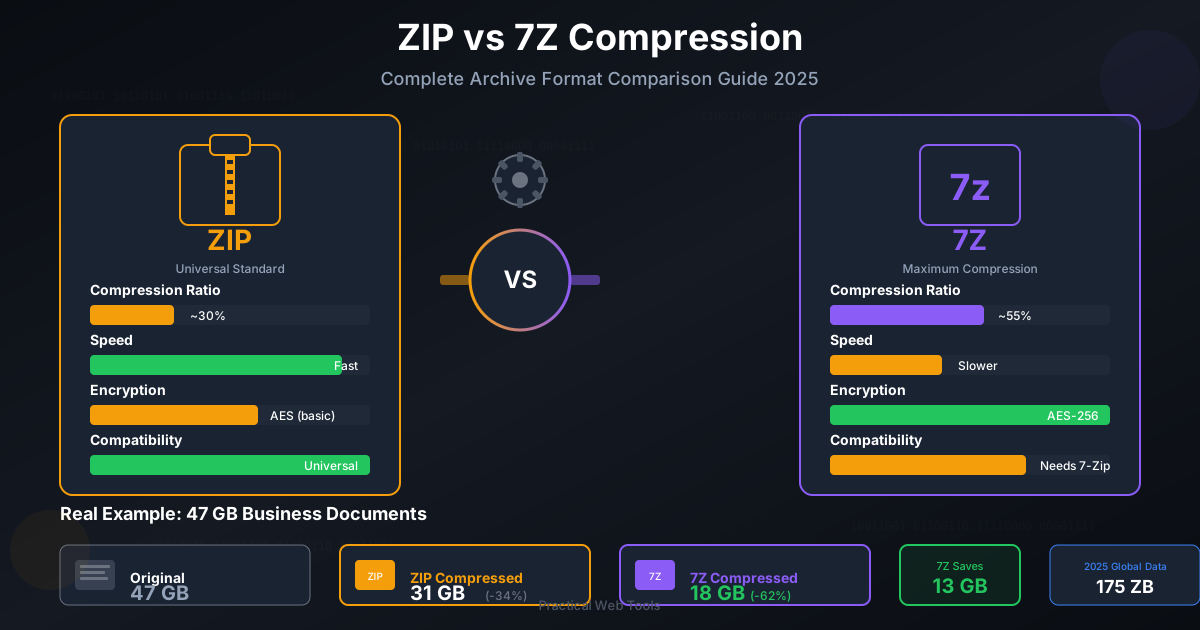
If you've converted an entire movie collection or a season of a TV show, you may want to bundle them into a single, manageable package. Using a tool to Compress Files into a ZIP or 7Z archive is a perfect solution. This can significantly reduce the total file size, making them easier to store or send over the internet without affecting the video quality itself.
Once you send the compressed folder, the recipient can easily use a simple tool to Decompress Files and access all the videos inside. Furthermore, if you need to ensure compatibility across different operating systems, you might need to convert between archive formats. Our free online 7Z to ZIP converter can help ensure anyone can open the files you send.
Frequently Asked Questions (FAQ)
Will converting M4V to MP4 lose quality?
This depends on the method. Renaming the file extension is a lossless process as it doesn't re-encode the video. When using a converter like VLC or HandBrake, you are typically re-encoding the video stream. While this can result in a minor quality loss, using high-quality presets (like the ones suggested) makes any degradation virtually imperceptible to the human eye. For the best quality, choose a preset that matches the source resolution and set a high bitrate or use a constant quality setting.
Is it legal to convert M4V to MP4?
For any DRM-free M4V file, it is perfectly legal to convert it to MP4. The legal situation becomes complex when dealing with DRM-protected content. In many countries, including the United States with the Digital Millennium Copyright Act (DMCA), circumventing DRM is illegal, even for personal use. However, some jurisdictions have provisions for personal backups. Always check your local laws and proceed ethically, only making personal copies of media you have legally purchased.
Can I convert a protected iTunes movie to MP4?
Free tools like VLC Media Player and HandBrake cannot remove Apple's FairPlay DRM. The methods described above will fail if you try to convert a DRM-protected file from the iTunes Store. Doing so requires specialized, often paid, software designed specifically for that purpose. We do not endorse or link to such software due to the legal gray areas involved.
Conclusion
Dealing with file format incompatibilities can be a headache, but converting M4V to MP4 is a straightforward solution that puts you back in control of your media library. By understanding the small but crucial difference between the two formats, you can easily choose the right method for the job.
For unprotected files, a simple rename might be all you need. For everything else, powerful and free tools like VLC and HandBrake provide a reliable path to creating universally compatible MP4 files. By taking a few moments to convert your videos, you ensure they are accessible, editable, and shareable across any platform, today and in the future.
Now that you've mastered video conversion, why not see what else you can optimize? Explore the full suite of over 455+ free and privacy-focused tools at Practical Web Tools to streamline all your digital tasks.