RAR to ZIP: The Ultimate Guide to Converting Files Easily
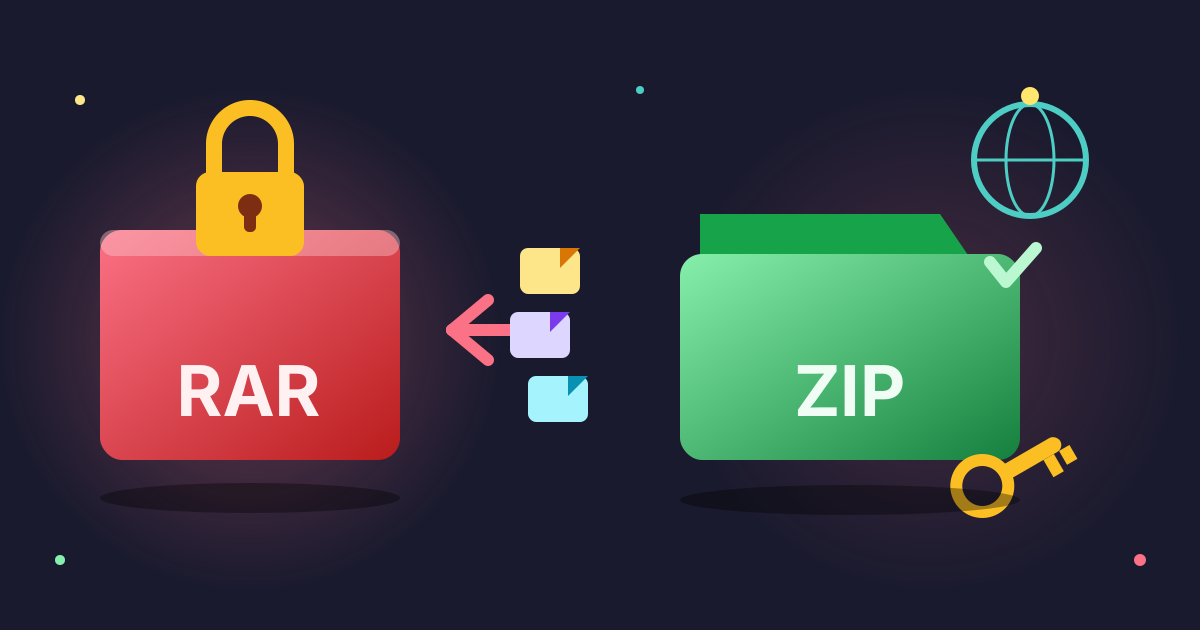
Have you ever downloaded a file, only to find it’s a .rar archive that your computer can’t open natively? It’s a common frustration. While RAR is a powerful format, it lacks the universal, built-in support that its counterpart, the ZIP file, enjoys. You need a ZIP for a web upload, to send to a less tech-savvy colleague, or simply to open it without installing new software.
This is where converting from RAR to ZIP becomes essential. But it's not as simple as just renaming the file. True conversion involves a specific process of extraction and re-compression. Don't worry, it's easier than it sounds.
In this comprehensive guide, we'll break down everything you need to know. We’ll explore why ZIP is often the better choice for compatibility, dive deep into the technical differences between RAR and ZIP, and provide you with clear, step-by-step instructions on how to convert your files using free, privacy-focused tools. Get ready to master your archives and make file sharing a breeze.
Why Convert from RAR to ZIP?
At first glance, RAR and ZIP seem to do the same thing: they bundle multiple files and folders into a single, smaller file. So why go through the trouble of converting from one to the other? The reasons primarily revolve around accessibility, compatibility, and simplicity.
1. Universal Compatibility
This is the single biggest reason to convert to ZIP. The ZIP format is a long-standing open standard, which means it’s natively supported by virtually every major operating system.
- Windows: Since Windows ME, you can right-click any file or folder and select "Send to > Compressed (zipped) folder" to create a ZIP. Double-clicking a ZIP file opens it like a regular folder.
- macOS: The Archive Utility is built directly into macOS. Users can right-click to compress files into a ZIP and double-click to decompress them effortlessly.
- Linux: Most Linux distributions come with command-line and graphical tools for handling ZIP files out of the box.
RAR, on the other hand, is a proprietary format. To open or create RAR files, you almost always need to download and install third-party software like WinRAR (which is paid shareware) or the excellent open-source 7-Zip.
By converting to ZIP, you ensure that anyone you send the file to can open it without having to install special software.
2. No Proprietary Licensing Issues
Because RAR is proprietary, its creation (encoding) algorithm is a trade secret. While the decompression (decoding) code is available, preventing anyone from creating a RAR file without a license from RARLAB, this creates a dependency on a single entity. ZIP is an open standard, meaning its specifications are publicly available, and anyone can implement them in their software without licensing fees. This has led to its widespread adoption and support.
3. Ease of Sharing
When you share a file, you want the process to be as smooth as possible for the recipient. Sending a ZIP file eliminates the potential friction of your contact having to ask, "How do I open this .rar file?" It's the universally understood language of file archives, making it the polite and practical choice for professional and personal sharing.
4. Specific Software and Platform Requirements
Many online platforms, web applications, and content management systems that accept compressed file uploads will only allow the .zip extension. For example, when uploading a theme to a WordPress site or submitting a project to certain web services, a ZIP file is often the only accepted archive format. Converting your RAR file is not just a convenience—it's a necessity.
RAR vs. ZIP: A Deep Dive into Archive Formats
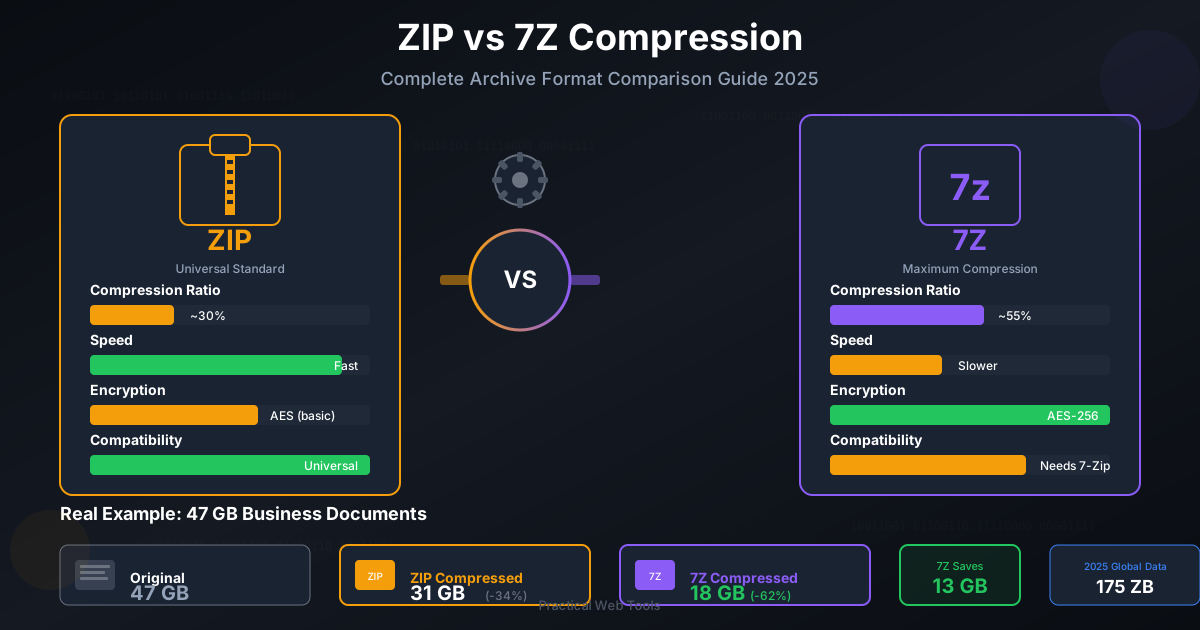
To truly understand why you're converting, it helps to know the key differences between these two dominant archive formats. While they serve a similar purpose, their underlying technology and features set them apart.
Here's a breakdown of the key comparison points:
| Feature | RAR | ZIP |
|---|---|---|
| Compatibility | Requires third-party software | Natively supported on Windows, macOS, Linux |
| Compression Ratio | Generally higher (especially RAR5) | Very good, but often slightly less than RAR |
| Licensing | Proprietary | Open Standard |
| Error Recovery | Excellent (Recovery Record feature) | Limited/None |
| Encryption | AES-256 (strong) | AES-256 (in modern versions), less secure legacy options |
| Creation Speed | Slower | Faster |
| Multi-part Archives | Integrated, robust system (.part1.rar) |
Can be done, but often relies on external tools (.z01, .z02) |
Key Differentiators Explained
-
Compression Ratio: RAR often achieves a slightly better compression ratio, meaning it can create smaller files than ZIP. This is due to its more advanced compression algorithm. However, for most everyday uses, the size difference is negligible and not worth the trade-off in compatibility.
-
Error Recovery: This is one of RAR's standout features. You can add a "recovery record" to a RAR archive. If the archive gets damaged (e.g., due to a bad download or failing storage media), this recovery data can be used to repair the file and recover its contents. ZIP does not have a comparable, robust feature.
-
Proprietary vs. Open Standard: As mentioned, this is the core reason for ZIP's universal acceptance. The open nature of ZIP has allowed it to be baked into operating systems and thousands of applications for decades.
How to Convert RAR to ZIP: Step-by-Step Methods
It's important to understand that you can't directly convert a RAR archive into a ZIP archive in one single step. The process always involves two key phases:
- Decompressing the source RAR file to extract its contents.
- Compressing those extracted contents into a new ZIP file.
Here’s how to do it using easy, accessible tools.
The Best Method: Using Online Decompress/Compress Tools
For most users, the quickest and easiest method is to use a set of online tools that run right in your browser. This avoids software installation and works on any operating system. We recommend a privacy-focused approach where your files are processed locally on your computer.
Step 1: Decompress the RAR File Online
First, you need to get the files out of the RAR container. Our online tool is perfect for this, as it handles the process securely in your browser.
- Navigate to Practical Web Tools' Decompress Files tool.
- Click the "Choose File" button and select the
.rarfile from your computer. - The tool will automatically start decompressing the archive. Since the process runs in your browser, your files are never uploaded to a server, ensuring your privacy.
- Once finished, you will see a list of the extracted files. Click the "Download" button to save them to your computer, usually in a folder.
Step 2: Compress the Extracted Files into a ZIP Archive
Now that you have the raw files, you can bundle them into a new ZIP archive.
- Go to Practical Web Tools' Compress Files tool.
- Click the "Choose Files" or "Choose Folder" button and select all the files and folders you just extracted from the RAR archive.
- The tool will begin compressing them into a ZIP file, again, right in your browser.
- When the process is complete, a download button will appear. Click it to save your newly created
.zipfile.
That's it! You've successfully and securely converted your RAR archive to a universally compatible ZIP file.
Alternative Method: Using Desktop Software
If you prefer to use desktop software or need to handle very large files, applications like 7-Zip (for Windows) or The Unarchiver (for macOS) are excellent free options.
On Windows (using 7-Zip):
- Install 7-Zip: Download and install it from the official website.
- Extract the RAR: Right-click your
.rarfile, hover over the "7-Zip" context menu, and select "Extract to [folder name]". This will create a new folder with all the extracted contents. - Create the ZIP: Select all the extracted files and folders, right-click, hover over "Send to," and choose "Compressed (zipped) folder." Windows will create a new ZIP file for you.
On macOS (using The Unarchiver):
- Install The Unarchiver: Get it for free from the Mac App Store.
- Extract the RAR: Simply double-click the
.rarfile. The Unarchiver will automatically extract its contents into a folder in the same location. - Create the ZIP: Select all the extracted files and folders, right-click, and choose "Compress [X] items." macOS will create a
.ziparchive named "Archive.zip".
Common Pitfalls and Troubleshooting
Sometimes the conversion process can hit a snag. Here are some common issues and how to resolve them.
Password-Protected RAR Files
If the original RAR file is encrypted with a password, you will need to provide that password during the decompression step. No tool can bypass this security feature. If you're using an online decompressor, it should prompt you for the password. If you don't have the password, you cannot proceed with the conversion.
Corrupted RAR Archives
If you receive an error about a corrupted file, the source RAR archive may be damaged. If it was created with a recovery record, you might be able to repair it using WinRAR (on its "Tools" menu) before attempting the conversion again.
Multi-Part RAR Archives
Sometimes large archives are split into multiple smaller files (e.g., archive.part1.rar, archive.part2.rar, etc.). To extract a multi-part archive:
- Ensure all parts are in the same folder.
- Start the extraction process on the first file (usually the one ending in
.raror.part1.rar). - The decompression software will automatically find and process the subsequent parts to reconstruct the full contents.
Beyond RAR and ZIP: Exploring Other Archive Formats
While RAR and ZIP are the most common, the world of file archives includes other useful formats, each with its own strengths.
- 7Z (.7z): The native format of 7-Zip. It's known for its extremely high compression ratios, thanks to its powerful LZMA and LZMA2 algorithms. It's a great choice when you need to make files as small as possible.
- TAR (.tar): Short for Tape Archive, TAR doesn't compress files. Instead, its sole purpose is to bundle multiple files and folders into a single file (a "tarball"). It's often used in combination with a compression tool like Gzip.
- GZ (.gz): Gzip is a compression tool that is designed to compress a single file. You'll often see files like
archive.tar.gz, which means a TAR bundle was first created and then compressed with Gzip.
Understanding these formats can be useful in different environments, especially when working with Linux or macOS systems. If you're already working with archives and need to switch between formats, having the right tools is key. For example, converting from a modern format back to the widely compatible ZIP is a common task, and you can easily convert 7Z to ZIP when compatibility is your top priority.
Conclusion
While RAR is a capable format with powerful features like error recovery, its proprietary nature makes it less ideal for broad-based file sharing. The ZIP format, with its open standard and universal native support across all major operating systems, remains the undisputed king of compatibility.
Converting from RAR to ZIP is a simple two-step process: decompress the RAR, then re-compress the contents into a new ZIP. This ensures anyone, anywhere, can access your files without hassle.
Ready to manage your archive files with ease? Try our free, secure, and privacy-focused tools today. Get started by extracting your first file with the Decompress Files tool, and then create your universally compatible archive with our Compress Files tool. No installation, no fuss, just simple file management.