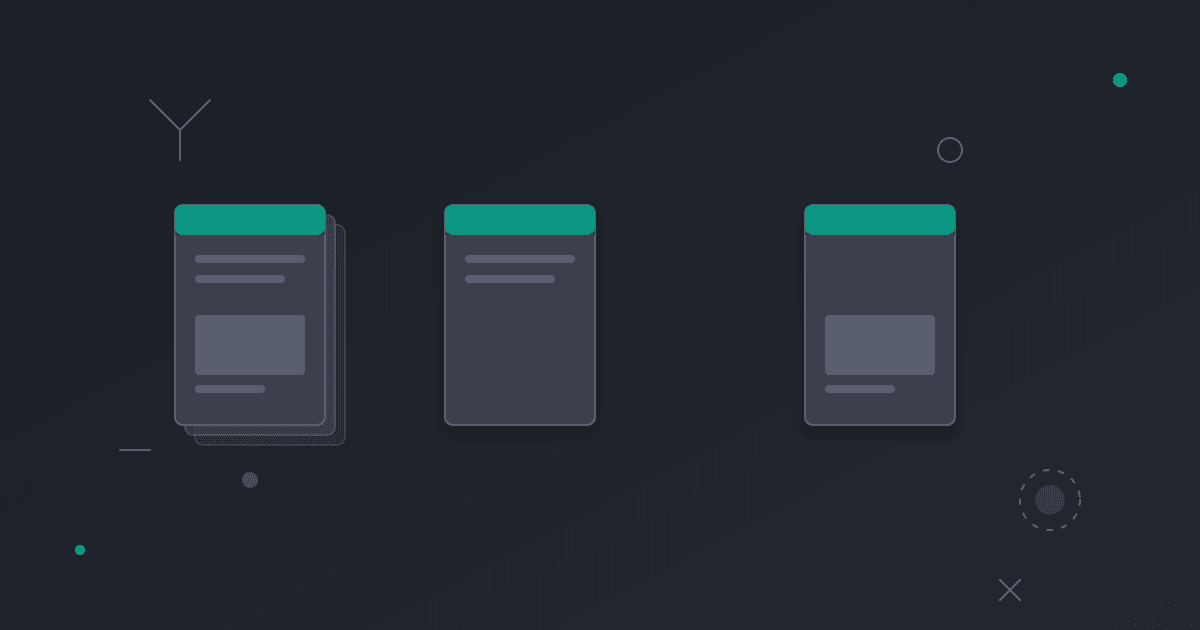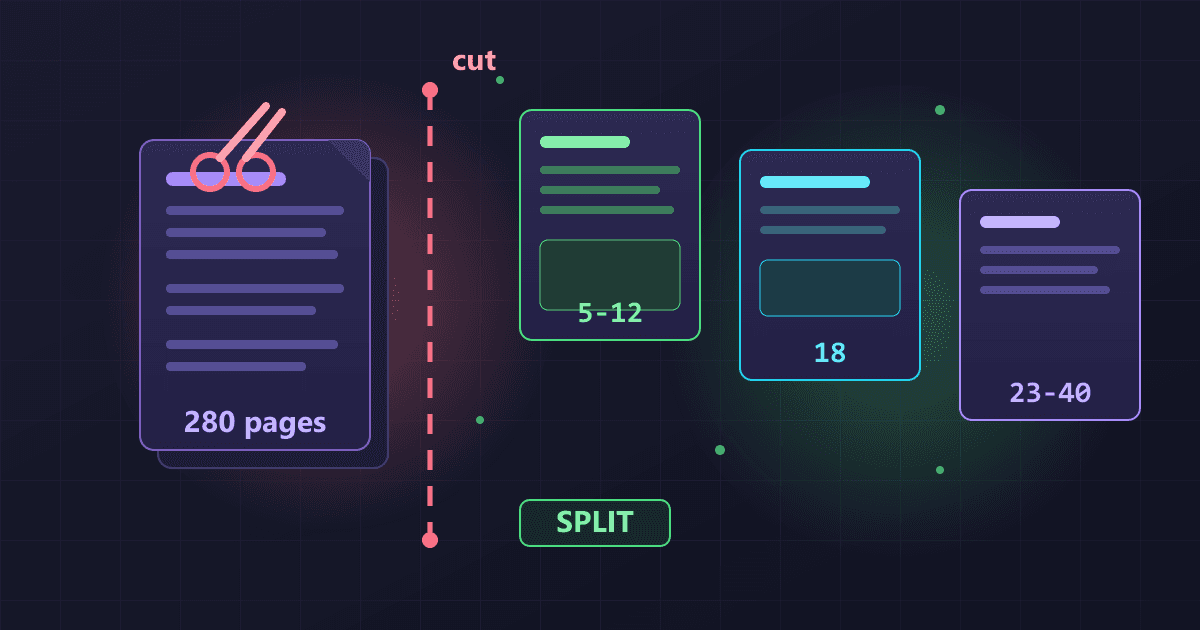
To split a PDF file, upload it to a splitter tool and select which pages to extract into a new document. You can extract specific pages (like pages 5, 12, and 18), page ranges (pages 10-20), or split at regular intervals (every 10 pages). Quality splitting preserves the exact content of extracted pages without any degradation. The process takes 5-20 seconds, and browser-based tools process everything locally so your files never leave your device.
Last summer, I needed page 37 from a 280-page technical manual. That single page contained the wiring diagram I needed for a repair. Downloading the entire 45 MB manual on my phone's limited data plan just to access one page seemed ridiculous, but I had no choice—the manual only existed as a complete document.
Try Extract PDF Pages — free, no sign-up, and it runs entirely in your browser.
That frustration sparked a realization: massive PDFs waste time, bandwidth, and patience when you only need specific sections. Whether you're extracting a few relevant pages, dividing a document into logical sections, or separating a batch-scanned file into individual documents, PDF splitting transforms unwieldy files into focused, manageable pieces.
Why Should I Split PDF Files Instead of Sharing Complete Documents?
Before my phone-data-plan incident, I rarely thought about PDF splitting. Now I split files several times weekly for situations where smaller, focused documents work better than monolithic files.
How Does Splitting PDFs Help with Email Size Limits?
I was trying to send a client a section from a comprehensive project report. The full report was 38 MB—well over most email attachment limits. I only needed to send 8 pages covering the specific analysis section relevant to their question.
Splitting those 8 pages into a separate PDF created a 1.2 MB file that emailed instantly. The client got exactly what they needed without downloading an enormous file or struggling with cloud storage links.
A real estate agent I know faces this constantly. Property disclosure packages sometimes reach 50-80 pages, but individual clients often only need specific sections: inspection reports, title information, or HOA documents. She splits comprehensive packages into focused sections, sending clients only relevant pages.
How Does PDF Splitting Support Compliance Requirements?
A healthcare provider needed to share specific test results with a specialist for consultation. The patient's complete medical record was 180 pages, but only 4 pages of recent lab work were relevant to the consultation.
Sending the entire record would violate HIPAA by oversharing protected health information beyond what was necessary for treatment. Extracting just the relevant lab pages created a focused document that satisfied both medical needs and regulatory requirements.
This scenario repeats across regulated industries: attorneys extracting specific exhibits from case files, accountants providing particular schedules from comprehensive audits, HR departments sharing individual performance reviews from complete employee files.
How Do I Separate Batch-Scanned Documents?
A small business scanned two months of incoming mail in one session—invoices, contracts, correspondence, marketing materials, everything mixed together in one 300-page PDF. Now they needed to route different documents to different departments.
Splitting that massive batch into individual documents was tedious but essential. Invoices went to accounting, contracts to legal, HR materials to human resources. Without splitting, everyone would have needed access to the complete 300-page file to find their relevant 2-3 page section.
What Actually Happens When I Split a PDF?
Most people think PDF splitting is straightforward: just break apart the pages. Reality involves nuance that affects quality and efficiency.
Does Splitting PDFs Reduce Quality?
No. Quality PDF splitting extracts pages without any recompression or quality degradation. The extracted pages are byte-for-byte identical to those same pages in the original document—same text clarity, same image quality, same vector graphics, same everything.
I tested this last week by splitting a 100-page document into ten 10-page sections, then comparing extracted pages to the original. Pixel-perfect matching across every page. Text remained fully selectable and searchable. Image quality was identical. That's true splitting—extraction without alteration.
Some poorly-designed tools actually render each page as an image, then create a new PDF from those images. This destroys text searchability, degrades quality slightly, and creates unnecessarily large files. Always verify your splitting tool preserves original quality rather than re-rendering content.
What Page Selection Options Are Available?
When you split a PDF, you define which pages go into which output files. This flexibility enables several splitting strategies:
Extract specific pages: Pull pages 7, 12, and 23 into a new file containing just those three pages. Perfect for creating focused excerpts.
Split by range: Divide a document into sections—pages 1-25 in one file, 26-50 in another, 51-75 in a third. Useful for breaking large documents into manageable chunks.
Split every N pages: Automatically create a new file every 10 pages (or any interval). Helpful for batch-scanned documents where each segment represents one logical document.
Split into individual pages: Extract every page as its own separate file. Creates as many files as the original has pages.
How Does File Size Relate to Splitting?
A 10 MB PDF split in half creates two roughly 5 MB files. Extract 10% of pages, and the extracted file is approximately 10% of the original size. PDF splitting doesn't compress or optimize—it proportionally divides content.
This proportionality helps estimate file sizes before splitting. If you need to extract 30 pages from a 300-page, 45 MB document, expect the extracted file to be around 4.5 MB—making it easily email-able when the original wasn't.
How Do I Split PDF Files Step by Step?
After splitting thousands of documents, I've developed a systematic approach that prevents errors and produces clean results.
Step 1: How Do I Identify Which Pages I Need?
Before splitting anything, identify precisely which pages you need and why. This clarity prevents extracting the wrong sections and needing to repeat the process.
For documents with a table of contents, note page numbers for specific sections. For documents without one, skim through and record page numbers of relevant content. Five minutes of planning prevents frustrating extraction mistakes.
I learned this the hard way after extracting what I thought were the financial pages from a report, only to discover I'd missed two critical tables on pages I'd skipped.
Step 2: What Splitting Strategy Should I Use?
Based on what you need, choose the appropriate splitting approach:
For specific content: Extract exact pages containing what you need. If you need the executive summary and recommendations from a report, extract pages 2-5 and 78-82, creating a focused 10-page document.
For size reduction: Split large files into smaller sections that fit email limits or load faster. A 60 MB document becomes three 20 MB sections.
For separation: Divide batch-scanned documents where pages 1-5 are one item, 6-11 are another, 12-15 are a third.
For distribution: Split chapters or sections for different recipients. Chapter 1 to the marketing team, Chapter 2 to sales, Chapter 3 to engineering.
Step 3: How Do I Use the PDF Split Tool?
Navigate to our PDF Split Tool and upload your file. The critical advantage: your document never leaves your computer. Everything processes in your browser using WebAssembly technology.
This matters for confidential documents. I work with attorneys, accountants, and healthcare providers who cannot upload sensitive files to external servers. Browser-based processing solves this completely—their client files, medical records, and financial documents stay entirely under their control.
Drag and drop your PDF onto the splitter, or click to browse and select it. The tool loads your file into browser memory without any network transmission.
Step 4: How Do I Select Pages to Extract?
The splitter displays page thumbnails or lets you specify page numbers. Select pages using the method that matches your needs:
Visual selection: Click thumbnails of pages you want. Perfect when you recognize pages visually but don't know exact page numbers.
Range entry: Type page ranges like "5-12, 18, 23-30" to precisely specify pages. Efficient when you know exact numbers from a table of contents.
Interval selection: Choose "split every 10 pages" for batch documents with regular structure.
Always verify your selection before actually splitting. Most tools show how many pages you've selected.
Step 5: How Do I Download and Verify Split Files?
Click the split button to extract selected pages. Processing happens in your browser, typically completing in 5-20 seconds.
Download your extracted file and immediately verify:
- All intended pages are present
- No unintended pages were included
- Content displays correctly
- File size is reasonable
- Quality matches the original
I open every split file and do a quick scroll-through. This catches any problems while I still have context fresh and can easily re-split if needed.
What Are Common PDF Splitting Scenarios?
These actual situations show practical PDF splitting applications.
How Do I Extract Contract Exhibits for Different Parties?
A legal team was negotiating a contract with seventeen exhibits—technical specifications, financial schedules, compliance certifications, insurance documents. The complete contract package was 127 pages.
Different parties needed access to different exhibits. Engineering needed technical specs but shouldn't see financial terms. Finance needed pricing schedules but not technical details.
We split the master contract into the base agreement plus seventeen separate exhibit files. Each party received the base agreement plus only their relevant exhibits.
How Do I Reorganize Training Manuals by Topic?
A company had a comprehensive 240-page employee training manual covering everything from onboarding procedures to advanced technical skills. New employees found it overwhelming.
We split the manual by topic:
- New Hire Orientation (pages 1-35): Company culture, policies, benefits
- Basic Systems Training (pages 36-82): Email, phones, internal tools
- Department-Specific Skills (pages 83-156): Role-specific procedures
- Advanced Topics (pages 157-215): Optional advanced training
- Reference Materials (pages 216-240): Policies, contacts, resources
Training completion rates increased from 61% to 88%, and feedback specifically mentioned that smaller, focused documents felt less daunting.
How Do I Distribute Report Sections to Different Teams?
A research firm produces comprehensive industry reports—often 150-200 pages. Different clients have different interests.
Rather than forcing everyone to download complete reports, the firm now splits reports into logical sections:
- Executive Summary (always separate for quick evaluation)
- Market Analysis
- Competitive Landscape
- Technology Trends
- Regulatory Environment
- Financial Projections
- Appendices and Methodology
Clients can access specific sections relevant to their needs.
How Do I Process Batch-Scanned Invoices?
An accounting department scanned incoming invoices weekly—typically 50-80 invoices per batch, creating PDFs of 150-240 pages. These batches needed to be split into individual invoice files for processing.
We implemented an efficient splitting workflow:
- Scan invoices with separator sheets every 10 invoices
- Split the batch into 10-invoice chunks based on separator pages
- Review each chunk and split into individual invoices
- Name files based on invoice numbers
This reduced weekly processing time from approximately 6 hours to under 2 hours.
What Problems Can Occur When Splitting PDFs?
Not every split is straightforward. Understanding common challenges helps you work efficiently.
Why Do Page Numbers in PDFs Sometimes Differ from Displayed Page Numbers?
Many documents have printed page numbers that don't match PDF page numbers. A report might start with 10 pages of front matter (cover, title page, table of contents), then page "1" of actual content is PDF page 11.
When someone says "extract pages 25-30," do they mean PDF pages 25-30, or printed pages 25-30 (which might be PDF pages 35-40)? Always clarify whether page references mean PDF pages or printed pages.
How Do I Split Very Large PDF Documents?
Splitting a 20-page PDF processes nearly instantly. Splitting a 1000-page PDF takes considerably longer—potentially minutes depending on file complexity.
For massive documents, break the task into smaller operations. Instead of trying to extract 50 specific pages from a 1000-page document in one operation, first split the document into 100-page sections, then extract specific pages from those more manageable sections.
Can I Split Password-Protected PDFs?
PDFs with open passwords (required to view) can't be split until you unlock them. If you have the password, unlock the file first, then split. If you don't have the password, you can't access content—which means you can't split it.
Permission-restricted PDFs (allowing viewing but blocking other actions) sometimes split successfully, though results vary by the specific restrictions applied.
Why Does Privacy Matter When Splitting PDFs?
Splitting PDFs often involves sensitive documents. Where your files go during the splitting process is a real security consideration.
What Privacy Risks Do Cloud-Based Splitters Create?
Most online splitters work by uploading your PDF to external servers, splitting it remotely, then sending back results. During this process:
Your complete document exists on their systems: Before splitting, your entire file—including pages you don't even want to extract—sits on external servers.
Your sensitive pages get processed externally: The specific pages you extract travel across the internet and through third-party systems.
You're trusting their security: Their server security, employee access, data retention policies—all must be perfect for your confidential information to stay confidential.
I spoke with an HR director who uploaded personnel files to a splitting service to extract specific termination documentation. Weeks later, she discovered that service had been breached, potentially exposing complete personnel records.
How Does Browser-Based Splitting Protect My Documents?
When splitting happens entirely in your browser:
No upload occurs: Your file stays on your device throughout the entire splitting process.
No external processing: Pages are extracted locally on your hardware using your resources.
No trust required: You don't need to trust anyone's security because they never access your data.
Compliance simplified: HIPAA, attorney-client privilege, financial data protection—all become simpler when documents never leave controlled systems.
For our PDF Split Tool, everything happens in your browser using WebAssembly technology. From upload to download, your files remain on your computer.
Frequently Asked Questions
Does splitting a PDF reduce quality or resolution?
No. Quality PDF splitting extracts pages without recompressing or altering content. Pages in split files maintain exactly the same quality as in the original document—same text clarity, same image resolution, same vector graphics. The split files are essentially perfect copies of those specific pages from the source document.
Can I split password-protected PDFs?
PDFs with open passwords (required to view) must be unlocked before splitting. If you have the password, unlock the file first using a PDF unlock tool, then split the unprotected version. PDFs with only permission restrictions (allowing viewing but blocking other actions) can often be split, depending on the specific restrictions.
How do I split specific pages versus page ranges?
Most splitting tools offer multiple selection methods. You can typically: enter specific page numbers ("5, 12, 18" extracts just those three pages), specify ranges ("10-20, 35-40" extracts pages 10 through 20 and 35 through 40), or combine both ("5, 12-18, 25" extracts page 5, pages 12-18, and page 25).
Can I recombine split PDF files later?
Yes, using our PDF Merge Tool. Upload your split files in the desired order and merge them into a single document. You can recombine pages exactly as they were or create new arrangements mixing pages from different sources.
Do my files get uploaded to a server when splitting?
Not with our tool. Our PDF Split Tool processes everything locally in your browser using WebAssembly technology. Your files never leave your device. You can verify this by monitoring network traffic during the process.
How long does it take to split a PDF?
Most splits complete in 5-20 seconds. Simple extractions from small files take under 10 seconds. Splitting hundreds of pages from large documents may take 30-60 seconds. Processing happens locally, so speed depends on your device's performance.
What happens to bookmarks and links when splitting PDFs?
Internal bookmarks and links pointing to pages included in the split are typically preserved, with destinations updated to reflect new page positions. Links to pages not included in the split may break since those destinations no longer exist in the extracted file.
Is there a page limit for splitting PDFs?
Our tool handles PDFs with hundreds of pages. Practical limits depend on file size and your computer's memory rather than page count. I regularly split 200-300 page documents without issues.
Complementary Tools for Complete Workflows
PDF splitting often works best as part of a larger document workflow:
Merge PDF Files: Recombine split files or create new documents from multiple split sources
PDF to Image: Convert split sections to images for presentations or web publishing
PDF to Word: Edit specific sections after splitting them out
PDF to Text: Extract text from split sections for analysis or repurposing
Sign PDF: Add signatures to sensitive split files for authentication before distribution
Split PDF files privately in your browser. No uploads, no registration, no cost. Your documents stay on your device.