Custom Sports Score Tracker: Your 2026 Guide (Free Tools)

You check your phone for the latest sports scores. You're bombarded with banner ads, autoplay videos, and endless stats for teams you don't even follow. You just want to see how your favorite team did, track your fantasy league's nail-biting finish, or see if your weekend bets paid off. The constant noise of modern sports apps can be overwhelming. What if you could cut through it all and create a personalized dashboard for exactly what you care about?
Welcome to the ultimate guide for creating and sharing your own custom sports tracker. Forget generic apps and websites that decide what's important. We'll show you how to build a powerful, personalized tracker using a simple spreadsheet—for free. More importantly, we'll teach you how to convert it into a sleek PDF or a shareable image, perfect for sending to friends, posting on social media, or keeping your betting league updated. This is your playbook for taking control of how you follow sports scores today and beyond.
Why Bother with a Custom Sports Tracker?
In a world of a thousand sports apps, building your own might seem like extra work. But the benefits of a personalized system are immense, giving you a level of control and clarity that no off-the-shelf app can match.
- Total Personalization: Track only what matters to you. Follow your favorite NFL team's weekly performance, monitor specific player stats for your fantasy basketball league, or maintain a detailed log of your Premier League bets. No more sifting through irrelevant information.
- Complete Control & Privacy: Your tracker is your data. There are no ads, no selling of your information, and no algorithms pushing content you don't want. It's a clean, private space for your sports passion.
- Unbeatable Clarity: By designing the layout yourself, you can visualize the data in a way that makes the most sense to you. Use colors, charts, and simple formulas to see your wins, losses, and trends at a glance.
- Cost-Effective: The best tools for this job—Google Sheets, LibreOffice Calc—are completely free. You get a premium, customized experience without spending a dime.
- Easy to Share: A custom tracker isn't just for you. It's the perfect way to run a league with friends, share your weekly picks, or prove your betting prowess. We'll show you exactly how to make sharing simple and professional.
The Foundation: Building Your Tracker in a Spreadsheet
A spreadsheet is the perfect canvas for your sports tracker. It's flexible, powerful, and universally accessible. We'll focus on Google Sheets for its free access and cloud-based collaboration features, but the same principles apply to Microsoft Excel and LibreOffice Calc.
Step 1: Define Your Purpose
Before you type a single word, ask yourself: What is the primary goal of this tracker?
- Simple Score Tracking: Are you just tracking the win/loss record of a few favorite teams?
- Betting Ledger: Do you need to log your wagers, stakes, odds, and calculate profit/loss?
- Fantasy Sports Dashboard: Are you tracking specific player stats like points, rebounds, assists, or touchdowns?
- League Standings: Are you running an office pool or a picks league with friends?
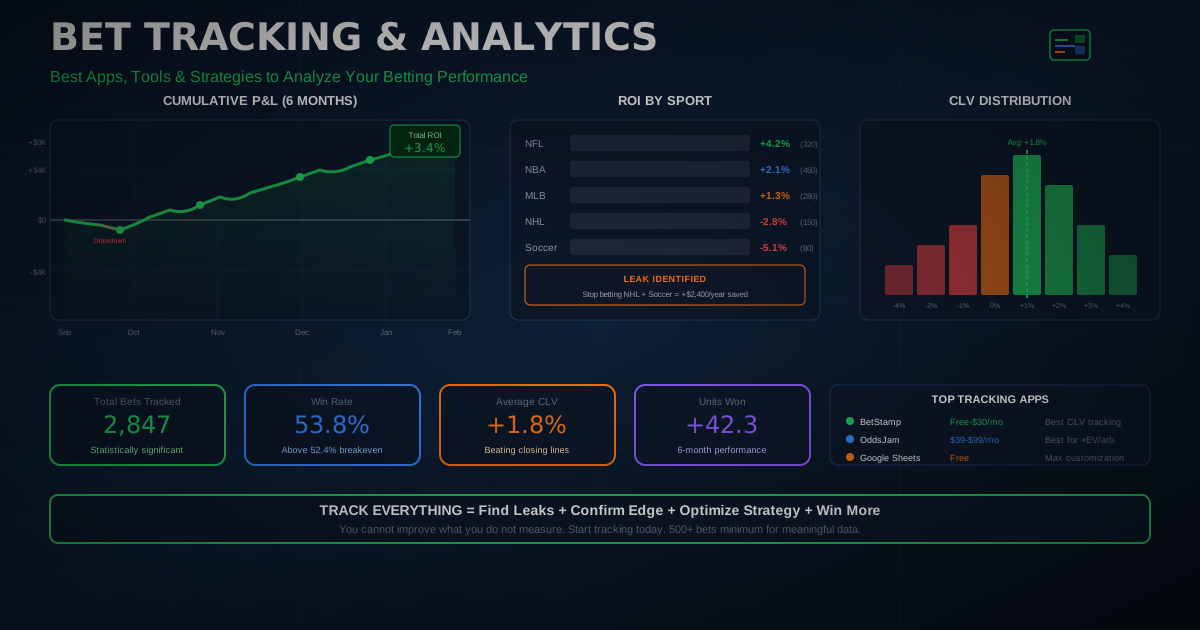
The answer will determine the columns and formulas you need. For this tutorial, let's build a versatile Sports Betting Tracker.
Step 2: Set Up Your Columns (The Blueprint)
Open a new Google Sheet and create your headers. A robust betting tracker should include the following columns. This structure provides all the data you need to analyze your performance.
| Date | Sport | Game/Event | Bet Type | Stake ($) | Odds (American) | Result | Payout ($) | Profit/Loss ($) |
|---|---|---|---|---|---|---|---|---|
- Date: When the bet was placed or the game occurred.
- Sport: NFL, NBA, MLB, etc.
- Game/Event: e.g., "Chiefs vs. Ravens"
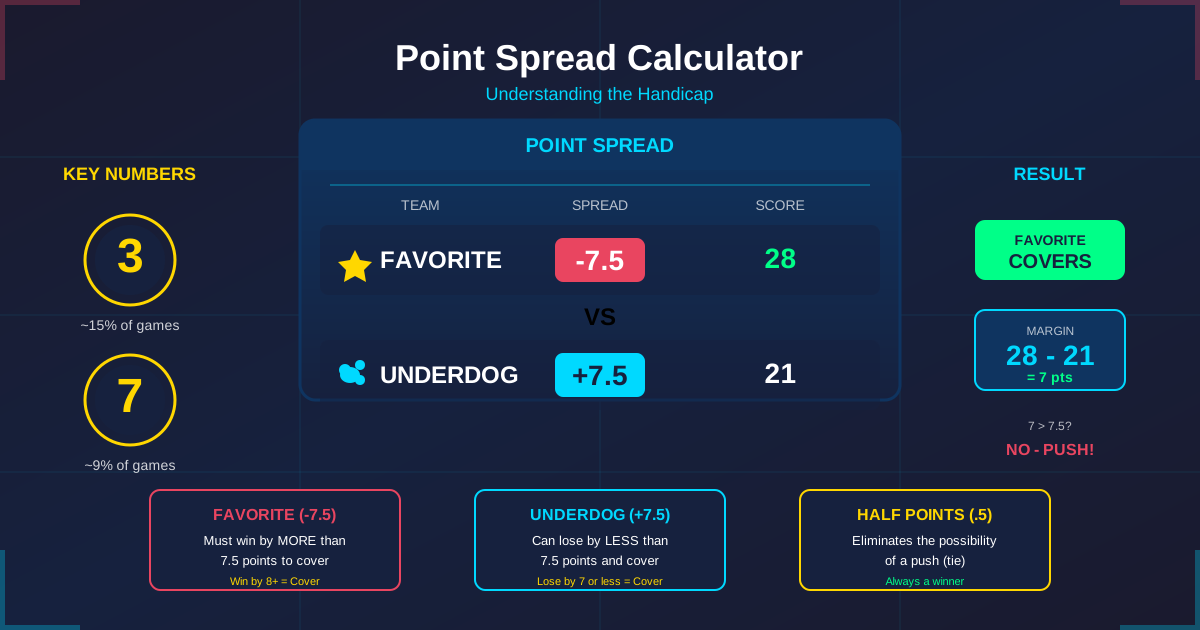
- Bet Type: Moneyline, Spread (-7.5), Over/Under (48.5), etc.
- Stake: The amount of money you wagered.
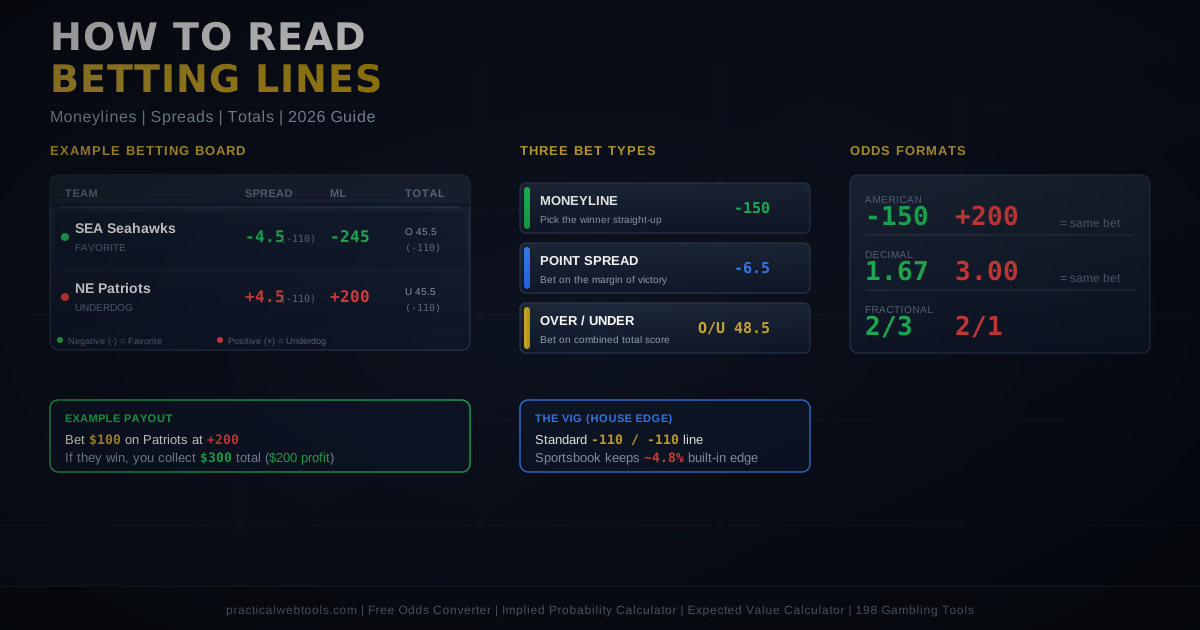
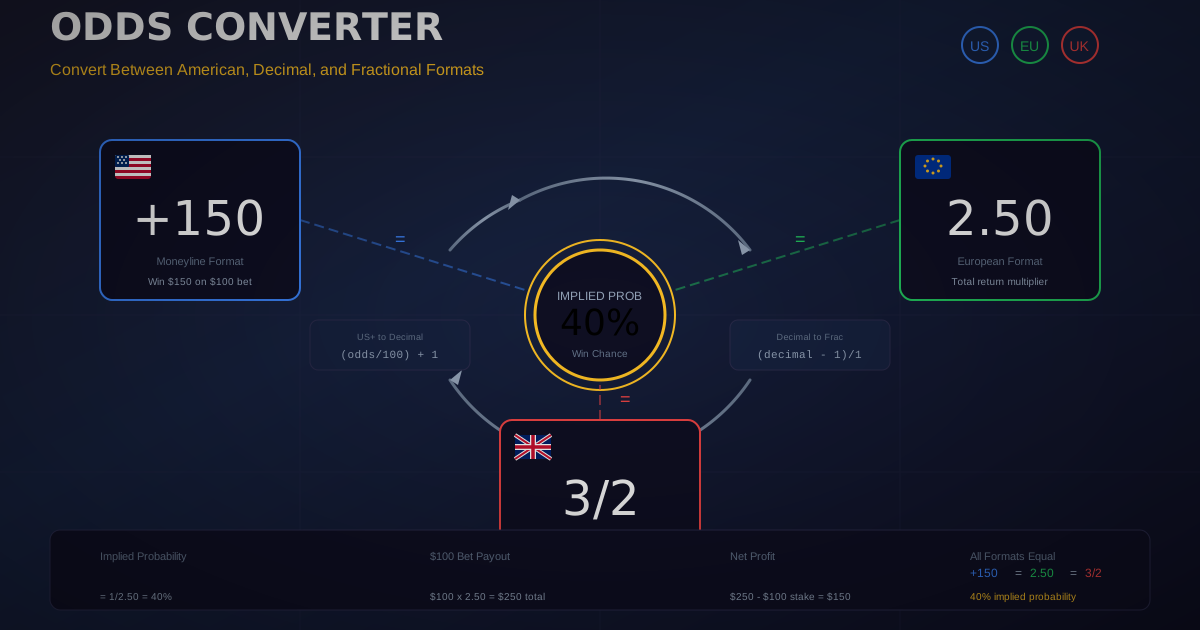
- Odds: The odds you got for the bet (e.g., -110, +150).
- Result: A simple field you'll update: Win, Loss, or Push.
- Payout: The total amount returned to you on a win (stake + profit).
- Profit/Loss: The net financial outcome of the bet.
Step 3: Add Formulas for Automation (The Magic)
This is where your tracker comes to life. Instead of manually calculating everything, let the spreadsheet do the heavy lifting. Click on the first empty cell under the header and enter the following formulas.
For the 'Profit/Loss' Column (Cell I2):
This is the most important formula. It calculates your profit for a win, your loss for a losing bet, and shows zero for a push. It's a nested IF statement that checks the 'Result' column (G2).
=IF(G2="Win", IF(F2>0, (H2/100)*E2, (100/ABS(F2))*E2), IF(G2="Loss", -E2, 0))
- How it works: It checks if the result in G2 is "Win". If it is, it calculates the profit based on whether the odds are positive or negative. If the result is "Loss", it simply returns the negative value of your stake (E2). If it's anything else (like "Push"), it returns 0.
For the 'Payout' Column (Cell H2): This formula calculates the total returned to you if you win.
=IF(G2="Win", E2+I2, 0)
- How it works: If you win, it adds your initial Stake (E2) to your Profit (I2). Otherwise, it shows 0.
To Track Your Totals:
Find a clean spot on your sheet (maybe at the top or bottom) and create labels like "Total Wagered" and "Total Profit/Loss". Use the SUM formula to get a running total.
- Total Wagered:
=SUM(E:E)(This sums up everything in the Stake column) - Total Profit/Loss:
=SUM(I:I)(This sums up everything in the Profit/Loss column)
Step 4: Use Conditional Formatting for Visual Cues
Make your tracker easy to read at a glance. Conditional formatting changes a cell's color based on its value.
- Select the entire 'Profit/Loss' column (click the 'I' at the top).
- Go to
Format > Conditional formatting. - Create two rules for the range
I2:I1000:- Rule 1: If
Cell value is > 0, set the background color to light green. - Rule 2: If
Cell value is < 0, set the background color to light red.
- Rule 1: If
Now, your wins and losses will be instantly recognizable.
From Your Screen to Theirs: How to Share Your Tracker
Your masterpiece is complete. Now it's time to share it. Whether you're sending weekly league results or posting a winning bet slip, presenting it correctly is key. Here are the best methods using free tools.
Method 1: The Professional PDF
A PDF is the perfect format for sharing a clean, uneditable, and professional-looking version of your tracker. It's ideal for official league updates or weekly summaries.
How to Create a PDF:
- Clean Up Your Sheet: Hide any messy notes or scratch columns. Go to
View > Showand uncheckGridlinesfor a cleaner look. - Go to Export: In Google Sheets, navigate to
File > Download > PDF document (.pdf). - Adjust Export Settings: A settings menu will appear. Pay attention to:
- Paper size:
LetterorFit to widthusually works best. - Page orientation:
Landscapeis often better for wide spreadsheets. - Formatting: Ensure your "Conditional formatting" rules are displayed correctly.
- Paper size:
- Export and Save: Click the "Export" button, and your browser will download the PDF file.
Pro Tip for Sharing Multiple Reports: Let's say you generate a PDF report every week for your fantasy league. Instead of emailing a dozen separate files at the end of the season, you can bundle them together. This is where a file archiver shines. You can easily combine all your PDFs into a single ZIP file.
For a fast, browser-based solution, use our free tool to Compress Files. Just drag and drop your PDFs, and it will create a tidy ZIP archive, making it much easier to email or share.
Method 2: The Instant Image (Screenshot)
Sometimes you just want to quickly share your results on social media, Discord, or a WhatsApp group. A screenshot is the fastest way to do this.
How to Take a Clean Screenshot:
- On Windows: Use the Snipping Tool (search for it in the Start Menu) or press
Windows Key + Shift + Sto select a specific area of your screen to capture. - On Mac: Press
Command + Shift + 4. Your cursor will turn into a crosshair, allowing you to click and drag to select the exact part of your tracker you want to share.
Best Practices for Screenshots:
- Frame it well: Only capture the relevant data. Don't include your entire desktop or other browser tabs.
- Zoom in first: Before taking the screenshot, zoom in on your spreadsheet so the text and numbers are large and easy to read on a mobile device.
- Use borders: Add borders around your cells in the spreadsheet to make the data look clean and contained in the final image.
Method 3: The Collaborative Live Sheet
If you're running a league where multiple people need to input their own picks or data, sharing the live Google Sheet is the way to go.
- Click the blue "Share" button in the top-right corner of Google Sheets.
- Under "General access," change it from "Restricted" to "Anyone with the link."
- To the right, choose the permission level:
- Viewer: People can see the sheet but cannot change anything.
- Commenter: People can view and leave comments but cannot edit cells.
- Editor: People have full permission to edit the sheet. Use this with caution!
- Copy the link and share it with your group.
If a friend sends you a tracker in a compressed format you're not familiar with, like a .7Z or .TAR file, don't worry. You can use a free online converter to get it into a more common format. If you receive an archived file, you might first need to Decompress Files to access the spreadsheet inside.
Conclusion: You Are the Sports Analyst
You no longer need to rely on bloated apps to track the sports you love. With a simple, powerful spreadsheet, you've built a personalized, automated, and visually appealing sports tracker that does exactly what you need it to. You've learned how to bring it to life with formulas and formatting, and more importantly, how to share it with the world as a professional PDF or a quick, eye-catching image.
This is more than just tracking sports scores today; it's about creating a personalized hub for your passion. So go ahead, start building your tracker, and take your sports-following experience to the next level.
Ready to start sharing your new creations? Explore the full suite of file management tools on Practical Web Tools to compress, convert, and manage all your files with ease and privacy.